We sacrifice by not doing any other technology, so that you get the best of Magento.

We sacrifice by not doing any other technology, so that you get the best of Magento.

    Magento 1.x Resolve error on PHP 7

    Magento 1.9.3 doesn’t run with PHP 7, it will show error like below:

    Fatal error: Uncaught Error: Function name must be a string in 
    appcodecoreMageCoreModelLayout.php

    Find the below line in app/code/core/Mage/Core/Model/Layout.php file (line: 555)

    $out .= $this->getBlock($callback[0])->$callback[1]();

    And Replace it with below line:

    $out .= $this->getBlock($callback[0])->{$callback[1]}();

    Magento 2 Create admin user using command

    You can create a new admin user through command by using below command.

    The admin:user:create command is used to create new admin user.

    php bin/magento admin:user:create --admin-user='your-new-username' --admin-password='new-username-password' --admin-email='new-user-email' --admin-firstname='newuser-firstname' --admin-lastname='newuser-lastname'

    You will give Response like below,
    Created Magento administrator user named your-new-username with green line.

    How to display types of messages using ManagerInterface Magento 2

    Magento 2 use show Success and Error Message Using Interface MagentoFrameworkMessageManagerInterface.

    You can set success message Using addSuccessMessage( ) and set error message using addErrorMessage( )function.

    You can directly fetch Object of MagentoFrameworkMessageManagerInterface in controller file but for other files like Plugin, Observer, Model, Block or Helper; you need to instantiate an object in your __construct( ) method.

     public function __construct(
        MagentoFrameworkMessageManagerInterface $messageManager
    ) {
        $this->messageManager = $messageManager;
    }

    Now you can set messages like below:

    $yourMessage = __('Your Error Message');
    $this->messageManager->addErrorMessage($message);
    $yourMessage = __('Your Warning Message');
    $this->messageManager->addWarningMessage($message);
    $yourMessage = __('Your Notice Message');
    $this->messageManager->addNoticeMessage($message);


    How to get CMS Block Collection in Magento 2

    You can get all the CMS Static Blocks collection in Magento 2 by using interface, MagentoCmsApiBlockRepositoryInterface.

    MagentoCmsApiBlockRepositoryInterface is used for getting CMS Static Blocks related data in Magento 2.

    You need to instantiate MagentoCmsApiBlockRepositoryInterface in __construct() method of Class

    <?php
    namespace VendorNameModuleNameBlock;
    
    class Filename extends MagentoFrameworkViewElementTemplate
    {
        public function __construct(
            MagentoFrameworkViewElementTemplateContext $context,
            MagentoCmsApiBlockRepositoryInterface $blockRepository,
            MagentoFrameworkApiSearchCriteriaBuilder $searchCriteriaBuilder,
            array $data = []
        ) {
            $this->blockRepository = $blockRepository;
            $this->searchCriteriaBuilder = $searchCriteriaBuilder;
            parent::__construct($context, $data);
        }
    
      	/* Get Cms Blocks Collection from store. */
        public function getCmsBlock() {
            $searchCriteria = $this->searchCriteriaBuilder->create();
            $cmsBlocks = $this->blockRepository->getList($searchCriteria)->getItems();
            return $cmsBlocks;
        }

    From Template file, you can access all the Static Blocks by iterating over a loop on a collection.

    <?php
    	$cmsBlocks = $block->getCmsBlock();
    	foreach($cmsBlocks as $cmsBlock) {
    	    echo $cmsBlock->getId(); // get Id
    	    echo $cmsBlock->getTitle(); // get Title of CMS Static Block
    	}
    ?>

    After using the above code snippet you can get all the Cms Static Blocks from a store.

    Add Custom Tab on Product Page in Magento 2

    Product detail is the most important page which displays all the details of the product. Without proper details, a customer cannot make up their mind to buy the product. It’s crucial that you add the necessary details. So sometimes we need to add an extra tab on the product page for the product’s detail.

    Below are the steps to add a custom tab on the product page in Magento 2.

    1. Add New Attribute:

    Go to the Admin Panel of your Magento 2 store and navigate to Stores → Product.


    Now click on Add New Attribute.

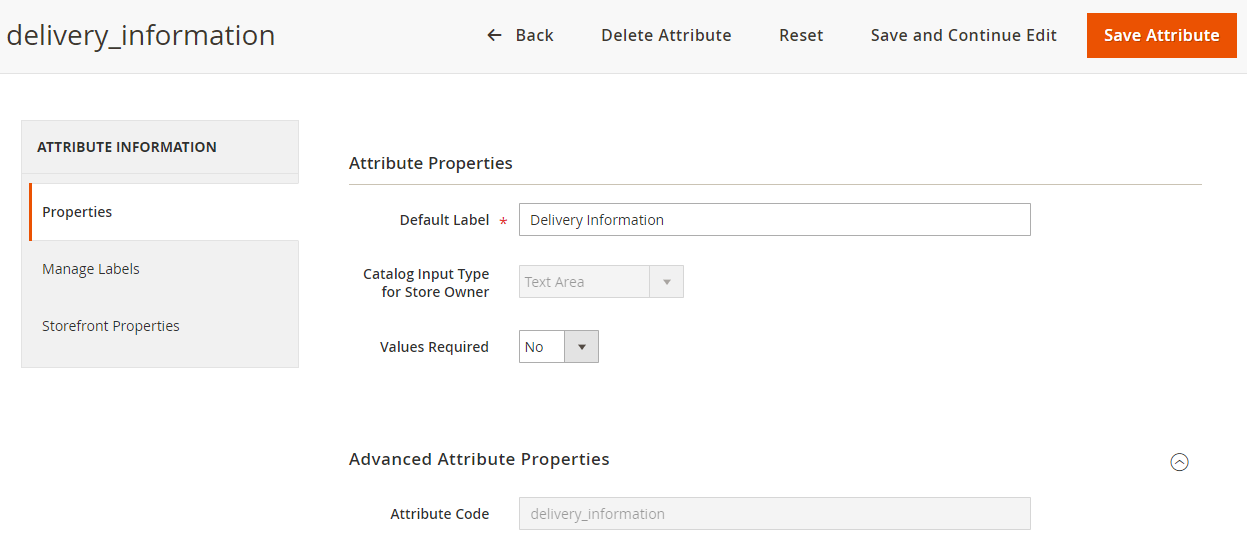
    Set Default label as and Attribute Code as delivery_information. Now click on Save Attribute.

    We can see our Attribute (delivery_information) in the list as shown below:

    2. Select Or Create an Attribute Set

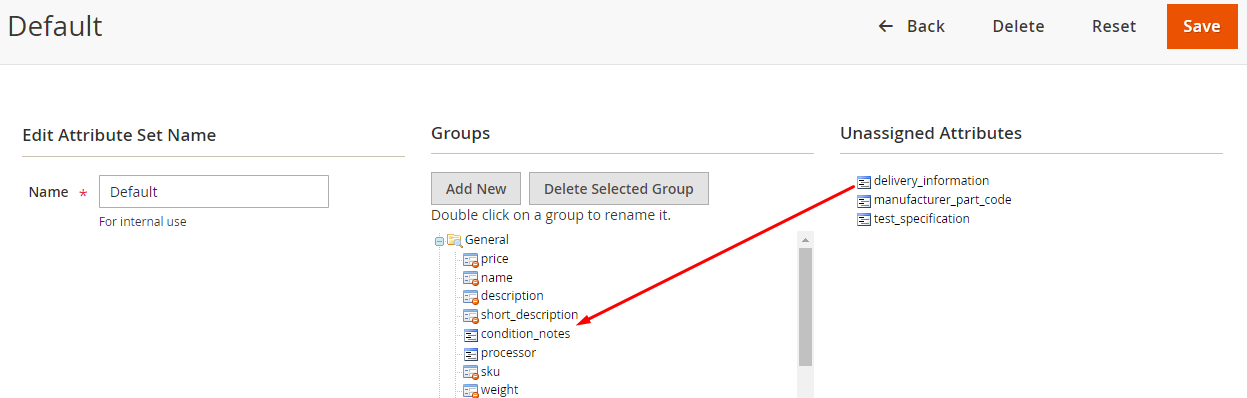
    Navigate to the Stores→ Attribute Set.

    Click on default.

    Drag and Drop delivery_information attribute from unassigned to Product Details and click on Save.

    Now you can see the new attribute delivery_information on the product edit page. Update the attribute set and click on Save.

    3. Add Layout Code

    In app/design/frontend/[Vendor]/[Theme]/Magento_Catalog/layout/catalog_product_view.xml file add the following code:

    <referenceBlock name="product.info.details">
    <block class="MagentoCatalogBlockProductView" name="custom.tab" template="Magento_Catalog::custom_tab.phtml" group="detailed_info" >
    <arguments>
    <argument translate="true" name="title" xsi:type="string">Custom Tab</argument>
    </arguments>
    </block>
    </referenceBlock>

    4. Create a Template File

    In  app/design/frontend/[Vendor]/[Theme]/Magento_Catalog/, create custom_tab.phtml and add the following code in the file:

    <?php
    $product = $block->getProduct();
    ?>
    <div><?php echo $product->getData('delivery_information'); ?></div>

    Add content in Delivery Information from admin. It will display on front-end in product page.

    Magento 2 Change Toolbar Limiter Dropdown To Links

    Have you ever thought what will you do as developer when you will need to change the product toolbar limiter dropdown into the links?

    Well, here I’m going to guide you about it. All you need to do is to replace below code,

    <select id="limiter" data-role="limiter" class="limiter-options">
                <?php foreach ($block->getAvailableLimit() as $_key => $_limit): ?>
                    <option value="<?php /* @escapeNotVerified */ echo $_key ?>"<?php if ($block->isLimitCurrent($_key)): ?>
                        selected="selected"<?php endif ?>>
                        <?php /* @escapeNotVerified */ echo $_limit ?>
                    </option>
                <?php endforeach; ?>
     </select>

    With:

    <?php foreach ($block->getAvailableLimit() as $_key => $_limit): ?>
            <a data-role="limiter" href="#" data-value="<?php /* @escapeNotVerified */ echo $_key ?>"<?php if ($block->isLimitCurrent($_key)): ?>
                class="selected"<?php endif ?>>
                <?php /* @escapeNotVerified */ echo $_limit ?>
            </a>
    <?php endforeach; ?>

    You need to do replacement in this file -> Magento_Catalog/templates/product/list/toolbar/limiter.phtml

    Well, once you’re clear with the code replacement, you will able to see toolbar limiter like: 9 | 15 | 30 | All as links.

    Magento 2: Display Category Image In Navigation Menu

    Let’s say I have to show category images to navigation menu.

    Magento doesn’t take a use of any kind of template to draw the whole menu, but a function which will retrieve all the categories & create li/ul tree.

    In Magento 2.1.X you can easily perform this task by rewriting the _getHtml() function from the class located at MagentoThemeBlockHtmlTopmenu. It’s kind of function which will call to itself again-n-again. We will make an observer which will add our programmed code in the navigation menu.

    1. Create your module

    Let’s start by creating one folder in app/code/Vendor/ModuleName.
    Here, ‘vendor’ is the namespace for your modules.
    app/code/Vendor/ModuleName/etc/module.xml

    <?xml version="1.0"?>
    <config xmlns:xsi="http://www.w3.org/2001/XMLSchema-instance" xsi:noNamespaceSchemaLocation="urn:magento:framework:Module/etc/module.xsd">
    <module name="Vendor_ModuleName" setup_version="0.0.1"/></config>

    Now the module registration:

    <?php
    /**
     * Registration file
     *
     * @category  Vendor
     * @package   VendorModuleName
     * @author    Your Name <your@name.com>
     * @copyright 2017 Vendor
     * @license   http://opensource.org/licenses/osl-3.0.php  Open Software License (OSL 3.0)
     */
    MagentoFrameworkComponentComponentRegistrar::register(
        MagentoFrameworkComponentComponentRegistrar::MODULE,
        'Vendor_ModuleName',
        __DIR__
    );

    2. Rewrite this class MagentoThemeBlockHtmlTopMenu

    Create a file called di.xml to declare the rewriting of the class where the _getHtml() method is going to get called:
    app/code/Vendor/NavigationMenu/etc/di.xml

    <?xml version="1.0"?>
    <config xmlns:xsi="http://www.w3.org/2001/XMLSchema-instance" xsi:noNamespaceSchemaLocation="urn:magento:framework:ObjectManager/etc/config.xsd">
        <preference for="MagentoThemeBlockHtmlTopmenu" type="VendorNavigationMenuRewriteBlockHtmlTopmenu" />
    </config>

    After this you are allowed to create the class which will allow to rewrite the method. Now the following points:

    app/code/Vendor/NavigationMenu/Rewrite/Block/Html/Topmenu.php

    <?php
    /**
     * Vendor Project
     * Module Vendor/ModuleName
     *
     * @category  Vendor
     * @package   VendorModuleName
     * @author    Your Name <your.name@email.com>
     * @copyright 2017 Vendor
     * @license   http://opensource.org/licenses/osl-3.0.php  Open Software License (OSL 3.0)
     */
    namespace VendorModuleNameRewriteBlockHtml;
     
    use MagentoFrameworkDataTreeNode;
    use MagentoFrameworkDataObject;
    use MagentoFrameworkViewElementTemplate;
     
    /**
     * Plugin ModuleName
     *
     * @author    Your Name <your.name@email.com>
     * @copyright 2017 Vendor
     */
    class Topmenu extends MagentoThemeBlockHtmlTopmenu
    {
        /**
         * Recursively generates top menu html from data that is specified in $menuTree
         *
         * @param Node   $menuTree          menu tree
         * @param string $childrenWrapClass children wrap class
         * @param int    $limit             limit
         * @param array  $colBrakes         column brakes
         * @return string
         *
         * @SuppressWarnings(PHPMD)
         */
        protected function _getHtml(
            Node $menuTree,
            $childrenWrapClass,
            $limit,
            $colBrakes = []
        ) {
            $html = parent::_getHtml($menuTree, $childrenWrapClass, $limit, $colBrakes = []);
     
            $transportObject = new DataObject(['html' => $html, 'menu_tree' => $menuTree]);
            $this->_eventManager->dispatch(
                'vendor_topmenu_node_gethtml_after',
                ['menu' => $this->_menu, 'transport' => $transportObject]
            );
     
            $html = $transportObject->getHtml();
     
            return $html;
        }
    }

    3. Make observer which will triggered by the event

    To perform it we have to create the events.xml configuration file and assign the class which will handle the event:

    app/code/Vendor/NavigationMenu/etc/frontend/events.xml

    <?xml version="1.0"?>
    <config xmlns:xsi="http://www.w3.org/2001/XMLSchema-instance" xsi:noNamespaceSchemaLocation="urn:magento:framework:Event/etc/events.xsd">
        <event name="vendor_topmenu_node_gethtml_after">
            <observer name="vendor_modulename_topmenu" instance="VendorModuleNameObserverAddContentToCategoryTopmenu" />
        </event>
    </config>

    app/code/Vendor/NavigationMenu/Observer/AddContentToCategoryTopmenu.php

    <?php
    /**
     * Topmenu catalog observer to add custom additional elements
     *
     * @category  Vendor
     * @package   VendorModuleName
     * @author    Your Name <your.name@email.com>
     * @copyright 2017 Vendor
     * @license   http://opensource.org/licenses/osl-3.0.php  Open Software License (OSL 3.0)
     */
    namespace VendorModuleNameObserver;
     
    use MagentoFrameworkEventObserver;
    use MagentoFrameworkEventObserverInterface;
    use MagentoCatalogApiCategoryRepositoryInterface;
     
    /**
     * Class AddFirstCategoryImageToTopmenu
     * @package VendorModuleName
     */
    class AddContentToCategoryTopmenu implements ObserverInterface
    {
        /**
         * @var CategoryRepositoryInterface $categoryRepository
         */
        protected $categoryRepository;
     
        /**
         * AddFirstCategoryImageToTopmenu constructor.
         *
         * @param CategoryRepositoryInterface $categoryRepository repository
         */
        public function __construct(
            CategoryRepositoryInterface $categoryRepository
        ) {
            $this->categoryRepository = $categoryRepository;
        }
     
        /**
         * @param Observer $observer Observer object
         */
        public function execute(Observer $observer)
        {
            $transport = $observer->getTransport();
            $html      = $transport->getHtml();
            $menuTree  = $transport->getMenuTree();
     
            $parentLevel = $menuTree->getLevel();
            $childLevel = $parentLevel === null ? 0 : $parentLevel + 1;
     
            $menuId = $menuTree->getId();
     
            if ($childLevel == 1 && $this->isCategory($menuId)) {
                $html .= '<li class="category_image" style=""><img src="'.$this->getCategoryImage($menuId).'"/></li>';
            }
     
            $transport->setHtml($html);
        }
     
        /**
         * Retrieves the category image for the corresponding child
         *
         * @param string $categoryId Category composed ID
         *
         * @return string
         */
        protected function getCategoryImage($categoryId)
        {
            $categoryIdElements = explode('-', $categoryId);
            $category           = $this->categoryRepository->get(end($categoryIdElements));
            $categoryName       = $category->getImageUrl();
     
            return $categoryName;
        }
     
        /**
         * Check if current menu element corresponds to a category
         *
         * @param string $menuId Menu element composed ID
         *
         * @return string
         */
        protected function isCategory($menuId)
        {
            $menuId = explode('-', $menuId);
     
            return 'category' == array_shift($menuId);
        }
    }


    Overriding Model in Magento 1.9.X

    The list of files required for the Overriding model through a new module:
    app/etc/modules/Magemonkeys_Catalog.xml
    app/code/local/Magemonkeys/Catalog/etc/config.xml
    app/code/local/Magemonkeys/Catalog/Model/Category.php

    Creating Files and Folders: Custom Module
    What we need to do is to create a module file.
    Make a file – “app/etc/modules/Magemonkeys_Catalog.xml”
    Then, add the below code inside the file

    <?xml version="1.0"?>
    <config>
      <modules>
        <Magemonkeys_Catalog>
          <active>true</active>
          <codePool>local</codePool>
        </Magemonkeys_Catalog>
      </modules>
    </config>

    Now create “app/code/local/Magemonkeys/Catalog/etc/config.xml” and add the below code inside the file:

    <?xml version="1.0"?>
    <config>
      <modules>
        <Magemonkeys_Catalog>
          <version>1.0</version>
        </Magemonkeys_Catalog>
      </modules>
       
      <global>
        <models>
          <catalog>
            <rewrite>
              <category>Magemonkeys_Catalog_Model_Category</category>
            </rewrite>
          </catalog>
        </models>
      </global>
    </config>

    We have defined a module version using the <version> tag. After that, the <catalog> & <rewrite> tags are used to override a “model” of the “Catalog” core module.

    The final step will be to define a model class Magemonkeys_Catalog_Model_Category.
    Make a model file “app/code/local/Magemonkeys/Catalog/Model/Category.php” and paste the following code inside it:

    <?php
    class Magemonkeys_Catalog_Model_Category extends Mage_Catalog_Model_Category
    {
      public function getProductCollection()
      {
        // Put your custom code here!
     
        $collection = Mage::getResourceModel('catalog/product_collection')
          ->setStoreId($this->getStoreId())
          ->addCategoryFilter($this);
     
        return $collection;
      }
    }
    ?>

    That’s it.

    Working with registry objects in Magento 2

    Besides the improvements, Magento 2 still has the old features like allow you to have the registry to register global variable using stable registry method.

    However, instead of Mage::registry, in Magento 2, it has become MagentoFrameworkRegistry. There are two main methods to set registry variable such as register for installing and registry for restoring data.

    In this post, we are going to show you the way to create or use your own custom registry & retrieve global Magento 2 registry objects like category, cms page, current product, cms block, et cetera.

    You just need to follow code snippet below in order to work with registry objects in Magento 2:

    /**
      * @var MagentoFrameworkRegistry
      */
     
     protected $_registry;
     
     /**
     * ...
     * ...
     * @param MagentoFrameworkRegistry $registry,
     */
    public function __construct(
        ...,
        ...,
        MagentoFrameworkRegistry $registry,
        ...
    ) {
        $this->_registry = $registry;
        ...
        ...
    }
     
     /**
     * Setting custom variable in registry to be used
     *
     */
     
    public function setCustomVariable()
    {
         $this->registry->register('custom_var', 'Added Value');
    }
     
    /**
     * Retrieving custom variable from registry
     * @return string
     */
    public function getCustomVariable()
    {
         return $this->registry->registry('custom_var');
    }
     
    /**
     * Return catalog product object
     *
     * @return MagentoCatalogModelProduct
     */
     
    public function getProduct()
    {
        return $this->_registry->registry('product');
    }
     
    /**
     * Return catalog current category object
     *
     * @return MagentoCatalogModelCategory
     */
     
    public function getCurrentCategory()
    {
        return $this->_registry->registry('current_category');
    }

    It is quite a simple tutorial. Believe that you can apply it in the same way.

    How I solved shipping method table rates file import issue in Magento 2?

    I recently faced a technical issue while doing development in windows environment.

    I tried to import shipping method rates & table rates in Magento 2.

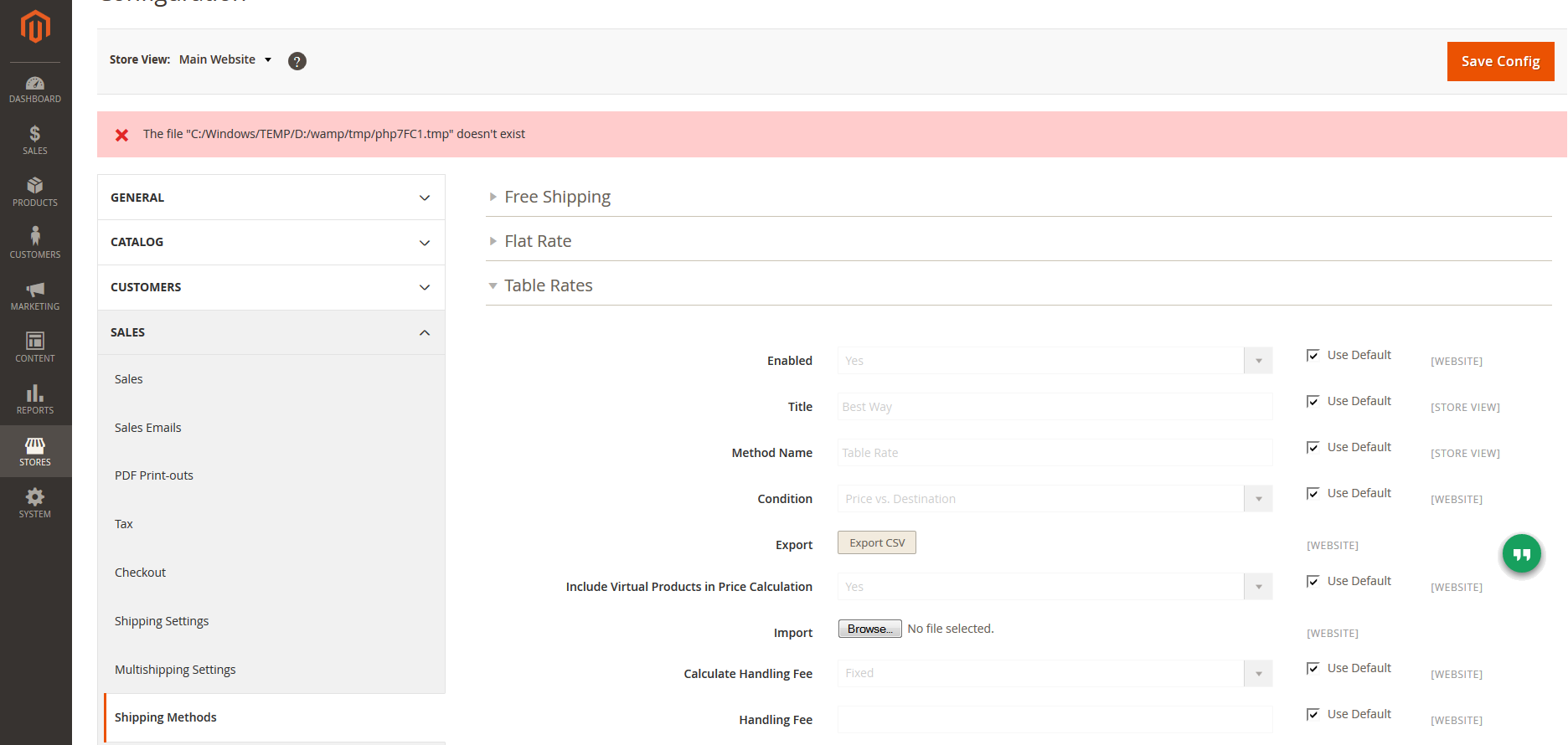
    That action threw me an error which said,

    “The file “C:/Windows/Temp/E:/wamp/tmp/php9B36.tmp” doesn’t exist”

    I audit my code again and found everything was correct. But then I realized, that I was working in windows environment.

    The default upload file temp directory set in php.ini by WAMP is accurate location.But, I changed it to this setting.

    I found this line:

    upload_tmp_dir = "E:/wamp/tmp"

    & change it with this characters:

    upload_tmp_dir = "C:/Windows/Temp"

    Then, I saved the file & restart apache.

    After uploading the file, it worked for me. VOILA!