We sacrifice by not doing any other technology, so that you get the best of Magento.

We sacrifice by not doing any other technology, so that you get the best of Magento.

    How to move elements in Magento 2?

    Today we are going to see how to move elements in Magento 2.

    Magento 2 is famous for releasing new functionality, features and  approaches. We are going to talk about the new feature of templating.

    Magento 2 offers this functionality where we can move blocks or let’s say containers to different places and that too within the page. With the help of the layout file, we can move containers & blocks.

    Let’s see how to move elements in Magento 2

    We can use this tiny piece of code in layout file to move containers  & blocks.

    <move element="name of conatiner or block" destination="destination block or container name" />

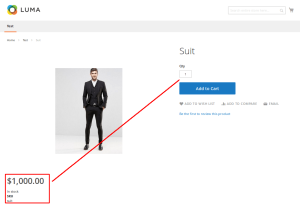
    Let’s see the example. Here we are going to move price block directly at product page.

    Below code will do the magic.

    <page layout="1column" xmlns:xsi="http://www.w3.org/2001/XMLSchema-instance" xsi:noNamespaceSchemaLocation="urn:magento:framework:View/Layout/etc/page_configuration.xsd">
        <move element="product.info.price" destination="product.info.media" />
    </page>

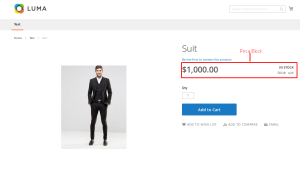
    VOILA!! You see. That’s how a tiny piece of code will help us to move elements in Magento 2.

    Magento 2: How To Add Country And Region Dropdown In Admin Form?

    If you want to add country and region inside the drop-down in custom module admin form, you landed to right page.


    Follow below instruction step-by-step to execute it.

    Step 1 : Add column in table field.

    Create new file : Setup/Installschema.php

    <?php
    
    ->addColumn(
    'country',
    \Magento\Framework\DB\Ddl\Table::TYPE_TEXT,
    '2M',
    ['nullable' => false],
    'country' 
    )->addColumn(
    'store_ids',
    \Magento\Framework\DB\Ddl\Table::TYPE_TEXT,
    '255',
    ['nullable' => false,
    'default' => $defaultstoreid,
    ],
    'store_ids' 
    )->addColumn(
    'statename',
    \Magento\Framework\DB\Ddl\Table::TYPE_TEXT,
    '2M',
    ['nullable' => false],
    'statename'
    )
    
    ?>

    Step 2 : Add country and state drop-down with text

    Create new file : Block/Adminhtml/Grid/Edit/Form.php

    <?php
    $optionsc=$this->_countryFactory->toOptionArray();
    $country = $fieldset->addField(
    'country',
    'select',
    [
    'name' => 'country',
    'label' => __('Country'),
    'title' => __('country'),
    'values' => $optionsc,
    ]
    );
    
    $statename = $fieldset->addField(
    'state',
    'select',
    [
    'name' => 'state',
    'label' => __('State'),
    'id' => 'state',
    'title' => __('state'),
    'class' => 'required-entry',
    'required' => false,
    'values' => ['--Please Select State--'],
    ]
    );
    $fieldset->addField(
    'statename',
    'text',
    [
    'name' => 'statename',
    'label' => __('State'),
    'id' => 'statename',
    'title' => __('state'),
    'class' => 'statename',
    'required' => false,
    ]
    );
    
    /*
    * Add Ajax to the Country select box html output
    */
    $country->setAfterElementHtml(" 
    <script type=\"text/javascript\">
    require([
    'jquery',
    'mage/template',
    'jquery/ui',
    'mage/translate'
    ],
    function($, mageTemplate) {
    jQuery('.field-statename').hide();
    
    jQuery('#addressbook_country').change(function(){
    var conceptName = jQuery('#addressbook_country').find(':selected').val();
    jQuery.ajax({
    url : '". $this->getUrl('grid/lists/regionlist') . "?country=' + conceptName,
    data: conceptName,
    type: 'GET',
    dataType: 'json',
    showLoader:true,
    success: function(data){
    // console.log(data.htmlconent);
    if(data.htmlconent==''){
    jQuery('.field-statename').show();
    jQuery('.field-state').hide();
    }else{
    jQuery('#addressbook_state').empty().append(data.htmlconent);
    jQuery('.field-state').show();
    jQuery('.field-statename').hide();
    
    }
    
    }
    }); 
    });
    
    }
    
    );
    </script>"
    );
    
    $statename->setAfterElementHtml(" 
    <script type=\"text/javascript\">
    require([
    'jquery',
    'mage/template',
    'jquery/ui',
    'mage/translate'
    ],
    function($, mageTemplate) {
    jQuery('.field-statename').hide();
    jQuery(window).load(function(){
    setTimeout(function(){
    var statename ='".$model->getState()."';
    jQuery('#addressbook_state option').each(function (a, b) {
    if (jQuery(this).text().toLowerCase() == statename.toLowerCase() ){
    jQuery(this).attr('selected','selected');
    jQuery(this).trigger('change');
    
    }
    });
    }, 1000);
    });


    var conceptName = jQuery('#addressbook_country').find(':selected').val();
    if(conceptName != ''){
    jQuery('#addressbook_country').trigger('change');
    }
    }
    
    );
    </script>"
    );
    
    ?>

    Step 3 : Getting region list from controller.

    Create new file : Controller/Adminhtml/Lists/Regionlist.php

    /**
    * @SuppressWarnings(PHPMD.CouplingBetweenObjects)
    */
    class Regionlist extends \Magento\Framework\App\Action\Action
    {
    /**
    * @var \Magento\Framework\View\Result\PageFactory
    */
    protected $resultPageFactory;
    /**
    * @var \Magento\Directory\Model\CountryFactory
    */
    protected $_countryFactory;
    
    /**
    * @param \Magento\Framework\App\Action\Context $context
    * @param \Magento\Framework\View\Result\PageFactory resultPageFactory
    */
    public function __construct(
    \Magento\Framework\App\Action\Context $context,
    \Magento\Directory\Model\CountryFactory $countryFactory,
    \Magento\Framework\View\Result\PageFactory $resultPageFactory
    )
    {
    $this->_countryFactory = $countryFactory;
    $this->resultPageFactory = $resultPageFactory;
    parent::__construct($context);
    }
    /**
    * Default customer account page
    *
    * @return void
    */
    public function execute()
    {
    $countrycode = $this->getRequest()->getParam('country');
    
    if ($countrycode != '') {
    $statearray =$this->_countryFactory->create()->setId($countrycode)->getLoadedRegionCollection()->toOptionArray();
    $state = '';
    if(count($statearray) > 0){
    // $state .= "<option value=''>--Please Select State--</option>";
    foreach ($statearray as $_state) {
    if($_state['value']){
    $state .= "<option value=".$_state['label'].">" . $_state['label'] . "</option>";
    }
    }
    }
    }
    $result['htmlconent']=$state;
    $this->getResponse()->representJson(
    $this->_objectManager->get('Magento\Framework\Json\Helper\Data')->jsonEncode($result)
    );
    } 
    
    }
    
    ?>

    Step 4 : Save your data.

    Create new file : Controller/Adminhtml/Grid/Save.php

    <?php
    
    class Save extends \Magento\Backend\App\Action
    {
    /**
    * @var \Namespace\Modulename\Model\GridFactory
    */
    var $gridFactory;
    
    /**
    * @param \Magento\Backend\App\Action\Context $context
    * @param \Namespace\Modulename\Model\GridFactory $gridFactory
    */
    public function __construct(
    \Magento\Backend\App\Action\Context $context,
    \Namespace\Modulename\Model\GridFactory $gridFactory,
    \Magento\Directory\Model\CountryFactory $countryFactory
    ) {
    parent::__construct($context);
    $this->gridFactory = $gridFactory;
    $this->_countryFactory = $countryFactory;
    }
    
    /**
    * @SuppressWarnings(PHPMD.CyclomaticComplexity)
    * @SuppressWarnings(PHPMD.NPathComplexity)
    */
    public function execute()
    {
    $data = $this->getRequest()->getPostValue();
    if (!$data) {
    $this->_redirect('grid/grid/addrow');
    return;
    }
    try {
    
    $countrycode = $data['country'];
    $statearray =$this->_countryFactory->create()->setId($countrycode)->getLoadedRegionCollection()->toOptionArray();
    $rowData = $this->gridFactory->create(); 
    if($data['state'] == '0' || count($statearray) == 0){
    
    $data['state'] = $data['statename'];
    }
    $data['store_ids'] = implode(',', $data['store_ids']); 
    $rowData->setData($data);
    if (isset($data['id'])) {
    $rowData->setEntityId($data['id']);
    }
    $rowData->save();
    $this->messageManager->addSuccess(__('AddressBook has been successfully saved.'));
    } catch (\Exception $e) {
    $this->messageManager->addError(__($e->getMessage()));
    }
    $this->_redirect('grid/grid/index');
    }
    
    /**
    * @return bool
    */
    protected function _isAllowed()
    {
    return $this->_authorization->isAllowed('Namespace_Modulename::save');
    }
    }
    ?>

    Well, that’s it. Try to adopt this solution and let us know how it worked for you.
    Magento 2 : Create custom patch and apply on specific module

    This article will help you to create a custom patch & apply on the specific module.
    Let’s suppose you want to modify some code in this file

    vendor/ezimuel/ringphp/src/Client/CurlMultiHandler.php

    Create a copy of that file with your changes on it:

    vendor/ezimuel/ringphp/src/Client/CurlMultiHandler_cust.php

    Then you need to run below command on the Magento root directory:
    diff -u vendor/ezimuel/ringphp/src/Client/CurlMultiHandler.php vendor/ezimuel/ringphp/src/Client/CurlMultiHandler_cust.php > custom_change.patch
    
    And you will get the below output :
    --- vendor/ezimuel/ringphp/src/Client/CurlMultiHandler.php	2022-07-19 18:49:00.044970470 +0530
    +++ vendor/ezimuel/ringphp/src/Client/CurlMultiHandler_cust.php	2022-07-29 10:24:11.615376096 +0530
    @@ -130,6 +130,9 @@
                 }
     
                 do {
    +                // add your changes here
                     $mrc = curl_multi_exec($this->_mh, $this->active);
                 } while ($mrc === CURLM_CALL_MULTI_PERFORM);
    Then you can change it as per the Magento patch format as shown below
    diff --git a/vendor/ezimuel/ringphp/src/Client/CurlMultiHandler.php b/vendor/ezimuel/ringphp/src/Client/CurlMultiHandler.php
    index fe83dc3e5adb..2e230c870eef 100644
    --- a/vendor/ezimuel/ringphp/src/Client/CurlMultiHandler.php
    +++ b/vendor/ezimuel/ringphp/src/Client/CurlMultiHandler.php
    @@ -130,6 +130,9 @@
                 }
     
                 do {
    +                // add your changes here
                     $mrc = curl_multi_exec($this->_mh, $this->active);
                 } while ($mrc === CURLM_CALL_MULTI_PERFORM);
    If you are using git please run the below command from the Magento root directory.
    git apply custom_change.patch


    Magento2 : Add Dynamic Payment Methods list in system configuration with multi-select

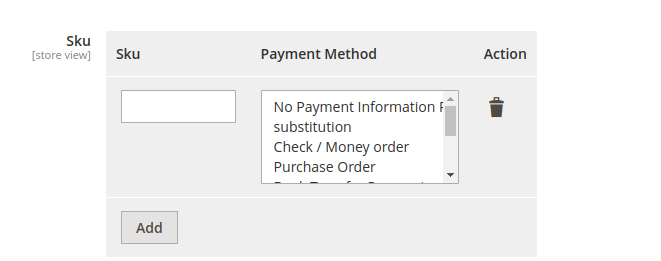
    As per the requirement, we can add dynamic payment methods list with multi select in the system configuration in admin.

    For this, first we need to create system.xml file – it is located in directory Magemonkeys/Payment/etc/adminhtml/system.xml where we need to add below code.

    <field id="payment_methods" translate="label" sortOrder="20" showInDefault="1" showInWebsite="1"
                           showInStore="1">
        <label>Sku</label>
        <frontend_model>MagemonkeysPaymentBlockSystemConfigFormFieldFields</frontend_model>
        <backend_model>MagentoConfigModelConfigBackendSerializedArraySerialized</backend_model>
        <comment>Dynamic Payment methods list</comment>
    </field>

    Second thing we need to do is to create Magemonkeys/Payment/Block/System/Config/Form/Field/Fields.php to render multi select field in system configuration.

    <?php
    declare(strict_types=1);
    namespace MagemonkeysPaymentBlockSystemConfigFormField;
    
    use MagentoConfigBlockSystemConfigFormFieldFieldArrayAbstractFieldArray;
    use MagemonkeysPaymentBlockAdminhtmlFormFieldPaymentSkuColumn;
    use MagentoFrameworkDataObject;
    use MagentoFrameworkExceptionLocalizedException;
    
    class Fields extends AbstractFieldArray
    {    
        /**
         * @var bool
         */
        protected $_addAfter = false;
    
        /**
         * @var
         */
        protected $_addButtonLabel;
    
        /**
         * Rows cache
         *
         * @var array|null
         */
        private $_arrayRowsCache;
    
        /**
         * @var TaxColumn
         */
        private $paymentRenderer;
    
        /**
         * Construct
         */
        protected function _construct()
        {
            parent::_construct();
            $this->_addButtonLabel = __('Add');
        }
    
        /**
         * Prepare to render the columns
         */
        protected function _prepareToRender()
        {
            $label = 'label';
            $this->addColumn('sku', [$label => __('Sku')]);
            $this->addColumn('payment_method', [
                'label' => __('Payment Method'),
                'renderer' => $this->getPaymentRenderer(),
                'extra_params' => 'multiple="multiple"'
            ]);
            $this->_addAfter = false;
            $this->_addButtonLabel = __('Add');
        }


        /**
         * Prepare existing row data object
         *
         * @param DataObject $row
         * @throws LocalizedException
         */
        protected function _prepareArrayRow(DataObject $row): void
        {
            $options = [];
            $payment = $row->getPaymentMethod();
            if ($payment !== null) {
                foreach ($payment as $country) {
                    $options['option_' . $this->getPaymentRenderer()->calcOptionHash($country)] = 'selected="selected"';
                }
            }
    
            $row->setData('option_extra_attrs', $options);
        }
        /**
         * @return TaxColumn
         * @throws LocalizedException
         */
        private function getPaymentRenderer()
        {
            if (!$this->paymentRenderer) {
                $this->paymentRenderer = $this->getLayout()->createBlock(
                    PaymentSkuColumn::class,
                    '',
                    ['data' => ['is_render_to_js_template' => true]]
                );
            }
            return $this->paymentRenderer;
        }
    }
    

    Then, we need to create Magemonkeys/Payment/Block/Adminhtml/Form/Field/PaymentSkuColumn.php where file returns payment methods list.

    <?php
    declare(strict_types=1);
    namespace MagemonkeysPaymentBlockAdminhtmlFormField;
    
    use MagentoPaymentHelperData;
    use MagentoFrameworkViewElementContext;
    use MagentoFrameworkViewElementHtmlSelect;
     
    class PaymentSkuColumn extends Select
    {
        private $paymentHelper;
     
        public function __construct(
            Context $context,
            Data $paymentHelper,
            array $data = []
        ) {
            parent::__construct($context, $data);
            $this->paymentHelper = $paymentHelper;
        }
     
        public function setInputName($value)
        {
            return $this->setName($value . '[]');
        }
     
        public function _toHtml(): string
        {
            $options = [];
            $paymentMethod = $this->paymentHelper->getPaymentMethods();
            foreach ($paymentMethod as $key => $payment) {
                if(isset($payment['title'])){
                    $options[] = ['label' => $payment['title'], 'value' => $key];
                }else{
                    $options[] = ['label' => $key, 'value' => $key];
                }   
            }
    
            if (!$this->getOptions()) {
                $this->setOptions($options);
            }
            $this->setExtraParams('multiple="multiple"');
            return parent::_toHtml();
        }
    }

    It will look something like this.

    Restrict Magento customer login using custom customer attribute

    Step :1 Creat a custom attribute of boolean type which will be used to block customer login.

    <?php
    
    declare(strict_types=1);
    
    namespace VendorModuleSetupPatchData;
    
    use MagentoCustomerModelCustomer;
    use MagentoCustomerSetupCustomerSetup;
    use MagentoCustomerSetupCustomerSetupFactory;
    use MagentoEavModelEntityAttributeSet;
    use MagentoEavModelEntityAttributeSetFactory;
    use MagentoFrameworkSetupModuleDataSetupInterface;
    use MagentoFrameworkSetupPatchDataPatchInterface;
    use MagentoFrameworkSetupPatchPatchRevertableInterface;
    
    class AddBlockedCustomerAttribute implements DataPatchInterface, PatchRevertableInterface
    {
    
        /**
         * @var ModuleDataSetupInterface
         */
        private $moduleDataSetup;
        /**
         * @var CustomerSetup
         */
        private $customerSetupFactory;
        /**
         * @var SetFactory
         */
        private $attributeSetFactory;
    
        /**
         * Constructor
         *
         * @param ModuleDataSetupInterface $moduleDataSetup
         * @param CustomerSetupFactory $customerSetupFactory
         * @param SetFactory $attributeSetFactory
         */
        public function __construct(
            ModuleDataSetupInterface $moduleDataSetup,
            CustomerSetupFactory $customerSetupFactory,
            SetFactory $attributeSetFactory
        ) {
            $this->moduleDataSetup = $moduleDataSetup;
            $this->customerSetupFactory = $customerSetupFactory;
            $this->attributeSetFactory = $attributeSetFactory;
        }
    
        /**
         * {@inheritdoc}
         */
        public function apply()
        {
            $this->moduleDataSetup->getConnection()->startSetup();
            /** @var CustomerSetup $customerSetup */
            $customerSetup = $this->customerSetupFactory->create(['setup' => $this->moduleDataSetup]);
            $customerEntity = $customerSetup->getEavConfig()->getEntityType(Customer::ENTITY);
            $attributeSetId = $customerEntity->getDefaultAttributeSetId();
            
            /** @var $attributeSet Set */
            $attributeSet = $this->attributeSetFactory->create();
            $attributeGroupId = $attributeSet->getDefaultGroupId($attributeSetId);
            
            $customerSetup->addAttribute(
                Customer::ENTITY,
                'blocked',
                [
                    'label' => 'Blocked',
                    'input' => 'boolean',
                    'type' => 'static',
                    'source' => '',
                    'required' => false,
                    'position' => 333,
                    'visible' => true,
                    'system' => false,
                    'is_used_in_grid' => true,
                    'is_visible_in_grid' => true,
                    'is_filterable_in_grid' => true,
                    'is_searchable_in_grid' => false,
                    'backend' => ''
                ]
            );
            
            $attribute = $customerSetup->getEavConfig()->getAttribute(Customer::ENTITY, 'blocked');
            $attribute->addData([
                'used_in_forms' => [
                    'adminhtml_customer',
                    'adminhtml_checkout',
                    'customer_account_create',
                    'customer_account_edit'
                ]
            ]);
            $attribute->addData([
                'attribute_set_id' => $attributeSetId,
                'attribute_group_id' => $attributeGroupId
            
            ]);
            $attribute->save();
    
            $this->moduleDataSetup->getConnection()->endSetup();
        }
    
        public function revert()
        {
            $this->moduleDataSetup->getConnection()->startSetup();
            /** @var CustomerSetup $customerSetup */
            $customerSetup = $this->customerSetupFactory->create(['setup' => $this->moduleDataSetup]);
            $customerSetup->removeAttribute(MagentoCustomerModelCustomer::ENTITY, 'blocked');
    
            $this->moduleDataSetup->getConnection()->endSetup();
        }
    
        /**
         * {@inheritdoc}
         */
        public function getAliases()
        {
            return [];
        }
    
        /**
         * {@inheritdoc}
         */
        public static function getDependencies()
        {
            return [
            
            ];
        }
    }
    
    Step 2: Observer to restrict customer from login depending upon the custom attribute created in Step 1.
    <?php
    
    declare(strict_types=1);
    
    namespace VendorModuleObserverFrontendCustomer;
    
    class Login implements MagentoFrameworkEventObserverInterface
    {
    
        /**
         * @var MagentoFrameworkAppResponseFactory
         */
        private $responseFactory;
    
        /**
         * @var MagentoFrameworkUrlInterface
         */
    
        private $url;
    
        /**
         * @var MagentoCustomerModelSessionFactory
         */
    
        private $customerSession;
    
        /**
         * @var MagentoFrameworkMessageManagerInterface
         */
    
        private $messageManager;
    
        /** 
         * @var MagentoCustomerApiCustomerRepositoryInterface 
         */
        private $customerRepositoryInterface;
    
        /**
         * Observer Constructor
         *
         * @param MagentoFrameworkAppResponseFactory $responseFactory
         * @param MagentoFrameworkUrlInterface $url
         * @param MagentoCustomerModelSession $customerSession
         * @param MagentoFrameworkMessageManagerInterface $messageManager
         * @param MagentoCustomerApiCustomerRepositoryInterface $customerRepositoryInterface
         */
        public function __construct(
            MagentoFrameworkAppResponseFactory $responseFactory,
            MagentoFrameworkUrlInterface $url,
            MagentoCustomerModelSession $customerSession,
            MagentoFrameworkMessageManagerInterface $messageManager,
            MagentoCustomerApiCustomerRepositoryInterface $customerRepositoryInterface
        ) {
            $this->responseFactory = $responseFactory;
            $this->url = $url;
            $this->customerSession= $customerSession;
            $this->messageManager = $messageManager;
            $this->customerRepositoryInterface = $customerRepositoryInterface;
        }
        /**
         * Execute observer
         *
         * @param MagentoFrameworkEventObserver $observer
         * @return void
         */
        public function execute(
            MagentoFrameworkEventObserver $observer
        ) {
            $customer = $observer->getEvent()->getCustomer();
            $blocked = $customer->getData('blocked');       
            if($blocked==1){
                $this->customerSession->logout();
                $this->messageManager->addErrorMessage(__('Your account has been blocked'));
                $redirectionUrl = $this->url->getUrl('customer/account/login');
                $this->responseFactory->create()->setRedirect($redirectionUrl)->sendResponse();
                return $this;
            }
        }
    }


    Magento 2 : Category Page Layout in Magento

    We will create a new category page layout and use that layout using the custom category attributes in Magento 2.

    Why would you need to add a custom layout to a category?
    1. To add your custom css for specific page.
    2. Insert more page information.
    3. To add custom JS to the page, such as GTM script.

    We will use events and observers to add a custom layout to the category page. We will use the layout_load_before because there is no other point to append a custom layout until the page is rendered.

    Please follow the below steps.

    Step 1: Create a custom module then add below files in that created module. For example assume that i have created “Magemonkeys/CategoryLayout”.

    Step 2: Create InstallData.php at app/code/Magemonkeys/CategoryLayout/Setup/
    Here we create the custom category attribute code as shown below:

    <?php
    namespace MagemonkeysCategoryLayoutSetup;
    
    use MagentoEavSetupEavSetupFactory;
    use MagentoFrameworkSetupInstallDataInterface;
    use MagentoFrameworkSetupModuleContextInterface;
    use MagentoFrameworkSetupModuleDataSetupInterface;
    
    class InstallData implements InstallDataInterface {
    	private $eavSetupFactory;
    
    	public function __construct(EavSetupFactory $eavSetupFactory) {
    		$this->eavSetupFactory = $eavSetupFactory;
    	}
    
    	public function install(ModuleDataSetupInterface $setup, ModuleContextInterface $context) {
    		$eavSetup = $this->eavSetupFactory->create(['setup' => $setup]);
    		$eavSetup->addAttribute(MagentoCatalogModelCategory::ENTITY, 'new_layout', [
    			'type' => 'int',
    			'label' => 'New Layout',
    			'input' => 'boolean',
    			'source' => 'MagentoEavModelEntityAttributeSourceBoolean',
    			'visible' => true,
    			'default' => '0',
    			'required' => false,
    			'global' => MagentoEavModelEntityAttributeScopedAttributeInterface::SCOPE_STORE,
    			'group' => 'Display Settings',
    		]);
    	}
    }

    Step 3: Create category_form.xml at app/code/Magemonkeys/CategoryLayout/view/adminhtml/ui_component/

    Here we display the Custom Category attribute on the Display Settings tab in the Admin Side Category View page:

    <?xml version="1.0"?>
    <form xmlns:xsi="http://www.w3.org/2001/XMLSchema-instance" xsi:noNamespaceSchemaLocation="urn:magento:module:Magento_Ui:etc/ui_configuration.xsd">
        <fieldset name="display_settings">
            <field name="new_layout">
                <argument name="data" xsi:type="array">
                    <item name="config" xsi:type="array">
                        <item name="dataType" xsi:type="string">boolean</item>
                        <item name="formElement" xsi:type="string">checkbox</item>
                        <item name="label" xsi:type="string" translate="true">Custom Layout</item>
                        <item name="prefer" xsi:type="string">toggle</item>
                        <item name="valueMap" xsi:type="array">
                            <item name="true" xsi:type="string">1</item>
                            <item name="false" xsi:type="string">0</item>
                        </item>
                        <item name="default" xsi:type="number">0</item>
                    </item>
                </argument>
            </field>
        </fieldset>
    </form>

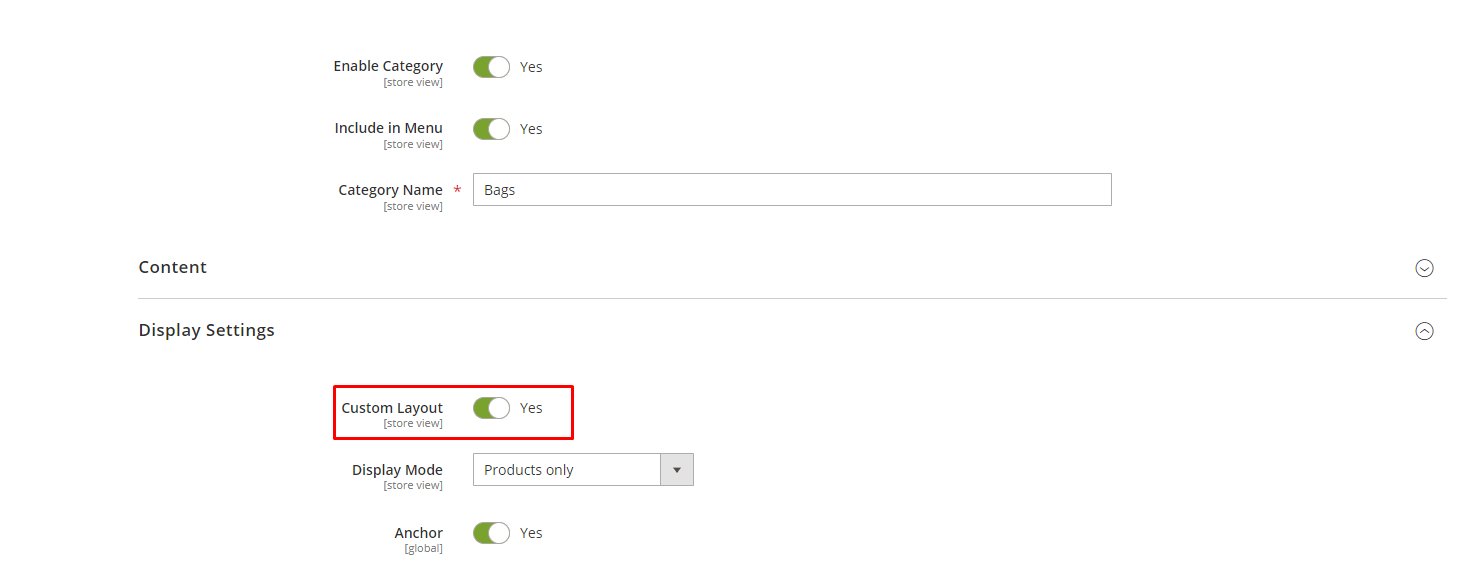
    Now you can check this layout in the admin panel configuration.

    Step 4: Create events.xml at app/code/Magemonkeys/CategoryLayout/etc/frontend/

    Here we use the layout_load_before code.

    <?xml version="1.0"?>
    <config xmlns:xsi="http://www.w3.org/2001/XMLSchema-instance" xsi:noNamespaceSchemaLocation="urn:magento:framework:Event/etc/events.xsd">
        <event name="layout_load_before">
            <observer name="category_custom_layout" instance="MagemonkeysCategoryLayoutObserverCategorycustomlayout" />
        </event>
    </config>

    Step 5: Create Categorycustomlayout.php at app/code/Magemonkeys/CategoryLayout/Observer/
    Here we check the category attribute is enabled/disabled and add the layout handle for page layout.

    <?php
    
    namespace MagemonkeysCategoryLayoutObserver;
    
    use MagentoFrameworkEventObserver;
    use MagentoFrameworkEventObserverInterface;
    use MagentoFrameworkRegistry;
    
    class Categorycustomlayout implements ObserverInterface {
    	const ACTION_NAME = 'catalog_category_view';
    
    	/** @var Registry */
    	private $registry;
    
    	public function __construct(
    		Registry $registry
    	) {
    		$this->registry = $registry;
    	}
    
    	public function execute(Observer $observer) {
    		if ($observer->getFullActionName() !== self::ACTION_NAME) {
    			return;
    		}
    
    		$category = $this->registry->registry('current_category');
    
    		/** @var MagentoFrameworkViewLayout $layout */
    		if ($category->getCustomLayout()) {
    			$layout = $observer->getLayout();
    			$layout->getUpdate()->addHandle('catalog_category_custom_view');
    		} else {
    			return true;
    		}
    	}
    }

    Step 6: Create catalog_category_custom_view.xml at app/code/Magemonkeys/CategoryLayout/view/frontend/layout/

    Here we remove the sidebar wishlist and custom class.

    <?xml version="1.0"?>
    <page xmlns:xsi="http://www.w3.org/2001/XMLSchema-instance" layout="2columns-left" xsi:noNamespaceSchemaLocation="urn:magento:framework:View/Layout/etc/page_configuration.xsd">
        <body>
        	<attribute name="class" value="catalog_category_custom_view" />
            <referenceBlock name="wishlist_sidebar" remove="true" />
        </body>
    </page>

    Apply some CSS for styling and you’ll have your new page layout with new customised content a couple of times.

    Magento 2: create new page layout for specific cms page

    If you want to set different blocks, content, or design for a specific page, then you can do that like below.

    First you need to create new file under your theme Magento_Cmslayoutcms_page_view_id_{{identifier of page}}.xml

    then you can move and add your block which you want like below.

    <?xml version="1.0"?>
    <!--
    /**
    * Copyright © Magento, Inc. All rights reserved.
    * See COPYING.txt for license details.
    */
    -->
    <page xmlns:xsi="http://www.w3.org/2001/XMLSchema-instance" xsi:noNamespaceSchemaLocation="urn:magento:framework:View/Layout/etc/page_configuration.xsd">
    <head>
    <script async="async" src="Magento_Cms::js/custom.js"/>
    </head>
    </page>

    Note: Here I have added custom js only for a specific page like cms_page_view_id_about-us.xml

    Create Admin Theme in Magento 2

    Here we will explain how to create admin theme and how to apply the admin theme in Magento 2.

    First we need to switch the Magento 2 application to the developer mode.

    php bin/magento deploy:mode:set developer

    Create Admin Theme

    Now, we will explain step-by-step that what should be done.

    Step 1: First create a <VendorName>/<theme name> folder at the app/design/adminhtml path for the new Magento admin theme.

    Here we use Magemonkeys as VendorName and backend as theme name so path would be like this app/design/adminhtml/Magemonkeys/backend/

    Step 2: In order to define Magento themes in the theme root folder create a theme.xml file at app/design/adminhtml/Magemonkeys/backend/ and paste the below code:

    <?xml version="1.0"?>
    <theme xmlns:xsi="http://www.w3.org/2001/XMLSchema-instance" xsi:noNamespaceSchemaLocation="urn:magento:framework:Config/etc/theme.xsd">
        <title>Magemonkeys Admin Theme</title>
        <parent>Magento/backend</parent>
    </theme>

    Step 3: In order to register a theme in the system & theme folder create a registration.php file at app/design/adminhtml/Magemonkeys/backend/ and paste the below code :

    <?php
    MagentoFrameworkComponentComponentRegistrar::register(
        MagentoFrameworkComponentComponentRegistrar::THEME,
        'adminhtml/Magemonkeys/Backend',
        __DIR__
    );

    Step 4: Now we changed the logo on the admin login page and in the dashboard.  So put your images in the app/design/adminhtml/Magemonkeys/backend/web/images folder to save the media file.

    Create a Module to apply an admin theme

    Step 1: The theme has already been created, but it is still unconnected. We create a specialised <VendorName>/<ModuleName> module in the app/code/ folder to connect the admin theme.

    We will show you an example of a Magemonkeys/Backend module for the following path: app/code/Magemonkeys/Backend

    Step 2: create a registration.php file in the app/code/Magemonkeys/Backend folder with the following code:

    <?php
        MagentoFrameworkComponentComponentRegistrar::register(
        MagentoFrameworkComponentComponentRegistrar::MODULE,
        'Magemonkeys_Backend',
        __DIR__
    );

    Step 3: Create a module.xml and di.xml file in the app/code/Magemonkeys/Backend/etc folder.

    copy below code and add in module.xml

    <?xml version="1.0"?>
    <config xmlns:xsi="http://www.w3.org/2001/XMLSchema-instance" xsi:noNamespaceSchemaLocation="urn:magento:framework:Module/etc/module.xsd">
        <module name="Magemonkeys_Backend" setup_version="0.0.1">
            <sequence>
                <module name="Magento_Theme"/>
            </sequence>
        </module>
    </config>

    copy below code and add in di.xml

    <?xml version="1.0"?>
    <config xmlns:xsi="http://www.w3.org/2001/XMLSchema-instance" xsi:noNamespaceSchemaLocation="urn:magento:framework:ObjectManager/etc/config.xsd">
        <type name="MagentoThemeModelViewDesign">
            <arguments>
                <argument name="themes" xsi:type="array">
                    <item name="adminhtml" xsi:type="string">Magemonkeys/Backend</item>
                </argument>
            </arguments>
        </type>
    </config>

    Step 4: Create a admin_login.xml file in the app/code/Magemonkeys/Backend/view/adminhtml/layout/ folder with the following code:

    <?xml version="1.0"?>
    <page xmlns:xsi="http://www.w3.org/2001/XMLSchema-instance" layout="admin-login" xsi:noNamespaceSchemaLocation="urn:magento:framework:View/Layout/etc/page_configuration.xsd">
        <update handle="styles" />
        <body>
            <referenceBlock name="logo">
                <arguments>
                    <argument name="logo_image_src" xsi:type="string">images/dws_logo.jpg</argument>
                </arguments>
            </referenceBlock>
        </body>
    </page>

    Step 5: Create a default.xml file in the app/code/Magemonkeys/Backend/view/adminhtml/layout/ folder with the following code:

    <?xml version="1.0"?>
    <page xmlns:xsi="http://www.w3.org/2001/XMLSchema-instance" layout="admin-1column" xsi:noNamespaceSchemaLocation="urn:magento:framework:View/Layout/etc/page_configuration.xsd">
        <body>
            <referenceContainer name="header">
                <block class="MagentoBackendBlockPageHeader" name="logo" before="-">
                    <arguments>
                        <argument name="show_part" xsi:type="string">logo</argument>
                        <argument name="logo_image_src" xsi:type="string">images/dws_admin.png</argument>
                    </arguments>
                </block>
            </referenceContainer>
        </body>
    </page>

    Step 5: Now run the following command:

    php bin/magento setup:upgrade
    php bin/magento setup:static-content:deploy –f
    php bin/magento cache:clean


    How to get public key for phpseclib version 3 using public key loader?

    Please check the difference between Phpseclib versions 2 and 3 for getting the public key.
    For Phpseclib version 2:
    <?php
    use phpseclibCryptRSA;
    use FirebaseJWTJWT;
    use phpseclibMathBigInteger;
    
    $rsa = new RSA();
    $rsa->loadKey([
        'e' => new BigInteger(JWT::urlsafeB64Decode($e), 256),
        'n' => new BigInteger(JWT::urlsafeB64Decode($n),  256)
    ]);
    echo $rsa->getPublicKey(); //get the Public Key
    ?>
    For Phpseclib version 3:
    <?php
    use phpseclib3CryptRSA;
    use phpseclib3CryptPublicKeyLoader;
    use phpseclib3MathBigInteger;
    use FirebaseJWTJWT;
    
    $key = PublicKeyLoader::load([
        'e' => new BigInteger(JWT::urlsafeB64Decode($e), 256),
        'n' => new BigInteger(JWT::urlsafeB64Decode($n),  256)
    ]);
    
    echo $key; //get the Public Key
    ?>


    How to remove leading zero’s from the order, invoice and shipment number in Magento 2?

    If you want to remove all leading zero’s from order, invoice and shipment number in Magento 2 then follow below steps

    Step 1: Create Registration

    Create registration.php file in the app/code/Magemonkeys/Ordersequence folder with the following code.

    <?php
    MagentoFrameworkComponentComponentRegistrar::register(
        MagentoFrameworkComponentComponentRegistrar::MODULE,
        'Magemonkeys_Ordersequence',
        __DIR__
    );

    Step 2: Create a module

    Create a module.xml file in the app/code/Magemonkeys/Ordersequence/etc folder with the following code.

    <?xml version="1.0"?>
     
    <config xmlns:xsi="http://www.w3.org/2001/XMLSchema-instance" xsi:noNamespaceSchemaLocation="urn:magento:framework:Module/etc/module.xsd">
        <module name="Magemonkeys_Ordersequence" setup_version="1.0.0"></module>
    </config>

    Step 3: Create a di

    Create a di.xml file in the app/code/Magemonkeys/Ordersequence/etc folder with the following code.

    <?xml version="1.0"?>
    <config xmlns:xsi="http://www.w3.org/2001/XMLSchema-instance" xsi:noNamespaceSchemaLocation="urn:magento:framework:ObjectManager/etc/config.xsd">
        <type name="MagentoFrameworkDBSequenceSequenceInterface">
            <arguments>
                <argument name="pattern" xsi:type="string">%s%'.06d%s</argument>
            </arguments>
        </type>
    </config>

    Step 4 : After place above code, please run below mentioned commands

    - php bin/magento setup:upgrade
    
    - php bin/magento setup:static-content:deploy
    
    - php bin/magento cache:clean

    That’s it.

    Now refresh your admin order page and see that leading zero’s should be removed.