Product detail is the most important page which displays all the details of the product. Without proper details, a customer cannot make up their mind to buy the product. It’s crucial that you add the necessary details. So sometimes we need to add an extra tab on the product page for the product’s detail.
Below are the steps to add a custom tab on the product page in Magento 2.
1. Add New Attribute:
Go to the Admin Panel of your Magento 2 store and navigate to Stores → Product.

Now click on Add New Attribute.

Set Default label as and Attribute Code as delivery_information. Now click on Save Attribute.
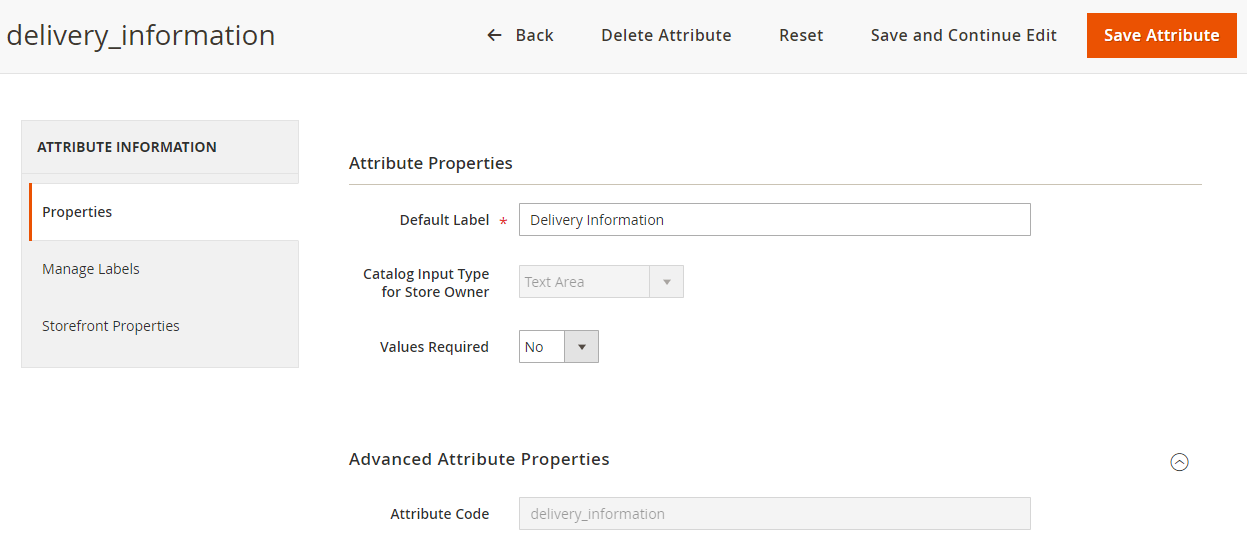
We can see our Attribute (delivery_information) in the list as shown below:
2. Select Or Create an Attribute Set
Navigate to the Stores→ Attribute Set.

Click on default.
Drag and Drop delivery_information attribute from unassigned to Product Details and click on Save.
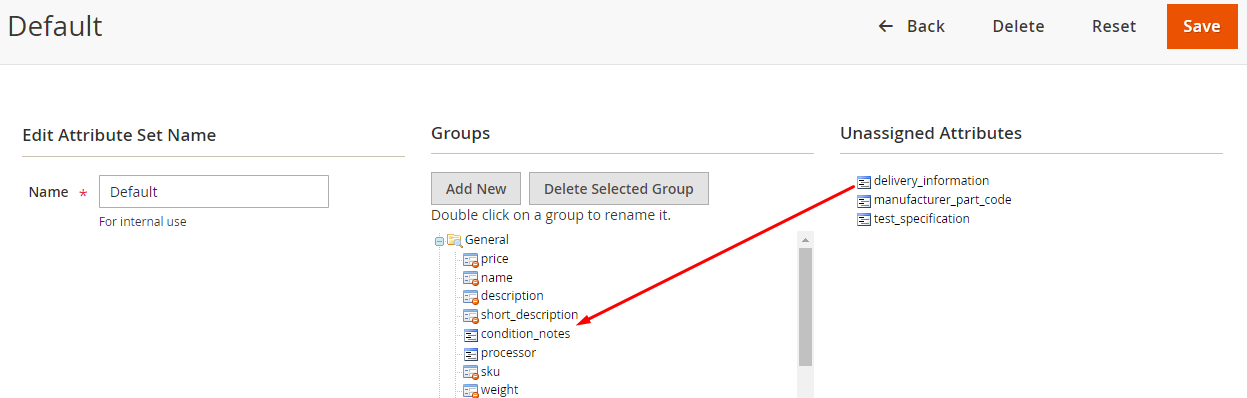
Now you can see the new attribute delivery_information on the product edit page. Update the attribute set and click on Save.

3. Add Layout Code
In app/design/frontend/[Vendor]/[Theme]/Magento_Catalog/layout/catalog_product_view.xml file add the following code:
<referenceBlock name="product.info.details">
<block class="MagentoCatalogBlockProductView" name="custom.tab" template="Magento_Catalog::custom_tab.phtml" group="detailed_info" >
<arguments>
<argument translate="true" name="title" xsi:type="string">Custom Tab</argument>
</arguments>
</block>
</referenceBlock>
4. Create a Template File
In app/design/frontend/[Vendor]/[Theme]/Magento_Catalog/, create custom_tab.phtml and add the following code in the file:
<?php
$product = $block->getProduct();
?>
<div><?php echo $product->getData('delivery_information'); ?></div>
Add content in Delivery Information from admin. It will display on front-end in product page.