We sacrifice by not doing any other technology, so that you get the best of Magento.

We sacrifice by not doing any other technology, so that you get the best of Magento.

    How to create admin menu in Magento 2?

    To create admin menu in Magento 2, you need to create  a menu.xml file in the
    app/code/MageMonkeys/HelloWorld/etc/adminhtml/
    directory.

    <?xml version="1.0"?>
    <config xmlns:xsi="http://www.w3.org/2001/XMLSchema-instance" xsi:noNamespaceSchemaLocation="urn:magento:module:Magento_Backend:etc/menu.xsd">
        <menu>
            <add id="MageMonkeys_HelloWorld::helloworld" title="Hello World" module="MageMonkeys_HelloWorld" sortOrder="51" resource="MageMonkeys_HelloWorld::helloworld"/>
            <add id="MageMonkeys_HelloWorld::post" title="Manage Posts" module="MageMonkeys_HelloWorld" sortOrder="10" action="magemonkeys_helloworld/post" resource="MageMonkeys_HelloWorld::post" parent="MageMonkeys_HelloWorld::helloworld"/>
            <add id="MageMonkeys_HelloWorld::hello_configuration" title="Configuration" module="MageMonkeys_HelloWorld" sortOrder="99" parent="MageMonkeys_HelloWorld::helloworld" action="adminhtml/system_config/edit/section/helloworld" resource="MageMonkeys_HelloWorld::helloworld_configuration"/>
        </menu>
    </config>

    Then, flush Magento cache by using below command.

    php bin/magento cache:clean
    

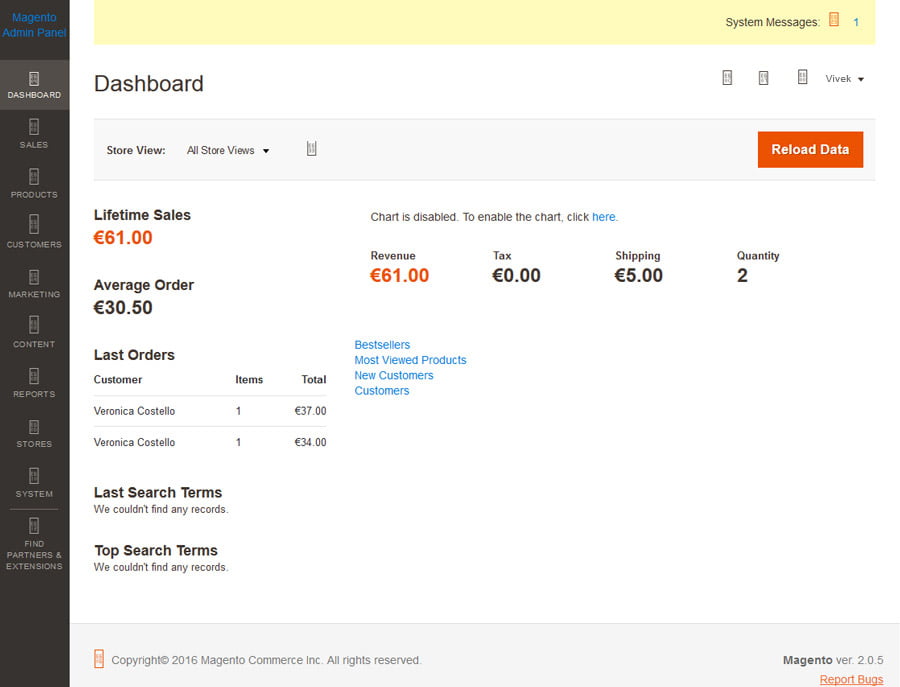
    And you will able to see below result.


    How to set/modify quote object in Magento?

    There are two ways by which you can achieve this.

    1. Using observer concept.

    class Vendor_Namespace_Model_Observer
    {
    	public function customfunction($observer){
    		try
    		{
    			$item = $observer->getEvent()->getQuoteItem();
    			$item->setData(‘customvariable’, ‘somevaue’);
    			$item->save();
    			return $this;
    		}
    		catch (Exception $e)
    		{
    			echo $e->getMessage();
    		}
    	}
    }

    2. Another way is to create or custom add to cart function and place following code after add to cart.

    /* The following code will set custom value to sales flat quote item start */
    
    $quote = Mage::getSingleton(‘checkout/session’)->getQuote();
    $_item = $quote->getItemByProduct($_product);
    $_item->getProduct()->setIsSuperMode(true);
    $_item->setCustomvariable(“somevaue”)->save();
    
    /* The following code will set custom value to sales flat quote item end */


    Magento 2 is not allowing special characters like ä in eMail subject

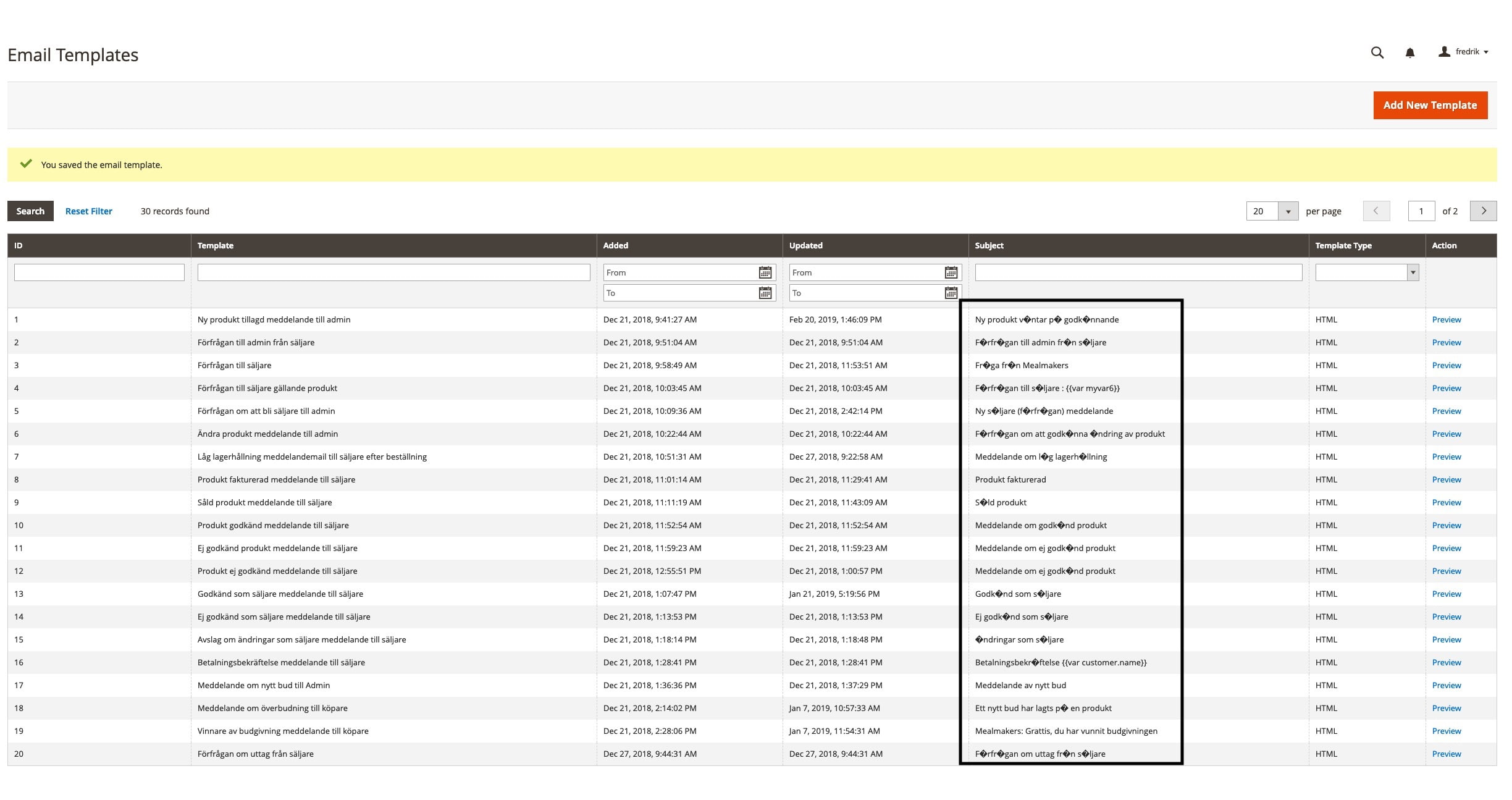
    While doing a code in Magento, you might have met with the problem where special characters like ä were not properly displayed.

    Today we are going to talk about this problem and it’s solution.

    We faced same situation as shown in screen shot.

    To resolve this issue, we used grid renderer for subject column.

    First you have to create new admin theme for email gird override.

    Create Files like this:

    app/design/adminhtml/[VendorName]/[ThemeName]/registration.php
    <?php
    
    	MagentoFrameworkComponentComponentRegistrar::register(
    	    MagentoFrameworkComponentComponentRegistrar::THEME,
    	    'adminhtml/[VendorName]/[ThemeName]',
    	    __DIR__
    	);
    <?php
    
    	MagentoFrameworkComponentComponentRegistrar::register(
    	    MagentoFrameworkComponentComponentRegistrar::THEME,
    	    'adminhtml/[VendorName]/[ThemeName]',
    	    __DIR__
    	);
    app/design/adminhtml/[VendorName]/[ThemeName]/theme.xml
    <theme xmlns:xsi="http://www.w3.org/2001/XMLSchema-instance" xsi:noNamespaceSchemaLocation="urn:magento:framework:Config/etc/theme.xsd">
    	    <title>[VendorName] [ThemeName]</title>
    	    <parent>Magento/backend</parent>
    	 </theme>

    Now Override the email grid in our new theme and add renderer in subject like below:

    app/design/adminhtml/Dahlquist/General/Magento_Email/layout/adminhtml_email_template_grid_block.xml
    <block class="MagentoBackendBlockWidgetGridColumn" name="adminhtml.system.email.template.grid.columnSet.subject" as="subject">
            <arguments>
                <argument name="header" xsi:type="string" translate="true">Subject</argument>
                <argument name="index" xsi:type="string">template_subject</argument>
                <argument name="renderer" xsi:type="string">[VendorName][ModuleName]BlockAdminhtmlTemplateGridRendererTesting</argument>
            </arguments>
        </block>

    In last part, “Testing” is block file name. But, you can use any name of the class and create in your any custom or existing module:

    [VendorName][ModuleName]BlockAdminhtmlTemplateGridRendererTesting
    <?php
    
    	namespace [VendorName][ModuleName]BlockAdminhtmlTemplateGridRenderer;
    
    	class Testing extends MagentoBackendBlockWidgetGridColumnRendererAbstractRenderer
    	{
    	    
    	    public function render(MagentoFrameworkDataObject $row)
    	    {
    	        $result = $row->getTemplateSubject();
    	        $convertString = '';
    
    	        if (isset($result)) {
    	            $convertString = utf8_encode($result);
    	        }
    
    	        return __($convertString);
    	    }
    	}

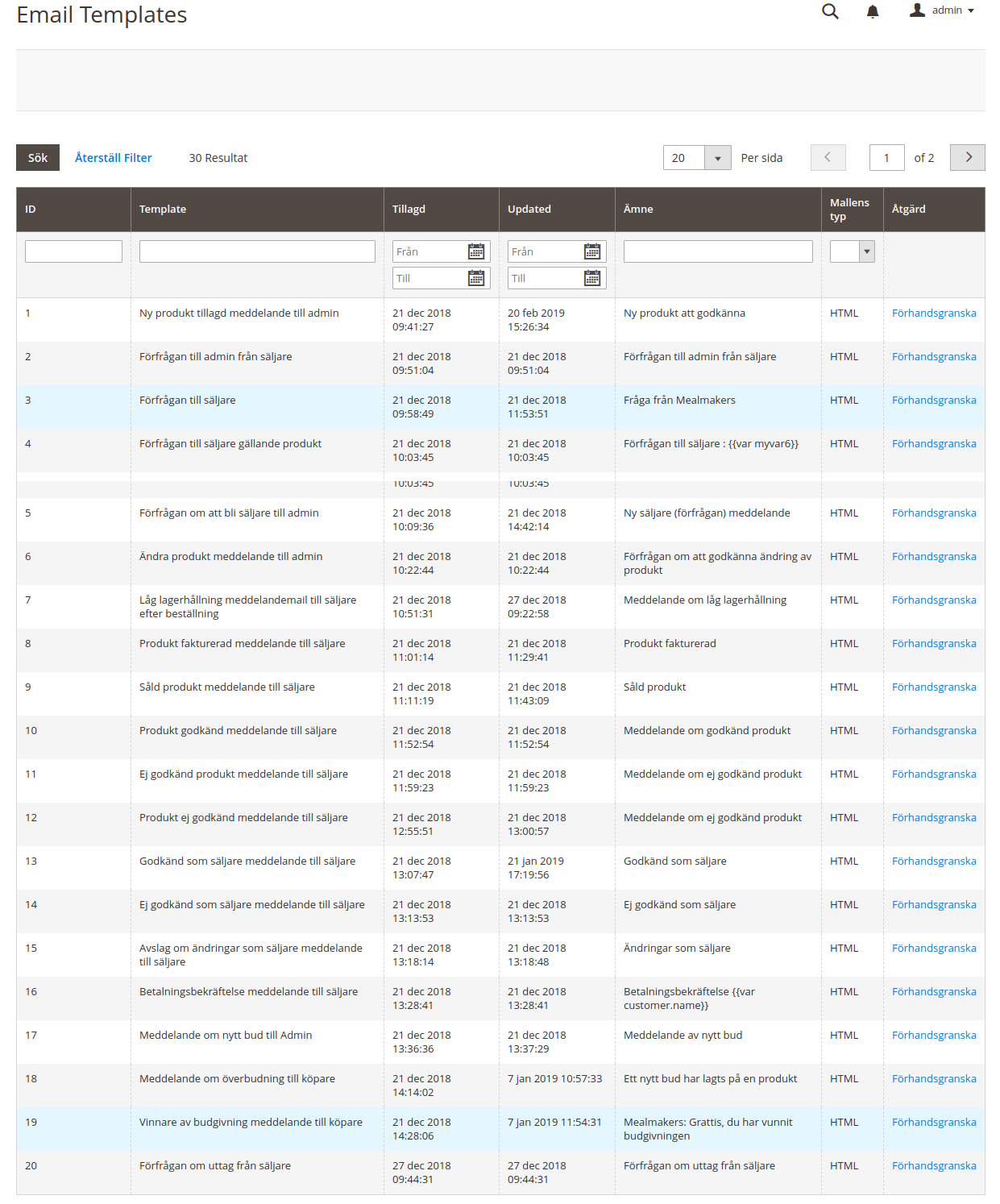
    Now You can see in admin side email grid will look like this:

    Add Custom Category Attribute Programmatically – Magento 2

    Step 1 ) Create file InstallData.php

    creating a  InstallData.php file in the app/code/MageMonkeys/HelloWorld/Setup/ directory.

    <?php
    namespace MageMonkeysHelloWorldSetup;
    
    use MagentoFrameworkSetupInstallDataInterface;
    use MagentoFrameworkSetupModuleContextInterface;
    use MagentoFrameworkSetupModuleDataSetupInterface;
    use MagentoEavSetupEavSetupFactory;
    
    class InstallData implements InstallDataInterface
    {
    
    	private $eavSetupFactory;
    
    	public function __construct(EavSetupFactory $eavSetupFactory)
    	{
    		$this->eavSetupFactory = $eavSetupFactory;
    	}
    
    	public function install(
    		ModuleDataSetupInterface $setup,
    		ModuleContextInterface $context
    	)
    	{
    		$eavSetup = $this->eavSetupFactory->create(['setup' => $setup]);
    
    		$eavSetup->addAttribute(
    			MagentoCatalogModelCategory::ENTITY,
    			'mm_new_attribute',
    			[
    				'type'         => 'varchar',
    				'label'        => 'MageMonkeys Attribute',
    				'input'        => 'text',
    				'sort_order'   => 100,
    				'source'       => '',
    				'global'       => 1,
    				'visible'      => true,
    				'required'     => false,
    				'user_defined' => false,
    				'default'      => null,
    				'group'        => '',
    				'backend'      => ''
    			]
    		);
    	}
    }

    Step 2 ) Display the category attribute

    creating a category_form.xml file in the app/code/MageMonkeys/HelloWorld/view/adminhtml/ui_component/ directory.

    <?xml version="1.0" ?>
    <form xmlns:xsi="http://www.w3.org/2001/XMLSchema-instance" xsi:noNamespaceSchemaLocation="urn:magento:module:Magento_Ui:etc/ui_configuration.xsd">
        <fieldset name="general">
            <field name="mm_new_attribute">
                <argument name="data" xsi:type="array">
                    <item name="config" xsi:type="array">
                        <item name="required" xsi:type="boolean">false</item>
                        <item name="validation" xsi:type="array">
                            <item name="required-entry" xsi:type="boolean">false</item>
                        </item>
                        <item name="sortOrder" xsi:type="number">333</item>
                        <item name="dataType" xsi:type="string">string</item>
                        <item name="formElement" xsi:type="string">input</item>
                        <item name="label" translate="true" xsi:type="string">MageMonkeys new attribute</item>
                    </item>
                </argument>
            </field>
        </fieldset>
    </form>

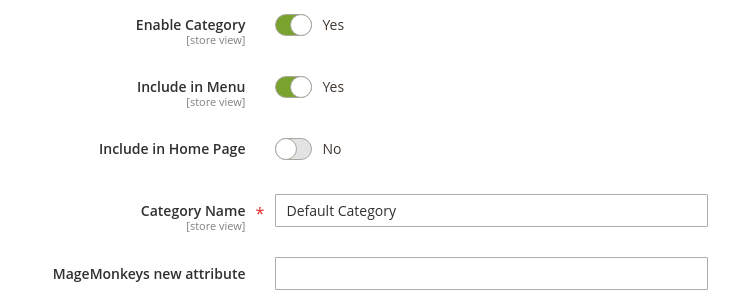
    Step 3 ) run upgrade, flush cache and check the result

    How to add custom field in sales rule action section in magento 1.9?

    First of all, you have to create a new module. After that, you have to put the code in config.xml

     <adminhtml>
            <events>    
                <adminhtml_block_salesrule_actions_prepareform>
                    <observers>
                        <magemonkeys_custofield>
                            <type>model</type>
                            <class>Magemonkeys_Custofield_Model_Observer</class>
                            <method>adminhtmlBlockSalesruleActionsPrepareform</method>
                        </magemonkeys_custofield>
                    </observers>
                </adminhtml_block_salesrule_actions_prepareform>
            </events>
     </adminhtml>

    in Model/Observer.php file you have to put this method and code.

    <?php
    class Magemonkeys_Custofield_Model_Observer
    {
        public function adminhtmlBlockSalesruleActionsPrepareform($observer)
        {
    
            $fieldset = $observer->getForm()->getElement('action_fieldset');
            $fieldset->addField('sku', 'text', array(
                'name' => 'sku',
                'label' => Mage::helper('freeproduct')->__('Add skus'),
                'title' => Mage::helper('freeproduct')->__('Add skus'),
                'note' => Mage::helper('freeproduct')->__('Add sku(s) separated with comma'),
            ));
        }
    }
    ?>

    And after that, you have to flush the cache and check.

    Special price date issue in Magento 2 [resolved]


    Today, I was working on a Magento 2 project.

    Everything was going smoothly, until I tried to add a product.

    I thought code was installed properly so I was expecting a positive acknowledgement.

    But instead, I faced an error which was saying:

    DateTime::__construct(): Failed to parse time string (28/11/2019) at position 0 (2): Unexpected char

    I had a discussion with my colleagues about it and we came with this solution.

    We made an update in this file :

    app/code/Magento/Catalog/Controller/Adminhtml/Product/Initialization/Helper.php

    The update we are talking about is nothing, but below one line code.

    private function convertSpecialFromDateStringToObject($productData)
    {
    	if (isset($productData['special_from_date']) && $productData['special_from_date'] != '')
    	{
        	$productData['special_from_date'] = $this->dateFilter->filter($productData['special_from_date']); // Add this line
        	$productData['special_from_date'] = new DateTime($productData['special_from_date']);
    	}
    	...

    After applying that update things worked for me. If you ever faced with such situation, I advised you to do the same.

    How to uncheck the default shipping method in Magento 2?

    Magento 2 comes with default shipping methods. But, if that’s not suitable to site owner then he/she can uncheck it.

    Let’s see, how?

    If you ever want to unchecked default shipping method at checkout or cart estimated shipping block, then it’s not necessary to create a module.

    Of course, you can perform this task by creating a module. But, here we are showing you alternate method to do the task.

    First step is to copy the js file checkout-data-resolver.js from vendormagentomodule-checkoutviewfrontendwebjsmodel
    to appdesignfrontendNamespaceThemeNameMagento_Checkoutwebjsmodel.

    And then just find selectShippingMethodAction(ratesData[0]);  and replace it to selectShippingMethodAction(null);  in this function: resolveShippingRates

    After doing such procedure you need to clear static content and cache.

    That’s it.

    Fatal error: Product Export problem & solution in Magento 1.9.3.9

    If you’re into Magento migration then you might face with many errors & solution.

    Dropping other errors aside, today, we’re going to talk about a Fatal error that can be faced while product/data migration.

    The error is known as Fatal error.

    It’s as show below:

    “Uncaught Error: Unsupported operand types in /var/www/html/magento1.9/app/code/core/Mage/ImportExport/Model/Export/Entity/Product.php:948”

    It can occur when you are trying to export products from admin.

    But, where there is an error, there is a solution.

    The solution for above problem is replacement of code.

    Replace code $dataRow += $stockItemRows[$productId]; on line no. 948 with below code in  app/code/core/Mage/ImportExport/Model/Export/Entity/Product.php file.

    -    $dataRow += $stockItemRows[$productId];
    +    if (isset($stockItemRows[$productId])) {
    +        $dataRow = array_merge($dataRow, $stockItemRows[$productId]);
    +    }

    With this simple replacement, your will get rid of that fatal error.

    Don’t forget to tell us how it worked for you by making a comment.

    Fatal error: Declaration of Temando – Magento 2.3

    Sometimes, this could happen that when you run

    “php bin/magento setup:di:compile”

    It can give you the below error:

    Fatal error: Declaration of TemandoShippingModelResourceModelCollectionPointOrderCollectionPointRepository::save(TemandoShippingApiDataCollectionPointOrderCollectionPointInterface $collectionPoint) 
    must be compatible with TemandoShippingModelResourceModelRepositoryOrderCollectionPointRepositoryInterface::save(TemandoShippingApiDataDeliveryOrderCollectionPointInterface $collectionPoint) 
    in /var/www/html/magento2vendortemandomodule-shipping-m2ModelResourceModelCollectionPointOrderCollectionPointRepository.php on line 24

    Don’t get panic. Because the solution is very simple.

    Now, let’s talk about the solution.

    Solution: Completely remove the vendor/temando folder and all files then reinstall temando module.

    That’s it. Let us know how it work with your coding journey.

    How to get admin-panel’s missing Icon Fonts, js and css back in magento 2?

    As you can see in below screenshots, I passed through a situation where I failed to find any type of fonts in any folder that actually display icons.

    Well, by doing further research I found a solution which I am going to share with all of you.

    According to my opinion, if admin-panel’s icon fonts, js and css are missing, then those are not generated properly.

    You just need to follow below steps to make it all work:

    1. Remove pub/static (Keep .htaccess file back-up and copy it again)
    2. Remove var/cache
    3. Remove var/composer_home
    4. Remove var/generation
    5. Remove var/page_cache
    6. Remove var/view_preprocessed
    7. Run this command : php bin/magento setup:static-content:deploy -f