We sacrifice by not doing any other technology, so that you get the best of Magento.

We sacrifice by not doing any other technology, so that you get the best of Magento.

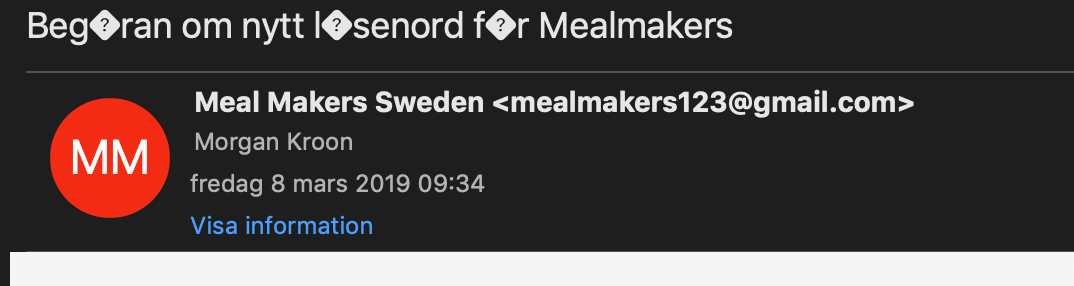
    Magento 2.2.6 not allowing special characters like ä or other special characters in email subject

    I was working on email functionality for a Magento client and I faced this error.

    If you observe above screenshot carefully then you will find that special characters are not looking the way they suppose to be.

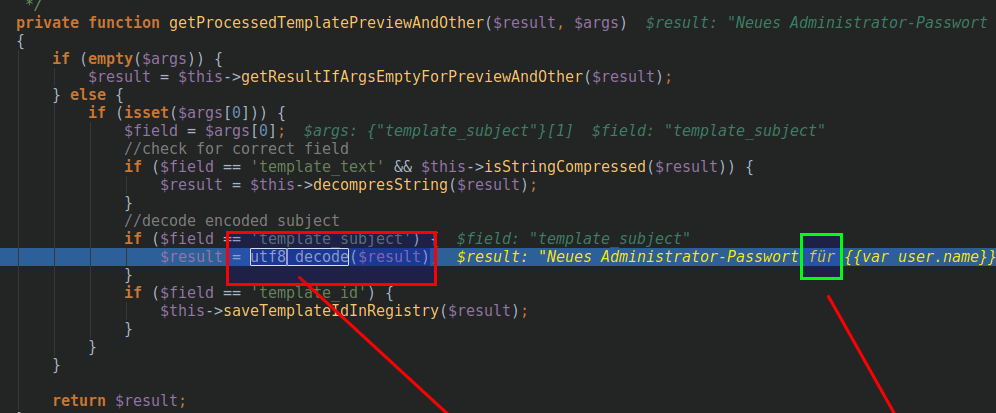
    I dug further and realized that ‘Magento core Dotmailer plugin’ was installed and it was decoding utf-8 string to a terrible creature by utf8_decode() function.

    So, It was necessary for me to disable private function getProcessedTemplatePreviewAndOther() or update module version because in Magento 2.3.0 latest version it is solved and module version is updated.

    Here, I’m sharing with you that how to update dotmailer plugin using composer:

    composer require dotmailer/dotmailer-magento2-extension:"[Dotmailer Latest Version] as [Dotmailer Current Use Version]"

    Like:

    composer require dotmailer/dotmailer-magento2-extension:"3.0.3 as 2.6.0"

    Note: Here 3.0.3 is dotmailer plugin version, which is used in our latest Magento 2.3.0. Aparts, 2.6.0 is dotmailer plugin version which is used in our current Magento 2.2.6.

    How to set Customer’s Firstname and Lastname minimum characters validation in Magento 2?

    In Magento 2, Firstname and Lastname are consider as customer entities.

    Customer’s Firstname and Lastname attributes have been added during Magento 2 installation.

    Firstname and Lastname attributes are mostly used in the registration page and customer form.

    Today, we are going to discuss, how to set minimum characters limit in Firstname and Lastname.

    We are going to set minimum 2 characters limit in Firstname and Lastname.

    For that, We need to change validate_rules column in customer_eav_attribute table for Firstname and Lastname attributes.

    By default Firstname and Lastname attributes contain validate_rules value as {“max_text_length”:255,”min_text_length”:1}

    We need to change that validate_rules column value to {“max_text_length”:255,”min_text_length”:2} for set minimum 2 characters.

    Let’s see server side and client side validations:

    1. Server side validation (After Form Submit)

    You can create extension to get this functionality.
    Extenson Name : Magemonkey_ValidateCustomerName

    Create registration.php file in app/code/Magemonkey/ValidateCustomerName/ and add below code.

    <?php
    
    MagentoFrameworkComponentComponentRegistrar::register(
    MagentoFrameworkComponentComponentRegistrar::MODULE,
    'Magemonkey_ValidateCustomerName',
    __DIR__
    );

    Create module.xml in app/code/Magemonkey/ValidateCustomerName/etc/ and add below code.

    <?xml version="1.0"?>
    <config xmlns:xsi="http://www.w3.org/2001/XMLSchema-instance" xsi:noNamespaceSchemaLocation="urn:magento:framework:Module/etc/module.xsd">
        <module name="Magemonkey_ValidateCustomerName" setup_version="1.0.0">
            <sequence>
                <module name="Magento_Customer" />
            </sequence>
        </module>
    </config>

    Create UpgradeData.php file in app/code/Magemonkey/ValidateCustomerName/Setup/ and add below code.

    <?php
    
    namespace MagemonkeyValidateCustomerNameSetup;
    
    use MagentoEavSetupEavSetup;
    use MagentoFrameworkSetupModuleContextInterface;
    use MagentoFrameworkSetupModuleDataSetupInterface;
    use MagentoFrameworkSetupUpgradeDataInterface;
    
    class UpgradeData implements UpgradeDataInterface
    {
        /**
         * @param EavSetup $eavSetupFactory
         */
        public function __construct(
            MagentoCustomerSetupCustomerSetupFactory $customerSetupFactory
        ) {
            $this->customerSetupFactory = $customerSetupFactory;
        }
    
        /**
         * Upgrades customer_eav_attribute table for validate_rules to set limit on character for first and lastname
         *
         * @param ModuleDataSetupInterface $setup
         * @param ModuleContextInterface $context
         * @return void
         */
        public function upgrade(ModuleDataSetupInterface $setup, ModuleContextInterface $context)
        {
            $setup->startSetup();
            /** @var CustomerSetup $customerSetup */
            $customerSetup = $this->customerSetupFactory->create(['setup' => $setup]);
    
            $entityAttributes = [
                'customer_address' => [
                    'firstname' => [
                        'validate_rules' => '{"max_text_length":255,"min_text_length":2}'
                    ],
                    'lastname' => [
                        'validate_rules' => '{"max_text_length":255,"min_text_length":2}'
                    ],
                ],
                'customer' => [
                    'firstname' => [
                        'validate_rules' => '{"max_text_length":255,"min_text_length":2}'
                    ],
                    'lastname' => [
                        'validate_rules' => '{"max_text_length":255,"min_text_length":2}'
                    ],
                ],
            ];
            $this->upgradeAttributes($entityAttributes, $customerSetup);
            $setup->endSetup();
        }
    
        protected function upgradeAttributes(array $entityAttributes, MagentoCustomerSetupCustomerSetup $customerSetup)
        {
            foreach ($entityAttributes as $entityType => $attributes) {
                foreach ($attributes as $attributeCode => $attributeData) {
                    $attribute = $customerSetup->getEavConfig()->getAttribute($entityType, $attributeCode);
                    foreach ($attributeData as $key => $value) {
                        $attribute->setData($key, $value);
                    }
                    $attribute->save();
                }
            }
        }
    }

    Above script will change validate_rules in customer_eav_attribute table to apply validation for server side.

    2. Client Side Validation (Before Form Submit)

    Override /vendor/magento/module-customer/view/frontend/templates/widget/name.phtml file to add client side validations.

    Add minimum-length-2 validate-length class in Firstname and Lastname input elements.

    So Firstname and Lastname inputes look like below in name.phtml file,

    Firstname input :

    <input type="text" id="<?= $block->escapeHtmlAttr($block->getFieldId('firstname')) ?>"
                           name="<?= $block->escapeHtmlAttr($block->getFieldName('firstname')) ?>"
                           value="<?= $block->escapeHtmlAttr($block->getObject()->getFirstname()) ?>"
                           title="<?= $block->escapeHtmlAttr($block->getStoreLabel('firstname')) ?>"
                           class="minimum-length-2 validate-length input-text <?= $block->escapeHtmlAttr($block->getAttributeValidationClass('firstname')) ?>" <?php if ($block->getAttributeValidationClass('firstname') == 'required-entry') echo ' data-validate="{required:true}"' ?>>

    Lastname input :

    <input type="text" id="<?= $block->escapeHtmlAttr($block->getFieldId('lastname')) ?>"
                           name="<?= $block->escapeHtmlAttr($block->getFieldName('lastname')) ?>"
                           value="<?= $block->escapeHtmlAttr($block->getObject()->getLastname()) ?>"
                           title="<?= $block->escapeHtmlAttr($block->getStoreLabel('lastname')) ?>"
                           class="minimum-length-2 validate-length input-text <?= $block->escapeHtmlAttr($block->getAttributeValidationClass('lastname')) ?>" <?php if ($block->getAttributeValidationClass('lastname') == 'required-entry') echo ' data-validate="{required:true}"' ?>>


    Magento 2: How to add country and region dropdown in admin form?

    If you want to add country and region inside the drop-down in custom module admin form, you landed to right page.


    Follow below instruction step-by-step to execute it.

    Step 1 : Add column in table field.

    Create new file : Setup/Installschema.php

    <?php
    
    ->addColumn(
    'country',
    MagentoFrameworkDBDdlTable::TYPE_TEXT,
    '2M',
    ['nullable' => false],
    'country' 
    )->addColumn(
    'store_ids',
    MagentoFrameworkDBDdlTable::TYPE_TEXT,
    '255',
    ['nullable' => false,
    'default' => $defaultstoreid,
    ],
    'store_ids' 
    )->addColumn(
    'statename',
    MagentoFrameworkDBDdlTable::TYPE_TEXT,
    '2M',
    ['nullable' => false],
    'statename'
    )
    
    ?>

    Step 2 : Add country and state drop-down with text

    Create new file : Block/Adminhtml/Grid/Edit/Form.php

    <?php
    $optionsc=$this->_countryFactory->toOptionArray();
    $country = $fieldset->addField(
    'country',
    'select',
    [
    'name' => 'country',
    'label' => __('Country'),
    'title' => __('country'),
    'values' => $optionsc,
    ]
    );
    
    $statename = $fieldset->addField(
    'state',
    'select',
    [
    'name' => 'state',
    'label' => __('State'),
    'id' => 'state',
    'title' => __('state'),
    'class' => 'required-entry',
    'required' => false,
    'values' => ['--Please Select State--'],
    ]
    );
    $fieldset->addField(
    'statename',
    'text',
    [
    'name' => 'statename',
    'label' => __('State'),
    'id' => 'statename',
    'title' => __('state'),
    'class' => 'statename',
    'required' => false,
    ]
    );
    
    /*
    * Add Ajax to the Country select box html output
    */
    $country->setAfterElementHtml(" 
    <script type="text/javascript">
    require([
    'jquery',
    'mage/template',
    'jquery/ui',
    'mage/translate'
    ],
    function($, mageTemplate) {
    jQuery('.field-statename').hide();
    
    jQuery('#addressbook_country').change(function(){
    var conceptName = jQuery('#addressbook_country').find(':selected').val();
    jQuery.ajax({
    url : '". $this->getUrl('grid/lists/regionlist') . "?country=' + conceptName,
    data: conceptName,
    type: 'GET',
    dataType: 'json',
    showLoader:true,
    success: function(data){
    // console.log(data.htmlconent);
    if(data.htmlconent==''){
    jQuery('.field-statename').show();
    jQuery('.field-state').hide();
    }else{
    jQuery('#addressbook_state').empty().append(data.htmlconent);
    jQuery('.field-state').show();
    jQuery('.field-statename').hide();
    
    }
    
    }
    }); 
    });
    
    }
    
    );
    </script>"
    );
    
    $statename->setAfterElementHtml(" 
    <script type="text/javascript">
    require([
    'jquery',
    'mage/template',
    'jquery/ui',
    'mage/translate'
    ],
    function($, mageTemplate) {
    jQuery('.field-statename').hide();
    jQuery(window).load(function(){
    setTimeout(function(){
    var statename ='".$model->getState()."';
    jQuery('#addressbook_state option').each(function (a, b) {
    if (jQuery(this).text().toLowerCase() == statename.toLowerCase() ){
    jQuery(this).attr('selected','selected');
    jQuery(this).trigger('change');
    
    }
    });
    }, 1000);
    });


    var conceptName = jQuery('#addressbook_country').find(':selected').val();
    if(conceptName != ''){
    jQuery('#addressbook_country').trigger('change');
    }
    }
    
    );
    </script>"
    );
    
    ?>

    Step 3 : Getting region list from controller.

    Create new file : Controller/Adminhtml/Lists/Regionlist.php

    /**
    * @SuppressWarnings(PHPMD.CouplingBetweenObjects)
    */
    class Regionlist extends MagentoFrameworkAppActionAction
    {
    /**
    * @var MagentoFrameworkViewResultPageFactory
    */
    protected $resultPageFactory;
    /**
    * @var MagentoDirectoryModelCountryFactory
    */
    protected $_countryFactory;
    
    /**
    * @param MagentoFrameworkAppActionContext $context
    * @param MagentoFrameworkViewResultPageFactory resultPageFactory
    */
    public function __construct(
    MagentoFrameworkAppActionContext $context,
    MagentoDirectoryModelCountryFactory $countryFactory,
    MagentoFrameworkViewResultPageFactory $resultPageFactory
    )
    {
    $this->_countryFactory = $countryFactory;
    $this->resultPageFactory = $resultPageFactory;
    parent::__construct($context);
    }
    /**
    * Default customer account page
    *
    * @return void
    */
    public function execute()
    {
    $countrycode = $this->getRequest()->getParam('country');
    
    if ($countrycode != '') {
    $statearray =$this->_countryFactory->create()->setId($countrycode)->getLoadedRegionCollection()->toOptionArray();
    $state = '';
    if(count($statearray) > 0){
    // $state .= "<option value=''>--Please Select State--</option>";
    foreach ($statearray as $_state) {
    if($_state['value']){
    $state .= "<option value=".$_state['label'].">" . $_state['label'] . "</option>";
    }
    }
    }
    }
    $result['htmlconent']=$state;
    $this->getResponse()->representJson(
    $this->_objectManager->get('MagentoFrameworkJsonHelperData')->jsonEncode($result)
    );
    } 
    
    }
    
    ?>

    Step 4 : Save your data.

    Create new file : Controller/Adminhtml/Grid/Save.php

    <?php
    
    class Save extends MagentoBackendAppAction
    {
    /**
    * @var NamespaceModulenameModelGridFactory
    */
    var $gridFactory;
    
    /**
    * @param MagentoBackendAppActionContext $context
    * @param NamespaceModulenameModelGridFactory $gridFactory
    */
    public function __construct(
    MagentoBackendAppActionContext $context,
    NamespaceModulenameModelGridFactory $gridFactory,
    MagentoDirectoryModelCountryFactory $countryFactory
    ) {
    parent::__construct($context);
    $this->gridFactory = $gridFactory;
    $this->_countryFactory = $countryFactory;
    }
    
    /**
    * @SuppressWarnings(PHPMD.CyclomaticComplexity)
    * @SuppressWarnings(PHPMD.NPathComplexity)
    */
    public function execute()
    {
    $data = $this->getRequest()->getPostValue();
    if (!$data) {
    $this->_redirect('grid/grid/addrow');
    return;
    }
    try {
    
    $countrycode = $data['country'];
    $statearray =$this->_countryFactory->create()->setId($countrycode)->getLoadedRegionCollection()->toOptionArray();
    $rowData = $this->gridFactory->create(); 
    if($data['state'] == '0' || count($statearray) == 0){
    
    $data['state'] = $data['statename'];
    }
    $data['store_ids'] = implode(',', $data['store_ids']); 
    $rowData->setData($data);
    if (isset($data['id'])) {
    $rowData->setEntityId($data['id']);
    }
    $rowData->save();
    $this->messageManager->addSuccess(__('AddressBook has been successfully saved.'));
    } catch (Exception $e) {
    $this->messageManager->addError(__($e->getMessage()));
    }
    $this->_redirect('grid/grid/index');
    }
    
    /**
    * @return bool
    */
    protected function _isAllowed()
    {
    return $this->_authorization->isAllowed('Namespace_Modulename::save');
    }
    }
    ?>

    Well, that’s it. Try to adopt this solution and let us know how it worked for you.
    Magento 1.9 version has problem to send password in emails

    While doing programming in Magento 1.9 version, you might deal with the problem that you won’t able to send customer’s passwords to them inside the mail.

    Yes, that’s a needed functionality for many clients. But, it’s not smooth go in Magento 1.9 version.

    You need to adopt below technical solution.

    To send password in an email, you need to,

    Open the core file or extend as you like AccountController.php,
    Find the function createPostAction() or find

    $customer->cleanPasswordsValidationData();

    and make a comment before starting of that line as shown in below.

    //$customer->cleanPasswordsValidationData();

    you can make the same change on other places as on line 809, 954

    After doing this activity, I’m pretty sure it will able to send the password inside the mail.

    Well, there is another method which can be adopted here.

    All you need to do it, just open or extend the custom model file

    magentoappcodecoreMageCustomerModelCustomer.php
    find the function

    public function cleanPasswordsValidationData() {
    
    $this->setData(‘password’, null);
    
    $this->setData(‘password_confirmation’, null);
    
    return $this;
    }

    Then, make it comment by adding

    // $this->setData(‘password’, null);

    public function cleanPasswordsValidationData()
    
    {
    // $this->setData(‘password’, null);
    $this->setData(‘password_confirmation’, null);
    return $this;
    }

    Well,  after the above step, you are done. Hope your problem will get resolved. If not, let us know via comment, we’ll guide you further.

    Magento 2 redirection types and difference between them

    Magento provides three redirect functions for front-end controller.

    They are:

    1. _redirect()
    2. _redirectUrl()
    3. _redirectReferer()

    Now, let’s talk about them.

    The first function is _redirect($path)
    This function used for internal redirection.

    The second function is _redirectUrl($path)
    This function used for external redirection.

    Third function is _redirectReferer()
    This function used to redirect to the referral url.

    As you can see, all functions has different roles to play. Thus, use them very wisely. Happy coding!

    How to change product price with plugin in Magento 2?

    Product price is a dynamic thing. It keeps changing time-by-time.

    That’s why we came up today to talk about “product & pricing” subject.

    If you want to change product pricing with plugin, then this article is for you.

    Well, to do the same you have to add below code in di.xml

    <config>
      <type name="MagentoCatalogModelProduct">
        <plugin name="change_product" type=" MagemonkeysPricechangePluginProduct " sortOrder="2" disabled="true"/>
      </type>
    </config>

    After doing same, go to MagemonkeysPricechangePlugin to add new class Product.php.
    There you need to add code which we going to write below. Below code will work when the original method getPrice() complete. You can always put your logic into it.

    <?php
     
    namespace MagemonkeysPricechangePlugin;
     
    class Product
    {
        public function afterGetPrice(MagentoCatalogModelProduct $subject, $result)
        {
            return $result + 100;
        }
    }
    ?>

    Last but not the least, do flush cache before you check.


    How to add custom category attribute in Magento?

    Hello folks,

    If you want to add custom category attribute to Magento then you are at right place.

    Today, I am going to show you how to create a custom attribute.

    To create a custom attribute the first step is to create a module.

    Step 1: Create a file app/code/local/Magemonkeys/Customattribute/etc/config.xml and paste the below code in that file.

    <?xml version="1.0"?>
    <config>
      <modules>
        <Magemonkeys_Customattribute>
          <version>0.0.1</version>
        </Magemonkeys_Customattribute>
      </modules>
        <global>
          <resources>
              <customattribute_setup>
                <setup>
                  <module>Magemonkeys_Customattribute</module>
                  <class>Mage_Eav_Model_Entity_Setup</class>
                </setup>
                <connection>
                  <use>default_setup</use>
                </connection>
              </customattribute_setup>
          </resources>
        </global>
    </config>

    Step 2: Create a file app/etc/modules/Magemonkeys_Customattribute.xml and paste the below code in the file

    <?xml version="1.0"?>
    <config>
      <modules>
        <Magemonkeys_Customattribute>
          <active>true</active>
          <codePool>local</codePool>
        </Magemonkeys_Customattribute>
      </modules>
    </config>

    Step 3: Create a file app/code/local/Magemonkeys/Customattribute/sql/customattribute_setup/mysql4-install-0.0.1.php and paste the below code in it.

    <?php
    $installer = $this;
    $installer->startSetup();
    $attribute  = array(
        'type' => 'text',
        'label'=> 'Another Descrtiption',
        'input' => 'textarea',
        'global' => Mage_Catalog_Model_Resource_Eav_Attribute::SCOPE_GLOBAL,
        'visible' => true,
        'required' => false,
        'user_defined' => true,
        'default' => "",
        'group' => "General Information"
    );
    $installer->addAttribute('catalog_category', 'another_description', $attribute);
    $installer->endSetup();
    ?>

    After this you have to clear the cache and go to Catalog -> Manage Categories, you will see your new attribute in the “General Information” tab.

    Let us know by making a comment if this article helped you in your Magento development journey.

    Magento2 generate PDF file programmatically

    1. Create Index.php at app/code/Magemonkeys/Pdf/Controller/Index folder with following code:
      <?php
      namespace MagemonkeysPdfControllerIndex;
       
      use MagentoFrameworkAppActionAction;
      use MagentoFrameworkAppActionContext;
      use MagentoFrameworkAppResponseHttpFileFactory;
       
      class Index extends Action
      {
          protected $fileFactory;
       
          public function __construct(
              Context $context,
              FileFactory $fileFactory
          ) {
              $this->fileFactory = $fileFactory;
              parent::__construct($context);
          }
       
          public function execute()
          {
              $pdf = new Zend_Pdf();
              $pdf->pages[] = $pdf->newPage(Zend_Pdf_Page::SIZE_A4);
              $page = $pdf->pages[0]; // this will get reference to the first page.
              $style = new Zend_Pdf_Style();
              $style->setLineColor(new Zend_Pdf_Color_Rgb(0,0,0));
              $font = Zend_Pdf_Font::fontWithName(Zend_Pdf_Font::FONT_TIMES);
              $style->setFont($font,13);
              $page->setStyle($style);
              $width = $page->getWidth();
              $hight = $page->getHeight();
              $x = 30;
              $pageTopalign = 850; 
              $this->y = 850 - 100; 
              
              $style->setFont($font,14);
              $page->setStyle($style);
              $page->drawRectangle(30, $this->y + 10, $page->getWidth()-30, $this->y +70, Zend_Pdf_Page::SHAPE_DRAW_STROKE);
              
              $style->setFont($font,13);
              $page->setStyle($style);
              $page->drawText(__("Customer Details"), $x + 5, $this->y+50, 'UTF-8');
              $style->setFont($font,11);
              $page->setStyle($style);
              $page->drawText(__("Name : %1", "Jayeshkumar Lakum"), $x + 5, $this->y+33, 'UTF-8');
              $page->drawText(__("Email : %1","jayesh@webtechsystem.com"), $x + 5, $this->y+16, 'UTF-8');
       
              $style->setFont($font,11);
              $page->setStyle($style);
              
              $page->drawText(__("PRODUCT NAME"), $x + 60, $this->y-10, 'UTF-8');
              $page->drawText(__("PRODUCT PRICE"), $x + 200, $this->y-10, 'UTF-8');
              $page->drawText(__("QTY"), $x + 310, $this->y-10, 'UTF-8');
              $page->drawText(__("SUB TOTAL"), $x + 440, $this->y-10, 'UTF-8');
       
              $style->setFont($font,10);
              $page->setStyle($style);
              $add = 9;
              
              $page->drawText("$12.00", $x + 210, $this->y-30, 'UTF-8');
              $page->drawText(10, $x + 330, $this->y-30, 'UTF-8');
              $page->drawText("$120.00", $x + 470, $this->y-30, 'UTF-8');
              $pro = "Dummy Product";
              $page->drawText($pro, $x + 65, $this->y-30, 'UTF-8');
              
              $page->drawRectangle(30, $this->y -62, $page->getWidth()-30, $this->y + 10, Zend_Pdf_Page::SHAPE_DRAW_STROKE);
              $page->drawRectangle(30, $this->y -62, $page->getWidth()-30, $this->y - 100, Zend_Pdf_Page::SHAPE_DRAW_STROKE);
              
              $style->setFont($font,15);
              $page->setStyle($style);
              $page->drawText(__("Total : %1", "$50.00"), $x + 435, $this->y-85, 'UTF-8');
              
              $style->setFont($font,10);
              $page->setStyle($style);
              $page->drawText(__("Dummy Footer"), ($page->getWidth()/2)-50, $this->y-200);
       
              $fileName = 'order.pdf';
       
              $this->fileFactory->create(
                 $fileName,
                 $pdf->render(),
                 MagentoFrameworkAppFilesystemDirectoryList::VAR_DIR, // this pdf will be saved in var directory with the name meetanshi.pdf
                 'application/pdf'
              );
          }
      }


    Magento2 Display Module List

    Run below command to see a full list of enabled or disabled modules:

    php bin/magento module:status

    To enable a module, use the below command:

    php bin/magento module:enable Magemonkeys_AjaxNewsletter

    To disable a module use the below command:

    php bin/magento module:disable Magemonkeys_AjaxNewsletter

    To uninstall a module use the below command:

    php bin/magento module:uninstall Magemonkeys_AjaxNewsletter