We sacrifice by not doing any other technology, so that you get the best of Magento.

We sacrifice by not doing any other technology, so that you get the best of Magento.

    How to show CMS static block in Magento 2

    Are you wondering, how to show CMS Static Block in Magento 2?

    Here, you will find effective instruction about this topic.

    Call from Phtml File:

    echo $this->getLayout()
              ->createBlock('MagentoCmsBlockBlock')
              ->setBlockId('your_block_identifier')
              ->toHtml();

    Call from CMS page or block:

    {{block class="MagentoCmsBlockBlock" block_id="your_block_identifier"}}
    

    Call from XML File:

    <referenceContainer name="content">
        <block class="MagentoCmsBlockBlock" name="block_identifier">
            <arguments>
                <argument name="block_id" xsi:type="string">block_identifier</argument>
            </arguments>
        </block>
    </referenceContainer>

    Hope this helps you!

    How to Override a Helper File in Magento 2

    To override Magento 2 Helper file, follow below steps.

    First, you need to create a di.xml file at below desired location.

    Go to Vendor/Extension/etc/di.xml And add the following code into di.xml

    Magento 2: Creating and Calling Custom Popup using Modal

    Here we are discussing how to create and call custom popup using Magento 2’s Popup Modal Library.

    You should create a module first, then after create a requirejs-config.js file at app/code/CustomVendor/CustomModule/view/frontend/

    var config = {
        paths: {            
             'myjs': "CustomVendor_CustomModule/js/customfile"
          },   
        shim: {
        'myjs': {
            deps: ['jquery']
        }
      }
    }

    You need to create customfile.js at app/code/CustomVendor/CustomModule/view/frontend/web/js/

    <script>
        require(
            [
                'jquery',
                'Magento_Ui/js/modal/modal'
            ],
            function(
                $,
                modal
            ) {
                var options = {
                    type: 'popup',
                    responsive: true,
                    innerScroll: true,
                    buttons: [{
                        text: $.mage.__('Continue'),
                        class: 'mymodal1',
                        click: function () {
                            this.closeModal();
                        }
                    }]
                };
    
                var popup = modal(options, $('#custompopup'));
                $("#click-here").on('click',function(){
                    $("#custompopup").modal("openModal");
                });
            }
        );
    </script>

    Add following code in your phtml file:

    <div data-mage-init='{"myjs": {}}'>
        <a href="#" id="click-here">Click Here</a>
    </div>
    
    
    <div id="custompopup" >
        This is custom popup using magento popup modal.
    </div>


    Magento 2 controller override

    It is a quite simple tutorial with 2 steps:

    Step 1:

    Create di.xml file at app/code/[Name space]/[Your Module]/etc

    <?xml version="1.0"?>
    <config xmlns:xsi="http://www.w3.org/2001/XMLSchema-instance" xsi:noNamespaceSchemaLocation="../../../../../lib/internal/Magento/Framework/ObjectManager/etc/config.xsd">
       <preference for="MagentoCmsControllerIndexIndex" type="[Name Space][Your Module]ControllerCmsIndex" />
    </config>

    In this example, we will rewrite controller Magento/Cms/Controller/Index/Index. In which, [Name Space][Your Module]ControllerCmsIndex will be used to override MagentoCmsControllerindexIndex –the homepage in original Magento 2.

    Step 2: Define an overriding controller class

    You need to create Index.php in app/code/[Name Space]/your Module]/Controller/Index

    <?php
    
    namespace [Name Space][Your Module]ControllerIndex;
    class Index extends MagentoCmsControllerIndexIndex
    {
    public function execute($coreRoute = null)
    {
        // todo
    
    }
    }

    Done! I’m sure that you can follow this tutorial without any difficulty.

    Magento 2: Add Category Custom Attribute

    Here, we will discuss about how to add custom attribute in Magento 2 Category section.

    I have created a custom module to add boolean type custom attribute.

    Here, I have used MageMonkey as vendor and CustomCategorySettings as the module name.

    Please follow below steps:

    1. Create MageMonkey/CustomCategorySettings directories in app/code

    2. Create registration.php file at app/code/MageMonkey/CustomCategorySettings/ and add following code:

    <?php
    MagentoFrameworkComponentComponentRegistrar::register(
        MagentoFrameworkComponentComponentRegistrar::MODULE,
        'MageMonkey_CustomCategorySettings',
        __DIR__
    );
    

    3. Create module.xml file at app/code/MageMonkey/CustomCategorySettings/etc/ and add following code:

    <config xmlns:xsi="http://www.w3.org/2001/XMLSchema-instance" xsi:noNamespaceSchemaLocation="urn:magento:framework:Module/etc/module.xsd">
        <module name="MageMonkey_CustomCategorySettings" setup_version="1.0.0">
            <sequence>
                <module name="Magento_Catalog"/>
            </sequence>
        </module>
    </config>
    

    4. Create InstallData.php file at app/code/MageMonkey/CustomCategorySettings/Setup/ and add following code:

    <?php
    namespace MageMonkeyCustomCategorySettingsSetup;
    use MagentoFrameworkModuleSetupMigration;
    use MagentoFrameworkSetupInstallDataInterface;
    use MagentoFrameworkSetupModuleContextInterface;
    use MagentoFrameworkSetupModuleDataSetupInterface;
    use MagentoCatalogSetupCategorySetupFactory;
     
    class InstallData implements InstallDataInterface
    {
        /**
         * Category setup factory
         *
         * @var CategorySetupFactory
         */
        private $categorySetupFactory;
     
        /**
         * Init
         *
         * @param CategorySetupFactory $categorySetupFactory
         */
        public function __construct(CategorySetupFactory $categorySetupFactory)
        {
            $this->categorySetupFactory = $categorySetupFactory;
        }
        /**
         * {@inheritdoc}
         * @SuppressWarnings(PHPMD.ExcessiveMethodLength)
         */
        public function install(ModuleDataSetupInterface $setup, ModuleContextInterface $context)
        {
            $installer = $setup;
            $installer->startSetup();
     
            $categorySetup = $this->categorySetupFactory->create(['setup' => $setup]);
            $entityTypeId = $categorySetup->getEntityTypeId(MagentoCatalogModelCategory::ENTITY);
            $attributeSetId = $categorySetup->getDefaultAttributeSetId($entityTypeId);
            $categorySetup->removeAttribute(
            MagentoCatalogModelCategory::ENTITY, 'CUSTOM_ATTRIBUTE' );
            $categorySetup->addAttribute(
            MagentoCatalogModelCategory::ENTITY, 'CUSTOM_ATTRIBUTE', [
                 'type' => 'int',
                 'label' => 'CUSTOM ATTRIBUTE LABEL',
                 'input' => 'boolean',
                 'source' => 'MagentoEavModelEntityAttributeSourceBoolean',
                 'required' => false,
                 'global' => MagentoEavModelEntityAttributeScopedAttributeInterface::SCOPE_STORE,
                 'group' => 'Custom Settings',
                ]
            );
    $installer->endSetup();
        }
    }
    

    5. Create category_form.xml file at app/code/MageMonkey/CustomCategorySettings/view/adminhtml/ui_component/ and add following code:

    <?xml version="1.0" encoding="UTF-8"?>
    <form xmlns:xsi="http://www.w3.org/2001/XMLSchema-instance"
          xsi:noNamespaceSchemaLocation="urn:magento:module:Magento_Ui:etc/ui_configuration.xsd">
        <fieldset name="custom_settings">
            <argument name="data" xsi:type="array">
                <item name="config" xsi:type="array">
                    <item name="label" xsi:type="string">Custom Settings</item>
                    <item name="collapsible" xsi:type="boolean">true</item>
                    <item name="sortOrder" xsi:type="number">99</item>
                </item>
            </argument>
            <field name="CUSTOM_ATTRIBUTE">
                <argument name="data" xsi:type="array">
                    <item name="config" xsi:type="array">
                        <item name="dataType" xsi:type="string">boolean</item>
                        <item name="formElement" xsi:type="string">checkbox</item>
                        <item name="label" xsi:type="string" translate="true">CUSTOM ATTRIBUTE LABEL</item>
                        <item name="prefer" xsi:type="string">toggle</item>
                        <item name="valueMap" xsi:type="array">
                            <item name="true" xsi:type="string">1</item>
                            <item name="false" xsi:type="string">0</item>
                        </item>
                        <item name="default" xsi:type="number">0</item>
                    </item>
                </argument>
            </field>    
        </fieldset>
    </form>
    

    6. Run following commands to enable this custom module.

    php bin/magento setup:upgrade
    php bin/magento cache:clean
    php bin/magento cache:flush

    Now, you can see in Magento 2 Admin > Catalog > Category

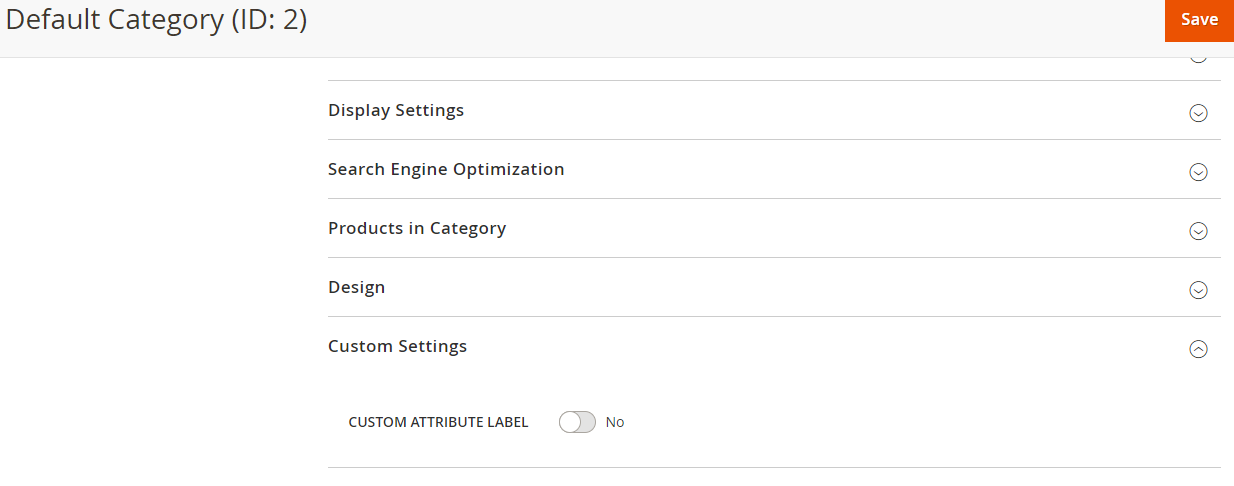
    There will be a tab group “Custom Settings” in admin category as shown below.

    Magento 2: Update cart using ajax when quantity change

    Here we are discussing to update the cart without clicking the Update Cart Button.
    Or we can say ajax cart update.

    I have created a custom module to implement such functionality.
    Here I have used MageMonkey as vendor and AutoUpdateCartAjax as the module name.

    Please follow the below steps:
    1. Create MageMonkey/AutoUpdateCartAjax directories in app/code.

    2. Create registration.php file at app/code/MageMonkey/AutoUpdateCartAjax and add following code:

    <?php
    MagentoFrameworkComponentComponentRegistrar::register(
        MagentoFrameworkComponentComponentRegistrar::MODULE,
        'MageMonkey_AutoUpdateCartAjax',
        __DIR__
    );
    

    3. Create module.xml file at app/code/MageMonkey/AutoUpdateCartAjax/etc/ and add following code:

    <?xml version="1.0"?>
    <config xmlns:xsi="http://www.w3.org/2001/XMLSchema-instance" xsi:noNamespaceSchemaLocation="urn:magento:framework:Module/etc/module.xsd">
        <module name="MageMonkey_AutoUpdateCartAjax" setup_version="1.0.0" />
    </config>
    

    4. Create checkout_cart_index.xml file at app/code/MageMonkey/AutoUpdateCartAjax/view/frontend/layout and add following code:

    <page xmlns:xsi="http://www.w3.org/2001/XMLSchema-instance" layout="1column" xsi:noNamespaceSchemaLocation="urn:magento:framework:View/Layout/etc/page_configuration.xsd">
        <body>
            <referenceContainer name="content">
                <block class="MagentoFrameworkViewElementTemplate" name="cart.auto.update.qty"  template="MageMonkey_AutoUpdateCartAjax::js.phtml" after="-"/>
            </referenceContainer>
        </body>
    </page>
    

    5. Create js.phtml file at app/code/MageMonkey/AutoUpdateCartAjax/view/frontend/templates and add following code:

    <script>
        require ([
                'jquery'
            ],
            function ($) {
                $(window).on("load", function () {
                    require([
                        'MageMonkey_AutoUpdateCartAjax/js/cartQtyUpdate'
                    ]);
                });
            });
    </script>
    

    6. Create cartQtyUpdate.js file at app/code/MageMonkey/AutoUpdateCartAjax/view/frontend/web/js and add following code:

    define([
        'jquery',
        'Magento_Checkout/js/action/get-totals',
        'Magento_Customer/js/customer-data'
    ], function ($, getTotalsAction, customerData) {
    
        $(document).ready(function(){
            $(document).on('change', 'input[name$="[qty]"]', function(){
                var form = $('form#form-validate');
                $.ajax({
                    url: form.attr('action'),
                    data: form.serialize(),
                    showLoader: true,
                    success: function (res) {
                        var parsedResponse = $.parseHTML(res);
                        var result = $(parsedResponse).find("#form-validate");
                        var sections = ['cart'];
    
                        $("#form-validate").replaceWith(result);
    
                        /* Minicart reloading */
                        customerData.reload(sections, true);
    
                        /* Totals summary reloading */
                        var deferred = $.Deferred();
                        getTotalsAction([], deferred);
                    },
                    error: function (xhr, status, error) {
                        var err = eval("(" + xhr.responseText + ")");
                        console.log(err.Message);
                    }
                });
            });
        });
    });
    

    7. Create requirejs-config.js file at app/code/MageMonkey/AutoUpdateCartAjax/view/frontend/ and add following code:

    var config = {
        map: {
            '*': {
                ajaxQty: 'MageMonkey_AutoUpdateCartAjax/js/cartQtyUpdate'
            }
        }
    };
    

    8. Run below commands to enable this custom module.

    php bin/magento setup:upgrade
    php bin/magento cache:clean
    php bin/magento cache:flush

    Now, you can check your cart page. If you increase or decrease quantity, it will auto-update cart total and mini cart.

    CONTACT US to get Magento programming solutions by hiring a certified Magento expert.

    Magento 2: Get orders between a Specific Date Range

    I need to get order collection between specific date range passing start date and end date in Magento 2. For that I used filter created_at field using addAttributeToFilter().

    First create Block file By default created_at field in sales_order table represent the time of order creation:

    <?php
    namespace VenderModulenameBlock;
    class OrderRange extends MagentoFrameworkViewElementTemplate
    {
     public function __construct(
     MagentoFrameworkViewElementTemplateContext $context,
     MagentoSalesModelResourceModelOrderCollectionFactory $orderCollectionFactory,
     array $data = []
     ) {
     $this->orderCollectionFactory = $orderCollectionFactory;
     parent::__construct($context, $data);
     }
    
     /* Here Create Function For Order collection between start and end date */
     public function getOrderCollectionByDateRange(){
     $startDate = date("Y-m-d h:i:s",strtotime('0000-00-00')); // start date
     $endDate = date("Y-m-d h:i:s", strtotime('0000-00-00')); // end date
    
     $orders = $this->orderCollectionFactory->create()
     ->addAttributeToFilter('created_at', array('from'=>$startDate, 'to'=>$endDate));
     return $orders;
     }
    ?>

    After do this You need to call this function in any custom template file or any exsting template,

    if($orders->getTotalCount() > 0) { 
     foreach($orders as $_order) {
     echo "<pre>";print_r($_order); echo "</pre>";
     }
    }

    Now you can get Order collection by date range.

    Web Application Firewall: A must-have security control for Your Magento Store!

    Have you ever been hacked? If your business has an online presence, its time you take preventive measures against information theft or hacks! Well, in the era where technology is advancing, information and online transactions are evolving at a rapid speed, criminal use of the internet is an unavoidable part. But with accurate cyber-security control tools for modern web applications, you can always keep your online store safe and secure.

    WAF is probably one of the best preventive security controls for all the Magento stores out there. By controlling any type of input/ output, access from, to, or by any application or service, it safeguards your data from any sort of theft or loss. It simply operates by monitoring as well as blocking suspicious requests before they get to your online business.

    E-commerce applications, as well as Magento stores, are the treasure house of information for hackers. They have undesirable and unauthorized access to personal data including credit card numbers, physical addresses, or phone numbers and much more. In today’s digital era almost all industry including the private sector, banks, and healthcare have more sensitive information which makes online stores more vulnerable to hacking.

    Unique ways of stealing information have led to the development of security measures commonly known as a Web Application Firewall (WAF). Website security is very popular right now and it’s time online store owners embrace this security tool to keep their website safe and secure.

    So, what is WAF and how does it help?

    WAF is a software application or a hardware device which takes care of traffic flowing across the networks. It examines the data it receives and accordingly makes decisions about whether to let it continue its journey or not.

    Networks can be divided into layers where each supports the layer above it. One such model is the OSI model which split the network into different layers such as presentation, session, transport, network, data link, physical, and application layers.

    Next is IPtables, a firewall which works at the network layer and is found mainly on Linus web hosting servers. This tool helps block inbound and outbound data for all the ports and IP addresses according to the rules supplied by the user. But remember it does not match for attacks against the application layer and also against Magento itself.

    There are different types of attacks like cross-site scripting, injection attacks, and hacks to exploit vulnerabilities in the application, HTTP hacks, an application layer protocol hacks, etc. For IP Tables firewall all these attacks are genuine requests to the application.

    Web Application Firewalls

    Web Application Firewalls is the 7th layer also known as the application layer. Its main task is to monitor HTTP requests for different patterns which might match with known attacks. If a hacker generates a request while hacking, WAF might create an SQL injection in prior to stop the theft.

    WAF can be updated often in real time to block emerging threats against the application layer and it is the major benefit of WAFs. It will also check all the outgoing data for any kind of suspicious patterns like credit card details being sent to an attacker. Likewise, your Magento store can be protected by using WAF from vulnerabilities which cannot be patched.

    Magento websites can be integrated with a number of web application firewalls as per the requirement. Using an open source tool ModSecurity, one can check application security, HTTP traffic logging, and web application hardening seamlessly. Sucuri – A cloud-based WAF integrator extension lets you protect the Magento store from multiple attacks.

    Takeaway

    The field of Web application firewalls goes through enormous advances on an everyday basis. And in this cut-throat competition, when every business works to live by the edge, if a robust tool secures your online store, you are in danger!

    Designed to provide high-level of protection, modern firewalls filter both known and unknown threats while reducing false alerts by adding an extra layer of security to your website. So, what are you waiting for? The technology is here, and hackers are certainly going to attack, so take the preventive measures before-hand. Get one of the best security tools for your website today!
    How to add additional text before attribute in Magento 2

    If you want to display brand attribute value in the product view page,  You can use the following code:

    <referenceContainer name="product.info.main">
        <block class="MagentoCatalogBlockProductViewDescription" name="product.info.brand" template="product/view/attribute.phtml" before="-">
            <arguments>
                <argument name="at_call" xsi:type="string">getBrand</argument>
                <argument name="at_code" xsi:type="string">brand</argument>
                <argument name="css_class" xsi:type="string">brand</argument>
                <argument name="at_label" xsi:type="string">none</argument>
                <argument name="add_attribute" xsi:type="string">itemprop="brand"</argument>
            </arguments>
        </block>
    </referenceContainer>

    Also If you need to display text before this attribute value in the product page something like:

    Brand: Apple

    For that you need to change ‘none’ to ‘default’ as shown below in ‘at_label’ :

    From:

    <argument name="at_label" xsi:type="string">none</argument>

    To:

    <argument name="at_label" xsi:type="string">default</argument>

    Now you can see product attribute value with it’s label in the product page.