We sacrifice by not doing any other technology, so that you get the best of Magento.

We sacrifice by not doing any other technology, so that you get the best of Magento.

    Guide to remove or delete products of a particular attribute set in Magento 2.

    In this guide, I am going to show you, how to remove the product of a particular attribute set in Magento 2 programmatically?

    First of all, you have to create a file called “deleteProducts.php” on Magento 2 root directory.

    And then paste the below code into that file.

    <?php
    set_time_limit(0);
    ini_set('display_errors', 1);
    ini_set('memory_limit', -1);
    use MagentoFrameworkAppBootstrap;
    require __DIR__ . '/app/bootstrap.php';
    
    $bootstraps = Bootstrap::create(BP, $_SERVER);
    $objectManager = $bootstraps->getObjectManager();
    
    
    deleteAllProducts($objectManager);
     
    function deleteAllProducts($objectManager) {
     
        $objectManager->get('MagentoFrameworkRegistry')->register('isSecureArea', true);
    
        $attrSetName = 'Dress'; // Atribute set name
        $attribute_set_factoryCollection = $objectManager->get('MagentoEavModelResourceModelEntityAttributeSetCollectionFactory');
    
        $attribute_set_collection = $attribute_set_factoryCollection->create();
    
        $attribute_set_collection
        ->addFieldToFilter('entity_type_id',4)
        ->addFieldToFilter('attribute_set_name',$attrSetName);
    
        $att_set = current($attribute_set_collection->getData());
        $attribute_set_id = $att_set["attribute_set_id"];
    
        $productCollection = $objectManager->create('MagentoCatalogModelResourceModelProductCollectionFactory');
        $collection = $productCollection->create()->addAttributeToSelect('*')->addFieldToFilter('attribute_set_id',$attribute_set_id)->load();
        $app_state = $objectManager->get('MagentoFrameworkAppState');
        $app_state->setAreaCode('frontend');
    
        foreach ($collection as $product){
            try {
                echo 'Deleted '.$product->getName().PHP_EOL;
                $product->delete();
            } catch (Exception $e) {
                echo 'Failed to remove product '.$product->getName() .PHP_EOL;
                echo $e->getMessage() . "n" .PHP_EOL;
            }
        }      
    }

    And now you can run this file through cronjob and URL.

    So the URL will be like this : http://yourdomainname/deleteProducts.php

    That’s it.

    I hope my post is helpful. If you still need any assistance about that, please comment below.
    How to add extension attribute for quote field in Magento 2?

    Define the extension attribute in XML

    app/code/Vendor/Module/etc/extension_attributes.xml

    <?xml version="1.0"?>
    <config xmlns:xsi="http://www.w3.org/2001/XMLSchema-instance" xsi:noNamespaceSchemaLocation="urn:magento:framework:Api/etc/extension_attributes.xsd">
        <extension_attributes for="MagentoCheckoutApiDataShippingInformationInterface">
            <attribute code="address_two" type="string"/>
        </extension_attributes>
    </config>
    

    Assigning the value for extension attributes in knockout js 

    app/code/Vendor/Module/view/frontend/web/js/shipping-save-processor-default.js

    saveShippingInformation: function () {
                    var payload;
    
                    payload = {
                        addressInformation: {
                            shipping_address: quote.shippingAddress(),
                            billing_address: quote.billingAddress(),
                            shipping_method_code: quote.shippingMethod().method_code,
                            shipping_carrier_code: quote.shippingMethod().carrier_code,
                            extension_attributes: {
                                address_two: $('form.form-shipping-address input[name="address2"]').val()
                            }
                        }
                    };
    
                    return storage.post(
                        resourceUrlManager.getUrlForSetShippingInformation(quote),
                        JSON.stringify(payload)
                    ).done(
                        function (response) {
                            quote.setTotals(response.totals);
                            paymentService.setPaymentMethods(methodConverter(response.payment_methods));
                        }
                    ).fail(
                        function (response) {
                            errorProcessor.process(response);
                        }
                    );
                }

    Save Extension Attribute to quote table using beforeSaveAddressInformation method using Plugin

    app/code/Vendor/Module/Model/Checkout/ShippingInformationManagementPlugin.php


    namespace VendorModuleModelCheckout;
    /**
     * Class ShippingInformationManagementPlugin
     * @package OyeDeliverydateModelCheckout
     */
    class ShippingInformationManagementPlugin
    {
    
        protected $quoteRepository;
    
        /**
         * @param MagentoQuoteModelQuoteRepository $quoteRepository
         */
        public function __construct(
            MagentoQuoteModelQuoteRepository $quoteRepository
        ) {
            $this->quoteRepository = $quoteRepository;
        }
    
        /**
         * @param MagentoCheckoutModelShippingInformationManagement $subject
         * @param $cartId
         * @param MagentoCheckoutApiDataShippingInformationInterface $addressInformation
         */
        public function beforeSaveAddressInformation(
            MagentoCheckoutModelShippingInformationManagement $subject,
            $cartId,
            MagentoCheckoutApiDataShippingInformationInterface $addressInformation
        ) {
            $extAttributes = $addressInformation->getExtensionAttributes();
            $address2=$extAttributes->getAddressTwo();
    
            $quote = $this->quoteRepository->getActive($cartId);
            
            $quote->setShippingAddressTwo($shippngaddress2);    
            $this->quoteRepository->save($quote);;
    
        }
    }


    CONTACT US to get Magento programming solutions by hiring a certified Magento expert.

    Magento 2 Add dynamic drop down options in admin grid Filter

    Please follow below steps to add drop-down option in admin grid filter :

    Step 1: 
    Below is my module file path.

    File Path is : NikGridfilterBlockAdminhtmlGrid.php

    protected function _prepareColumns() {
     $this->addColumn(
     'mobile_type', [
     'header' => __('Status'),
     'index' => 'status',
     'width' => '50px',
     'type' => 'options',
     'options' => Status::getAvailableStatus(), //get dropdown result
     ] );
     }

    Step : 2  Below is my render class which will convert a numeric value to string value (You can Modify as per your requirements)

    File path is: NikGridfilterBlockAdminhtmlRendererStatus.php

    <?php
     namespace NikGridfilterBlockAdminhtmlRenderer;
    class Status extends MagentoBackendBlockWidgetGridColumnRendererAbstractRenderer
     {
    protected $_storeManager;
    public function __construct(
     MagentoBackendBlockContext $context,
     MagentoStoreModelStoreManagerInterface $storeManager,
     array $data = []
     ) {
     parent::__construct($context, $data);
     $this->_storeManager = $storeManager;
     }
    public function render(MagentoFrameworkDataObject $row) {
     return [
     array("1" => "Status-Yes" , "2" => "Status-No")
     ]
     }
     }


    How to limit one product per order in Magento 2 for customers?

    As a Magento 2 store owner, in the event of a limited number of stocks or while trying a new selling strategy, you may want to limit the number of items to be purchased per order to market it among the more massive audience.

    Magento 2 doesn’t provide you this option; this functionality has to be configured programmatically.

    If you want to implement Only One Product Per Order in Magento 2 functionality for the customer, then follow the below steps to create a custom module.

    Step 1: Create event.xml

    <?xml version="1.0"?>
    <config xmlns:xsi="http://www.w3.org/2001/XMLSchema-instance" xsi:noNamespaceSchemaLocation="urn:magento:framework:Event/etc/events.xsd">
    	<event name="controller_action_predispatch_checkout_cart_add">
    		<observer name="magemonkeys_restrictitem_tocart" instance="MagemonkeysRestrictitemtocartObserverProductadd" />
    	</event>
    </config>

    Step 2: Create a Productadd.php Observer in Observer Folder.

    <?php
    namespace MagemonkeysRestrictitemtocartObserver;
    use MagentoFrameworkEventObserverInterface;
    use MagentoFrameworkAppRequestDataPersistorInterface;
    use MagentoFrameworkAppObjectManager;
    
    class Productadd implements ObserverInterface {
    
        protected $urlManager;
        protected $checkoutSession;
        protected $cart;
        protected $messageManager;
        protected $redirect;
        protected $request;
        protected $response;
        protected $responseFactory;
        protected $resultFactory;
        protected $scopeConfig;
        protected $product;
    
        public function __construct(
    		MagentoFrameworkUrlInterface $urlManager,
    		MagentoCheckoutModelSession $checkoutSession,
    		MagentoFrameworkAppResponseRedirectInterface $redirect,
    		MagentoCheckoutModelCart $cart,
    		MagentoFrameworkMessageManagerInterface $messageManager,
    		MagentoFrameworkAppRequestInterface $request,
    		MagentoFrameworkAppResponseInterface $response,
    		MagentoFrameworkAppConfigScopeConfigInterface $scopeConfig,
    		MagentoCatalogModelProduct $product,
    		MagentoFrameworkAppResponseFactory $responseFactory,
    		MagentoFrameworkControllerResultFactory $resultFactory
        ) {
    
            $this->urlManager = $urlManager;
            $this->checkoutSession = $checkoutSession;
            $this->redirect = $redirect;
            $this->cart = $cart;
            $this->messageManager = $messageManager;
            $this->request = $request;
            $this->response = $response;
            $this->responseFactory = $responseFactory;
            $this->resultFactory = $resultFactory;
            $this->scopeConfig = $scopeConfig;
            $this->product = $product;
        }
    
        public function execute(MagentoFrameworkEventObserver $observer) {
    
            $controller = $observer->getControllerAction();
            $postValues = $this->request->getPostValue();
            $cartQuote = $this->cart->getQuote()->getData();
            $cartItemsCount = $this->cart->getQuote()->getItemsCount();
            $cartItemsAll = $this->cart->getQuote()->getAllItems();
    
            if($cartItemsCount > 0)
            {
                $observer->getRequest()->setParam('product', false);
                $observer->getRequest()->setParam('return_url', $this->redirect->getRefererUrl());
                $observer->getRequest()->setParam('backUrl', $this->redirect->getRefererUrl());
                $this->messageManager->addError(__('Only 1 item is allowed to purchase or add.'));
            }
    
        }
    
    }


    After creating the above module, please run the upgrade, decompile and static:content:deploy command to implement this module.

    Hope you find this guide useful and may it helps you to limit the product quantity per user. If you are facing problem during this process, then feel free to comment.

    A step by step guide to create custom API in Magento 2

    Magento as default provide API, but if you want to manage different data or you want to add a custom field, then Magento API will not be able to attain your requirement. That generates the demand to develop custom API through which you will able to manage your data and fields.

    In this article, I will explain you the process of creating API(Application Program Interface) in Magento 2.

    Add module.xml file in app/code/Magemonkeys/CustomApi/etc and copy the following code in it:

    <?xml version="1.0"?>
    <config xmlns:xsi="http://www.w3.org/2001/XMLSchema-instance" xsi:noNamespaceSchemaLocation="urn:magento:framework:Module/etc/module.xsd">
        <module name="Magemonkeys_CustomApi" setup_version="1.0.0" />
    </config>

    Add registration.php in app/code/Magemonkeys/CustomApi and copy the following code in it:

    <?php
    MagentoFrameworkComponentComponentRegistrar::register(
        MagentoFrameworkComponentComponentRegistrar::MODULE,
        'Magemonkeys_CustomApi',
        __DIR__
    );

    Add webapi.xml file in app/code/Magemonkeys/CustomApi/etc and copy the following code in it:

    <?xml version="1.0"?>
    <routes xmlns:xsi="http://www.w3.org/2001/XMLSchema-instance" xsi:noNamespaceSchemaLocation="urn:magento:module:Magento_Webapi:etc/webapi.xsd">
        <route url="/V1/hello/name/:name" method="GET">
            <service class="MagemonkeysCustomApiApiHelloInterface" method="name"/>
            <resources>
                <resource ref="anonymous"/>
            </resources>
        </route>
    </routes>

    Add di.xml file in app/code/Magemonkeys/CustomApi/etc and copy the following code in it:

    <?xml version="1.0"?>
    <config xmlns:xsi="http://www.w3.org/2001/XMLSchema-instance" xsi:noNamespaceSchemaLocation="urn:magento:framework:ObjectManager/etc/config.xsd">
        <preference for="MagemonkeysCustomApiApiHelloInterface"
                    type="MagemonkeysCustomApiModelHello" />
    </config>

    Add HelloInterface.php file in app/code/Magemonkeys/CustomApi/Api and copy the following code in it:

    <?php
    namespace MagemonkeysCustomApiApi;
     
    interface HelloInterface
    {
        /**
         * Returns greeting message to user
         *
         * @api
         * @param string $name Users name.
         * @return string Greeting message with users name.
         */
        public function name($name);
    }

    Add Hello.php file in app/code/Magemonkeys/CustomApi/Model and copy the following code in it:

    <?php
    namespace MagemonkeysCustomApiModel;
    use MagemonkeysCustomApiApiHelloInterface;
     
    class Hello implements HelloInterface
    {
        /**
         * Returns greeting message to user
         *
         * @api
         * @param string $name Users name.
         * @return string Greeting message with users name.
         */
        public function name($name) {
            return "Hello, " . $name;
        }
    }

    To test REST you can go to http://{domain_name}/rest/V1/{method}/{attribute}/{value}.

    Example: http://magento2.loc/rest/V1/hello/name/Jayesh.

    This is how the response should look like for this example:

    <response>Hello, Jayesh</response>

    Hope this guide helped you understand the procedure of creating custom API in Magento 2. If you have any queries regarding the blog, please comment below.

    How to show multi-select attribute in layer navigation after Magento Migration?

    Magento 2 layered navigation feature can help you to enhance the user experience of your store while handling onsite navigation with the attribute like price, dropdown and multiple select. Recently one of our client was facing an issue that some of its attribute (multiple select) is not showing in layered navigation after migration.

    If you are facing this problem, then follow the below steps to resolve it.

    f some of the attributes(multiple select) not showing in layered navigation. then follow the below steps to resolve it.

    1. Open your Magento database and find attribute id in eav_attribute

    2. run below query in your Magento database for change attribute backend_type  text to varchar

    INSERT INTO catalog_product_entity_varchar
    (store_id, attribute_id, entity_id, value)
     SELECT store_id, attribute_id, entity_id, value
     FROM catalog_product_entity_text
     WHERE catalog_product_entity_text.attribute_id = {{your-attribute-id}}
     AND catalog_product_entity_text.value is not null;

    3. After inserting your attribute record, You need to delete the data from the text table

    DELETE FROM `catalog_product_entity_text`
    WHERE `attribute_id` = {{your-attribute-id}}


    I hope I explained the problem and solution well enough :).If you too are facing problem while your Magento migration process then feel free to message in the comment box.

    Why Use Whatsapp As Chat Support Tool For Your Magento Site

    What if your visitors can instantly contact you for any query, inquiry, or support? Immediate replies enhance brand value and boost conversions and customer retention.

    While making specific purchases or ordering a product online, customers tend to have plenty of questions and they want an immediate response to their queries. They don’t like spending more time talking to customer support raising a request for assistance.

    To increase sales and boost the customer experience, Magento store owners can provide instant support with the help of social media tools.  WhatsApp can be used as their main contact method, as it offers easy access from the website which can help to convert visitors into customers.

    How does this work?

    When a potential buyer is visiting your site and looking for something particular and has doubt about it then he may want to clear his doubts by asking you or maybe wanting after-sale support. So, to reply to such a request becomes very important for the business. The conversion depends on how fast you reply to their query.

    You get a chance to impress your potential buyer with the WhatsApp button by showing your products and convince them to convert while having a chat.

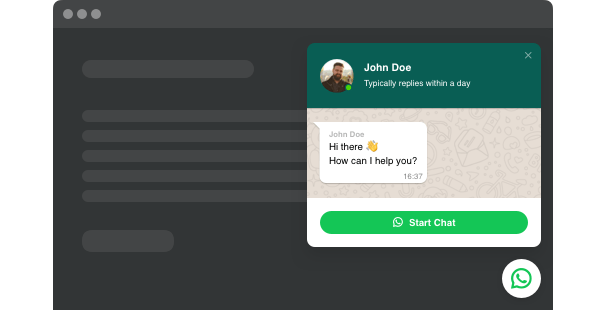
    The example – How it will look?

    The familiar little green icon that we all know and love!

    When a visitor clicks on the icon, it will automatically launch WhatsApp and open a new conversation with the visitor and if you click on the button from a desktop browser, it will open a new browser tab and direct the visitor to the browser-based version of WhatsApp.

    WhatsApp Business offers live chat in a way people are familiar with and the benefits to businesses are:

    • Customers don’t need to download an additional app so are ready to start chatting.
    • Businesses can use the services of an authorized WhatsApp Business Solution Provider for faster communication.
    • Rich text messages and content like video, images, and even PDFs improve the level of customer support on offer.
    • Continue the conversation even if visitors leave your website.
    • Pick from the wide collection of bubble icons.
    • View customers’ profiles, get closer to and engage with them to increase sales.
    • Support customers anywhere, anytime, even on your mobile phone.
    • Floating bubble, embed bubble, and embed chat window can be used for chat layout.
    • Live chat is convenient for those, who want to wait for someone to respond to an email.
    • One-on-one engagement can increase sales, especially when a customer has a question that could make or break the sale.
    • A chat bubble can have a personal text. The personal touch goes a long way to building relationships with your clients.
    • It gives you an edge over your competitors who aren’t using it.
    • Live chat can help you understand your customer needs. Over time you’ll discover trends that can help you develop a better product or service.
    • Build customer loyalty with WhatsApp live chat.

    Take Away

    The user likes the chat panel. It makes communication better and faster and now that it can be connected to WhatsApp, we can ease all the pains that used to plague WhatsApp support. It is one of the most easily accessible apps that ensures customer direct helpline to the brand and streamlines the entire service experience. It has more than 1.2 billion monthly active users across the world. Magento owners should choose this platform for faster communication as customers can directly contact them.

    The success of every business depends on generating leads, and the WhatsApp chat button can increase your overall sales and reach your goal.

    HOW TO MIGRATE YOUR SHOPIFY STORE TO MAGENTO?

    Magento and Shopify are the two well-known eCommerce platforms on the market today. As per a recent global eCommerce study, Magento is the most trusted platform with more than 25 percent of the market share among the global eCommerce platforms. As time changes, the need of the business also changes, and if you are currently using Shopify then you have reached the upper limits of what you can achieve with it. It was seen that a lot of online store owners are moving from Shopify to Magento.

    Here how you can Make your Migration from Shopify to Magento Effortlessly

    Which Migration is better: Manual or Automatic?

    By using an automation tool, you can migrate from Shopify to Magento but that’s not feasible in every situation.

    If your Shopify store data is complex then you have to migrate it manually to avoid any unexpected errors on the contrary if the data is very thin then there is no useful benefit of the tool.

    How to Perform a Manual Migration?

    If you manually migrate your Shopify store to Magento then first you need to export everything from Shopify to Magento.

    For products, orders, and customer data, you can use native options to export the data to CSV files. Each file has a limit of 9000 rows and if your data exceeds these 9000 rows then you will not be able to manually export them. You will have to use an app from the Shopify app store.

    If your data does not exceed the limit of 9000 rows then, in that case, you can export everything to common files ready to be imported into your Magento installation. You won’t be able to export any themes but yes you can redownload any images you provided if you didn’t keep the original versions.

    Further, go to Magento admin dashboard and then process to system. Import/Export, and Dataflow Profiles. By selecting the CSV files you created you can start importing your products, customers, and orders.  As CSV files are very basic so it won’t give you a complete import for that reason you need to use an automation tool for your migration.

    How to Automate Your Migrate?

    There are various tools & plugins available in the market which can make migration easy. But, we would not advise you to go for it as tools and plugins have limitations.

    What do we suggest?

    We suggest you hire a professional to migrate your Shopify store to Magento.

    Hire a Magento developer who will make the data transfer for you if you do not want to go for manual as well as automated app or services. With Magento specialists, your migration process will take place seamlessly without facing many problems.

    A professional will carefully look into your requirements and provide you much more targeted quote.  You will get daily reports about everything that’s happening. An expert will help you learn the ropes of Magento and deal with the things you are unable to migrate like aesthetics.

    Are you running out of time and skill to perform the migration on your own?

    Migrating from one platform to another platform is not at all an easy process until you have tech knowledge. To carry out the migration process smoothly, you need to reply to a Magento expert. We at Mage Monkeys have trained Magento 2.0 developers who will perform data migration for you, providing all the required customization and support on each step of your migration process.

    Reduce Cart Abandonments By Enhancing Your Delivery Options!

    Did you know?

    At least 72% of customers feel satisfied to see the expected delivery dates when shopping online.

    A well-polished and managed delivery process can boost your sales and reduce your cart abandonment.

    80% of consumers expect same-day shipping.

    61% of consumers prefer 1-3 hour delivery.

    77% of consumers want weekend and after-hours shipping.

    How can you do to optimize order delivery?

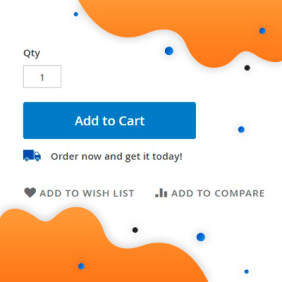
    • On the product page, you can display the closet delivery option.

    81% of shoppers want to see the delivery possibilities displayed on the same web page as the product they are willing to purchase. This will make it clear about the exact delivery of the product.

    • Offer delivery date & time for selection

    83% of consumers expect a guaranteed delivery date and most of them want a time slot of when to expect their delivery to arrive. This gives more control over delivery and enhances flexibility.

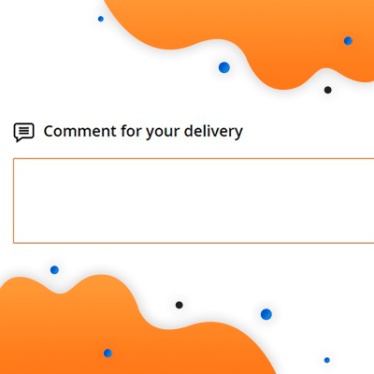
    Suggest specifying delivery preferences in the comments field

    Do you want to provide the best possible shopping experience with your online shop?

    In order to enhance customer loyalty to your brand, give a prior call or a text message to ask them to leave a comment with their order delivery preferences.

    Your website will have a beautifully designed estimated delivery date message for product pages. This extension will overcome the default Magento limitations.

    The backend has advanced management possibilities:

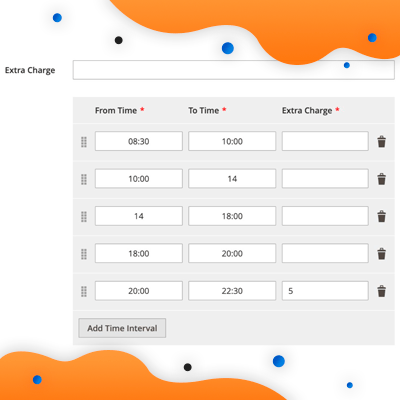
    Time intervals, order limits & extra charges

    Mention available delivery time slots along with an option to set limits & extra charges for each time interval if needed. This functionality will make product delivery easy and it will also help you cover additional expenses.

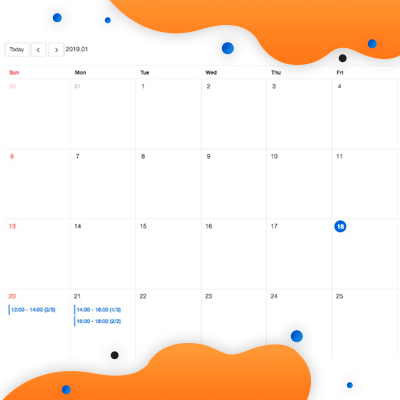
    Backend delivery queue calendar

    An easy way of managing Delivery

    A delivery queue calendar with relevant records in it gives you a complete overview of the delivery options of 30 days.

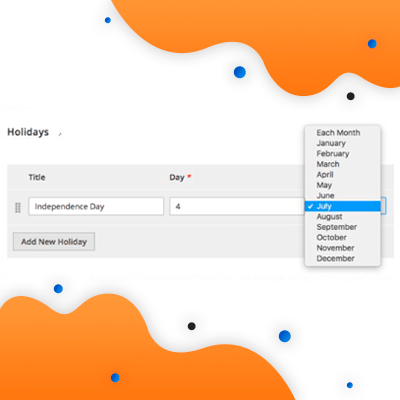
    Delivery management of Holidays & days off

    Managing delivery during holidays and days off can become a bit stressful and tedious process.

    The Extension helps store managers to exclude desired days from delivery in just a few clicks.

    And so much more…

    Further, it has a Group-based delivery option display which lets you set daily/weekly/global quotes. It also includes a dedicated grid for delivery options management, delivery configuration per individual module, and much more functionality to benefit from!

    Bottom Line

    The default Magento 2 has a certain limitation when it comes to setting delivery options but then extensions prove to be highly beneficial to bring such functionality to your business. Always keep your store updated and add required extensions to create a better shopping experience for customers and increase sales.

    Magento 2: How to change register link in header links?

    If you are wondering that ‘how to change register link in header links?’, you’ve landed at correct place.

    Follow the below instructions to change register link in top header links.

    Please add below code in Magento_Customer/layout/default.xml file in your theme.

    <referenceBlock name="top.links">
     <block class="MagentoFrameworkViewElementHtmlLink" name="register-link">
     <arguments>
     <argument name="path" xsi:type="string" translate="true">customer/account/login</argument>
     </arguments>
     </block>
    </referenceBlock>