We sacrifice by not doing any other technology, so that you get the best of Magento.

We sacrifice by not doing any other technology, so that you get the best of Magento.

    Magento 1.9 set “Use default value” for product images in admin using script

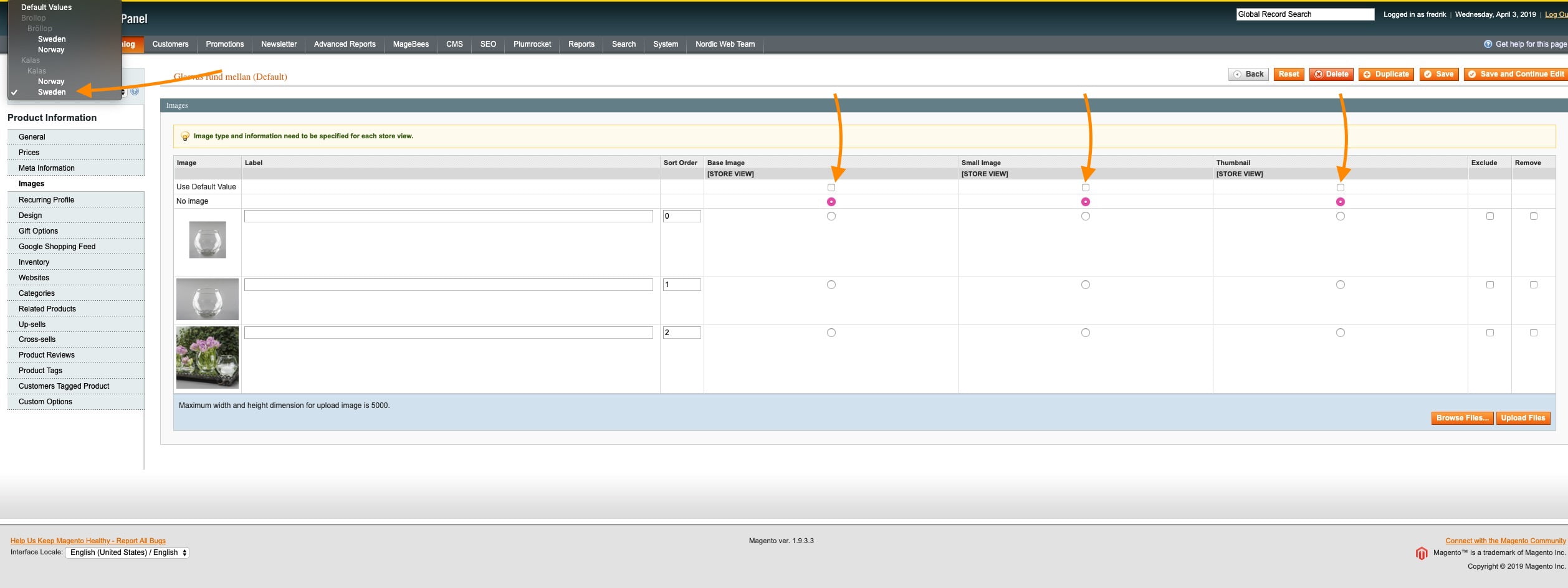
    In magento 1.9 multiple store product images are not showing the default base image.  You can check when going into a specific store view in the image settings Use default value is not checked.

    Here I give you script for set that settings for all product:

    try {
        $count = 0; //Check total count for how many products are update Store Wise
        $products = Mage::getModel('catalog/product')->getCollection();
         echo 'Time Start : '.Mage::getModel('core/date')->gmtDate('Y-m-d H:i:s'); //Start time tracking here 
         echo '<br>';
            $setStoreIds = array(1,7); //Put here multiple store ids run one by one store products 
            foreach ($setStoreIds as $setStoreId) {
                echo 'Start Store ID : '.$setStoreId; //Display store id which store is running now
                echo '<br>';
                foreach($products as $prod) {
                    $product = Mage::getModel('catalog/product')
                        ->load($prod->getId())
                        ->setStoreId($setStoreId)
                        ->setData('image', false)
                        ->setData('small_image', false)
                        ->setData('thumbnail', false)
                        ->save();
    
                        $count++;
                }
            }
    
        echo 'Time End : '.Mage::getModel('core/date')->gmtDate('Y-m-d H:i:s');
        echo '<br>';
        echo 'Total Products Counts : '.$count; //Display total time script taken
    } catch (Exception $exception) {
        var_dump($exception);
        die('Exception Thrown');
    }


    How to create System.xml configuration in Magento 2?

    Today, we are going to see how to create system.xml, step-by-step.

    Step 1: Create System.xml

    We can do it by creating a system.xml file in the
    app/code/MageMonkeys/HelloWorld/etc/adminhtml/
    directory.

    <?xml version="1.0"?>
    <config xmlns:xsi="http://www.w3.org/2001/XMLSchema-instance" xsi:noNamespaceSchemaLocation="urn:magento:module:Magento_Config:etc/system_file.xsd">
        <system>
            <tab id="magemonkeys" translate="label" sortOrder="10">
                <label>MageMonkeys</label>
            </tab>
            <section id="helloworld" translate="label" sortOrder="130" showInDefault="1" showInWebsite="1" showInStore="1">
                <class>separator-top</class>
                <label>Hello World</label>
                <tab>magemonkeys</tab>
                <resource>MageMonkeys_HelloWorld::helloworld_config</resource>
                <group id="general" translate="label" type="text" sortOrder="10" showInDefault="1" showInWebsite="0" showInStore="0">
                    <label>General Configuration</label>
                    <field id="enable" translate="label" type="select" sortOrder="1" showInDefault="1" showInWebsite="0" showInStore="0">
                        <label>Module Enable</label>
                        <source_model>MagentoConfigModelConfigSourceYesno</source_model>
                    </field>
                    <field id="display_text" translate="label" type="text" sortOrder="1" showInDefault="1" showInWebsite="0" showInStore="0">
                        <label>Display Text</label>
                        <comment>This text will display on the frontend.</comment>
                    </field>
                </group>
            </section>
        </system>
    </config

    Step 2: Set default value

    We can do it by creating a config.xml file in the
    app/code/MageMonkeys/HelloWorld/etc/ directory.

    <?xml version="1.0"?>
    <config xmlns:xsi="http://www.w3.org/2001/XMLSchema-instance" xsi:noNamespaceSchemaLocation="urn:magento:module:Magento_Store:etc/config.xsd">
        <default>
            <helloworld>
                <general>
                    <enable>1</enable>
                    <display_text>Hello World</display_text>
                </general>
            </helloworld>
        </default>
    </config>

    Step 3: Flush Magento Cache

    php bin/magento cache:clean
    

    Result

    How to create admin menu in Magento 2?

    To create admin menu in Magento 2, you need to create  a menu.xml file in the
    app/code/MageMonkeys/HelloWorld/etc/adminhtml/
    directory.

    <?xml version="1.0"?>
    <config xmlns:xsi="http://www.w3.org/2001/XMLSchema-instance" xsi:noNamespaceSchemaLocation="urn:magento:module:Magento_Backend:etc/menu.xsd">
        <menu>
            <add id="MageMonkeys_HelloWorld::helloworld" title="Hello World" module="MageMonkeys_HelloWorld" sortOrder="51" resource="MageMonkeys_HelloWorld::helloworld"/>
            <add id="MageMonkeys_HelloWorld::post" title="Manage Posts" module="MageMonkeys_HelloWorld" sortOrder="10" action="magemonkeys_helloworld/post" resource="MageMonkeys_HelloWorld::post" parent="MageMonkeys_HelloWorld::helloworld"/>
            <add id="MageMonkeys_HelloWorld::hello_configuration" title="Configuration" module="MageMonkeys_HelloWorld" sortOrder="99" parent="MageMonkeys_HelloWorld::helloworld" action="adminhtml/system_config/edit/section/helloworld" resource="MageMonkeys_HelloWorld::helloworld_configuration"/>
        </menu>
    </config>

    Then, flush Magento cache by using below command.

    php bin/magento cache:clean
    

    And you will able to see below result.


    How to set/modify quote object in Magento?

    There are two ways by which you can achieve this.

    1. Using observer concept.

    class Vendor_Namespace_Model_Observer
    {
    	public function customfunction($observer){
    		try
    		{
    			$item = $observer->getEvent()->getQuoteItem();
    			$item->setData(‘customvariable’, ‘somevaue’);
    			$item->save();
    			return $this;
    		}
    		catch (Exception $e)
    		{
    			echo $e->getMessage();
    		}
    	}
    }

    2. Another way is to create or custom add to cart function and place following code after add to cart.

    /* The following code will set custom value to sales flat quote item start */
    
    $quote = Mage::getSingleton(‘checkout/session’)->getQuote();
    $_item = $quote->getItemByProduct($_product);
    $_item->getProduct()->setIsSuperMode(true);
    $_item->setCustomvariable(“somevaue”)->save();
    
    /* The following code will set custom value to sales flat quote item end */


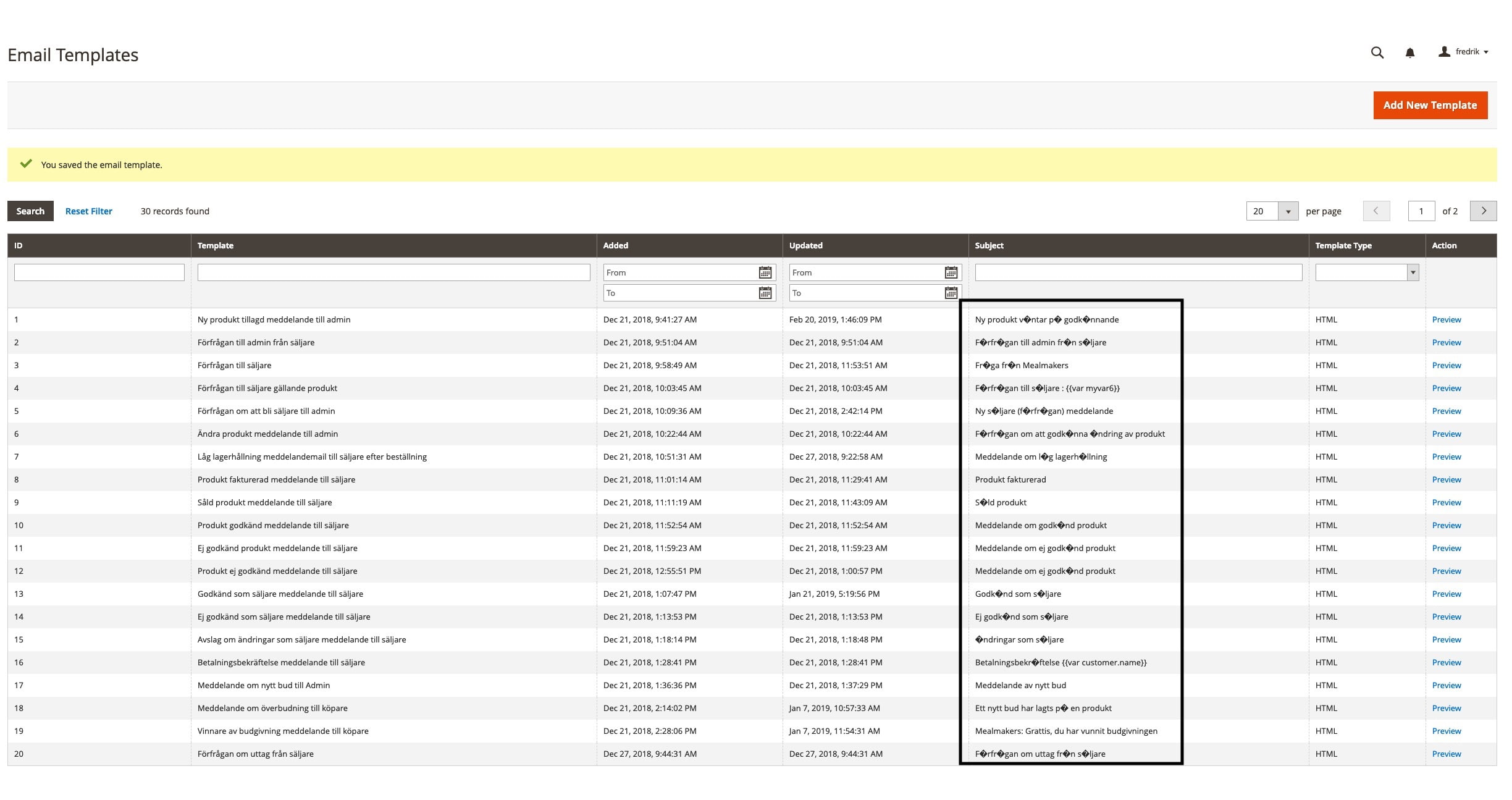
    Magento 2 is not allowing special characters like ä in eMail subject

    While doing a code in Magento, you might have met with the problem where special characters like ä were not properly displayed.

    Today we are going to talk about this problem and it’s solution.

    We faced same situation as shown in screen shot.

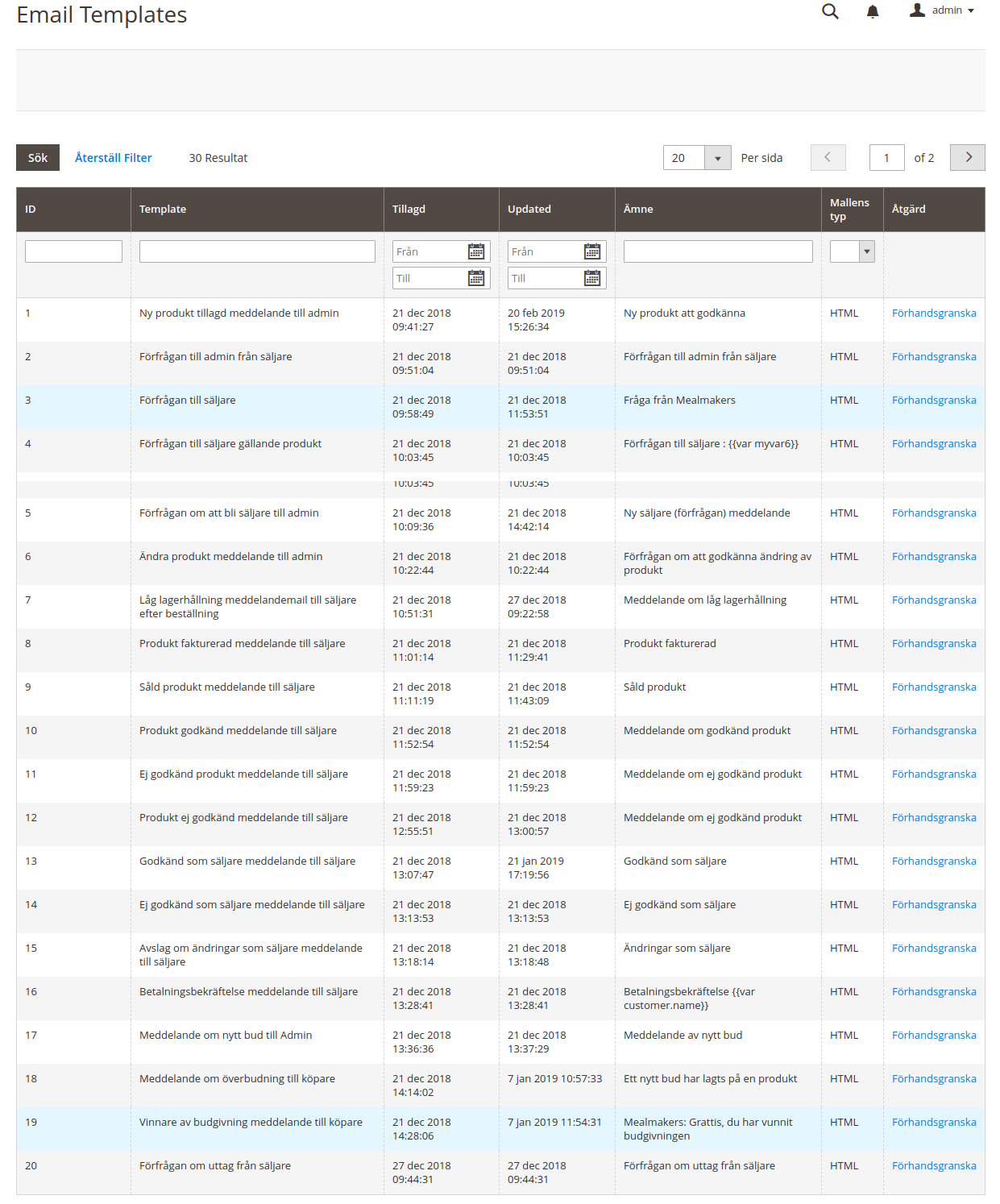
    To resolve this issue, we used grid renderer for subject column.

    First you have to create new admin theme for email gird override.

    Create Files like this:

    app/design/adminhtml/[VendorName]/[ThemeName]/registration.php
    <?php
    
    	MagentoFrameworkComponentComponentRegistrar::register(
    	    MagentoFrameworkComponentComponentRegistrar::THEME,
    	    'adminhtml/[VendorName]/[ThemeName]',
    	    __DIR__
    	);
    <?php
    
    	MagentoFrameworkComponentComponentRegistrar::register(
    	    MagentoFrameworkComponentComponentRegistrar::THEME,
    	    'adminhtml/[VendorName]/[ThemeName]',
    	    __DIR__
    	);
    app/design/adminhtml/[VendorName]/[ThemeName]/theme.xml
    <theme xmlns:xsi="http://www.w3.org/2001/XMLSchema-instance" xsi:noNamespaceSchemaLocation="urn:magento:framework:Config/etc/theme.xsd">
    	    <title>[VendorName] [ThemeName]</title>
    	    <parent>Magento/backend</parent>
    	 </theme>

    Now Override the email grid in our new theme and add renderer in subject like below:

    app/design/adminhtml/Dahlquist/General/Magento_Email/layout/adminhtml_email_template_grid_block.xml
    <block class="MagentoBackendBlockWidgetGridColumn" name="adminhtml.system.email.template.grid.columnSet.subject" as="subject">
            <arguments>
                <argument name="header" xsi:type="string" translate="true">Subject</argument>
                <argument name="index" xsi:type="string">template_subject</argument>
                <argument name="renderer" xsi:type="string">[VendorName][ModuleName]BlockAdminhtmlTemplateGridRendererTesting</argument>
            </arguments>
        </block>

    In last part, “Testing” is block file name. But, you can use any name of the class and create in your any custom or existing module:

    [VendorName][ModuleName]BlockAdminhtmlTemplateGridRendererTesting
    <?php
    
    	namespace [VendorName][ModuleName]BlockAdminhtmlTemplateGridRenderer;
    
    	class Testing extends MagentoBackendBlockWidgetGridColumnRendererAbstractRenderer
    	{
    	    
    	    public function render(MagentoFrameworkDataObject $row)
    	    {
    	        $result = $row->getTemplateSubject();
    	        $convertString = '';
    
    	        if (isset($result)) {
    	            $convertString = utf8_encode($result);
    	        }
    
    	        return __($convertString);
    	    }
    	}

    Now You can see in admin side email grid will look like this:

    Add Custom Category Attribute Programmatically – Magento 2

    Step 1 ) Create file InstallData.php

    creating a  InstallData.php file in the app/code/MageMonkeys/HelloWorld/Setup/ directory.

    <?php
    namespace MageMonkeysHelloWorldSetup;
    
    use MagentoFrameworkSetupInstallDataInterface;
    use MagentoFrameworkSetupModuleContextInterface;
    use MagentoFrameworkSetupModuleDataSetupInterface;
    use MagentoEavSetupEavSetupFactory;
    
    class InstallData implements InstallDataInterface
    {
    
    	private $eavSetupFactory;
    
    	public function __construct(EavSetupFactory $eavSetupFactory)
    	{
    		$this->eavSetupFactory = $eavSetupFactory;
    	}
    
    	public function install(
    		ModuleDataSetupInterface $setup,
    		ModuleContextInterface $context
    	)
    	{
    		$eavSetup = $this->eavSetupFactory->create(['setup' => $setup]);
    
    		$eavSetup->addAttribute(
    			MagentoCatalogModelCategory::ENTITY,
    			'mm_new_attribute',
    			[
    				'type'         => 'varchar',
    				'label'        => 'MageMonkeys Attribute',
    				'input'        => 'text',
    				'sort_order'   => 100,
    				'source'       => '',
    				'global'       => 1,
    				'visible'      => true,
    				'required'     => false,
    				'user_defined' => false,
    				'default'      => null,
    				'group'        => '',
    				'backend'      => ''
    			]
    		);
    	}
    }

    Step 2 ) Display the category attribute

    creating a category_form.xml file in the app/code/MageMonkeys/HelloWorld/view/adminhtml/ui_component/ directory.

    <?xml version="1.0" ?>
    <form xmlns:xsi="http://www.w3.org/2001/XMLSchema-instance" xsi:noNamespaceSchemaLocation="urn:magento:module:Magento_Ui:etc/ui_configuration.xsd">
        <fieldset name="general">
            <field name="mm_new_attribute">
                <argument name="data" xsi:type="array">
                    <item name="config" xsi:type="array">
                        <item name="required" xsi:type="boolean">false</item>
                        <item name="validation" xsi:type="array">
                            <item name="required-entry" xsi:type="boolean">false</item>
                        </item>
                        <item name="sortOrder" xsi:type="number">333</item>
                        <item name="dataType" xsi:type="string">string</item>
                        <item name="formElement" xsi:type="string">input</item>
                        <item name="label" translate="true" xsi:type="string">MageMonkeys new attribute</item>
                    </item>
                </argument>
            </field>
        </fieldset>
    </form>

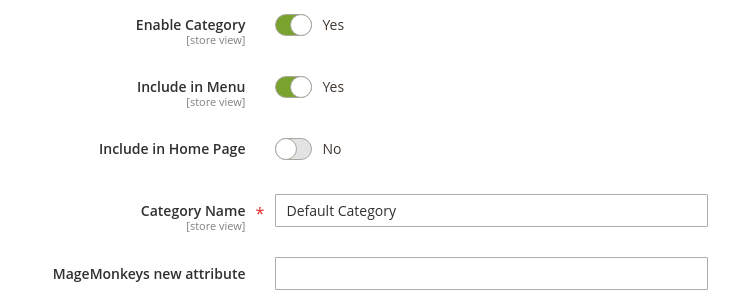
    Step 3 ) run upgrade, flush cache and check the result

    Magento Bugs open – 300K commerce sites to card-skimming attacks

    On Friday (29th March 2019), an attack code was published that showed the vulnerability in the Magento eCommerce platform, all but assuring that it will be used to plant payment card skimmers on sites that have yet to install a recently released patch.

    PRODSECBUG-2198 is a SQL injection vulnerability that attackers can exploit with no authentication required. Hackers control the admin panel to download user names and password hashes and then crack the hashes. As per their choice, they will install the backdoors or skimming code. Recently Web Security researcher said that the company has reverse-engineered an official patch that released on Tuesday and it has successfully created a working proof of concept exploit.

    For few months, crime gangs are increasing and they are racing to attack e-commerce sites with JavaScript in order to secretly steal credit card details. With their wild attacks, the same card-skimmer gangs are attacking around 300000 businesses and merchants.

    “There is no doubt threat actors are either actively reversing the patch or waiting for a proof of concept to exploit this flaw at scale,” Jérôme Segura, lead malware intelligence analyst at Malwarebytes, told Ars on Thursday. “When it comes to hacked Magento websites, Web skimmers are the most common infection type we see because of their high return on investment. As a result, we can expect another wave of compromises in light of this newly found critical vulnerability.”

    A proof-of-concept exploit was published on Friday which consists of Comments in the code that says “can easily be modified to obtain other stuff from the [database], for instance, admin/user password hashes.” It also says the underlying vulnerability has resided in Magento since version 1. So it means all Magento sites that haven’t installed the patch are susceptible and it was also published on Friday to provide additional exploit details along with the disclosure timeline.

    Segura wrote in an email Friday, “As predicted, we are going to see sites getting hacked pretty soon,”

    Sucuri researcher Marc-Alexandre Montpas concurred with that assessment. In Thursday’s blog post, he wrote:

    SQL injections allow an attacker to control site arguments to inject their own commands to SQL database (MSSQL, Oracle, MySQL, MariaDB), and this way they can retrieve sensitive data from an affected site’s database including usernames and password hashes.

    These kind of unauthenticated attacks are serious as they can manipulate any data and makes it easier for hackers to spread attacks against vulnerable websites. A vulnerability has become more dangerous due to active installs, ease of exploitation, and a number of successful attacks.

    From more than three dozen security bugs, PRODSECBUG-2198 is one that Magento developers have disclosed and fixed on Tuesday, and below versions may be affected by it:

    • Magento Commerce < 1.14.4.1
    • Magento Open Source < 1.9.4.1
    • Magento < 2.1.17
    • Magento < 2.2.8
    • Magento < 2.3.1

    Be quick in protecting your site from this Vulnerability by installing a stand-alone patch. There are other flaws too but that requires a hacker to be authenticated so they are not considered as severe.

    Magento officials have said, “As the majority of exploits tend to target software installations that are not up-to-date with the latest security updates, we always strongly recommend that users install security updates as soon as they are available.”

    You need to check your site if it is been targeted in 2198 exploits by checking the access_log file for several hits to the below-mentioned path:

    /catalog/product/frontend_action_synchronize

    A legitimate request is indicated to a small number of hits to that particular path, but if you come across the number of hits from the same IP address in a few minutes that you should suspect it.

    Upgrade to Magento Commerce or Open Source 2.3.1 or 2.2.8. to protect your site against all vulnerabilities.

    How to add custom field in sales rule action section in magento 1.9?

    First of all, you have to create a new module. After that, you have to put the code in config.xml

     <adminhtml>
            <events>    
                <adminhtml_block_salesrule_actions_prepareform>
                    <observers>
                        <magemonkeys_custofield>
                            <type>model</type>
                            <class>Magemonkeys_Custofield_Model_Observer</class>
                            <method>adminhtmlBlockSalesruleActionsPrepareform</method>
                        </magemonkeys_custofield>
                    </observers>
                </adminhtml_block_salesrule_actions_prepareform>
            </events>
     </adminhtml>

    in Model/Observer.php file you have to put this method and code.

    <?php
    class Magemonkeys_Custofield_Model_Observer
    {
        public function adminhtmlBlockSalesruleActionsPrepareform($observer)
        {
    
            $fieldset = $observer->getForm()->getElement('action_fieldset');
            $fieldset->addField('sku', 'text', array(
                'name' => 'sku',
                'label' => Mage::helper('freeproduct')->__('Add skus'),
                'title' => Mage::helper('freeproduct')->__('Add skus'),
                'note' => Mage::helper('freeproduct')->__('Add sku(s) separated with comma'),
            ));
        }
    }
    ?>

    And after that, you have to flush the cache and check.

    How to uncheck the default shipping method in Magento 2?

    Magento 2 comes with default shipping methods. But, if that’s not suitable to site owner then he/she can uncheck it.

    Let’s see, how?

    If you ever want to unchecked default shipping method at checkout or cart estimated shipping block, then it’s not necessary to create a module.

    Of course, you can perform this task by creating a module. But, here we are showing you alternate method to do the task.

    First step is to copy the js file checkout-data-resolver.js from vendormagentomodule-checkoutviewfrontendwebjsmodel
    to appdesignfrontendNamespaceThemeNameMagento_Checkoutwebjsmodel.

    And then just find selectShippingMethodAction(ratesData[0]);  and replace it to selectShippingMethodAction(null);  in this function: resolveShippingRates

    After doing such procedure you need to clear static content and cache.

    That’s it.

    Fatal error: Product Export problem & solution in Magento 1.9.3.9

    If you’re into Magento migration then you might face with many errors & solution.

    Dropping other errors aside, today, we’re going to talk about a Fatal error that can be faced while product/data migration.

    The error is known as Fatal error.

    It’s as show below:

    “Uncaught Error: Unsupported operand types in /var/www/html/magento1.9/app/code/core/Mage/ImportExport/Model/Export/Entity/Product.php:948”

    It can occur when you are trying to export products from admin.

    But, where there is an error, there is a solution.

    The solution for above problem is replacement of code.

    Replace code $dataRow += $stockItemRows[$productId]; on line no. 948 with below code in  app/code/core/Mage/ImportExport/Model/Export/Entity/Product.php file.

    -    $dataRow += $stockItemRows[$productId];
    +    if (isset($stockItemRows[$productId])) {
    +        $dataRow = array_merge($dataRow, $stockItemRows[$productId]);
    +    }

    With this simple replacement, your will get rid of that fatal error.

    Don’t forget to tell us how it worked for you by making a comment.