We sacrifice by not doing any other technology, so that you get the best of Magento.

We sacrifice by not doing any other technology, so that you get the best of Magento.

    How to Detect Mobile Device in Magento 2?

    I created Index.php controller for that at app/code/Vendor/Modulename/Controller/Index/ and add this below code :

    <?php
    
    namespace VendorModulenameControllerIndex;
    
    class Index extends MagentoFrameworkAppActionAction {
    
        /**
         * @var MagentoFrameworkViewResultPageFactory
         */
        protected $resultPageFactory;
    
        /**
         * @var MagentoFrameworkHTTPHeader
         */
        protected $httpHeader;
    
        /**
         * @param MagentoFrameworkAppActionContext      $context
         * @param MagentoFrameworkHTTPHeader             $httpHeader
         * @param MagentoFrameworkViewResultPageFactory $resultPageFactory
         */
        public function __construct(
            MagentoFrameworkAppActionContext $context,
            MagentoFrameworkHTTPHeader $httpHeader,
            MagentoFrameworkViewResultPageFactory $resultPageFactory
        ) {
            $this->httpHeader = $httpHeader;
            $this->resultPageFactory = $resultPageFactory;
            parent::__construct($context);
        }
        /**
         * Detect Mobile view or Desktop View
         *
         * @return void
         */
        public function execute() {
            $resultPage = $this->resultPageFactory->create();
            $userAgent = $this->httpHeader->getHttpUserAgent();
            $isMobile = Zend_Http_UserAgent_Mobile::match($userAgent, $_SERVER);
            if ($isMobile) {
                $resultPage->getConfig()->getTitle()->prepend(__("Mobile View")); // Mobile view logic add here
            } else {
                $resultPage->getConfig()->getTitle()->prepend(__("Desktop View")); // Desktop view logic add here
            }
            return $resultPage;
        }
    
    }

    You can add this above code in your controller or any file. You need to inject MagentoFrameworkHTTPHeader class into your construct.

    How to get category by url key in Magento 2?

    Here is the code for getting category by category URL key.

    The module name is: Magemonkeys_Categorydata

    Create a block file: Categoryurl.php

    <?php
    namespace  MagemonkeysCategorydataBlockIndex;
    
    class Categoryurl extends MagentoFrameworkViewElementTemplate {
    {
     protected $filter;
     public function __construct(
          MagentoCatalogBlockProductContext $context,
          MagentoCatalogModelCategoryFactory $categoryFactory,
          array $data = []
        ) {
         parent::__construct($context, $data);
         $this->categoryFactory = $categoryFactory;
     }
     public function getCategory($urlKey)
     {
       $categories = $this->categoryFactory->create()->getCollection()
                 ->addAttributeToFilter('url_key', $urlKey)
                 ->addAttributeToSelect(['entity_id']);
         return $categories;
     }
    }

    Now you can get category by using this function getCategory($urlKey) in your phtml file

    $urlKey = 'bags';
    $category = $this->getCategory($urlKey);
    print_r($category->getData());

    You can get an array of category data.


    How to set custom tab on product detail page to download and show pdf links?

    If you want to set one more custom tab to show pdf & download them then follow the below steps.

    Step 1: Create a file like  app/code/Magemonkeys/Custompdftab/registration.php

    <?php 
    MagentoFrameworkComponentComponentRegistrar::register(
        MagentoFrameworkComponentComponentRegistrar::MODULE,
        'Magemonkeys_Custompdftab',
        __DIR__
    );
    ?>

    Step 2: Create a file like app/code/Magemonkeys/Custompdftab/etc/module.xml

    <config xmlns:xsi="http://www.w3.org/2001/XMLSchema-instance" xsi:noNamespaceSchemaLocation="urn:magento:framework:Module/etc/module.xsd">
        <module name="Magemonkeys_Custompdftab" setup_version="1.0.0">
            <sequence>
                <module name="Magento_Catalog"/>
            </sequence>
        </module>
    </config>

    Step 3: Create a file like  app/code/Magemonkeys/Custompdftab/Helper/Data.php

    <?php
    
    namespace MagemonkeysCustompdftabHelper;
    
    use MagentoFrameworkAppHelperAbstractHelper;
    use MagentoFrameworkAppHelperContext;
    
    class Data extends AbstractHelper
    {
        public function stringToTable($text, $colSeparator = '|', $rowSeparator = '||')
        {
            $rows = explode($rowSeparator, $text);
            if (!$rows) return false;
            $html = '<table>';
            foreach ($rows as $row) {
                if ($row) {
                    $html .= '<tr>';
                    $columns = explode($colSeparator, $row);
                    $w=count($columns);
                    foreach ($columns as $column) {
                        $html .= '<td style="width:'. 100/$w .'%">' . $column . '</td>';
                    }
                    $html .= '</tr>';
                }
            }
            $html .= '</table>';
    
            return $html;
        }
    
        public function applicationsRender($applications,  $separator = "||"){
    
            //echo 'called';exit;
            if(!$applications)
                return;
    
            $html = '';
            $_elements = '';
    
            if(strpos($applications,':') > 0) {
                $_items = explode('.',$applications);
                natcasesort($_items);
                foreach($_items as $_item){
                    $_item = explode(':',$_item);
    
                    if($_item[0] == '')
                        continue;
    
                    $html .= '<ul class="applications">';
                    $html .= trim($_item[0]).': ';
                    $_elements = @explode($separator,$_item[1]);
    
                    foreach ($_elements as $element){
                        $html .= '<li>'.trim($element).'</li>';
                    }
                    $html .= '</ul>';
                }
            } else {
                $html .= '<ul class="applications">';
                $_items = explode($separator,$applications);
                natcasesort($_items);
                foreach ($_items as $_item){
                    $html .= '<li>'.$_item.'</li>';
                }
                $html .= '</ul>';
            }
    
            return $html;
    
        }
    }

    Step 4: Create a file like  app/code/Magemonkeys/Custompdftab/view/frontend/layout/catalog_product_view.xml

    <?xml version="1.0"?>
    <page xmlns:xsi="http://www.w3.org/2001/XMLSchema-instance" xsi:noNamespaceSchemaLocation="urn:magento:framework:View/Layout/etc/page_configuration.xsd">
        <body>
            <referenceBlock name="product.info.details">
                <block class="MagentoCatalogBlockProductView" name="custom-tab" template="Magemonkeys_Custompdftab::product/view/details/custom_tab.phtml" group="detailed_info">
                    <arguments>
                        <argument name="css_class" xsi:type="string">newtabclass</argument>
                        <argument translate="true" name="title" xsi:type="string">Documentatie</argument>
                        <argument name="sort_order" xsi:type="string">60</argument>
                    </arguments>
                </block>
            </referenceBlock>
        </body>
    </page>

    Step 5 : Create file like  app/code/Magemonkeys/Custompdftab/view/frontend/templates/product/view/details/custom_tab.phtml

    <?php 
        $_product = $block->getProduct();
        $sku = $_product->getSku();
        $file = $_product->getAgreementFile();
        $objectManager = MagentoFrameworkAppObjectManager::getInstance();
    
        $fileSystem = $objectManager->create('MagentoFrameworkFilesystem');
        $mediaPath = $fileSystem->getDirectoryRead(MagentoFrameworkAppFilesystemDirectoryList::MEDIA)->getAbsolutePath();
    
        $dir = '/'.$mediaPath.'/'.'catalog/product/file/'.$file;
        $dir2 = '/'.$mediaPath.'/'.'file/'.$sku;
    
        $flag = FALSE;
        $flag1 = true;
    ?>
    <?php if(file_exists($dir) && $file != ''):{
            $flag1 = false;
            if($file){ $flag = TRUE; } ?>
            <a class="download-file" href="<?php echo $block->getBaseUrl(); ?>pub/media/catalog/product/file/<?php echo basename($file) ?>" target="_blank"><?php echo str_replace('.pdf', '', $file) ?></a>
        <?php } elseif(file_exists($dir2) && $flag1):{
          if ($dh = opendir($dir2)){   
            while (($file = readdir($dh)) !== false){
              if ($file != '.' && $file != '..') {
                if($file){ $flag = TRUE;  }?>
                <a class="download-file1" href="<?php echo $block->getBaseUrl(); ?>pub/media/file/<?php echo $sku.'/'.basename($file) ?>" target="_blank"><?php echo str_replace('.pdf', '', $file) ?></a>
        <?php 
                }     
              }
            }
          }
        ?>
    <?php else: ?>
        <?php echo "There is no file"; ?>
    <?php endif; ?>
    
    <?php if($flag == TRUE): ?>
        <script>
            require(['jquery', 'jquery/ui'], function($){
               $('#tab-label-custom-tab').css('display','block');
            });
        </script>
    <?php endif; ?>

    That’s it…

    Now, you can check your product detail page. Your custom tab will be showing after all default tabs.
    How to check programmatically elasticsearch is enabled or not in Magento2?

    If your site has installed a third-party search engine and you want to know the elastic search is enabled or not, you can identify it.

    First, you need to instantiate the MagentoElasticsearchModelConfig class to your __construct() method.

    And then you can use the below code.

    <?php
    namespace MagemonkeysElasticsearchModel;
    
    use MagentoElasticsearchModelConfig;
    
    class ConfigData
    {
        /**
         * @var Config
         */
        private $config;
    
        public function __construct(
            Config $config
        ) {
            $this->config = $config;
        }
    
        /**
         * @return bool
         */
        public function isElasticsearchEnabled()
        {
            return $this->config->isElasticsearchEnabled();
        }
    }

    Now, you need to call below command.

    $result = $this->isElasticsearchEnabled();

    The result will be true if your site has enabled elastic search.

    How to create custom link for my account section in Magento 2?

    In this tutorial, we are going to discuss that how can we create a custom link for ‘my account’ section in Magento 2 for customer’s dashboard.

    The first thing we need to do is to create a layout XML file in our theme. Let’s call it customer_account.xml

    Path & file: app/design/frontend/Magemonkeys/magetheme/Magento_Customer/layout/customer_account.xml

    Add below code in your layout XML file.

    <referenceBlock name="customer_account_navigation">
        <block class="MagentoFrameworkViewElementHtmlLinkCurrent" name="customer-account-navigation-custom-link" after="-" >
             <arguments>
                 <argument name="label" xsi:type="string" translate="true">Custom Label</argument>
                 <argument name="path" xsi:type="string">custom-link-path</argument>
             </arguments>
        </block>
    </referenceBlock>

    That’s it. Hope you will able to create a custom link by using the above method.

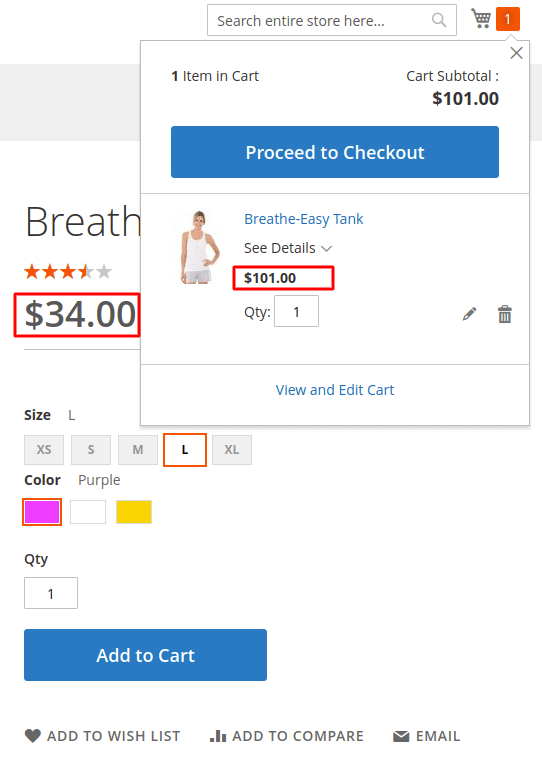
    In Magento 2, how to set custom price for products in cart?

    Firstly, we have to create a custom module.

    Then, we have to declare a file named events.xml to catch an event that takes place after a product is added to the cart.

    Create events.xml file at the following path Magemonkeys/CustomPriceInCart/etc/frontend/events.xml

    <?xml version="1.0"?>
    <config xmlns:xsi="http://www.w3.org/2001/XMLSchema-instance" xsi:noNamespaceSchemaLocation="urn:magento:framework:Event/etc/events.xsd">
    	<event name="checkout_cart_product_add_after">
    		<observer name="CustomPriceInCart" instance="MagemonkeysCustomPriceInCartObserverCustomPriceInCart" />
    	</event>
    </config>

    The next step is to create the observer to make changes to the price.

    Create CustomPriceInCart.php file at the following path Magemonkeys/CustomPriceInCart/Observer/CustomPriceInCart.php

    <?php
    namespace MagemonkeysCustomPriceInCartObserver;
    use MagentoFrameworkEventObserverInterface;
    use MagentoFrameworkAppRequestInterface;
    
    class CustomPriceInCart implements ObserverInterface
    {
    	public function execute(MagentoFrameworkEventObserver $observer)
    	{
    		$item = $observer->getEvent()->getData('quote_item');
    		$item = ($item->getParentItem() ? $item->getParentItem() : $item);
    		// here your custom price goes
    		$customPrice = 101;
    		$item->setCustomPrice($customPrice);
    		$item->setOriginalCustomPrice($customPrice);
    		$item->getProduct()->setIsSuperMode(true);
    	}
    }

    By turning on super mode to the product through function setIsSuperMode(true), we can stop the system generating the price.

    Then we can set the custom prices for products in the cart.

    How to add new button on sales order view page in admin side?

    If you want to add a new button on the sales order view page in the admin side then you have to do that by the plugin.

    Please follow the below steps.

    Step 1: Create a di.xml file on the below path and paste the below code in it.
    Path: app/code/Magemonkeys/CustomOrderButton/etc/adminhtml/di.xml

    <?xml version="1.0"?>
    <config xmlns:xsi="http://www.w3.org/2001/XMLSchema-instance"
            xsi:noNamespaceSchemaLocation="urn:magento:framework:ObjectManager/etc/config.xsd">
        <type name="MagentoBackendBlockWidgetButtonToolbar">
            <plugin name="add_custom_button_toolbar" type="MagemonkeysCustomOrderButtonPluginCustomButtonPlugin" />
        </type>
    </config>

    Step 2: Create the plugin file on the below path and paste the below code in it.
    Path: app/code/Magemonkeys/CustomOrderButton/Plugin/CustomButtonPlugin.php

    <?php declare(strict_types=1);
    
    namespace MagemonkeysCustomOrderButtonPlugin;
    
    use MagentoSalesBlockAdminhtmlOrderCreate;
    use MagentoFrameworkViewElementAbstractBlock;
    use MagentoBackendBlockWidgetButtonButtonList;
    use MagentoBackendBlockWidgetButtonToolbar as ToolbarContext;
    
    class CustomButtonPlugin
    {
        public function beforePushButtons(ToolbarContext $toolbar,AbstractBlock $context,ButtonList $buttonList): array {
            $orderObject = false;
            $layoutName = $context->getNameInLayout();
            if ('sales_order_edit' == $layoutName) {
                $orderObject = $context->getOrder();
            }
    
            if ($orderObject) {
            	$url = 'My Custom URL'
    	        $buttonList->add('custom_btn',['label' => __('Custom Button'),'on_click' => sprintf("location.href = '%s';", $url),'class' => 'primary custom_button','id' => 'custom_btn']);
            }
    
            return [$context, $buttonList];        
        }
    }
    ?>


    What to do when Magento 2.3.1 created invoices miss items?

    This could happen when bundled products and simple products are mixed in the order.

    To solve this, override the Invoiceservice.php from vendor/magento/module-sales/Model/Service/InvoiceService.php and change the below functions codes.

    public function prepareInvoice(Order $order, array $qtys = [])
    {
        $isQtysEmpty = empty($qtys);
        $invoice = $this->orderConverter->toInvoice($order);
        $totalQty = 0;
        $qtys = $this->prepareItemsQty($order, $qtys);
        foreach ($order->getAllItems() as $orderItem) {
            if (!$this->_canInvoiceItem($orderItem, $qtys)) {
                continue;
            }
            if (isset($qtys[$orderItem->getId()])) {
                $qty = (double) $qtys[$orderItem->getId()];
            } elseif ($orderItem->isDummy()) {
                $qty = $orderItem->getQtyOrdered() ? $orderItem->getQtyOrdered() : 1;
            } elseif ($isQtysEmpty) {
                $qty = $orderItem->getQtyToInvoice();
            } else {
                $qty = 0;
            }
            $item = $this->orderConverter->itemToInvoiceItem($orderItem);
            $this->setInvoiceItemQuantity($item, $qty);
            $invoice->addItem($item);
            $totalQty += $qty;
        }
        $invoice->setTotalQty($totalQty);
        $invoice->collectTotals();
        $order->getInvoiceCollection()->addItem($invoice);
        return $invoice;
    }
    private function prepareItemsQty(Order $order, array $qtys = [])
    {
        foreach ($order->getAllItems() as $orderItem) {
            if (isset($qtys[$orderItem->getId()])) {
                if ($orderItem->isDummy() && $orderItem->getHasChildren()) {
                    $qtys = $this->prepareItemQty($orderItem, $qtys);
                }
            } else {
                if (isset($qtys[$orderItem->getParentItemId()])) {
                    $qtys[$orderItem->getId()] = $qtys[$orderItem->getParentItemId()];
                }
            }
        }
        return $qtys;
    }
    private function prepareItemQty(MagentoSalesApiDataOrderItemInterface $orderItem, &$qtys)
    {
        /** @var OrderItemInterface $childOrderItem */
        foreach ($orderItem->getChildrenItems() as $childOrderItem) {
            if (!isset($qtys[$childOrderItem->getItemId()])) {
                $productOptions = $childOrderItem->getProductOptions();
                if (isset($productOptions['bundle_selection_attributes'])) {
                    $bundleSelectionAttributes = $this->serializer
                        ->unserialize($productOptions['bundle_selection_attributes']);
                    $qtys[$childOrderItem->getItemId()] =
                        $bundleSelectionAttributes['qty'] * $qtys[$orderItem->getItemId()];
                }
            }
        }
        return $qtys;
    }

    Once the changes will go live, the customer will have a complete invoice. None items will be missed.

    Magento2 : Display New label of product in product list page

    If you need to display a new label of the product on the list page, then you can do it via helper file.

    Here I have made one extension for that.

    1, First you need to create module directories on app/code.
    2. Then add registration.php in app/code/vender/module/.

    <?php 
    MagentoFrameworkComponentComponentRegistrar::register(
     MagentoFrameworkComponentComponentRegistrar::MODULE,
     'vender_module',
     __DIR__
    );

    3. The next step is to add module.xml file in app/code/vender/module/etc/

    <?xml version="1.0"?>
    <config xmlns:xsi="http://www.w3.org/2001/XMLSchema-instance" xsi:noNamespaceSchemaLocation="../../../../../lib/internal/Magento/Framework/Module/etc/module.xsd">
     <module name="vender_module" setup_version="1.0.0">
     </module>
    </config>

    4. In the final step, you need to create one helper file Newlabel.php in app/code/vender/module/Helper/

    <?php
    namespace vendermoduleHelper;
    
    use MagentoFrameworkStdlibDateTimeTimezoneInterface;
    
    class Newlabel extends MagentoFrameworkUrlHelperData
    {
    
     /**
     * @var TimezoneInterface
     */
     protected $localeDate;
    
     public function __construct(
     TimezoneInterface $localeDate
     ) {
     $this->localeDate = $localeDate;
     }
    
     public function isProductNew($product)
     {
     $newsFromDate = $product->getNewsFromDate();
     $newsToDate = $product->getNewsToDate();
     if (!$newsFromDate && !$newsToDate) {
     return false;
     }
    
     return $this->localeDate->isScopeDateInInterval(
     $product->getStore(),
     $newsFromDate,
     $newsToDate
     );
     }
    }

    After creating all the above files, run setup:upgrade command

    Then, you will able to add a new label on your override list.phtml file in product loop) as per below.

    <?php $helper = $this->helper('vendormoduleHelperNewlabel');
    if($helper->isProductNew($_product)): ?>
    <div class="lable newlbl">
        <?php echo __('New'); ?>
    </div>
    <?php endif; ?>

    Hope my post will helped you to enrich your Magento knowledge.

    How to get category count in Magento 2?

    You can get the total category count for the store in Magento 2 by using the getCount() method.

    You can fetch that information from
    MagentoCatalogApiCategoryManagementInterface.

    All you need to do is just create a simple Model class which will help you to retrieve the total number of the category.  Code is as per below.

    <?php
    namespace MagemonkeyCategoryCountModel;
     
    use MagentoCatalogApiCategoryManagementInterface;
     
    class CategoryCount
    {
        /**
         * @var CategoryManagementInterface
         */
        private $categoryManagement;
     
        public function __construct(
            CategoryManagementInterface $categoryManagement
        ) {
            $this->categoryManagement = $categoryManagement;
        }
     
        /**
         * Fetch all Category count
         *
         * @return int
         */
        public function getCategoryCount()
        {
            $categoryCount = $this->categoryManagement->getCount();
     
            return $categoryCount;
        }
    }

    Once you done with the code part, you can call method by using below command,

    $categoryCount = $this->getCategoryCount();

    That’s it.