We sacrifice by not doing any other technology, so that you get the best of Magento.

We sacrifice by not doing any other technology, so that you get the best of Magento.

    How to Override Block in Magento 2

    Configure Module

    Create module.xml at app/code/Magemonkeys/RewriteContact/etc and add the following code inside it:

    <?php
    MagentoFrameworkComponentComponentRegistrar::register(
    MagentoFrameworkComponentComponentRegistrar::MODULE,
    'Magemonkeys_RewriteContact',
    __DIR__
    );

    Override di.xml File

    Now, I will override di.xml file. Create di.xml at app/code/Magemonkeys/RewriteContact/etc and add following code in the dl.xml file.

    <?xml version="1.0"?>
    <config xmlns:xsi="http://www.w3.org/2001/XMLSchema-instance" xsi:noNamespaceSchemaLocation="urn:magento:framework:ObjectManager/etc/config.xsd">
    <preference for="MagentoContactBlockContactForm" type="MagemonkeysRewriteContactBlockContactForm" />
    </config>

    Override Contact Form

    It’s time to override contact form. Create ContactForm.php at app/code/Magemonkeys/RewriteContact/Block and add following code in this newly created file:

    <?php
    namespace MagemonkeysRewriteContactBlock;
    use MagentoFrameworkViewElementTemplate;
    class ContactForm extends MagentoContactBlockContactForm{
    
    public function getText() 
    { 
    return "Override Contact Block"; 
    }
    }

    Override contact_index_index.xml

    Create contact_index_index.xml at app/code/Magemonkeys/RewriteContact/view/frontend/layout and add following code in this file:

    <?xml version="1.0"?>
    <page xmlns:xsi="http://www.w3.org/2001/XMLSchema-instance" layout="1column" xsi:noNamespaceSchemaLocation="urn:magento:framework:View/Layout/etc/page_configuration.xsd">    
       <body>     
          <referenceBlock name="contactForm" remove="true"/>   
           <referenceContainer name="content">
               <block class="MagentoContactBlockContactForm" name="customContactForm" template="Magemonkeys_RewriteContact::form.phtml" />
           </referenceContainer>
       </body>
    </page>

    Override form.phtml

    Go to vendor/magento/module-contact/view/frontend/templates from the root directory of your store and copy the form.phtml file to app/code/Magemonkeys/RewriteContact/view/frontend/templates folder.

    Now, you just need to update the form.phtml by adding following code:

    <?php
    /**
    * Copyright © 2013-2017 Magento, Inc. All rights reserved.
    * See COPYING.txt for license details.
    */
    // @codingStandardsIgnoreFile
    ?>
    
    <form class="form contact"
    
         action="<?php /* @escapeNotVerified */ echo $block->getFormAction(); ?>"
    
         id="contact-form"
    
         method="post"
    
         data-hasrequired="<?php /* @escapeNotVerified */ echo __('* Required Fields') ?>"
    
         data-mage-init='{"validation":{}}'>
    
       <fieldset class="fieldset">
           <legend class="legend"><span><?php /* @escapeNotVerified */ echo __('Write Us') ?></span></legend><br />
           <div class="field note no-label"><?php /* @escapeNotVerified */ echo __('Jot us a note and we’ll get back to you as quickly as possible.') ?></div>
    <div class="field note no-label"><?php echo $block->getText(); ?></div>
           <div class="field name required">
               <label class="label" for="name"><span><?php /* @escapeNotVerified */ echo __('Name') ?></span></label>
               <div class="control">
                   <input name="name" id="name" title="<?php /* @escapeNotVerified */ echo __('Name') ?>" value="<?php echo $block->escapeHtml($this->helper('MagentoContactHelperData')->getPostValue('name') ?: $this->helper('MagentoContactHelperData')->getUserName()) ?>" class="input-text" type="text" data-validate="{required:true}"/>
               </div>
           </div>
           <div class="field email required">
               <label class="label" for="email"><span><?php /* @escapeNotVerified */ echo __('Email') ?></span></label>
               <div class="control">
                   <input name="email" id="email" title="<?php /* @escapeNotVerified */ echo __('Email') ?>" value="<?php echo $block->escapeHtml($this->helper('MagentoContactHelperData')->getPostValue('email') ?: $this->helper('MagentoContactHelperData')->getUserEmail()) ?>" class="input-text" type="email" data-validate="{required:true, 'validate-email':true}"/>
               </div>
           </div>
           <div class="field telephone">
               <label class="label" for="telephone"><span><?php /* @escapeNotVerified */ echo __('Phone Number') ?></span></label>
               <div class="control">
                   <input name="telephone" id="telephone" title="<?php /* @escapeNotVerified */ echo __('Phone Number') ?>" value="<?php echo $block->escapeHtml($this->helper('MagentoContactHelperData')->getPostValue('telephone')) ?>" class="input-text" type="text" />
               </div>
           </div>
           <div class="field comment required">
               <label class="label" for="comment"><span><?php /* @escapeNotVerified */ echo __('What’s on your mind?') ?></span></label>
               <div class="control">
                   <textarea name="comment" id="comment" title="<?php /* @escapeNotVerified */ echo __('What’s on your mind?') ?>" class="input-text" cols="5" rows="3" data-validate="{required:true}"><?php echo $block->escapeHtml($this->helper('MagentoContactHelperData')->getPostValue('comment')) ?></textarea>
               </div>
           </div>
           <?php echo $block->getChildHtml('form.additional.info'); ?>
       </fieldset>
       <div class="actions-toolbar">
           <div class="primary">
               <input type="hidden" name="hideit" id="hideit" value="" />
               <button type="submit" title="<?php /* @escapeNotVerified */ echo __('Submit') ?>" class="action submit primary">
                   <span><?php /* @escapeNotVerified */ echo __('Submit') ?></span>
               </button>
           </div>
       </div>
    </form>

    I have added <?php echo $block->getText(); ?>  under <div class=“field note no-label”>  in order to display it in a clear and decent format.

    Run Commands

    Go to the root directory of your store and run the following commands:

    php bin/magento module:enable Magemonkeys_RewriteContact
    php bin/magento setup:upgrade
    php bin/magento setup:di:compile
    php bin/magento setup:static-content:deploy
    php bin/magento cache:clean
    php bin/magento cache:flush

    Result

    Launch your store and go to the contact form.  You will see the desired result as below:

    Add next and previous product pagination on product detail page

    Create a new file nextpreviouspagination.phtml at app/design/frontend/Vendor/theme/Magento_Catalog/templates/product/view/.
    Add following code in this new file:

    <?php 
    
        $productId = $block->getProduct()->getId(); 
        $categoryIds = $block->getProduct()->getCategoryIds();
    
        $objectManager = MagentoFrameworkAppObjectManager::getInstance();
    
        $nxtProduct = $objectManager->create('MagentoCatalogModelProduct');
        $prvProduct = $objectManager->create('MagentoCatalogModelProduct');
    
        $category = $objectManager->create('MagentoCatalogModelCategory')->load($categoryIds[0]);
        $categoryProduct = $category->getProductCollection()->addAttributeToSort('position', 'asc');
        $categoryProduct->addAttributeToFilter('status',1);
        $categoryProduct->addAttributeToFilter('visibility',4);
    
        $categoryProductIds = $categoryProduct->getAllIds();
    
        $position = array_search($productId, $categoryProductIds); // get position of the current product
        $nextPosition = $position+1;
        $previousPosition = $position-1;
        $keys = array_keys($categoryProductIds);
    
        if(in_array($nextPosition, $keys)){
            $nextProduct = $nxtProduct->load($categoryProductIds[$nextPosition]);
        }
        if(in_array($previousPosition, $keys)){
            $previousProduct = $prvProduct->load($categoryProductIds[$previousPosition]);   
        }
    
    ?>
    
    <div class="previous_next">
        <?php if(in_array($previousPosition, $keys)): ?>
            <a href="<?php print_r($previousProduct->getProductUrl()); ?>"><span>Previous </span></a>
        <?php endif; ?>
    
        <?php if(in_array($nextPosition, $keys)): ?>
            <a href="<?php print_r($nextProduct->getProductUrl()); ?>"><span>Next </span></a>
        <?php endif; ?>
    </div>

    Now open this file app/design/frontend/Vendor/theme/Magento_Catalog/layout/catalog_product_view.xml.
    Add following code between body tag of the catalog_product_view.xml file:

    <referenceContainer name="content">
        <block class="MagentoCatalogBlockProductViewDescription" name="product.info.nextpreviouspagination" template="product/view/nextpreviouspagination.phtml" />   
    </referenceContainer>
    
    <move element="product.info.nextpreviouspagination" destination="product.info.main" after="page.main.title"/>


    Magneto 2: How to set image gallery thumbnail as vertical?

    Here, we will see,  how you can set the thumbnail of fotorama slider in product view page to left as vertical in Magento 2.

    Magento uses the view.xml file for gallery and magnifier theme settings.

    For example, if you are using the default theme luma, you should find the view.xml  at vendor/magento/theme-frontend-luma/etc/view.xml.

    In this file, we can see a variable navdir under <var name=”gallery”> node.

    This variable has the ability to change the thumbnails alignment in Fotorama.

    <var name="navdir"> horizontal</var>

    To set the thumbnails as vertical, you need to change the code as below:

    <var name="navdir"> vertical</var>

    You can define your own custom view.xml file in your theme at app/design/frontend/THEME-VENDOR/THEME/etc/view.xml,  and change navdir as per your requirement.

    How to solve guest order Create Account button not working in Magento 2.2.5

    I have faced the issue in Magento 2.2.5 version.  When I Place the order as a guest user, the “Create Account” button shows a blank error.

    So, I resolved this issue using below steps:

    First, you need to override vendor/magento/module- checkout/Block/Registration.php file in your any existing module.

    To override this file:
    Create new file ‘di.xml‘ at app/code/Vender/Modulename/etc/.

    Add the following code in the newly created file.

    <?xml version="1.0"?>
    <config xmlns:xsi="http://www.w3.org/2001/XMLSchema-instance" xsi:noNamespaceSchemaLocation="urn:magento:framework:ObjectManager/etc/config.xsd">
        <preference for="MagentoCheckoutBlockRegistration" type="VenderModulenameBlockRegistration" />
    </config>

    Then create new file Registration.php at app/code/Vender/Modulename/Block/, then find below code and replace it with new code as mentioned below:

    From:

    /**
         * Retrieve account creation url
         *
         * @return string
         * @codeCoverageIgnore
         */
        public function getCreateAccountUrl()
        {
            return $this->getUrl('checkout/account/delegateCreate');
        }

    To:

    /**
         * Retrieve account creation url
         *
         * @return string
         * @codeCoverageIgnore
         */
        public function getCreateAccountUrl()
        {
            return $this->getUrl('checkout/account/create');
        }


    Add labels of street fields in checkout shipping address also make it required fields

    Magento has a feature to define between 1 and 4 fields, how much do you want to use in the street field?

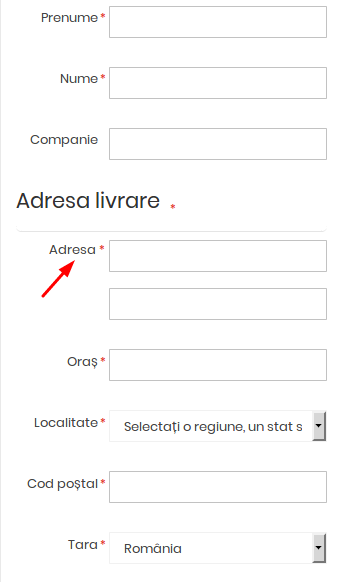
    I’ve activated 2 fields and would like to add a label for 1 field. I have done this on the checkout shipping address page which you can see in the image below:

    I just do rewriting checkout layout on di.xml :

    <type name="MagentoCheckoutBlockCheckoutLayoutProcessor">
        <plugin name="rewrite-street" type="VendorModuelNameModelCheckoutLayoutProcessorPlugin"/>
    </type>

    And create a new LayoutProcessorPlugin.php file at VendorModuelNameModelCheckoutLayoutProcessorPlugin.php path:

    <?php
    namespace VendorModuleNameModelCheckout;
    
    class LayoutProcessorPlugin
    {
        /**
         * @param MagentoCheckoutBlockCheckoutLayoutProcessor $subject
         * @param array $jsLayout
         * @return array
         */
    
        public function afterProcess(
            MagentoCheckoutBlockCheckoutLayoutProcessor $subject,
            array  $jsLayout
        ) {
            $jsLayout['components']['checkout']['children']['steps']['children']['shipping-step']['children']
            ['shippingAddress']['children']['shipping-address-fieldset']['children']['street'] = [
                'component' => 'Magento_Ui/js/form/components/group',
                'label' => __('Street Address'), // You can change main label from here
                'required' => true, //turn false if you can removed main label
                'dataScope' => 'shippingAddress.street',
                'provider' => 'checkoutProvider',
                'sortOrder' => 30, // You can set short order of street fields from other checkout fields
                'type' => 'group',
                'additionalClasses' => 'street',
                'children' => [
                    [
                        'label' => __('Label 1'), // Here I can set Label "Adresa" as per above image
                        'component' => 'Magento_Ui/js/form/element/abstract',
                        'config' => [
                            'customScope' => 'shippingAddress',
                            'template' => 'ui/form/field',
                            'elementTmpl' => 'ui/form/element/input'
                        ],
                        'dataScope' => '0',
                        'provider' => 'checkoutProvider',
                        'validation' => ['required-entry' => true, "min_text_len‌​gth" => 1], // You can also set "max_text_length"=> 255 in validation
                    ],
                    [
                        'label' => __('Label 2'),
                        'component' => 'Magento_Ui/js/form/element/abstract',
                        'config' => [
                            'customScope' => 'shippingAddress',
                            'template' => 'ui/form/field',
                            'elementTmpl' => 'ui/form/element/input'
                        ],
                        'dataScope' => '1',
                        'provider' => 'checkoutProvider',
                        'validation' => ['required-entry' => false, "min_text_len‌​gth" => 1],
                    ],
                ]
            ];
            return $jsLayout;
        }
    }

    You can do this in any existing module.

    Smartwave Porto theme shows an error like this in browser console and my page does not load properly

    I’m using Smartwave Porto theme for my Magento 2 website. When I load my website for the first time it’s loading properly, but every time I refresh the browser page it will show an error like this in browser console and my page does not load properly:

    Uncaught TypeError: $(...).swMegamenu is not a function
    Uncaught TypeError: $(...).stellar is not a function
    Uncaught TypeError: $(...).owlCarousel is not a function
    Uncaught TypeError: $.widget is not a function

    I just do below changes :

    Create a requirejs-config.js in the root of the child theme (you can also do this on root theme if you have not created a child theme) as per Porto child like this:

    app/design/frontend/Smartwave/porto_child and add the following code in it:

    var config = {
        shim: {
            jquery: {
                exports: '$'
            },
            'Smartwave_Megamenu/js/sw_megamenu':
                {
                    deps: ['jquery']
                }, 
            'owl.carousel/owl.carousel.min':
                {
                    deps: ['jquery']
                },
            'js/jquery.stellar.min': 
                {
                deps: ['jquery']
                },
            'js/jquery.parallax.min':
                {
                deps: ['jquery']
                }
        }
    };

    And also change child theme layout file at:

    app/design/frontend/Smartwave/porto_child/Magento_Theme/layout/default_head_blocks.xml

    From:

    <script src="jquery.js" />
    <script src="bootstrap/js/bootstrap.min.js" />
    <script src="fancybox/js/jquery.fancybox.js" />

    To:

    <remove src="jquery.js" />
    <remove src="bootstrap/js/bootstrap.min.js" />
    <remove src="fancybox/js/jquery.fancybox.js" />

    I don’t need the fancybox, So I have turned it off, but if you require it, I guess it should be included in the requirejs as well. If you face the same issue, follow the above steps to solve it.

    Add Quantity Increment and decrements Button in Magento 2

    Configure Module

    Configure your module by creating a module.xml file at app/code/Magemonkeys/QtyIncrement/etc. Add the following code in it:

    <?xml version="1.0"?>
    <config xmlns:xsi="http://www.w3.org/2001/XMLSchema-instance" xsi:noNamespaceSchemaLocation="urn:magento:framework:Module/etc/module.xsd">
    <module name="Magemonkeys_QtyIncrement" setup_version="1.0.0"></module>
    </config>


    Registration of Module

    Now, register the module by creating registration.php at app/code/Magemonkeys/QtyIncrement, and add the following code in it:

    <?php
    MagentoFrameworkComponentComponentRegistrar::register(
       MagentoFrameworkComponentComponentRegistrar::MODULE,
       'Magemonkeys_QtyIncrement',
       __DIR__
    );


    Copy addtocart.phtml

    Go to vendor/magento/module-catalog/view/frontend/templates/product/view from the root directory of your store and copy addtocart.phtml to your own module app/code /Magemonkeys/QtyIncrement/view/frontend/templates/catalog/product/view

    Edit addtocart.phtml

    <?php
    /**
    * Copyright © 2013-2017 Magento, Inc. All rights reserved.
    * See COPYING.txt for license details.
    */
    // @codingStandardsIgnoreFile
    /** @var $block MagentoCatalogBlockProductView */
    ?>
     
    <?php $_product = $block->getProduct(); ?>
    <?php $buttonTitle = __('Add to Cart'); ?>
    <?php if ($_product->isSaleable()): ?>
    <div class="box-tocart">
       <div class="fieldset">
           <?php if ($block->shouldRenderQuantity()): ?>
           <div class="field qty">
               <label class="label" for="qty"><span><?php /* @escapeNotVerified */ echo __('Qty') ?></span></label>
     
    <script type="text/x-magento-init">
    {
       "*": {
               "Magento_Ui/js/core/app": {
                   "components": {
                       "qty_change": {
                           "component": "Magemonkeys_QtyIncrement/js/view/product/view/qty_change",
                           "defaultQty": <?php echo $block->getProductDefaultQty() * 1 ?>
                       }
                   }
               }
       }
    }
    </script>
     
    <div class="control" data-bind="scope: 'qty_change'">
       <button data-bind="click: decreaseQty">-</button>
       <input  data-bind="value: qty()"
       type="number"
       name="qty"
       id="qty"
       maxlength="12"
       title="<?php echo __('Qty') ?>"
       class="input-text qty"
       data-validate="<?php echo $block->escapeHtml(json_encode($block->getQuantityValidators())) ?>"
       />
     
       <button data-bind="click: increaseQty">+</button>
    </div>
           </div>
           <?php endif; ?>
           <div class="actions">
               <button type="submit"
                       title="<?php /* @escapeNotVerified */ echo $buttonTitle ?>"
                       class="action primary tocart"
                       id="product-addtocart-button">
                   <span><?php /* @escapeNotVerified */ echo $buttonTitle ?></span>
               </button>
               <?php echo $block->getChildHtml('', true) ?>
           </div>
       </div>
    </div>
    <?php endif; ?>
    <script type="text/x-magento-init">
       {
           "#product_addtocart_form": {
               "Magento_Catalog/product/view/validation": {
                   "radioCheckboxClosest": ".nested"
               }
           }
       }
    </script>
    <?php if (!$block->isRedirectToCartEnabled()) : ?>
    <script type="text/x-magento-init">
       {
           "#product_addtocart_form": {
               "catalogAddToCart": {
                   "bindSubmit": false
               }
           }
       }
    </script>
    <?php endif; ?>

    Create qty_change.js

    Now, create qty_change.js at app/code/Magemonkeys/QtyIncrement/view/frontend/web/js/view/product/view. Add the following code in it:

    define([
       'ko',
       'uiComponent'
    ], function (ko, Component) {
       'use strict';
       return Component.extend({
           initialize: function () {
               //initialize parent Component
               this._super();
               this.qty = ko.observable(this.defaultQty);
           },
           decreaseQty: function() {
               var newQty = this.qty() - 1;
               if (newQty < 1) 
               {
                   newQty = 1;
               }
               this.qty(newQty);
           },
           increaseQty: function() {
               var newQty = this.qty() + 1;
               this.qty(newQty);
           }
       });
    });

    Create catalog_product_view.xml

    Lastly, just create catalog_product_view.xml  at app/code/Magemonkeys/QtyIncrement/view/frontend/layout. Add the following code in it:

    <?xml version="1.0"?>
    <page layout="1column" xmlns:xsi="http://www.w3.org/2001/XMLSchema-instance" xsi:noNamespaceSchemaLocation="urn:magento:framework:View/Layout/etc/page_configuration.xsd">
       <body>
           <referenceBlock name="product.info.addtocart">
               <action method="setTemplate">
                   <argument name="template" xsi:type="string">Magemonkeys_QtyIncrement::catalog/product/view/addtocart.phtml</argument>
               </action>
           </referenceBlock>
           <referenceBlock name="product.info.addtocart.additional">
               <action method="setTemplate">
                   <argument name="template" xsi:type="string">Magemonkeys_QtyIncrement::catalog/product/view/addtocart.phtml</argument>
               </action>
           </referenceBlock>
       </body>
    </page>

    Run the Commands

    Go to the root directory of your store by using SSH terminal and run the following commands:

    rm -rf var/di var/generation var/cache/* var/log/* var/page_cache/*
    
    php bin/magento module:enable Magemonkeys_QtyIncrement
    
    php bin/magento setup:upgrade
    
    php bin/magento setup:di:compile
    
    php bin/magento indexer:reindex
    
    php bin/magento cache:clean
    
    php bin/magento cache:flush

    Now, go to the product page and you will see the result:

    Restrict Payment Method based on Shipping Method

    I need Cash On Delivery payment method when the customer selects a Store Pick up Shipping method during the checkout process. You can do this using “payment_method_is_active“ event:

    Create an events.xml file at:
    /app/code/Vendor/Modulename/etc/. Add the following code in this file:

    <?xml version="1.0"?>
    <config xmlns:xsi="http://www.w3.org/2001/XMLSchema-instance" xsi:noNamespaceSchemaLocation="urn:magento:framework:Event/etc/events.xsd">
        <event name="payment_method_is_active">
            <observer name="codpaymentdisableregion" instance="VendorModulenameObserverPaymentactive" />
        </event>
    </config>

    And create Paymentactive.php file at
    Vendor/ModuelName/Observer/path. Add the following code in this file:

    <?php
    namespace VendorModuelNameObserver;
    
    use MagentoFrameworkEventObserverInterface;
    
    class Paymentactive implements ObserverInterface 
    {
        protected $_checkoutSession;
    
        public function __construct(MagentoCheckoutModelSession $checkoutSession) {
            $this->_checkoutSession = $checkoutSession;
        }
        public function execute(MagentoFrameworkEventObserver $observer) {
            $objectManager = MagentoFrameworkAppObjectManager::getInstance();
    
            $_session = $objectManager->get('MagentoCheckoutModelSession');
            $method = $observer->getEvent()->getMethodInstance();
            $result = $observer->getEvent()->getResult();


            $shippingMethod = $_session->getQuote()->getShippingAddress()->getShippingMethod();
            
            if($_session->getQuote()->getShippingAddress()->getShippingMethod()=='storepickup_storepickup' && $method->getCode()=="cashondelivery")
            {
                return $result->setData('is_available', true);
            }
            
            if(strpos($shippingMethod,'ups_') !== false && $method->getCode()=="paypal_express")
            {
                return $result->setData('is_available', true);
            }
            
            return $result->setData('is_available', false);
        }
    }
    

    You need to replace “storepickup_storepickup” with your shipping code and “cashondelivery” or “ paypal_express” with your payment method code.

    How To Display Sub Categories On A Category Page In Magento?

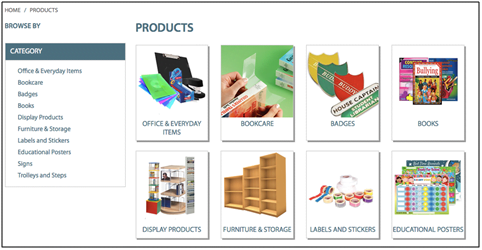
    By default, Magento will only display subcategories instead of product on a product listing page which is like an obvious option to have but due to some reason it is not possible unless you are aware.

    So let’s begin from the top:

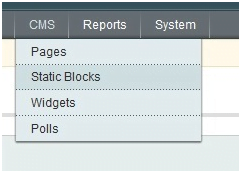
    1. In your Magento admin navigate to CMS > Static Blocks

    2. Click “Add New Block” at the top right

    3. Create a new static block as follows:

    Block Title : Sub Category Listing

    Identifier : subcategory_listing

    Status : Enabled

    Content :
    {{block type=”core/template” template=”catalog/navigation/subcategory_listing.phtml”}}

    4. Click “Save Block” in the top right

    5. Go to the parent category under Catalog > Manage Categories.

    6. Select the category that has sub-categories and under the “Display Settings Tab” reflect the following:

    Display mode : Static Block only

    CMS Block : Sub Category Listing

    Is Anchor : No

    7. Click “Save Category” at the top right

    8. Create a new file called “subcategory_listing.phtml” with the following content:

    app/design/frontend/yourpackagename/yourthemename/template/catalog/navigation/

    Containing the following code:

    <?php

    $layer = Mage::getSingleton(‘catalog/layer’);

    $_category   = $layer->getCurrentCategory();

    $_categories = $_category->getCollection()->addAttributeToSelect(array(‘url_key’,’name’,’image’,’all_children’,’is_anchor’,’description’))

    ->addAttributeToFilter(‘is_active’, 1)

    ->addIdFilter($_category->getChildren())

    ->setOrder(‘position’, ‘ASC’)

    ->joinUrlRewrite();

    ?>

    <div class=”listing-type-list catalog-listing”>

    <ul id=”subcats” class=”clear”>

    <?php foreach ($_categories as $_category): ?>

    <?php if($_category->getIsActive()): ?>

    <?php Mage::log($_category->debug(), null, ‘mylogfile.log’); ?>

    <li>

    <div class=”subcat clearfix”>

    <a class=”now-from-container” href=”<?php echo $_category->getURL() ?>”></a>

    <div class=”subcat-image”>

    <a href=”<?php echo $_category->getURL() ?>” title=”<?php echo $this->htmlEscape($_category->getName()) ?>”>

    <img src=”<?php echo $this->htmlEscape($_category->getImageUrl()) ?>” width=”190″ alt=”<?php echo $this->htmlEscape($_category->getName()) ?>” />

    </a>

    </div>

    <div class=”subcat-title-container”>

    <h2><a href=”<?php echo $_category->getURL() ?>” title=”<?php echo $this->htmlEscape($_category->getName()) ?>”><?php echo $this->htmlEscape($_category->getName()) ?></a></h2>

    </div>

    </div>

    </li>

    <?php endif; ?>

    <?php endforeach; ?>

    </ul>

    </div>

    So, all this does is what grabs the current category being viewed and cycles through the sub categories of the parent category. Checks each sub category to see if it is active, and if so outputs it to the sub category list.

    9. Make sure your sub categories have an image assigned to them under
    Catalog > Manage Categories > Sub Category

    And that’s how to display a sub category listing on a category page in Magento.

    If you do not see the changes, then try clearing your Magento/browser cache. If your sub-categories show no thumbnails then make sure that the images are actually uploaded to your subcategories.

    How To Update Magento Order Status In Mysql When Order Is Stuck?

    When your order is stuck and you want to update your Magento order status in my SQL then for that you have to create a temporary table called temp with 2 columns, increment_id and status.

    Fill this table with orders numbers that need to be updated and the new status
    e.g. canceled.

    Status values can be found at:-
    SELECT *
    FROM `sales_order_status_state`

    These queries will then update the sales order and the order grid with the new status.

    UPDATE `sales_flat_order`, temp
    SET sales_flat_order.state = temp.status, sales_flat_order.state = temp.status
    WHERE sales_flat_order.increment_id = temp.increment_id;

    UPDATE `sales_flat_order_grid`, temp
    SET sales_flat_order_grid.status = temp.status
    WHERE sales_flat_order_grid.increment_id = temp.increment_id

    Hope your query is solved now. Do share in your views and experiences in the comment section below.