We sacrifice by not doing any other technology, so that you get the best of Magento.

We sacrifice by not doing any other technology, so that you get the best of Magento.

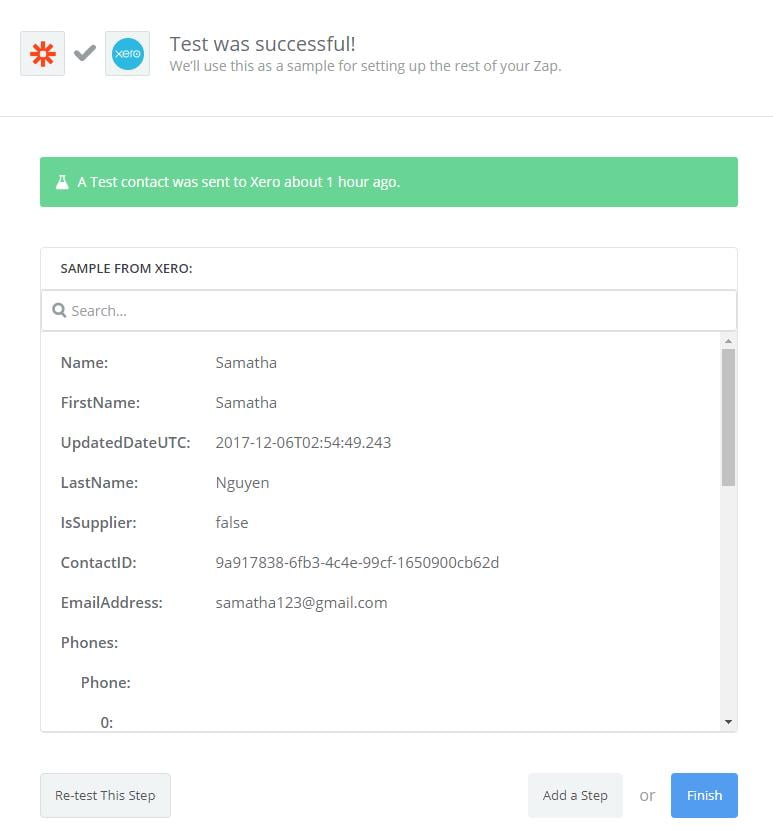
    How to integrate Highrise with Magento 2

    If you don’t want your name under the old-fashioned store owner then you must integrate Highrise with your Magento store and if you are looking for how to integrate Highrise with Magento 2, this article is for you.

    First, you need to understand what Highrise is?

    Highrise is a CRM solution which includes the function of managing customer communications and storing all customer information. It can also track business transactions and it also allows you to import data from your Magento store.

    Lets integrate Highrise with Magento 2

    There are 4 steps for integration

    • Step 1: Create Zapier account
    • Step 2: Create Highrise account
    • Step 3: Integrate Magento 2
    • Step 4: Integrate Highrise with Magento 2

    Step 1: Create Zapier account

    • Signup Zapier

    Step 2: Create Highrise account

    • Signup Highrise
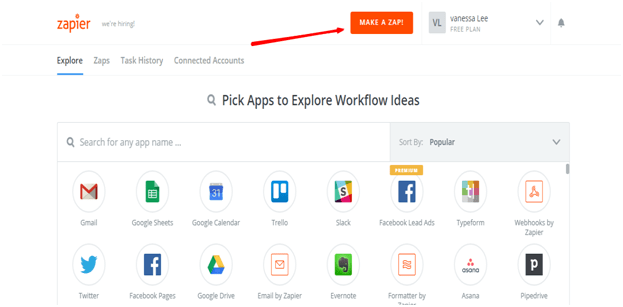
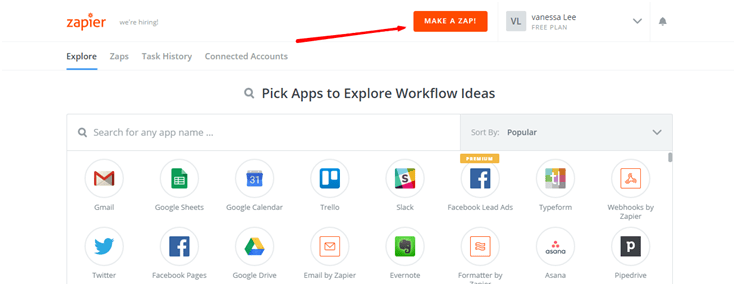
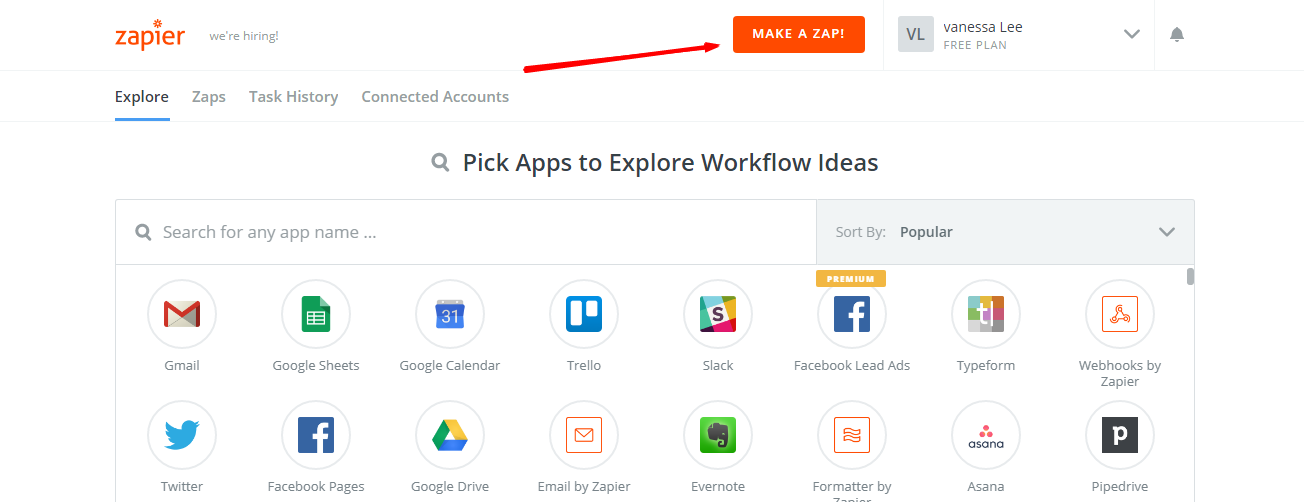
    • When you log in into Zapier, select Make a Zap to start integrating.

    Step 3: Integrate Magento 2

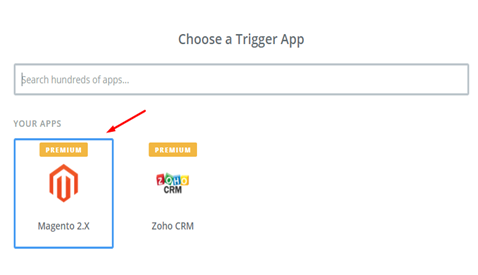
    • Here you need to select a Trigger App for integrating with your Magento 2 store.
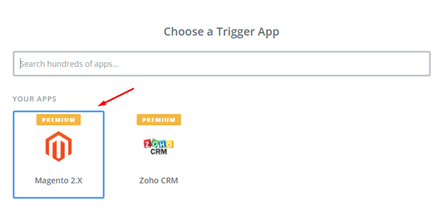
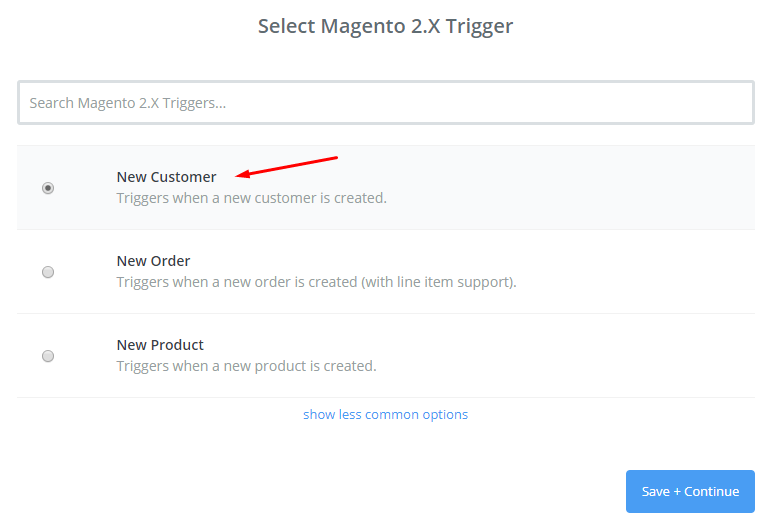
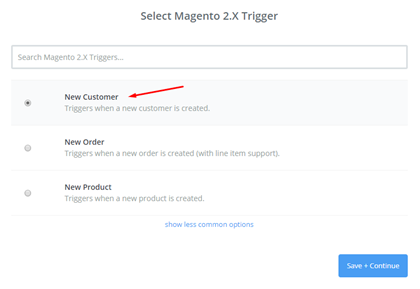
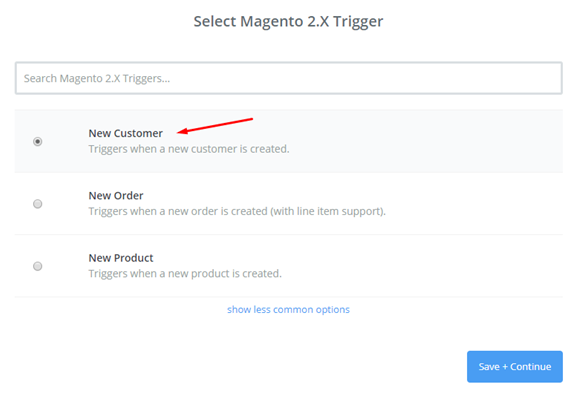
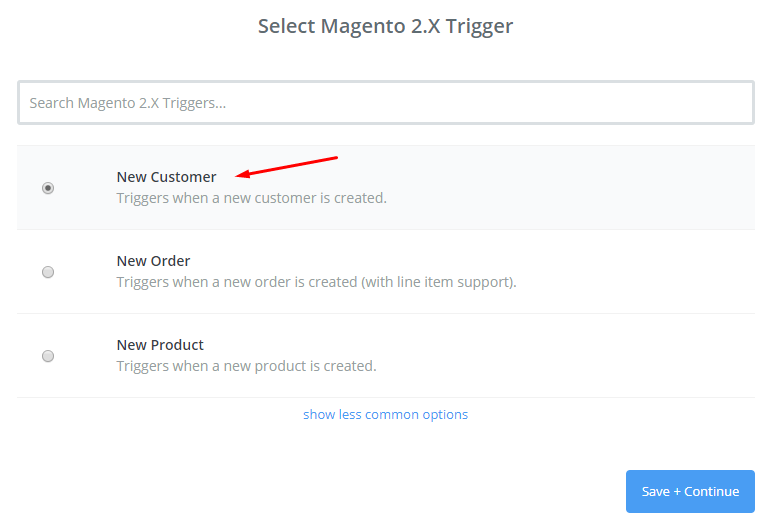
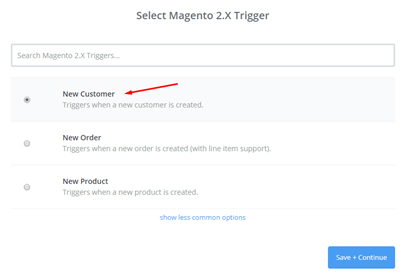
    • Now here, select Magento 2.x Trigger in the drop-down list such as new customer, then save + continue
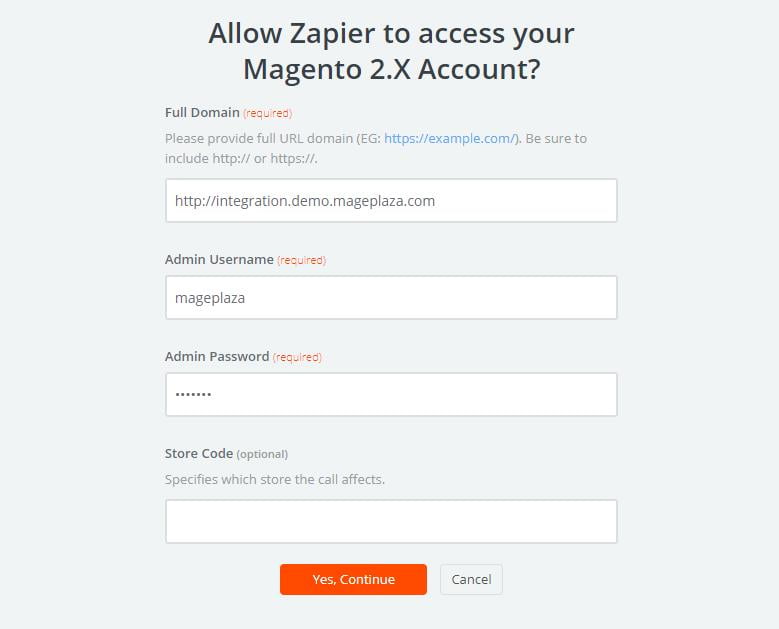
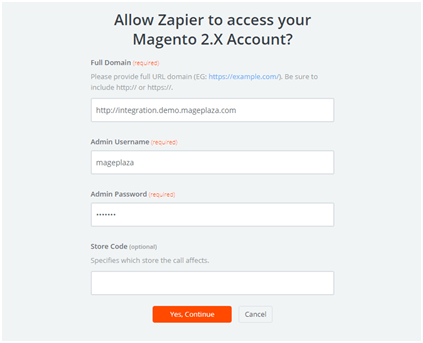
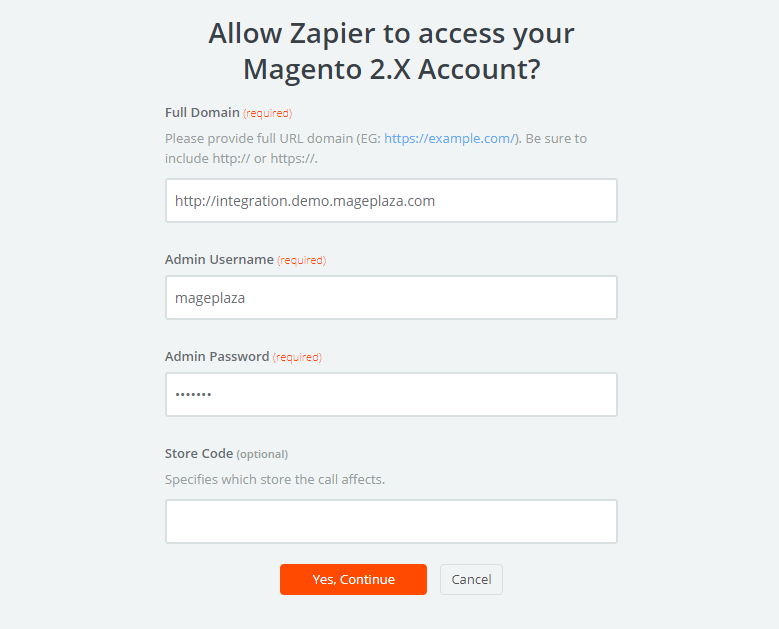
    • Then you have to connect an account to select Magento 2.x Account for that enter full domain, admin username and admin password of your Magento 2.x store as an image below:

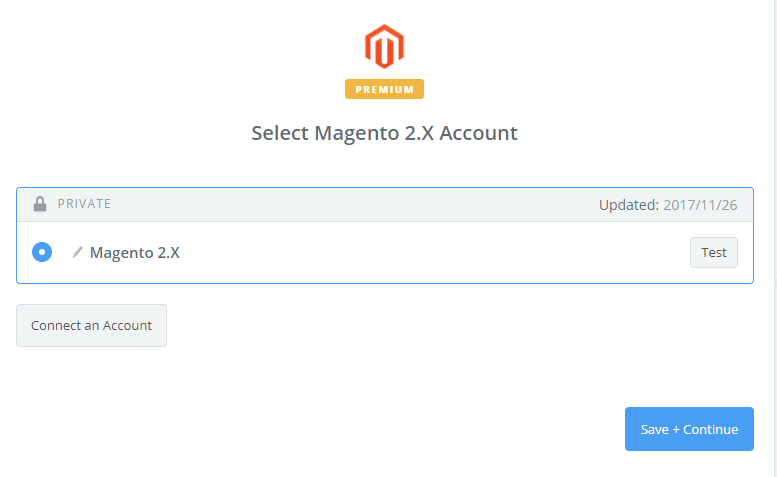
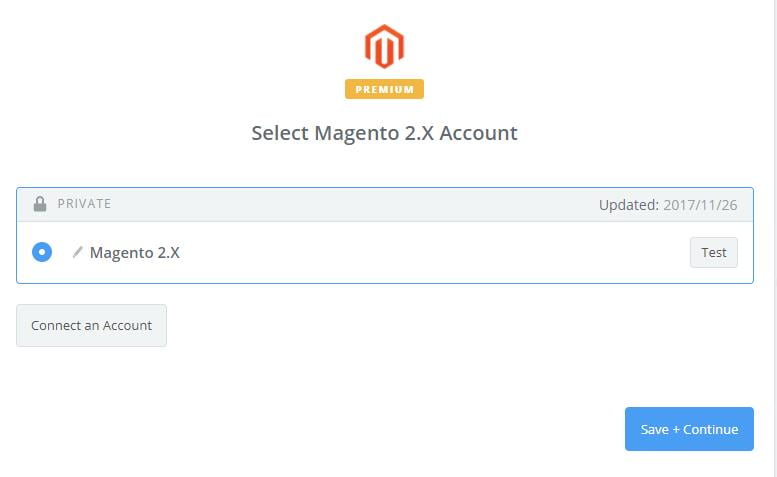
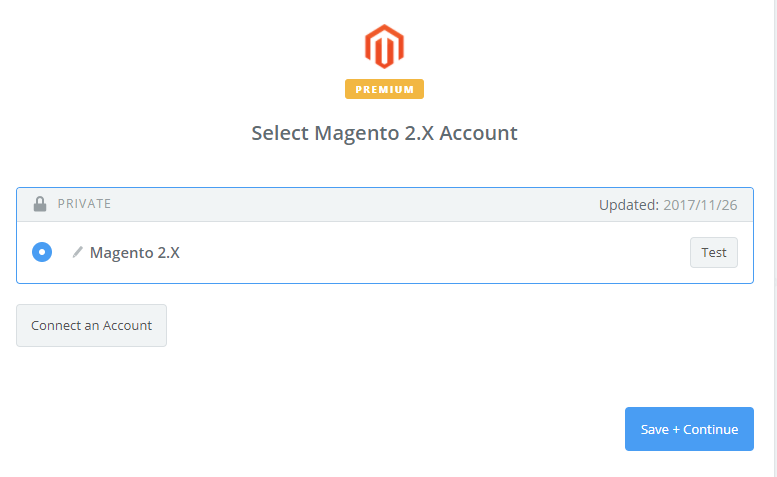
    • After creating your Magento 2.x account, your screen will display as the following image, and then click on Save + Continue:

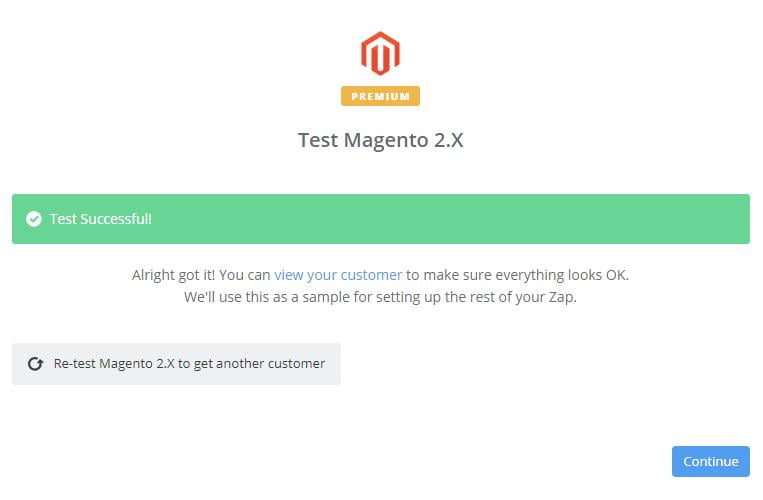
    • Awesome, you have successfully tested Magento 2.x. Please continue doing for the next step.

    Step 4: Integrate Highrise with Magento 2

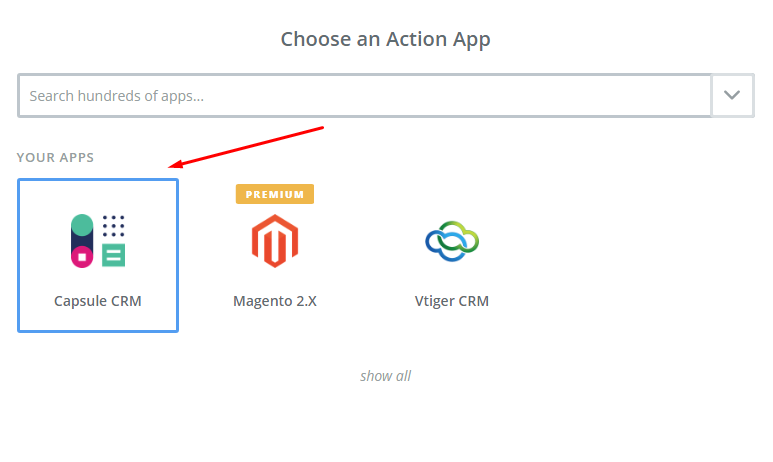
    • From Appfield, you have to choose Highrise

    • Now, in select Highrise Action( as you can see below), you have to select on create/update contact and then click on continue
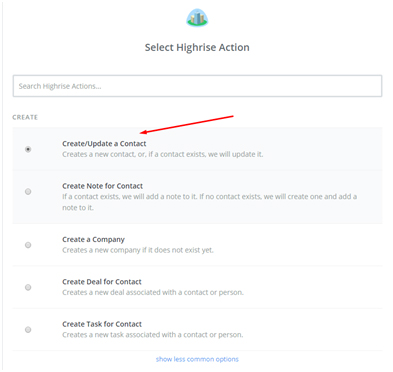
    • Next, click on Connect an Account and then follow the instructions.
    • Fill all required information in this page and then click on Save + Continue
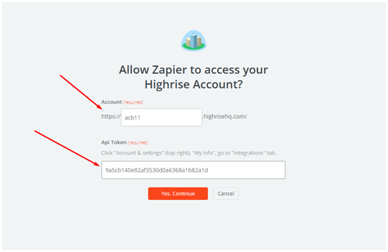
    • Further, in this step, you need to set up a template. Create Highrise contact where you need to enter all necessary information. And after filling in the information click on the continue box.
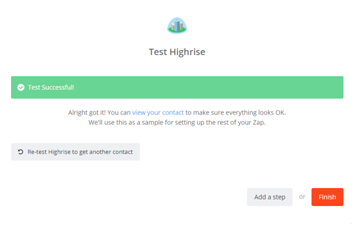
    • Great, you have tested Highrise successfully.
    • Lastly, click on Finish and set the name of your Zap
    • Now, you have tested Highrise successfully. Finally, click on Finish and then set the name of your zap to complete.
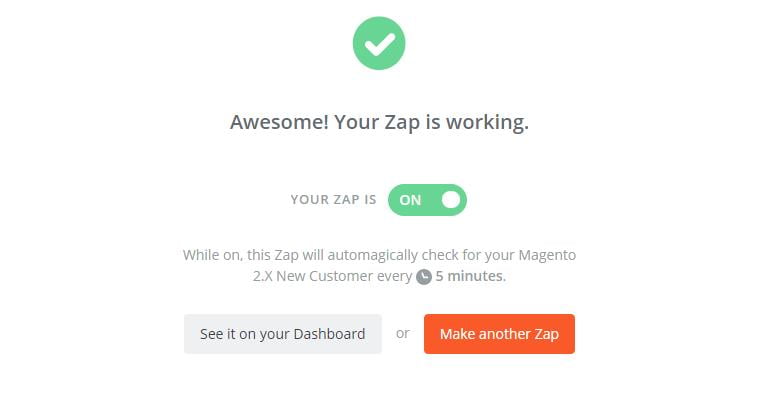
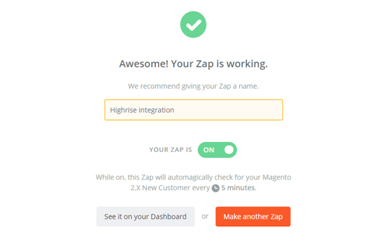
    • Wonderful! Your Zap is working and from now it will auto-check your Magento 2.x new customer.
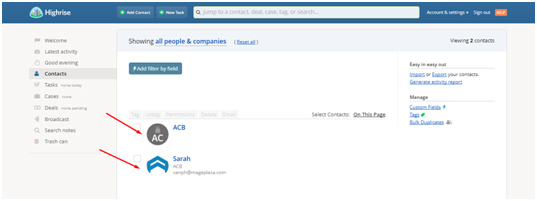
    • Lastly, here is the contact that you have just created.
    With this, we come to the end of the tutorial on How to integrate Highrise with Magento 2.

    Highrise CRM is a great tool. It will help your business perform better. It saves your time in managing customer data as well as helps increase the conversion rate dramatically. If you still failed to integrate, then hire Mage Monkeys for the Magento integration service.

    How to configure SendGrid SMTP in Magento 2?

    You might have seen that the transaction email open rates method is more approachable than any other similar method. Your customers are more likely to open emails regarding event announcements, new product updates, and fresh sales.

    But what is SendGrid?

    SendGrid allows you to send the email via SMTP or HTTP or any other. Companies make use of SendGrid to draft emails regardless of their environment. The company’s official client libraries can be used to send emails. It has been built to serve developers.

    One can easily configure SMTP himself effortlessly. You can follow the below-mentioned steps in order to configure SendGrid SMTP in Magento 2.

    You can configure SendGrid SMTP in Magento 2 in just 3 steps.

    • Step 1: Setup a new SendGrid account
    • Step 2: First download and then install Magento 2 SMTP extension
    • Step 3: Integrate SMTP extension and Magento 2

    Step 1: Setup a new SendGrid account.

    • From the official website, you can sign in to a new account.
    • The technical data is taken from their documentation then you need to note them because you will use them in the later steps
    • Setup an SMTP username and password for your SendGrid credentials to the server hostname to smtp.sendgrid.net
    • Use port 465 for SSL and 25 or 587 for plain/TLS connections.

    Step 2: First download and then install Magento 2 SMTP extension

    For a better explanation, we have used the Mage monkeys SMTP extension. It a free extension so you don’t have to worry if there is any risk involved.

    Step 3: Integrate SMTP extension and Magento 2

    In the last step, do the following changes in the Admin panel.

    SMTP > Configuration. Expand General Configuration; choose Yes to turn Magemonkeys SMTP. Now do the following steps to complete the SMTP configuration.

    • Select SendGrid in the SMTP provider field.
    • Click on the AutoFill button to enable Host, port, Authentication, and Protocol to automatically fill up the match to SendGrid provider.
    • In the Username and Password field, you have to fill in the SendGrid account’s information which you have set up in Step 1.
    • Lastly, in the Test Email Recipient, you have to enter the email which you want to send.
    • If everything goes well then you will receive a report.

    In this way, we set up SMTP in Magento 2 with the SendGrid provider!

    Now you go ahead and try this amazing SSMTP service that allows you to deliver your email via the company’s servers. If you still failed to integrate, then hire Mage Monkeys for the Magento integration service.

    How to integrate Zoho CRM with Magento 2?

    If you are looking for ways to collect information and customer data from your Magento 2 store then you must integrate Zoho CRM with your Magento 2. Zoho CRM will help you in attracting more customers to your store.

    So what exactly is ZOHO CRM?

    Zoho CRM is a one-stop solution for organizations, marketers, or sales departments to track customers, understand their behavior, and enhance their experience. Power-packed with features and varied functionalities it helps developers integrate all the customer data and migrate from the Magento 2 warehouse into the Zoho CRM platform easily.

    Making the integration smooth and seamless, gives easy access to the customer data for detailed analyses about a particular customer. This helps organizations with better decision-making for all the marketing campaigns based on customer demands.

    How to integrate Magento 2 and Zoho CRM?

    The following steps can be a quick guide that will make the migration easy for you:

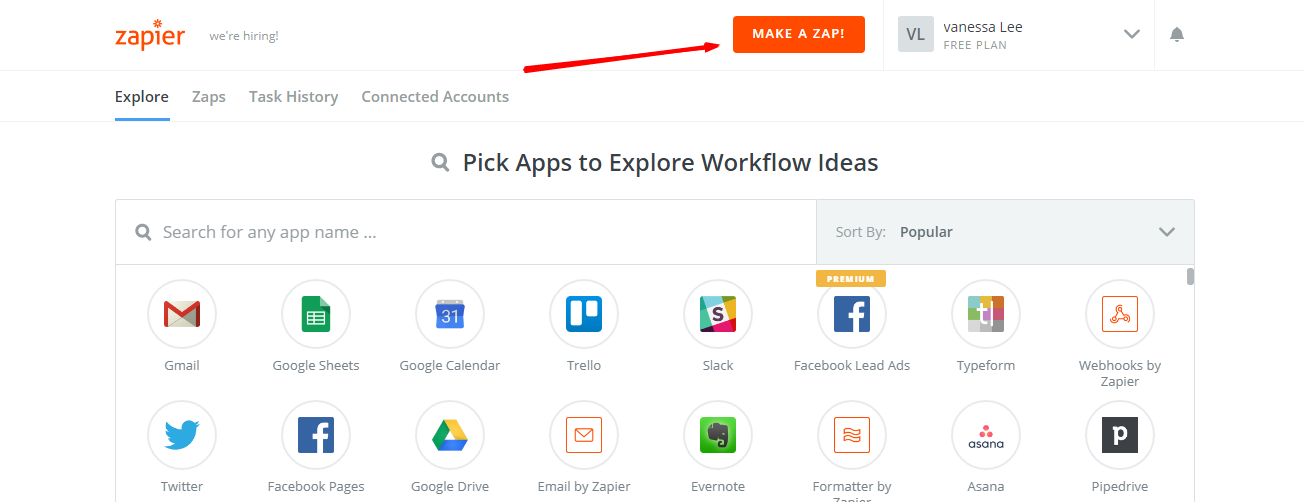
    • Sign in to your Zapier account -> Select Make a Zap
    • Go to ZOHO CRM login and sign up there
    • Then follow the below steps for an easy integration
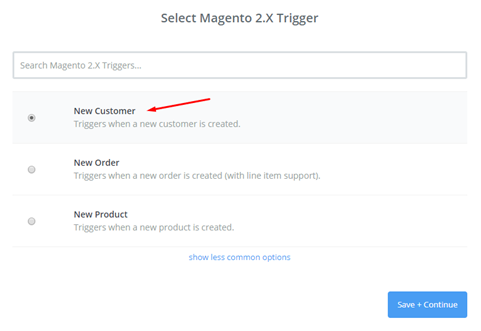
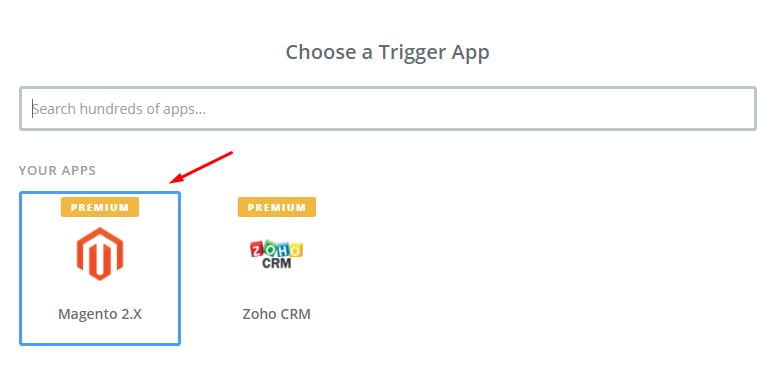
      • Choose a Trigger App which you want to integrate
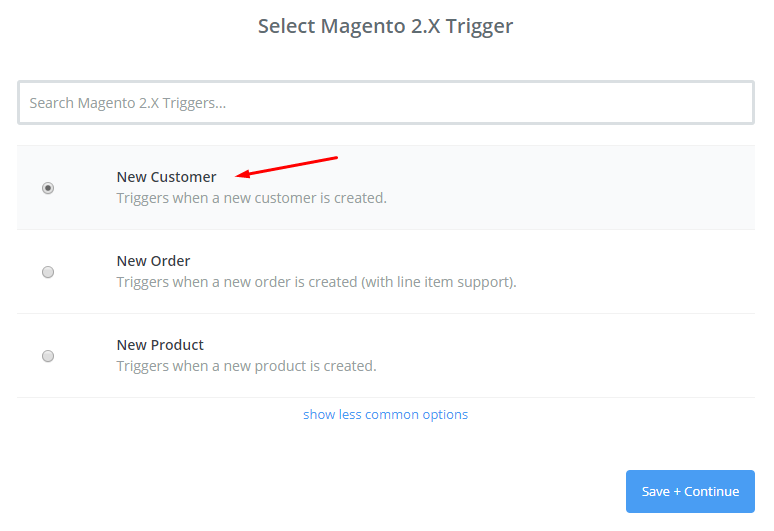
      • Then from the Dropdown list select the field you want to integrate
      • Click on SAVE to continue

    Following images will make it easy for you to understand.

    Here at this stage, you have to connect your account. For this Go to Magento 2.0 store -> Select Account -> Enter Details like Full domain name, Admin User name, and Admin Password.

    Once you have entered the details, click Yes to continue. Great! This way you have tested Magento 2.0 successfully. Now follow the next steps to continue with the integration.

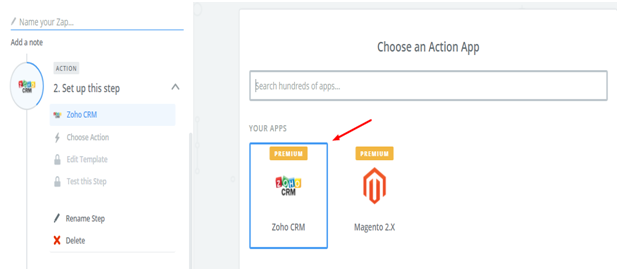
    • Go to ZOHO CRM -> Choose Action App field

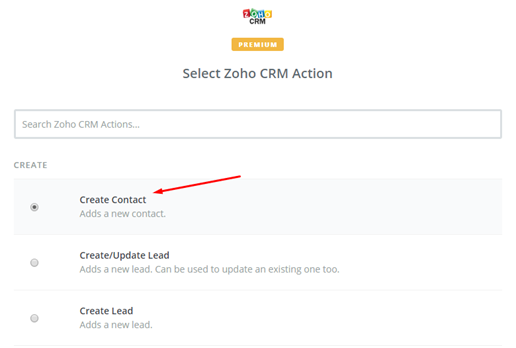
    • Select Action like to add new contact -> Click Save to continue

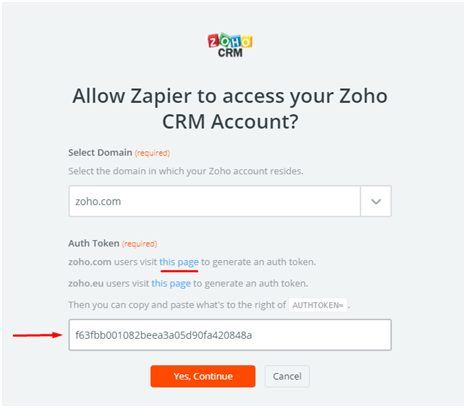
    • Then select ZOHO CRM Account -> Click on Connect Account -> Follow the guide

    • Next, Set up template -> Set up contact -> Enter details -> Click on continue
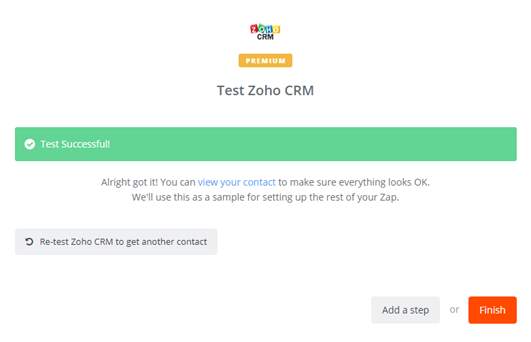
    • Zoho CRM integration tested successfully
    • Choose finish and set the new ZAP name to complete the integration

    You are done with your set up and now the system will help you with the auto-check in your Magento 2.0 store for any new customer automatically.

    • Below is the file that you have just established. All your contact details along with other information are just in one place for easy access.

    So, in this way, we integrate Zoho CRM with Magento 2 and now it’s time for you to try these steps for easy integration to uplift your sales. If you still failed to integrate, then hire Mage Monkeys for the Magento integration service.

    How To Integrate Hubspot CRM With Magento 2?

    We all know the importance of HubSpot CRM to E-commerce stores. It is one of the leading CRM platforms on the market and if you want to know how to integrate HubSpot CRM then you are at a perfect place.

    What is HubSpot CRM?

    HubSpot CRM makes it easy to create contact and company profiles. It is a smart application and includes all the features needed for e-commerce stores. You can monitor every transaction; control all your business operations.

    How to integrate HubSpot CRM on Magento 2

    To integrate HubSpot CRM

    • Step 1: Sign up the Zapier account
    • Step 2: Sign up the HubSpot CRM account
    • Step 3: Integrate Magento 2.x
    • Step 4: Integrate HubSpot CRM for your Magento 2 store

    Step 1: Sign up the Zapier account

    • Signup Zapier

    Step 2: Sign up the HubSpot CRM account

    • Signup HubSpot CRM
    • When you log in into Zapier, select Make a Zap  to start integration

    Step 3: Integrate Magento 2.x

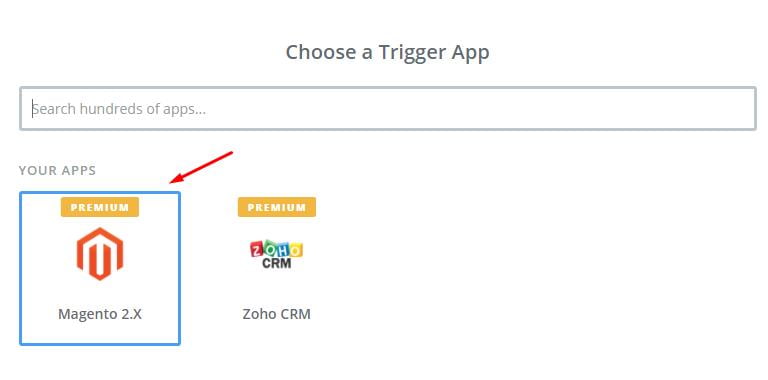
    • Next you have to get all your data from store so for that you need to choose Magento 2.x
    • Then, choose New Customer  in select Magento 2.x Trigger field and then click on save+continue.
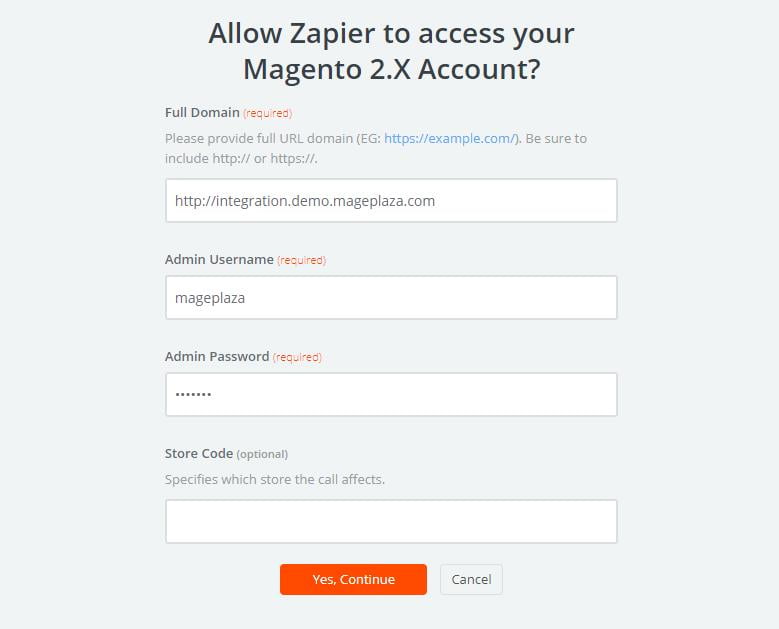
    • After that, you have to connect an Account in select Magento 2.x account field. In this step, make sure to enter full domain, admin username and admin password of your Magento 2 store as the following image:
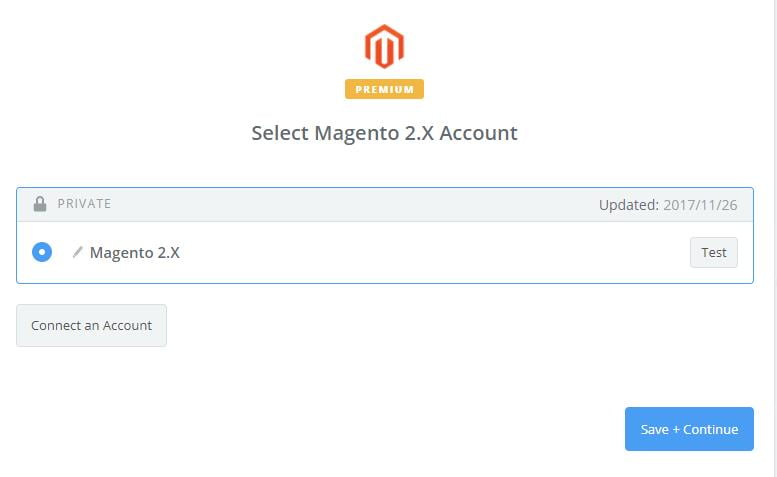
    • After generating your Magento 2.x account, the screen will display as an image below. Then, select Save + Continue.

    Great! You have just tested Magento 2.x successfully. Please continue doing the next step.

    Step 4: Integrate HubSpot CRM

    • In Choose an Action App field, choose HubSpot CRM and then click on Continue.
    • Then, you need to choose one of the options in drop-down list of Select HubSpot CRM Action field. After selecting, click on continue.
    • Next, you need to select HubSpot CRM account and then click on Connect an Account.
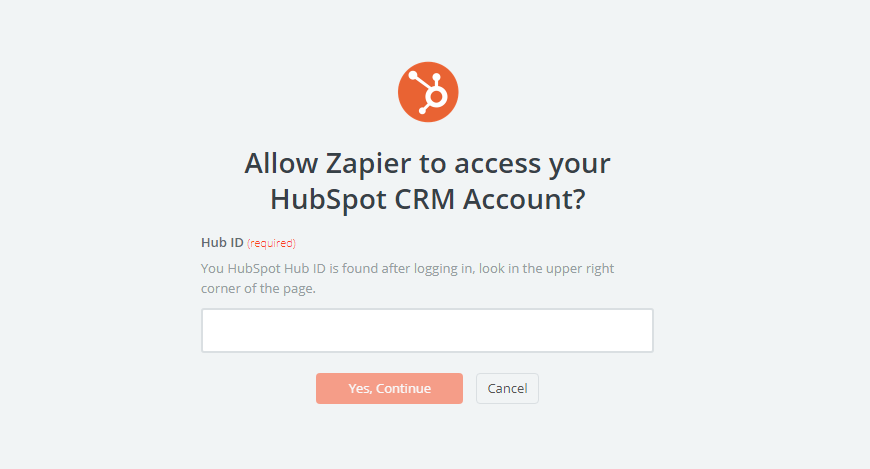
    • Now, your screen will display as an image below in which you must enter Hub ID that is found in user information of the HubSpot CRM account, then click on Yes, Continue.
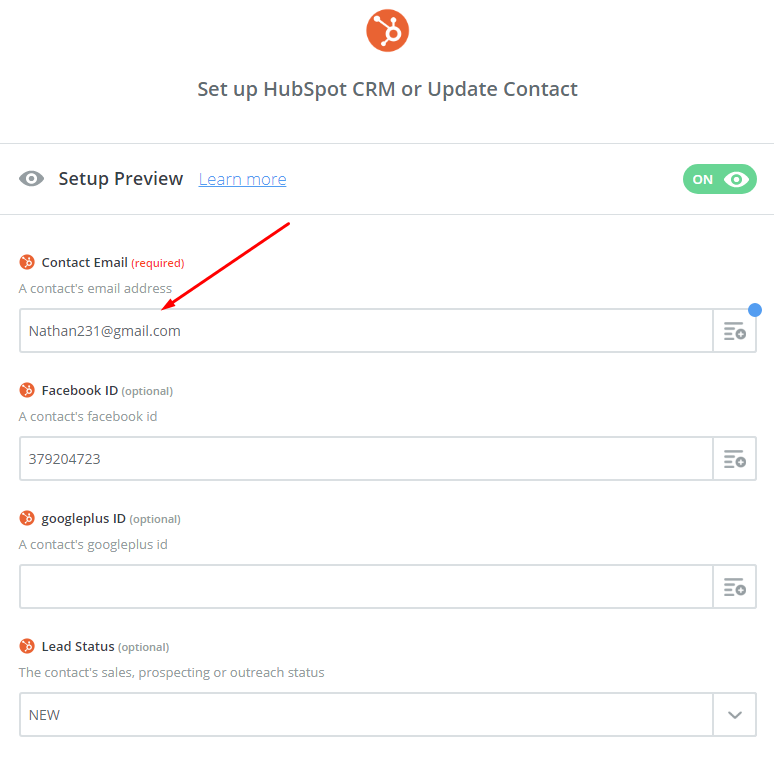
    • Next, you have to set up HubSpot CRM or Update Contact. Now, enter all required fields on this page, then choose continue box.

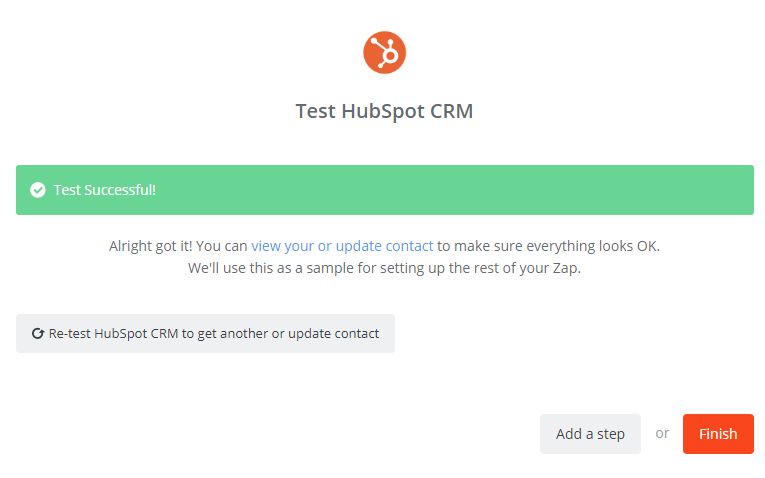
    Wonderful, you have tested HubSpot CRM successfully. Finally, choose Finish and set the name your zap to complete.

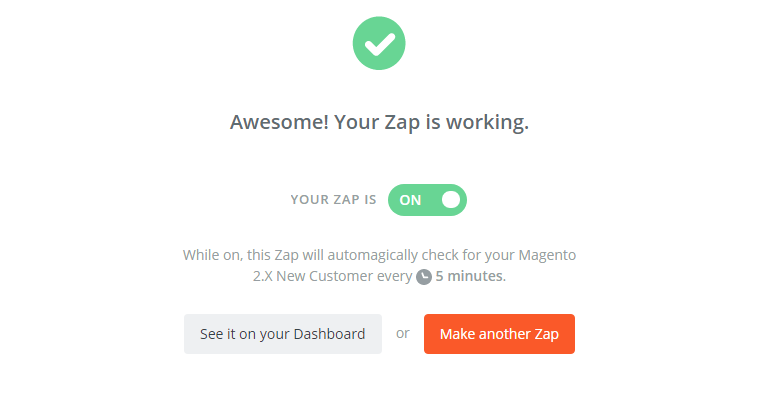
    • Your Zap is working and from now it will auto-check for your Magento 2.x new customer.
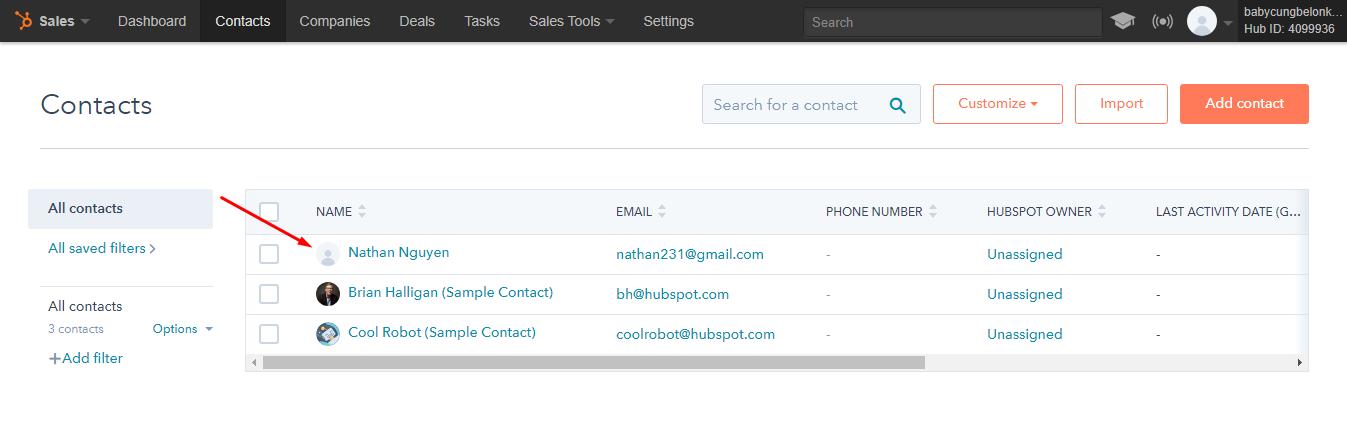
    • So this is how the integration is done and the result is displayed in the following image:

    HubSpot CRM will be your tool to help you boost sales and increase conversion rates significantly. Hence integrate today to see the difference. If you still failed to integrate, then hire Mage Monkeys for the Magento integration service.

    How to integrate Agile CRM with Magento 2?

    Many of our Ecommerce merchant partners have very little to engage with a potential buyer. But With Agile CRM all your queries are resolved. It comes with great benefits and in this article we will share the integration between Magento 2 and Agile CRM.

    What is Agile CRM?

    It is a customer relationship management solution which provides great user experiences through its simple web interface.

    Key Features:

    • It has great functionality for e-commerce stores like sales tracking, contact management, marketing automation, web analytics, and helpdesk with a clean and modern interface.
    • With Agile CRM you can record and access customer data to analyze customer behaviours. Through this, it enables marketers to create smart and logical marketing processes to reach customers quickly.

    How to integrate Agile CRM on Magento 2

    To integrate Agile CRM

    • Step 1: Sign up the Zapier account
    • Step 2: Sign up the Agile CRM account
    • Step 3: Integrate Magento 2.x
    • Step 4: Integrate Agile CRM for your Magento 2 store

    Step 1: Sign up the Zapier account

    • Signup Zapier

    Step 2: Sign up the Agile CRM account

    • Signup Agile CRM
    • After logging into Zapier, choose Make a Zap to start integrating

    Step 3: Integrate Magento 2.x

    • Here you have to choose Magento 2.x so that Zapier can get all data from your store.
    • Then, choose New Customer in select Magento 2.x Trigger field and click on save+continue.
    • Next, you need to connect an Account in select Magento 2.x account field. In this step, you shall enter full domain, admin username and admin password of your Magento 2 store as the following image:
    • After generating your Magento 2.x account, the screen will display as an image below. Then, choose Save + Continue.
    • Awesome! You have just tested Magento 2.x successfully. Now continue doing the next step.

    Step 4: Integrate Agile CRM

    • In Choose an Action App field, choose Agile CRM and then click on Continue.
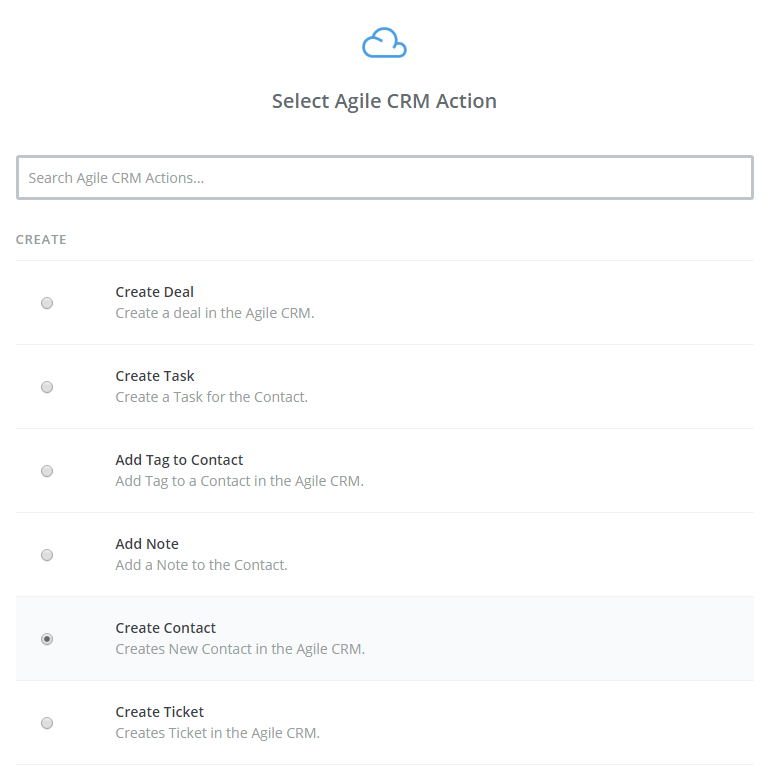
    • The next step, you need to choose one of the options in drop-down list of Select Agile CRM Action field. After selecting, click on continue.
    • Then, you need to select Agile CRM account and click on Connect an Account.
    • Now, your screen will display as an image below. After that, enter username, API Key or Password and Domain that is required on that page, then click on Yes, Continue.
    • Next, you have to set up Agile CRM Contact and then enter all required fields on page, choose continue box.
    • Wonderful, you have tested Agile CRM successfully. Lastly, choose Finish and set the name your zap to complete.
    • Your Zap is working and from now onwards it will auto-check for your Magento 2.x new customer.
    • You have just done the integration and the image below is the result:

    This is how the integration is done between Agile CRM and Magento 2.

    If you still failed to integrate, then hire Mage Monkeys for the Magento integration service.

    How To Integrate Workbooks CRM With Magento 2?

    Workbooks is an application which contributes a lot in your Ecommerce store and if it’s not integrated with your Magento store then it’s high time for you to know how to integrate Workbooks CRM with Magento 2.

    First let’s find out

    What is Workbook CRM?

    Workbooks CRM is software that provides necessary tools for merchants and marketers as well as helps them generate leads and sales channels. It also allows you to track the most effective online campaigns through detailed analysis and reports.

    One of the most useful features of Workbooks is it has the ability to integrate with social media and allows you to interact with customers wherever they want.

    In addition to this you can also take advantage of Workbooks’ leading automation and forecasting tools to track your competitor’s business. Thus it can help you to deliver the right marketing campaign for your store business.

    How to integrate Workbooks CRM on Magento 2

    To integrate Workbooks CRM

    • Step 1: Sign up the Zapier account
    • Step 2: Sign up the Workbooks CRM account
    • Step 3: Integrate Magento 2.x
    • Step 4: Integrate Workbooks CRM

    Step 1: Sign up the Zapier account

    • Signup Zapier

    Step 2: Sign up the Workbooks CRM account

    • Signup Workbooks CRM
    • When you log in into Zapier, click on Make a Zap to start integrating.

    Step 3: Integrate Magento 2.x

    • In this step, click on Magento 2.x so that Zapier can collect all the data from your store.
    • Further, click on New Customer in select Magento 2.x Trigger field and then choose save+continue.
    • Next, you need to connect an Account in select Magento 2.x account field. In this step, you have to enter full domain, admin username and admin password of your Magento 2 store as the following image:
    • After creating your Magento 2.x account your screen will display as an image below. Then, click on Save + Continue.

    Great! You have just tested Magento 2.x successfully. Please continue doing the next step.

    Step 4: Integrate Workbooks CRM

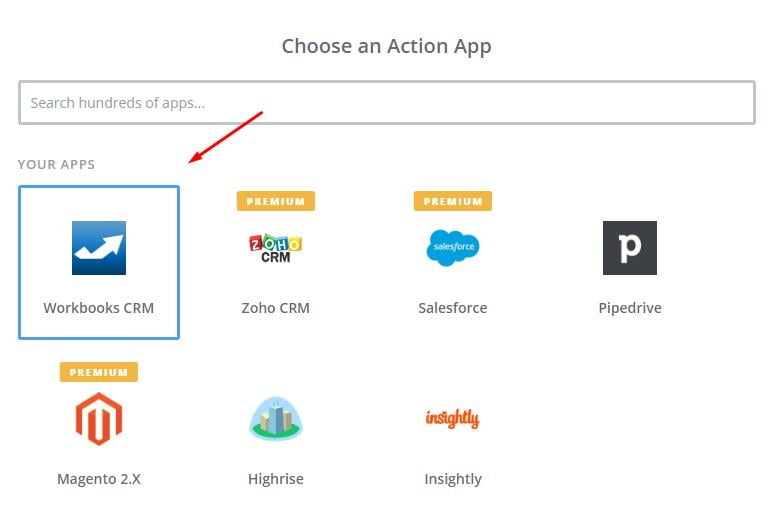
    In this step, choose an Action App field, select Workbooks CRM and then click on Continue.

    • In Select Workbooks CRM Action field, you can choose one of the options on this page and click on Continue.
    • Next, you need to select Workbooks CRM account for that click on Connect an Account.
    • Your screen will display as an image below, enter your API key from your Workbooks CRM account that you have signed up and click on Yes, Continue
    • Next, you have to set up Workbooks CRM Sales Lead. For this enter all required fields on page, then choose continue box.
    • Wow, you have tested Workbooks CRM successfully. Finally, choose Finish and set the name your zap to complete.
    • Your Zap is working and from now it will auto-check for your Magento 2.x new customer.
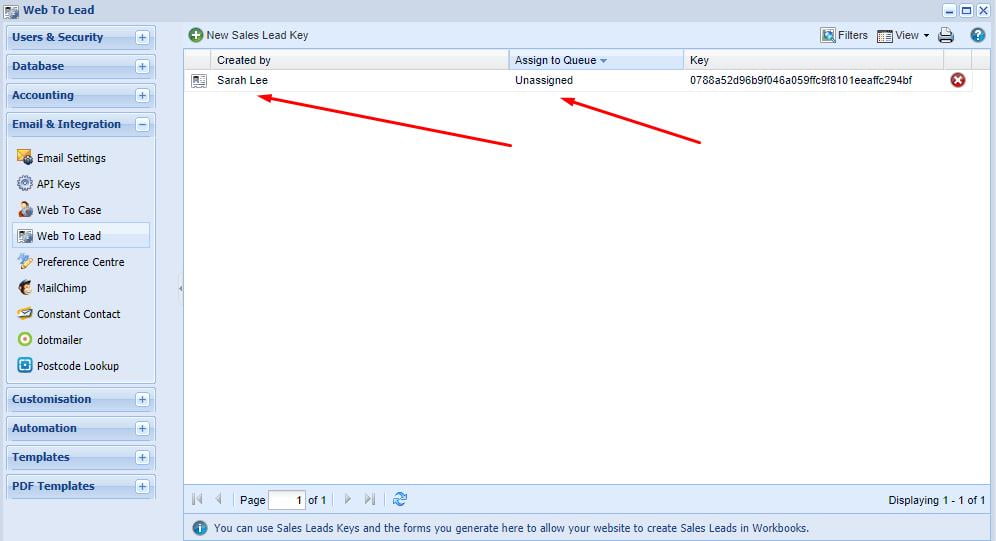
    • Below is the result for all the steps you have done.

    Hence this is how we integrate Workbooks CRM with Magento 2.

    If you still failed to integrate, then hire Mage Monkeys for the Magento integration service.

    How to integrate Insightly with Magento 2?

    There are number of customer relationship management software on the market; but, we suggest you choose Insightly if your business is really small. It has the best features and you will surely be satisfied with this software.

    We will solve your query on how to integrate Insightly with Magento 2. Please bookmark this article so that you can use it whenever you need.

    In case,

    You don’t know what is Insightly?

    In 2009 a powerful customer relationship management came in the market called insightly which offers great features for your Magento store. It is very easy-to-use software that provides an overview of your business. With this you can keep track of your products. It also improves communication with customers, increases productivity for your business. Being cloud-based software you can access your data anytime, anywhere, even from mobile devices.

    How to integrate Insightly on Magento 2

    To integrate Insightly

    • Step 1: Sign up the Zapier account
    • Step 2: Sign up the Insightly account
    • Step 3: Integrate Magento 2.x
    • Step 4: Integrate Insightly

    Step 1: Sign up the Zapier account

    • Signup Zapier

    Step 2: Sign up the Insightly account

    • Signup Insightly
    • After logging into Zapier, choose Make a Zap to start integrating

    Step 3: Integrate Magento 2.x

    • In this step, choose Magento 2.x so that Zapier can get all data from your store.
    • Then, choose New Customer in select Magento 2.x Trigger field and then click on save+continue.
    • After that, you need to connect an Account in select Magento 2.x account field. For this you have to enter full domain, admin username and admin password of your Magento 2 store as the following image:
    • After creating your Magento 2.x account, your screen will display as an image below. Then, choose Save + Continue.
    • Wonderful! Your Magento 2.x is tested successfully. Please continue for the next step.

    Step 4: Integrate Insightly

    • In Choose an Action App field, choose Insightly and then click on Continue.
    • In Select Insightly Action field, you have to choose one of the options on this page and click on Continue.
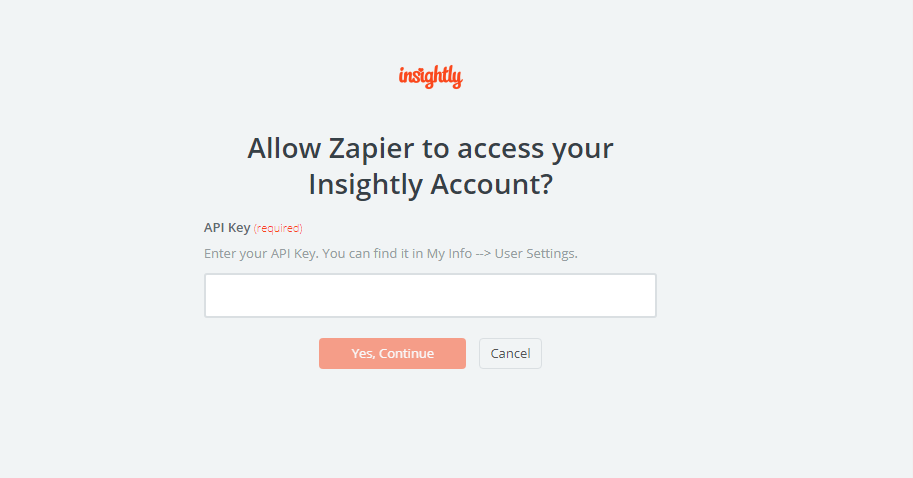
    • Next, you need to select Insightly account. So, click on Connect an Account.Your screen will display as an image below, then, enter your API key from your account and click on Yes, Continue.
    • Next, you have to set up Insightly Contact for that enter all required fields on page, then choose continue box.Great, you have tested Insightly sucessfully. Finally, choose Finish and set the name your zap to complete.
    • Your Zap is working thus it will auto-check for your Magento 2.x for new customer.
    • Below is the result of the integration.

    This is how the integration is done between Insightly and Magento 2. You really need to try this amazing software to make your business run more efficiently. If you still failed to integrate, then hire Mage Monkeys for the Magento integration service.

    How to integrate Pipedrive with Magento 2?


    Pipedrive is a great sales management solution (CRM) that you should not ignore for your Magento store. It’s very useful for your Magento 2 store and it’s a pity if you have not explored this wonderful CRM yet.

    This tutorial will help you in integrating Pipedrive with your Magento 2.

    What is Pipedrive?

    Pipedrive comes with an in-built, adaptable and user-friendly interface, which helps to attain the detail of sales related activities. This interface has one greater feature to it, that it offers sales reporting tools that can Monitor, Analysis sales data and Create visual reports.

    If you integrate Pipedrive with your store then you will save lot of time in managing your store and that time you can utilize in promoting your brand in Magento market.

    The following is the process to integrate Pipedrive on Magento 2

    To integrate Pipedrive

    • Step 1: Sign up the Zapier account
    • Step 2: Sign up the Pipedrive account
    • Step 3: Integrate Magento 2.x
    • Step 4: Integrate Pipedrive

    Step 1: Sign up the Zapier account

    • Signup with Zapier

    Step 2: Sign up the Pipedrive account

    • Signup with Pipedrive
    • When you log in into Zapier, select the option “Make a Zap” to start integration.

    Step 3: Integrate Magento 2.x

    • Selecting the option Magento2.x, will help Zapier to collect all the data from your store.

    • Next select” New Customer” in select Magento 2.x Trigger field and click on save tocontinue.

    • Next step, is to connect an Account in selected Magento 2.x account field. This option requires
      certain detail to be filled which are: Full domain, Admin username and Admin password for the
      Magento 2.xstore. For help images are given below.

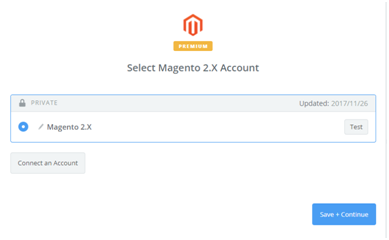
    • Once the Magento 2.x accountis created, the screen will display the image given below. select Save
      to Continue


    Magento 2.x issuccessfullyconfirmed. Please continue with the next step.

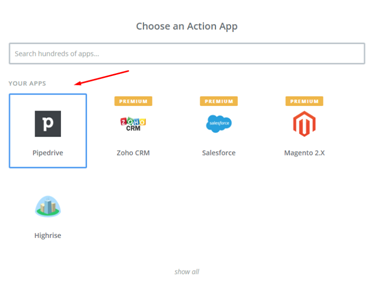
    Step 4: Integrate Pipedrive

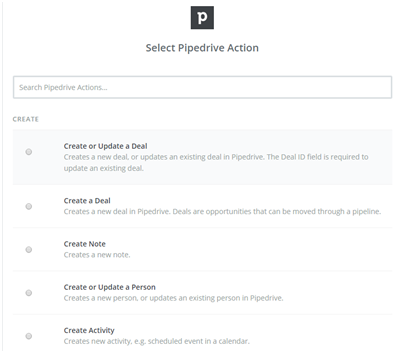
    • You may opt for one the option from Selected Pipedrive action field that you want to create on the
      Pipedrive & click to continue.

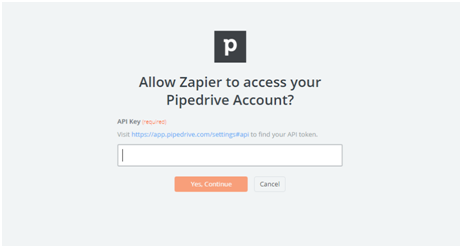
    • Select a Pipedrive account, for this click on connects an account and follow the guide.
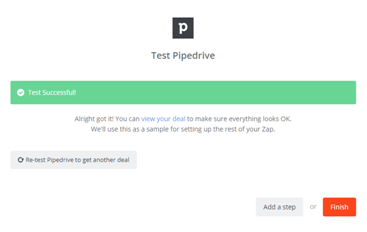
    • The Pipedrive is verified successfully. Now click on finish option and give a name to the Zap to complete the process.

    • Please enter all required information in this page and then click on Save and Continue
    • The next step is to set up Pipedrive Deal and make sure to enter all required fields in this page and click on continue box.

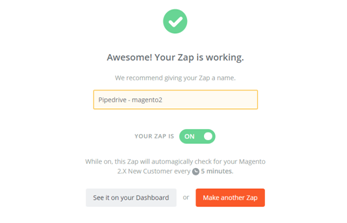
    • Your Zap is working and it will auto-check for your Magento 2.x new customer.

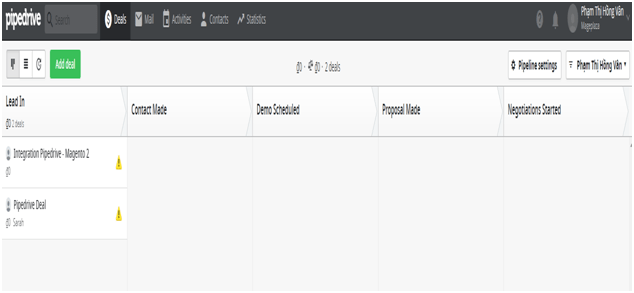
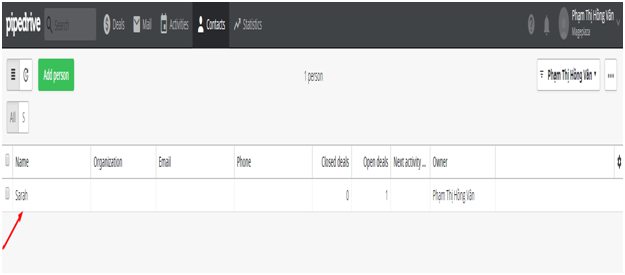
    • Now you can see the contact which you have just created.

    The tutorial on how to integrate Pipedrive with Magento2.x comes to end.

    From now, Pipedrive is a very accessible and manageable application. We strongly recommend to all our merchants to opt for this great application. If you still failed to integrate, then hire Mage Monkeys for the Magento integration service.

    How to integrate Salesforce with Magento 2?

    This article is for those who want to incorporate Saleforce to their Magneto 2 store

    Let’s understand what sales force is all about?

    Salesforce is a customer relationship management (CRM) system. It is a very potential means; it has a lot data / information incorporated in it. Data related to customers, market, products and any other information related to sales. Incorporating saleforce to Magento 2 will help in running the business smoothly and effectively. It can administrate customer relationship, activities related to marketing and advertising.

    Saleforce is a flexible platform. Even if one is not a developer it can be easily used by simply dropping and dragging.

    How to integrate Salesforce on Magento 2

    The following are the steps to integrate salesforce on Magneto 2.

    • Step 1: Signing up with Zapier Account
    • Step 2: Signing up with sale force
    • Step 3: Integrate Magento 2.
    • Step 4: Integrate Salesforce so that it can collect all the data from Magneto 2.x store

    Step 1: Sign up the Zapier account

    • Signup Zapier

    Step 2: Sign up the salesforce account

    • Signup Salesforce
    • When you log in into Zapier, select the option “Make a Zap” to start integration.

    Step 3: Integrate Magento 2.x

    • Choose a Trigger App which you want to integrate with the Magaento 2.x store. For reference check the image given below.

    • The next step is to select Magento 2.x Trigger from the options listed below. Choose an option as per the requirement such as new customer .The save the option to continue to the next step.

    • The next step is to connect Magento 2.x account for the same the URL details are to be filled like the Full Domain, Admin username, and admin password. For better understanding follow the image given below.
    • Once the Magento 2.x account is created the screen will display as below image, select save and continue.

    • Magento 2.x has been successfully generated .Please continue with the next step.

    Step 4: Integrate Salesforce

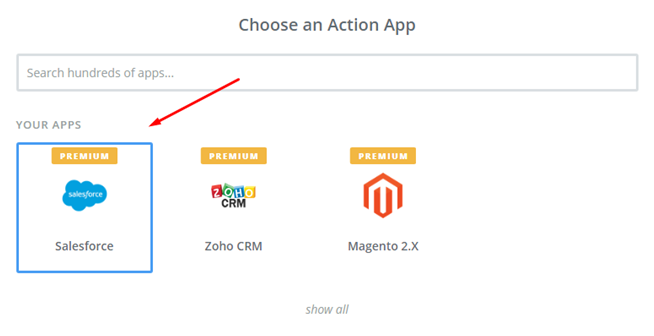
    • In Choose an Action Appfield, select Salesforce

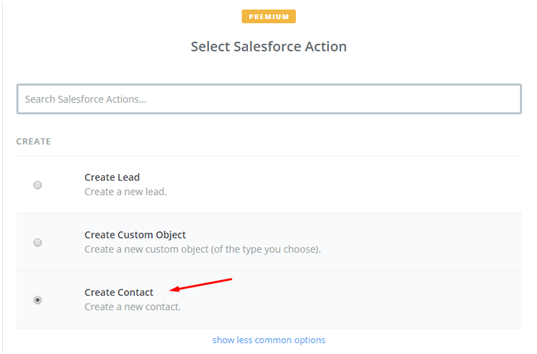
    • Then, select Salesforce action as create contact and then click on Continue:

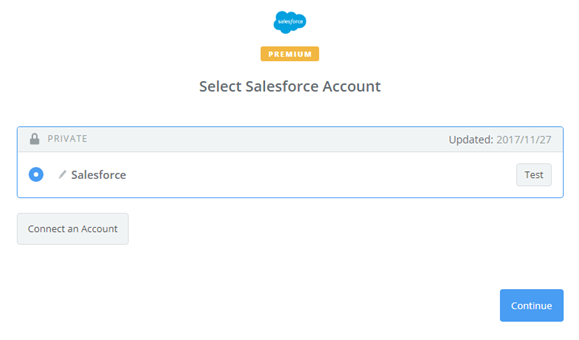
    • Further, you need to select Salesforce account by the way: Click on Connect an Account and follow the guide.

    For creating the template, Salesforce contact has to be set up .All the required data/information has to be entered for the same.

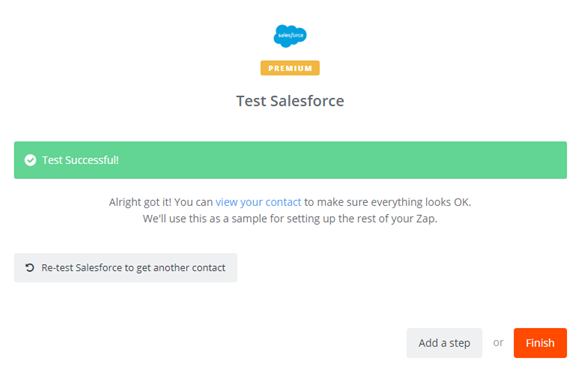
    Salesforce has been successfully integrated .The final step is to set the Zap name to complete the process.

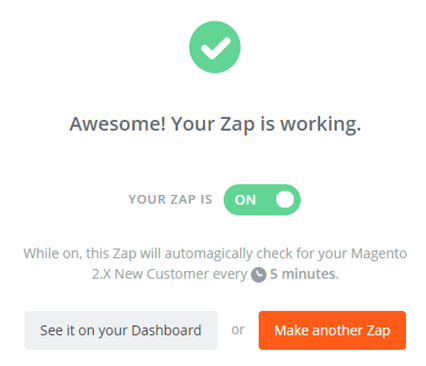
    • Great! From now your Zap will auto-check your Magento 2.x for new customer.

    This is the end of the tutorial on: How to integrate saleforce with Magento 2.x

    If you still failed to integrate, then hire Mage Monkeys for the Magento integration service.

    How to Integrate Sendinblue with Magento 2?

    SendinBlue is a great platform which offers innovative solutions to help your business sales go up. With the help of its tool you can create marketing campaigns, transactional messages, and quick email transactions and so on in the blink of an eye. Further, this tool helps manage smart contacts.

    The integration with modules will let you handle the contact efficiently such as entering contacts, sorting lists, filtering, etc. it’s an easy-to-use marketing tool and extremely user-friendly interface. You can use it even if you are a beginner.

    It is essential to have a good knowledge of a tool like SendinBlue and if you face any problem with integration then we are here to show you how to integrate SendinBlue with Magento

    How to integrate SendinBlue with Magento 2

    To integrate SendinBlue

    • Step 1: Sign up the Zapier account
    • Step 2: Sign up the SendinBlue account
    • Step 3: Integrate Magento 2.x
    • Step 4: Integrate SendinBlue with your Magento 2 store via Zapier

    Step 1: Sign up the Zapier account

    • Signup Zapier

    Step 2: Sign up the ActiveCampaign account

    • Signup SendinBlue
    • After you have logged into Zapier, choose Make a Zap to start integrating

    Step 3: Integrate Magento 2.x

    In this step, choose Magento 2.x so that Zapier can get all data from your store.

    Now, select New Customer in select Magento 2.x Trigger field and click on Save+continue

    Here, you have to connect an Account in select Magento 2.x account field. In this step, you need to enter a full domain, admin username and admin password of your Magento 2 store as shown below:

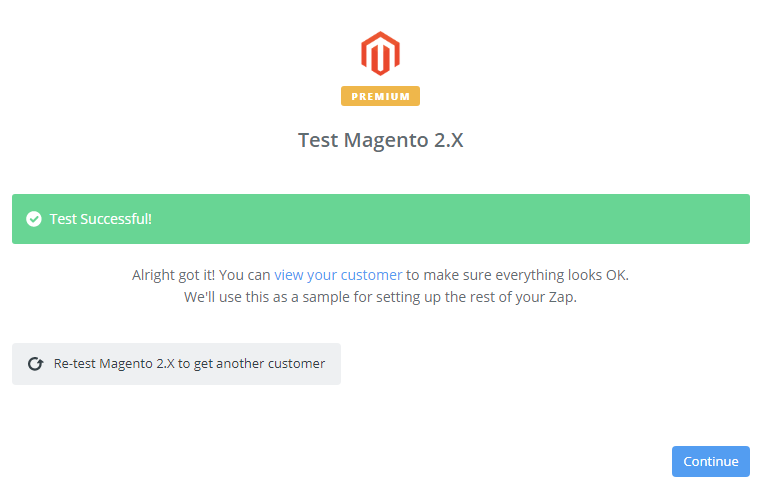
    After creating your Magento 2.x account, the screen will display as an image below. Then, choose Save + Continue.

    Awesome! You have just tested Magento 2.x successfully. Now click on continue for the next step

    Step 4: Integrate SendinBlue

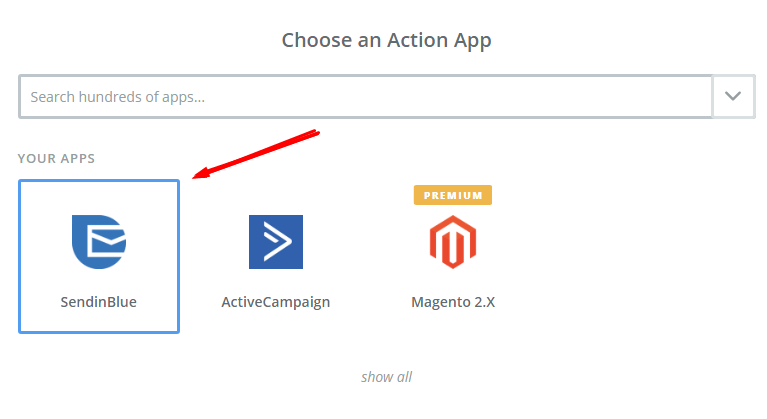
    Next, In Choose an Action App field, choose SendinBlue and click on Continue.

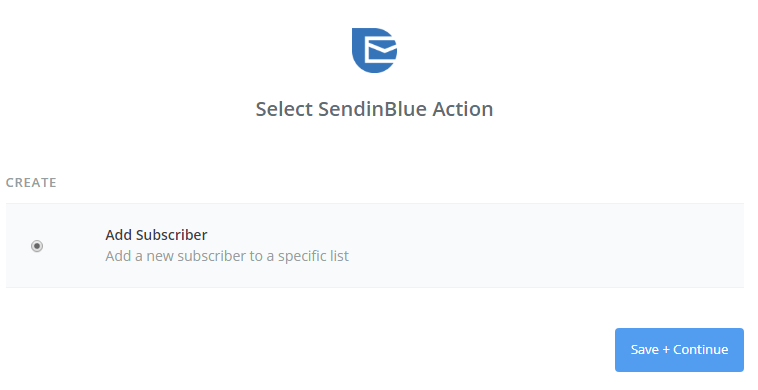
    Then, choose Add Subscriber in the Select SendinBlue Action field and click on continue.

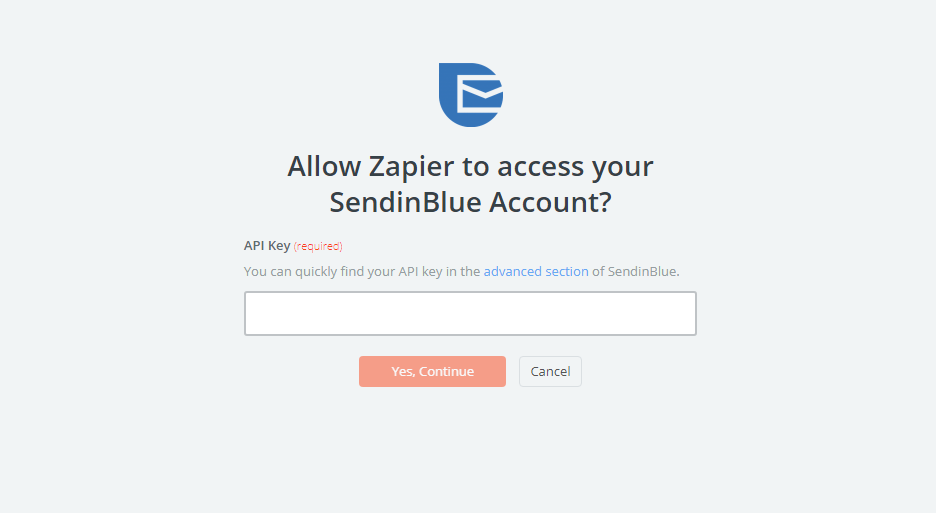
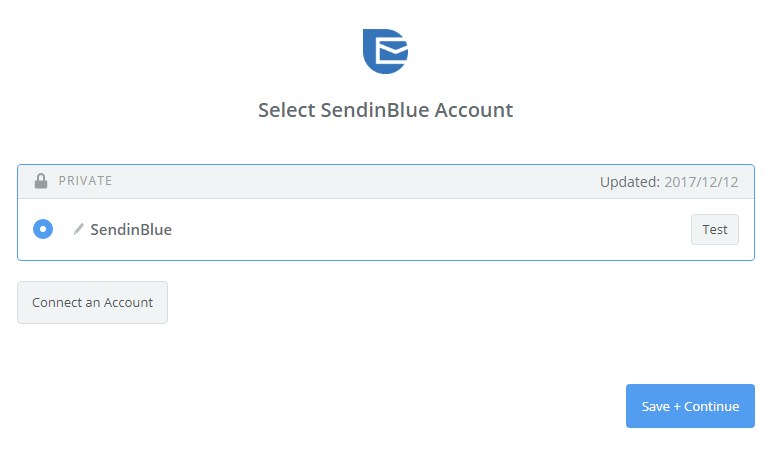
    Next, you need to Select SendinBlue account and click on Connect an Account. Then, your screen will display an image below:

    Now, you need to look for API Key in your SendinBlue account. After entering API Key, your PC will show the account that you have just created. Now, click on Continue.

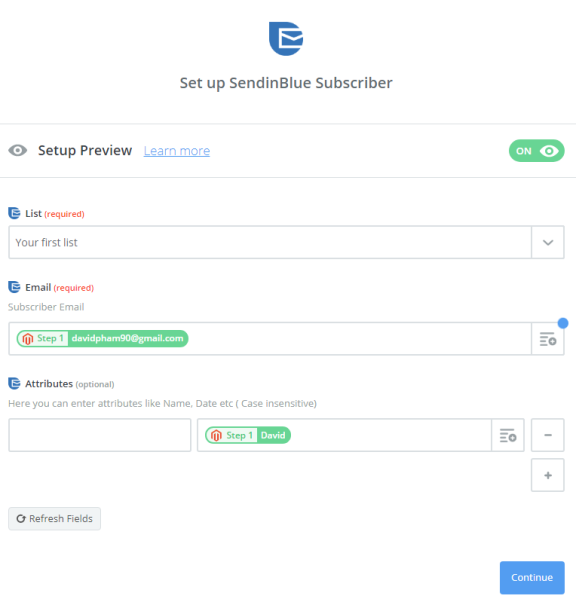
    Next, you must Set up SendinBlue Subscribe for that you have to enter all requirement as well as the information of customers such as Email that you have created from your Magento 2 store, then choose continue box.

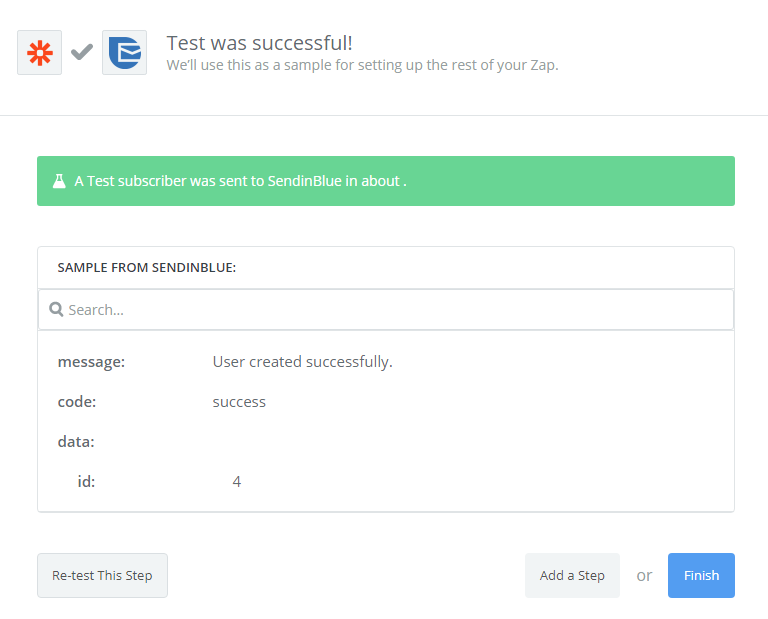
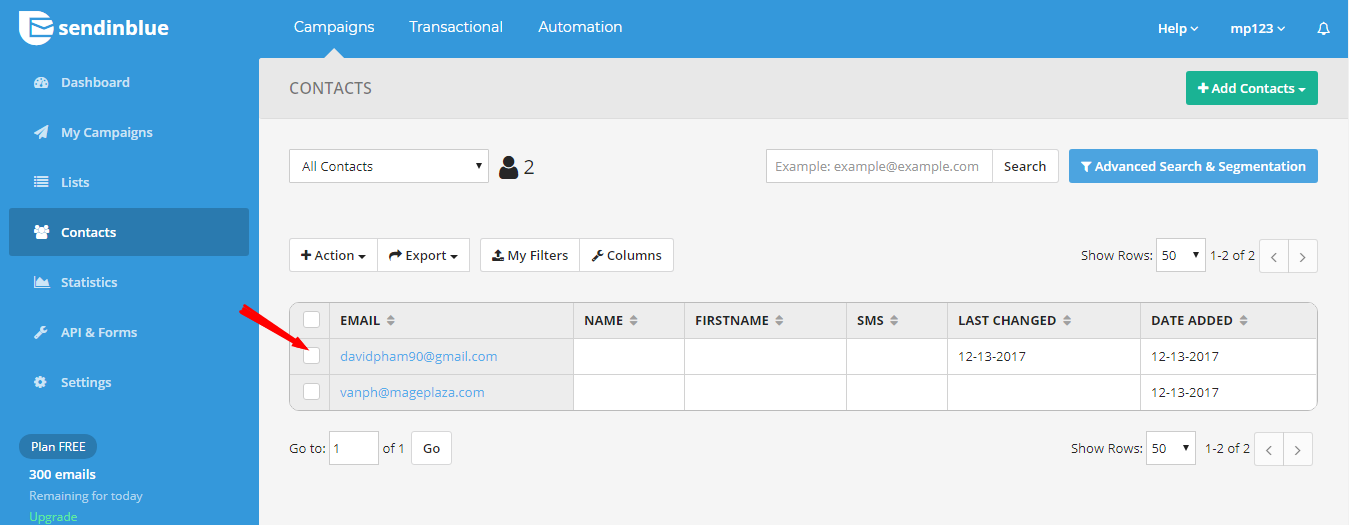
    Great! The contact has been sent to your SendinBlue account.

    Congratulations, you have tested SendinBlue successfully. Finally, choose Finish and set the name your zap to complete.

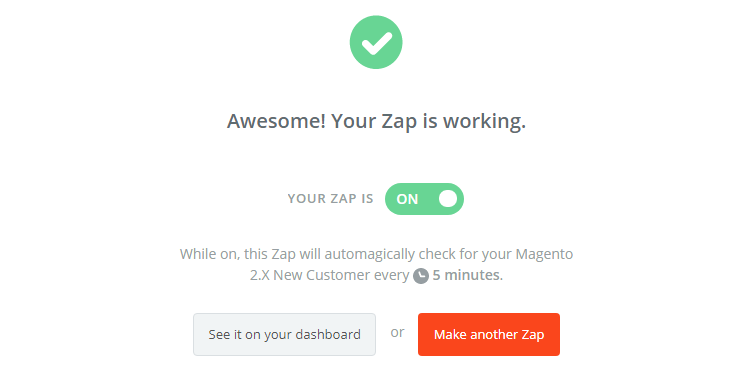
    So, Your Zap is working and now it will auto-check for your Magento 2.x new customer.

    Finally, you have just finished the integration SendinBlue with Magento 2 via Zapier.

    It’s time for you to try integration between SendinBlue and your Magento 2 store. If you still failed to integrate, then hire Mage Monkeys for the Magento integration service.