We sacrifice by not doing any other technology, so that you get the best of Magento.

We sacrifice by not doing any other technology, so that you get the best of Magento.

    How to Integrate Activecampaign with Magento 2

    There are number of business owners in the field of Ecommerce face problem when it comes to integration between ActiveCampaign and Magento 2. So we thought to solve your query and explain you in detail in our blog.

    But first…

    What is ActiveCampaign?

    A friendly platform for business owners who need to stay in touch with their customers as well as attract more new customers to their store. This tool lets you to create beautiful and attractive emails, use social media and apply automated marketing techniques with CRM functionality.

    Moreover, this solution provides businesses to create automated marketing processes, and automatically watch customer behaviour. ActiveCampaign deserves a top solution for creating marketing campaigns for Magento 2 stores.

    Now let’s understand the integration.

    How to integrate ActiveCampaign with Magento 2

    To integrate ActiveCampaign

    • Step 1: Sign up the Zapier account
    • Step 2: Sign up the ActiveCampaign account
    • Step 3: Integrate Magento 2.x
    • Step 4: Integrate ActiveCampaign for your Magento 2 store via Zapier

    Step 1: Sign up the Zapier account

    • Signup Zapier

    Step 2: Sign up the ActiveCampaign account

    • Signup ActiveCampaign

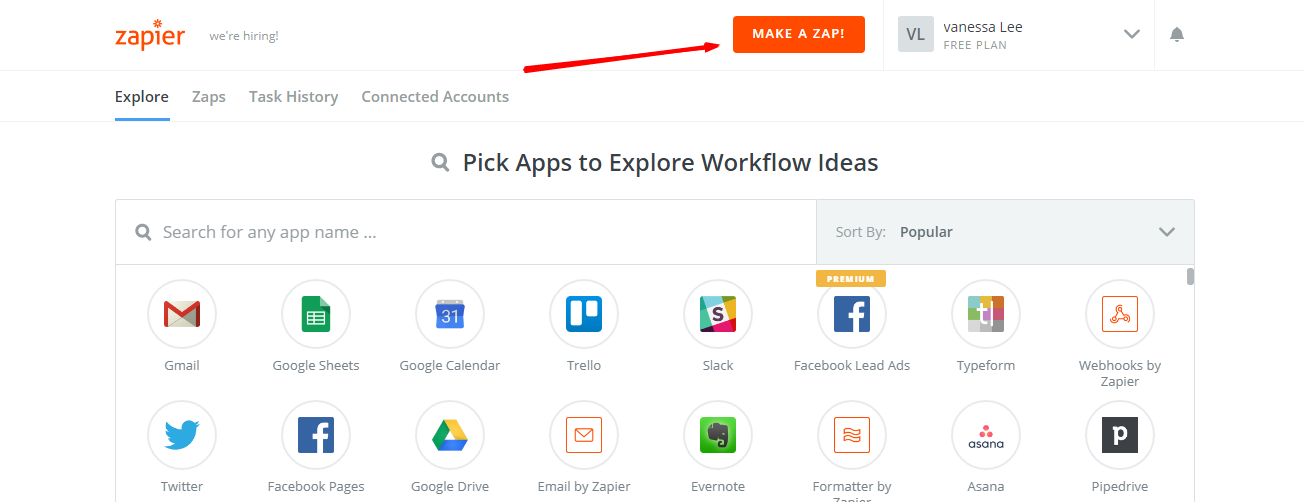
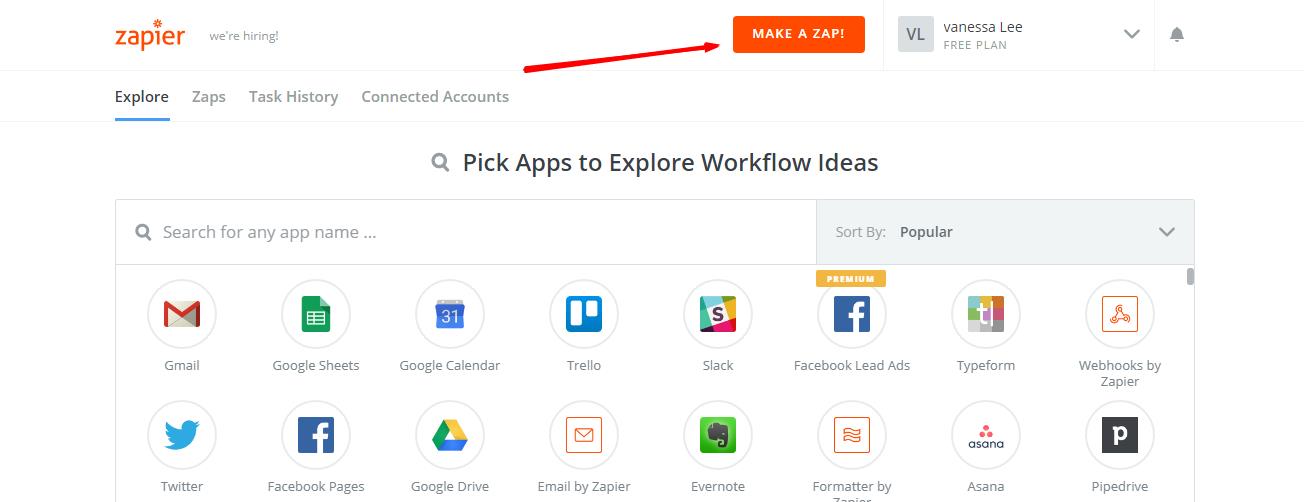
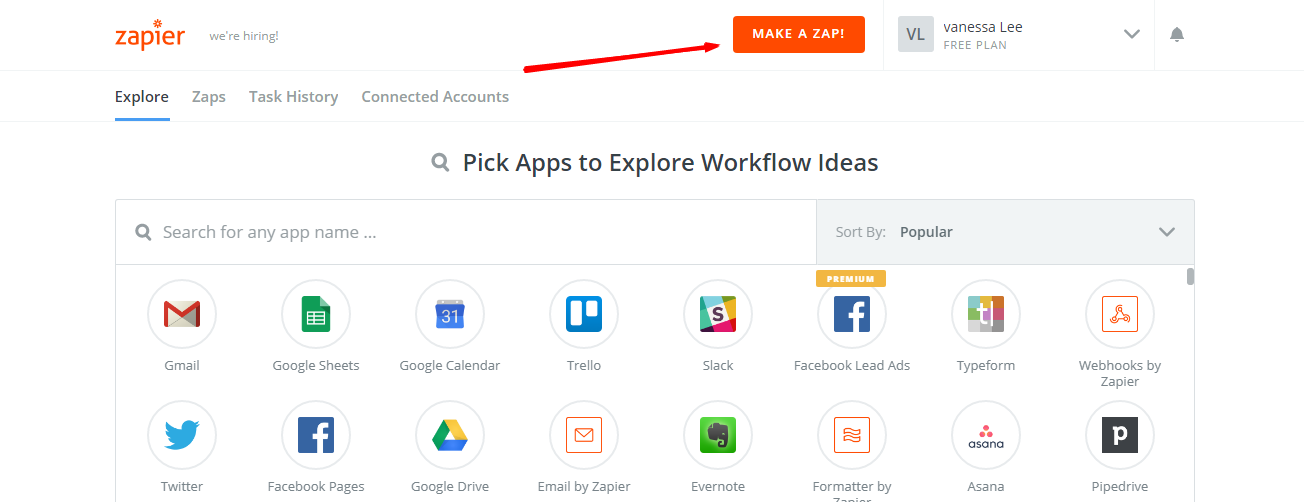
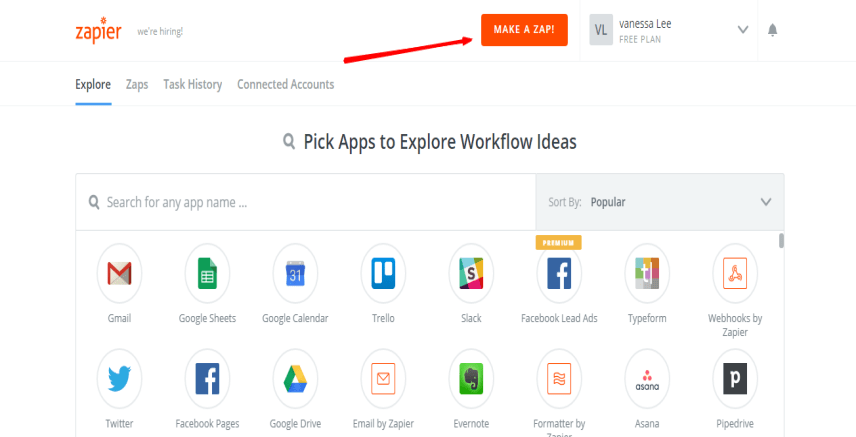
    When you log in into Zapier, choose Make a Zap   to start integrating
    Step 3: Integrate Magento 2.x

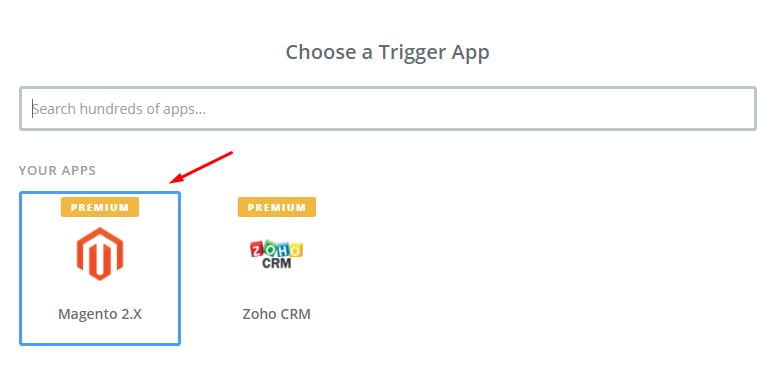
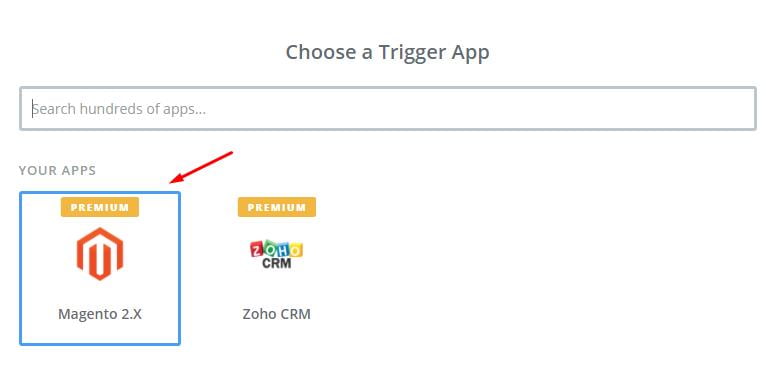
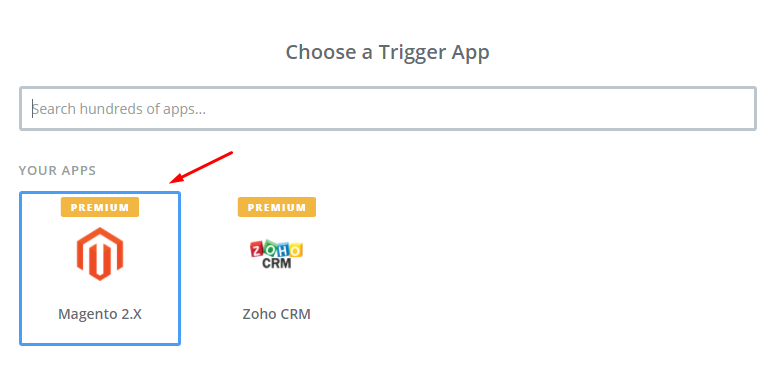
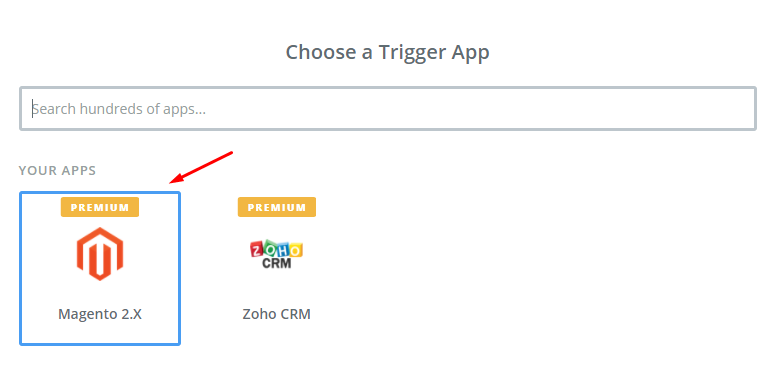
    In this step, choose Magento 2.x   so that Zapier can get all data from your store.
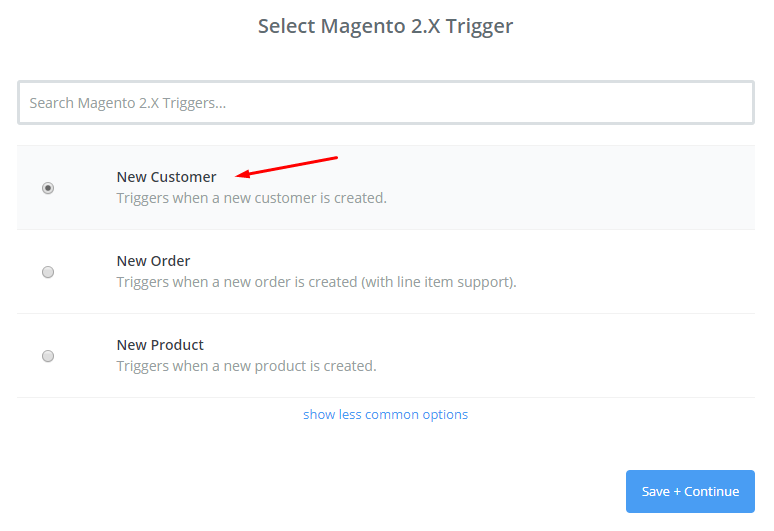
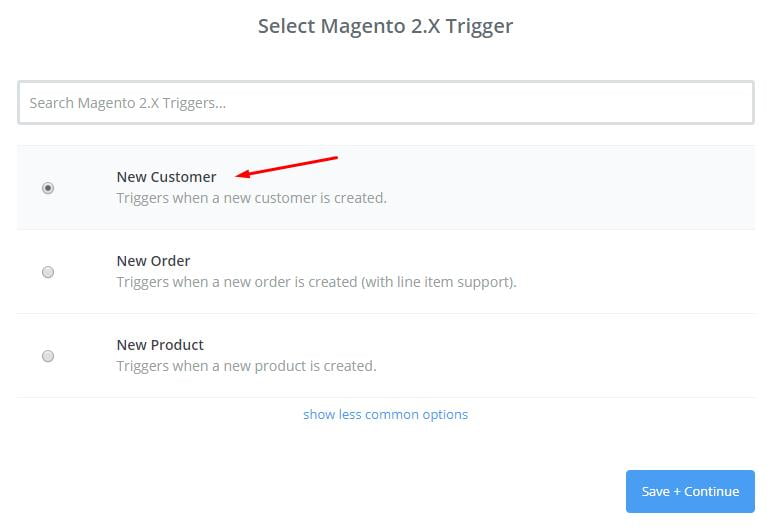
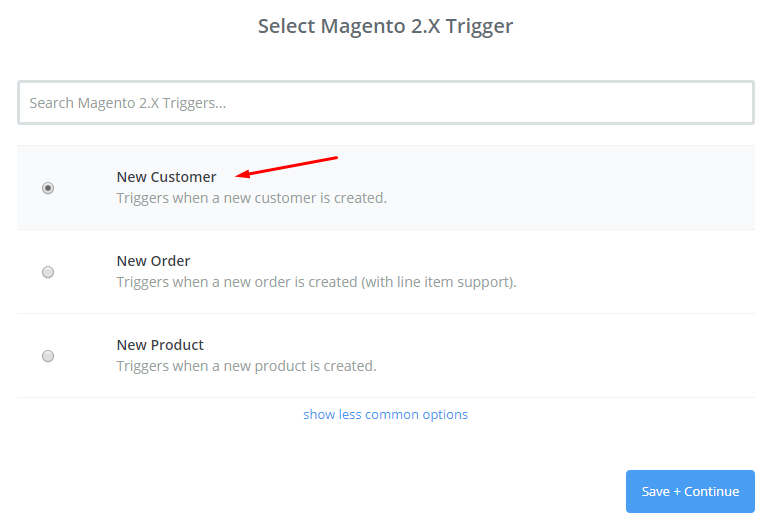
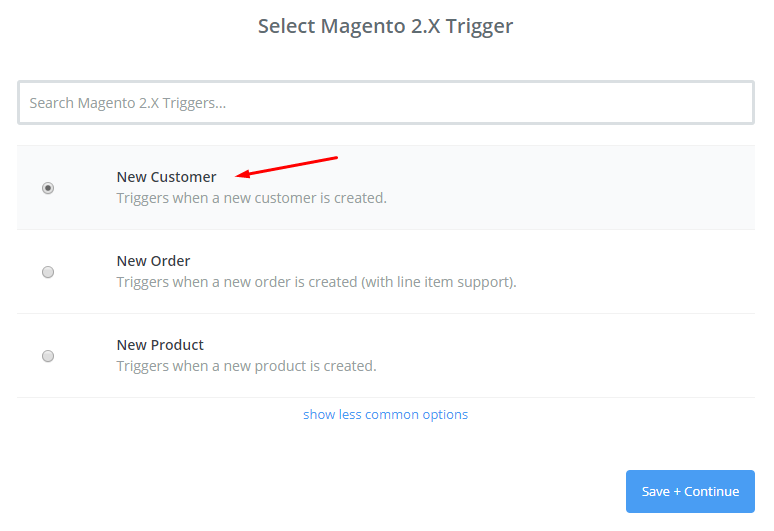
    Then, opt for New Customer   in select Magento 2.x Trigger field and then click on Save+continue.
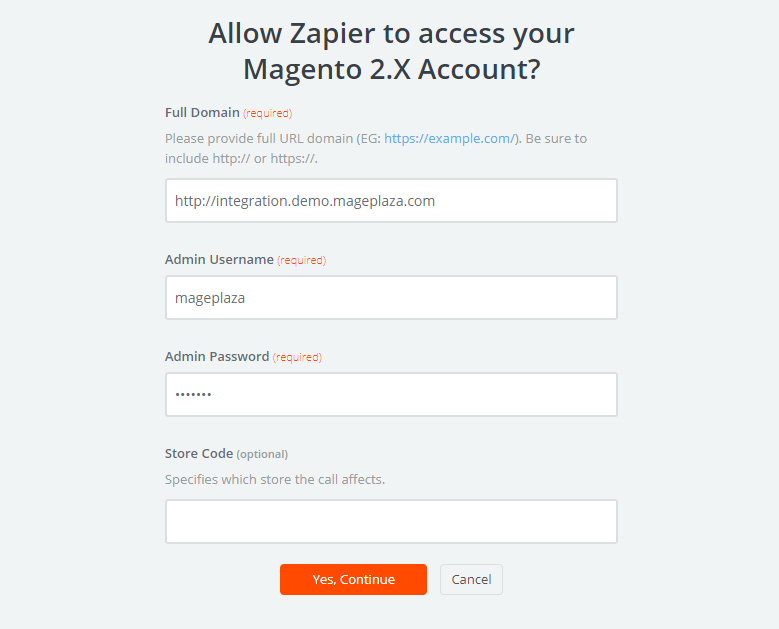
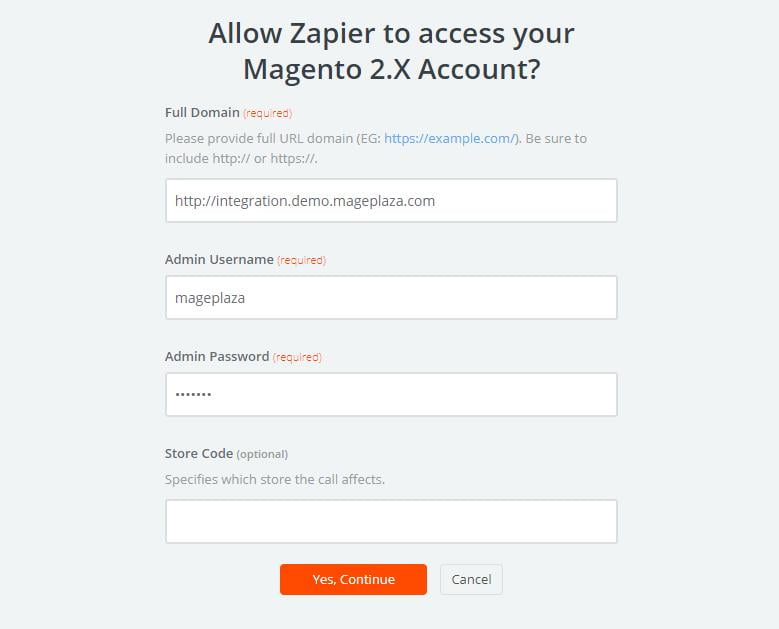
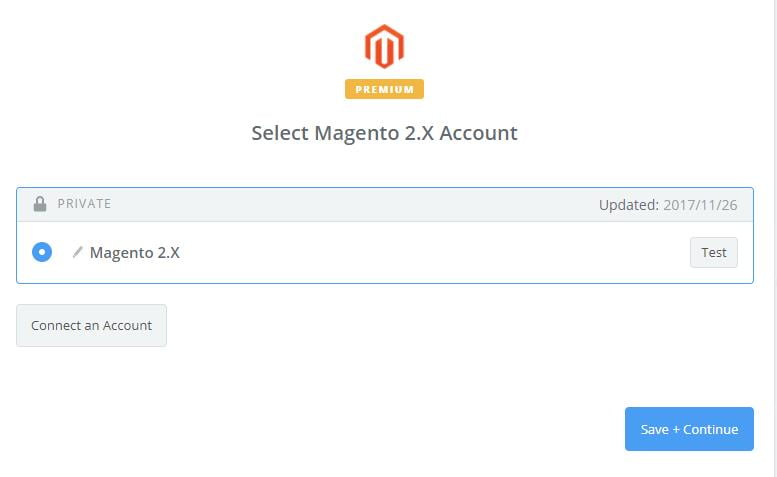
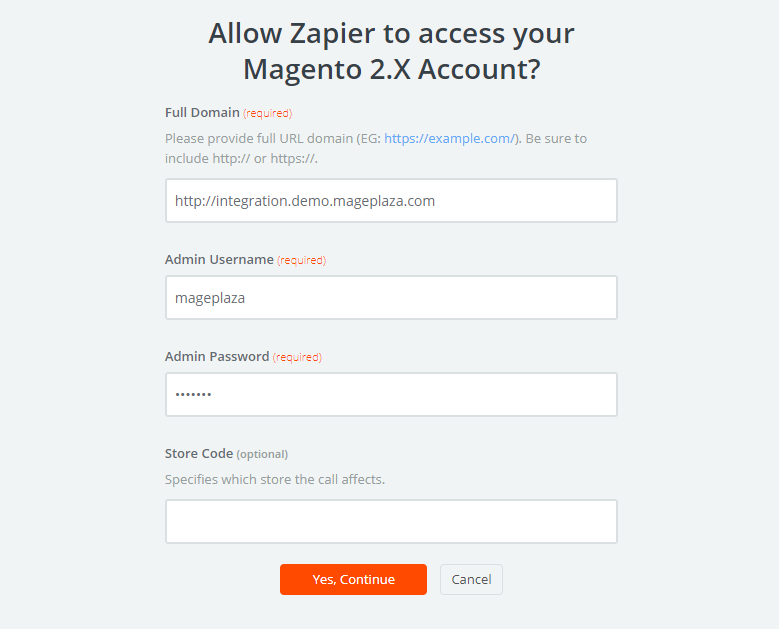
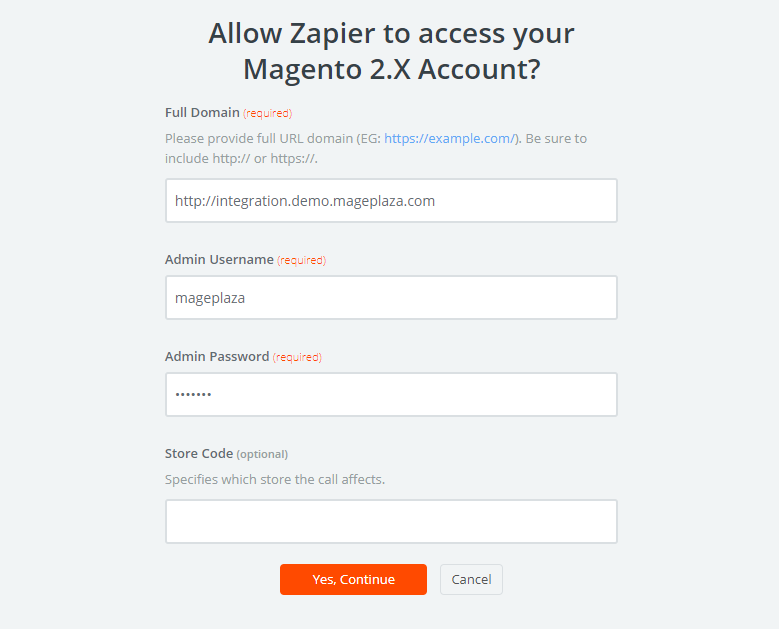
    After that, here you have to connect an Account   in select Magento 2.x account   field. In this step, please enter full domain, admin username and admin password of your Magento 2 store as the following image:
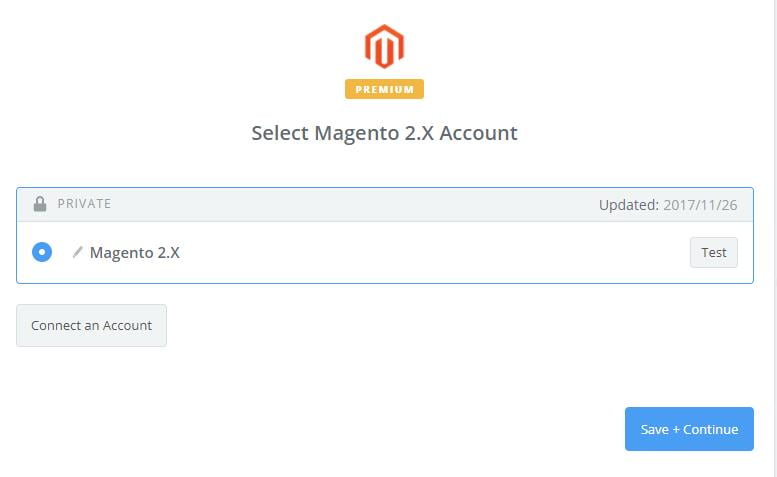
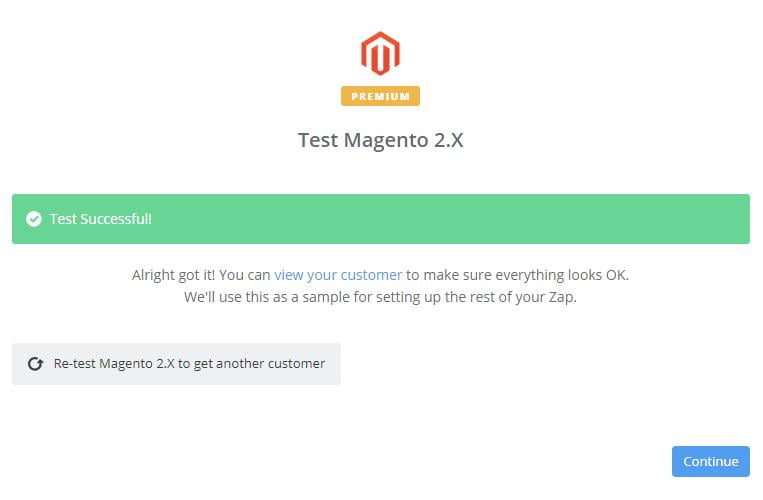
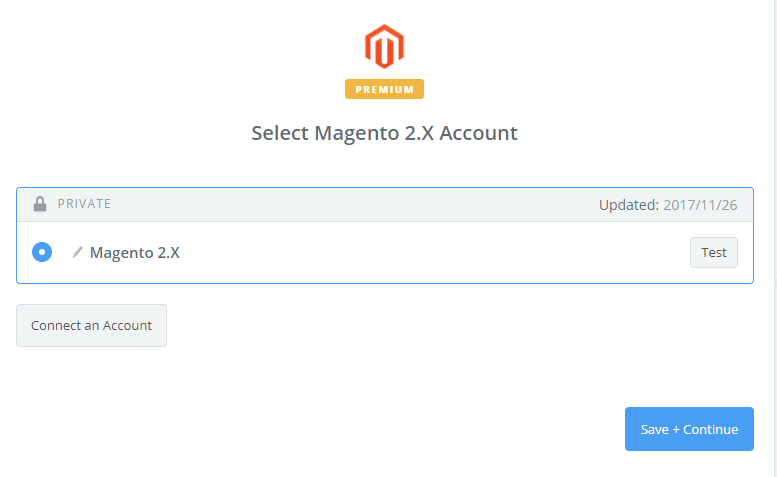
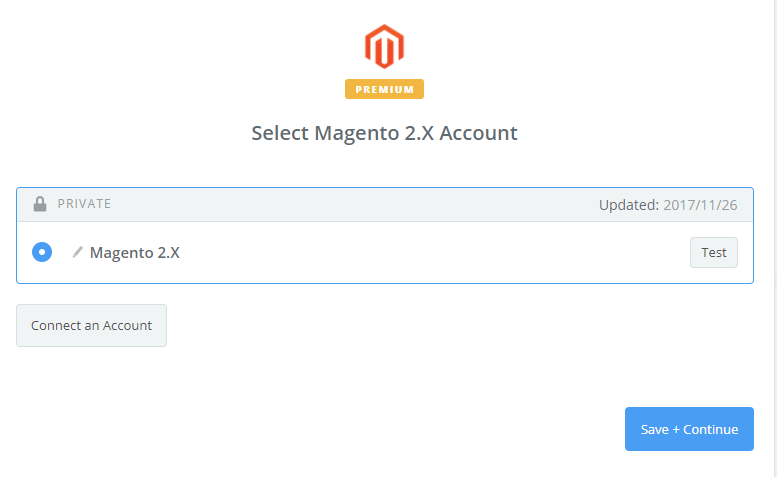
    After creating your Magento 2.x account, the screen will display as shown in the image below. Then, choose Save + Continue.
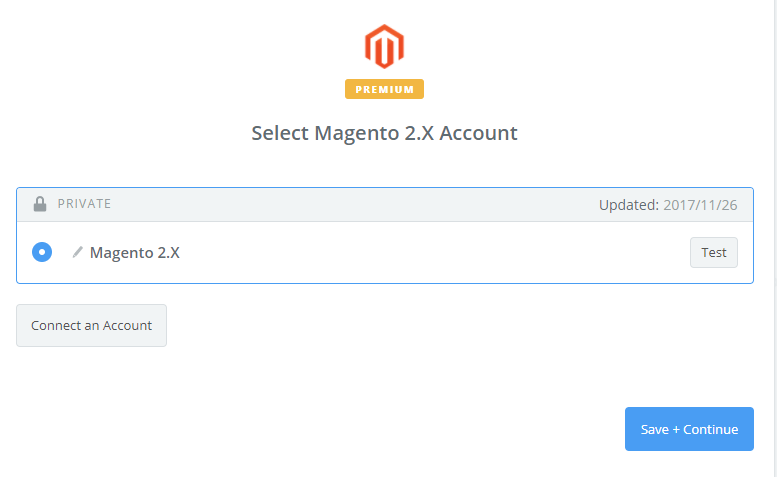
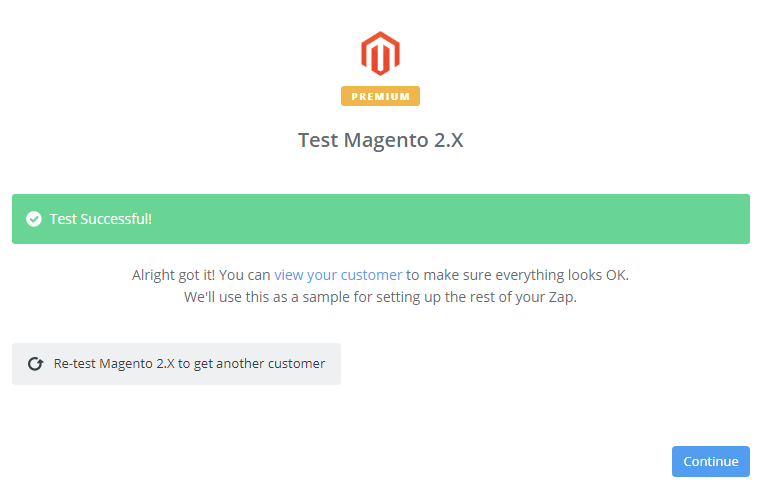
    Great! You have just tested Magento 2.x successfully. Now click on continue for the next step.
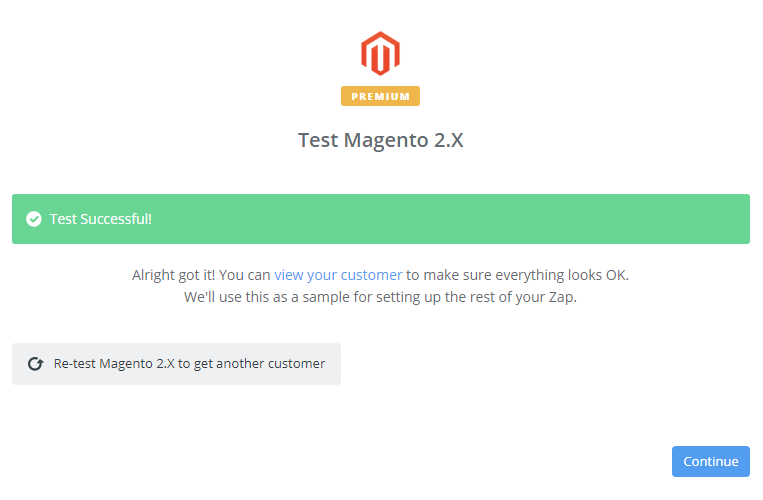
    Step 4: Integrate ActiveCampaign

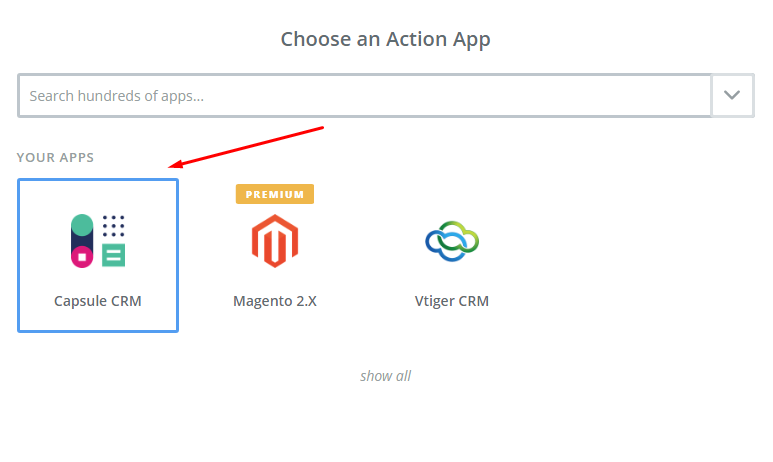
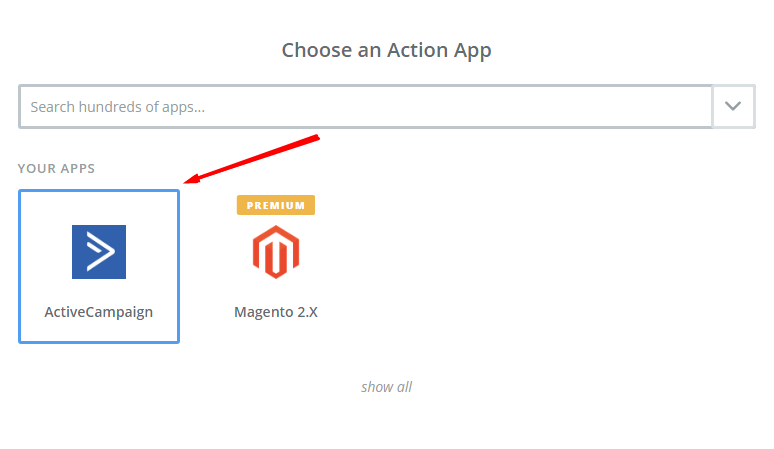
    In Choose an Action App field, choose ActiveCampaign  and click on Continue.
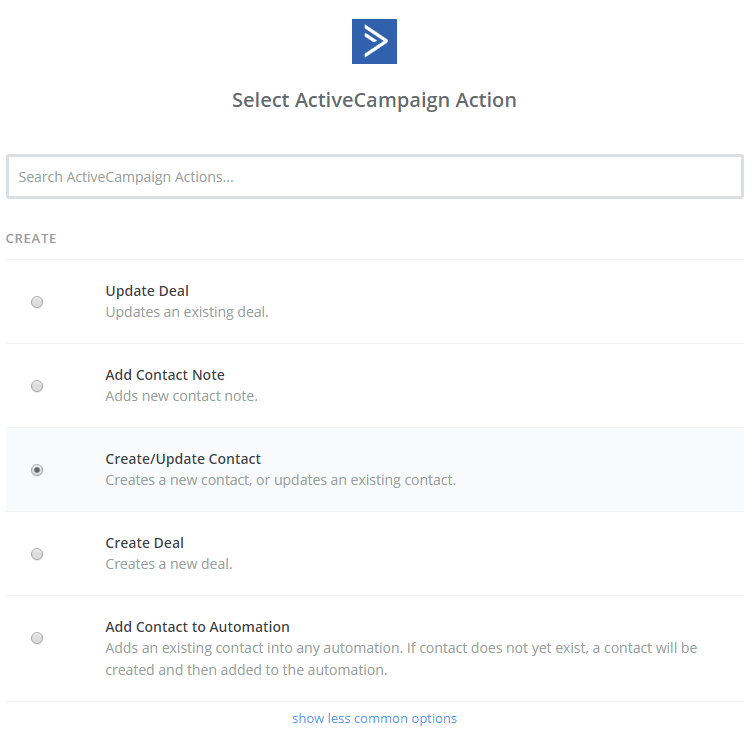
    Further, you need to choose one of the options in the drop-down list of Select ActiveCampaign Actionfield.  After selecting, click on continue.
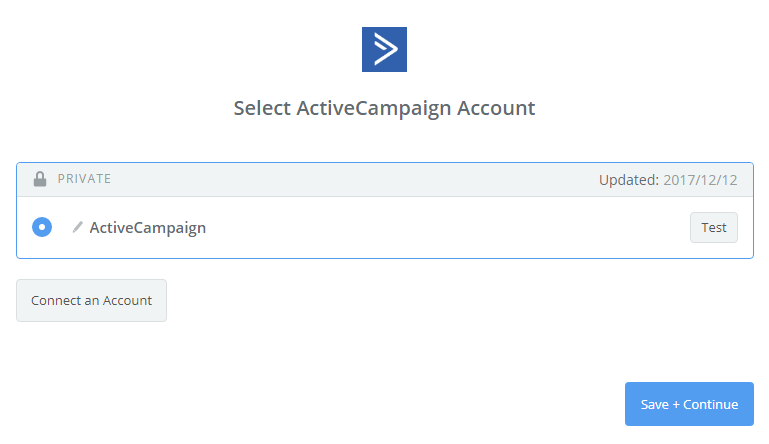
    Next, you have to select ActiveCampaign account.  Please click on Connect an Account. Then, your screen will display the image below:
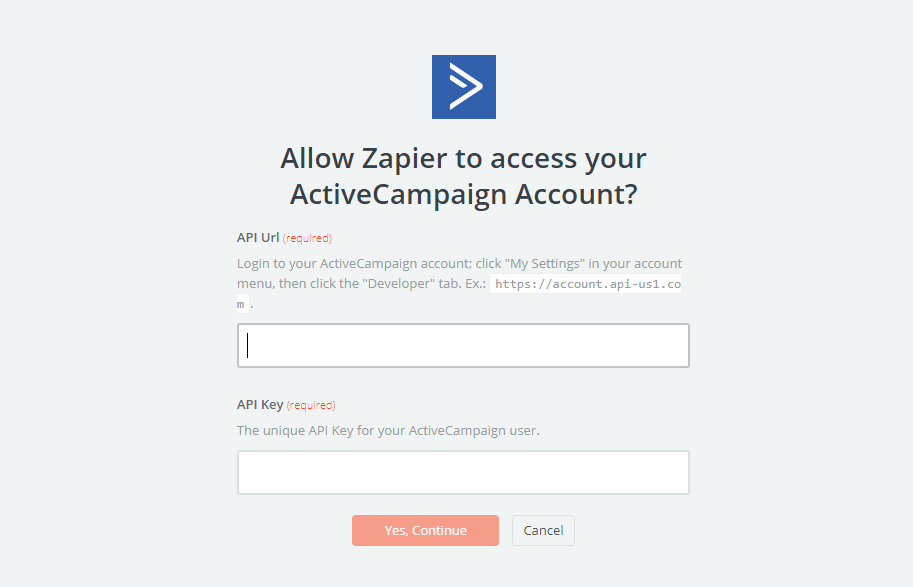
    Here you have to login to your ActiveCampaign account.  Then, click on My Settings in your account menu and choose developer to find API URL as well as API Key. After you have just entered, your PC will show the account that you have just created. Now, click on Continue.

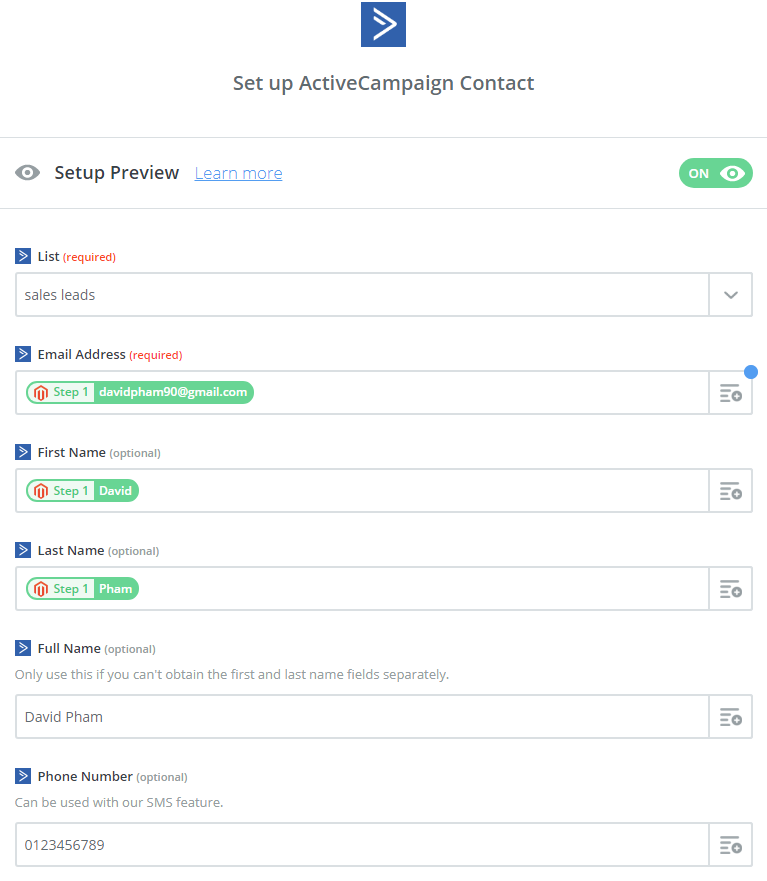
    Next, you must Set up ActiveCampaign Contact.  Enter all requirement as well as the information of customers like Email Address, First Name, Last Name that you have created from your Magento 2 store, then choose continue box.
    Great! The contact has been sent to your ActiveCampaign account.
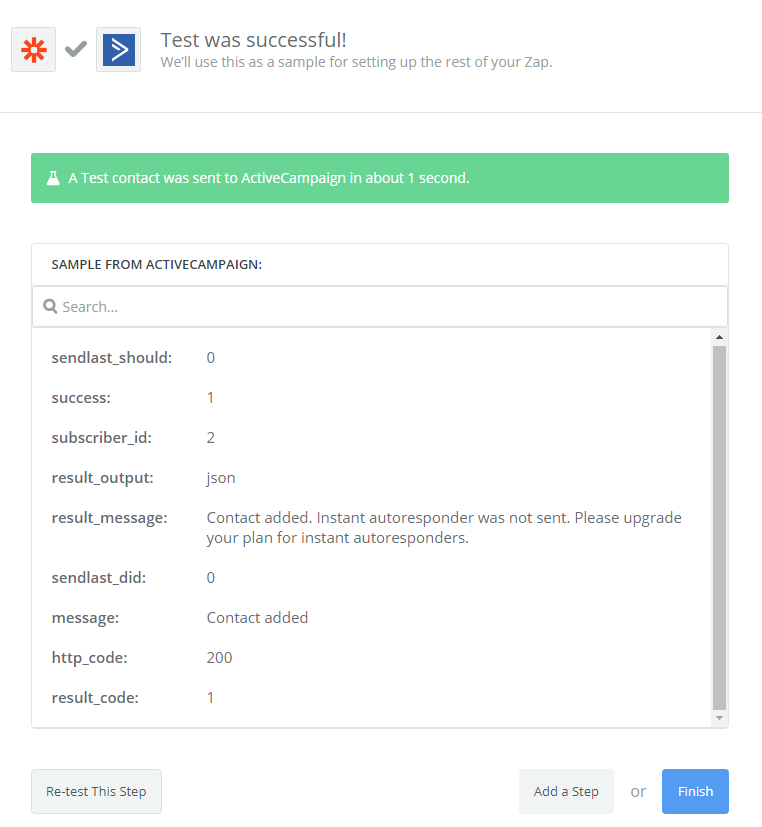
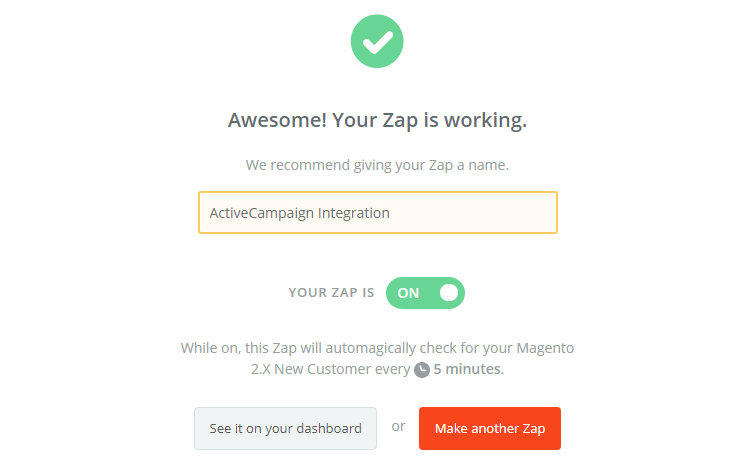
    Congratulations, you have tested ActiveCampaign  successfully. Now click on Finish and set the name your zap to complete.
    This is how your Zap will work and it will auto-check for your Magento 2.x new customer.

    This is how the integration of Activecampaign with Magento 2 via Zapier is done.
    Now it’s time for you to try integrating it with your Magento 2 store! If you still failed to integrate, then hire Mage Monkeys for the Magento integration service.

    How To Integrate Freeagent With Magento 2


    We all need easy to use software to handle our finance and what’s better than FreeAgent. So, in this blog we will explore how to integrate FreeAgent with Magento 2. Our steps will make your integration easier.

    What is FreeAgent?

    It’s a financial management application which is used by more than 35,000 small business owners and freelancers in more than 80 countries. If you are not an accountant or a first-time user, you will find this software easy to use because of its user-friendly interface. In addition, FreeAgent can also do some work on time tracking and project management, which will save your significant amount of money for buying additional software.

    FreeAgent comes with great features and they are:

    You can link it to all your bank accounts and integrate seamlessly with other 3rd party software.

    FreeAgent will definitely increase the effectiveness of your business dealings. So that, you have great strategies for your Magento 2 store.

    Now let’s understand the integration of FreeAgent with Magento 2!

    To integrate FreeAgent

    • Step 1: Sign up the Zapier account
    • Step 2: Sign up the FreeAgent account
    • Step 3: Integrate Magento 2.x
    • Step 4: Integrate FreeAgent for your Magento 2 store

    Step 1: Sign up the Zapier account

    • Signup Zapier

    Step 2: Sign up the FreeAgent account

    • Signup FreeAgent

    When you log in into Zapier, choose Make a Zap  to start integration

    Step 3: Integrate Magento 2.x

    • Here you have to choose Magento 2.x  so that Zapier can get all data from your store.
    • Then, choose New Customer  in select Magento 2.x Trigger field and then click on continue.
    • After that, you need to connect an Account in   select Magento 2.x account  field. In this step, you have to enter full domain, admin username and admin password of your Magento 2 store as the following image:
    • After creating your Magento 2.x account, your screen will display as an image given below. Then, click on Save + Continue.

    Great! You have just tested Magento 2.x successfully. Please enter continue  doing the next step.

    Step 4: Integrate FreeAgent

    • In Choose an Action App field, choose FreeAgent and click on Continue.
    • Then, you need to choose one of the options in the drop-down list of Select FreeAgent Action  field. After selecting, click on continue.
    • Next, you have to Select FreeAgent account  and then click on Connect an Account.  Further, your screen will display the image below:

    In this step, sign in your account and click on Approve App!  box. Immediately, your PC will show the following page for you to approve access.

    Now, this is the account that you have just created. Please click on Save + Continue.

    • Now, you must Set up FreeAgent Contact for that enter all information of customers such as First Name, Last Name, Email which you have created from your Magento 2 store, then chick on continue.
    • Perfect, your FreeAgent is tested successfully. Hence, now choose Finish and set the name your zap to complete.
    • Your Zap is working and it will auto-check for your Magento 2.x new customer.
    • So, this is how we integrate FreeAgent with Magento 2 via Zapier.

    It’s time for you to integrate FreeAgent with your store. Follow our easy steps now to handle your finance smoothly. Still looking for help to integrate FreeAgent with Magento? Contact Mage Monkeys today.

    How To Integrate Zendesk With Magento 2?

    If you want a great solution to easily reach your customers then you must have Zendesk but what is Zendesk? Many of us are not fully aware of this software and about its integration with Magento 2. Therefore in this post, we will understand Zendesk in detail

    What is Zendesk?

    Zendesk is the most recommendable customer care software. It is very easy to deploy and it is used by more than 40,000 organizations around the globe. It increases the productivity for your Magento store by reducing the cost and also it brings satisfaction to your customers. Zendesk provides integration support channels like Email, chat, web and social media.

    Moreover, it is easy to use and attracts customers with an eye-catching interface and interesting icons. So choose Zendesk. It will definitely bring a new breeze to your store.

    Now let’s learn:

    How to integrate Zendesk with Magento 2

    To integrate Zendesk

    • Step 1: Sign up the Zapier account
    • Step 2: Sign up the Zendesk account
    • Step 3: Integrate Magento 2.x
    • Step 4: Integrate Zendesk for your Magento 2 store

    Step 1: Sign up the Zapier account

    • Signup Zapier

    Step 2: Sign up the Zendesk account

    • Signup Zendesk

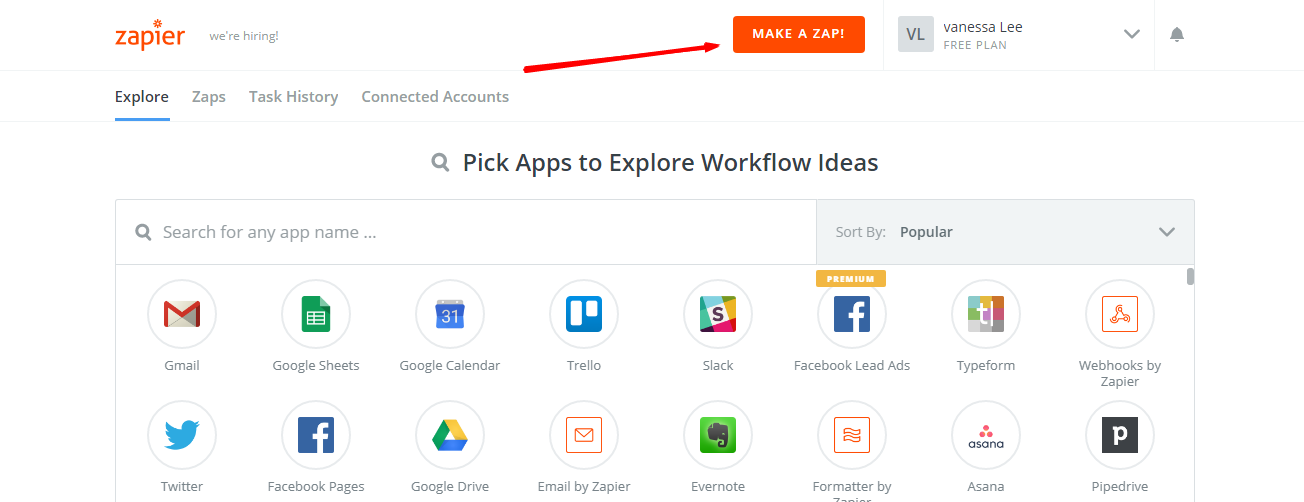
    After you log in into Zapier, choose Make a Zap  to start integrating

    Step 3: Integrate Magento 2.x

    In this step, choose Magento 2.x so that Zapier can get all data from your store.

    Here, choose New Customer  in select Magento 2.x Trigger field and then click on Save+continue.

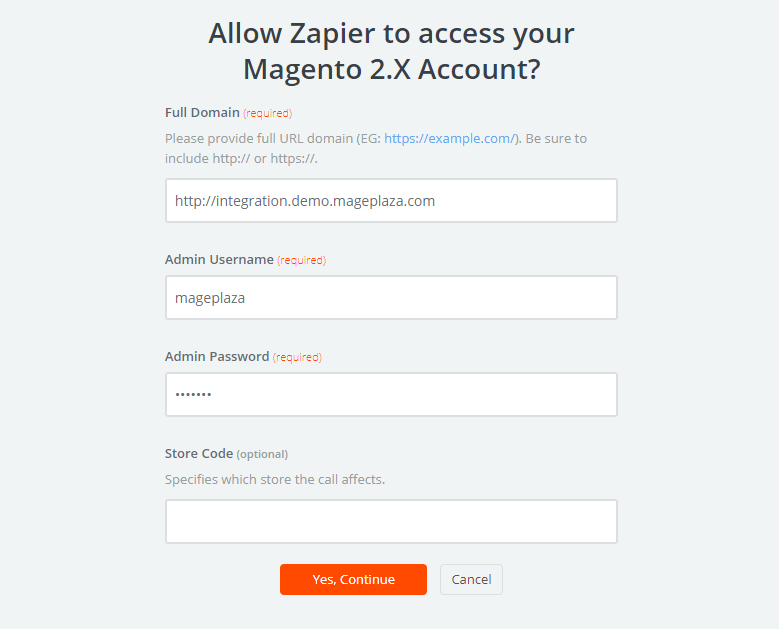
    Now here you have to connect an Account  in select Magento 2.x account  field. In this step, make sure to enter full domain, admin username and admin password of your Magento 2 store as the image below:

    After generating your Magento 2.x account, the screen will display as following image. Then, choose Save + Continue.

    Great! You have successfully tested Magento 2. Now click on continue  for the next step.

    Step 4: Integrate Zendesk

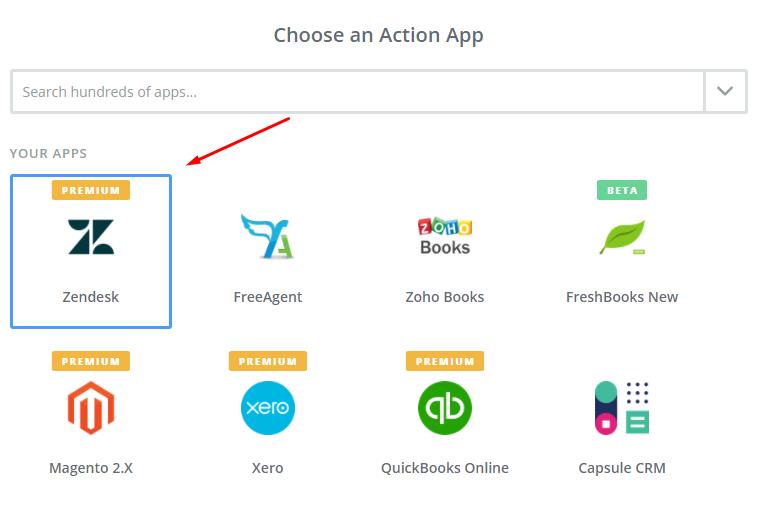
    In Choose an Action App field, choose Zendesk  and click on Continue.

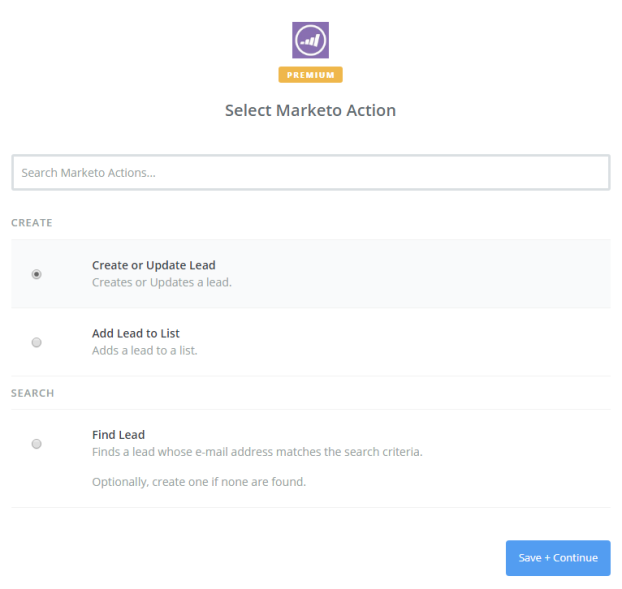
    Then, you have to select one of the options from the drop-down list of Select Zendesk Action  field. After selecting, click on continue.

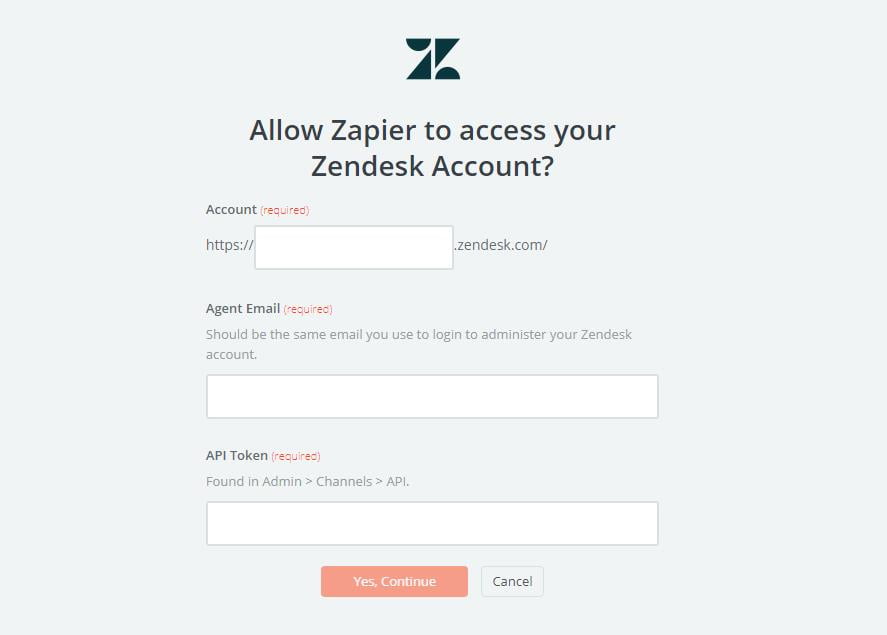
    Next, you have to Select Zendesk account. Please click on Connect an Account.  Then, your screen will display the image as shown below:

    On this step you have to sign in your account and enter API Token  that is found in your Zendesk account. Immediately, your PC will show the account that you have just created. Now, click on Save + Continue.

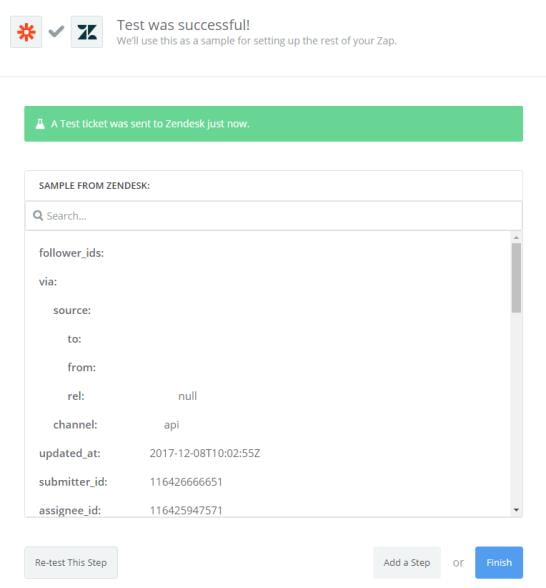
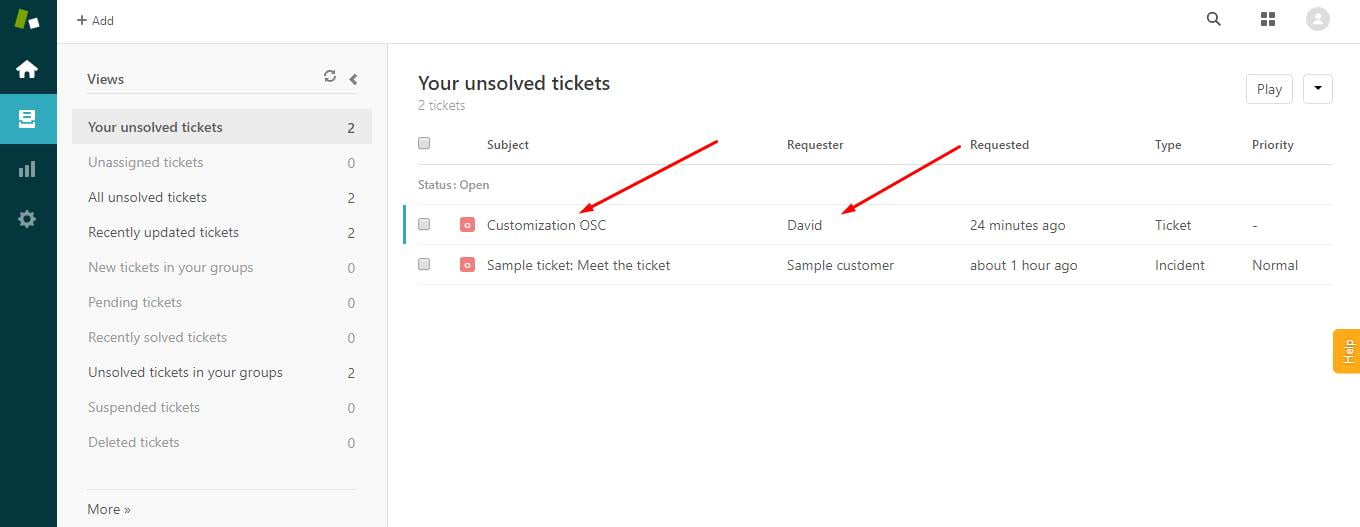
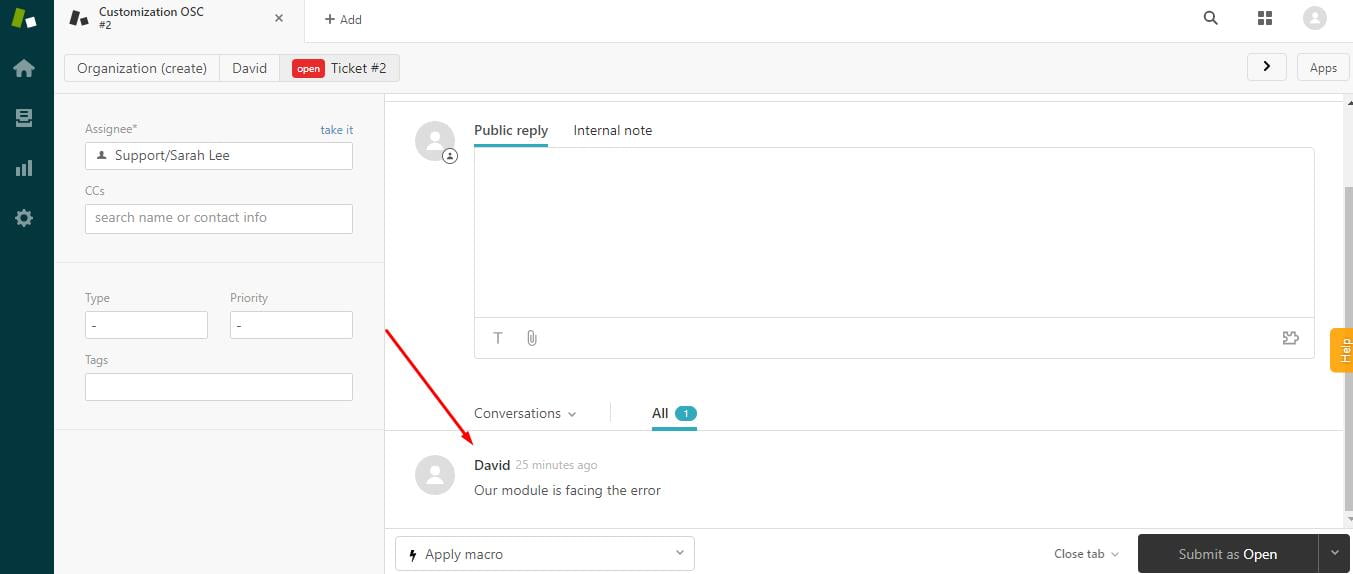
    Next, you must Set up Zendesk ticket.  Here, enter all required information as well as the information of customers such  as Requester Name, Requester Email that you have created from your Magento 2 store, then click on continue  box.

    Perfect, you have tested Zendesk  successfully. Finally, choose Finish  and set the name your zap  to complete.

    Your Zap is working and now it will auto-check for your Magento 2.x new customer.

    Great! You have just done the integration Zendesk with Magento 2 via Zapier.

    Now, it’s time for you to take the best use of this software hence do the first thing first which is the integration with Magento 2?

    If you still failed to integrate, then hire Mage Monkeys for the Magento integration service.

    How To Integrate Zoho Books With Magento 2

    Do you know what Zoho Books is and how it can help you in your business? In this blog, we will help you know what is Zoho Books and how to integrate it with Magento 2.

    First of all, we need to learn what Zoho Books is?

    Zoho Books is an accounting software which is used by small business owners to manage their finances. The tool is very simple and easy to use. It also helps you in making smart decisions on data as well as financial control of your company. From all applications you can send professional invoices to your customers and can also receive online payments.

    Further, the best part of Zoho Books is that it has intelligent design and financial management capabilities for all your projects.

    How to integrate Zoho Books with Magento 2

    To integrate Zoho Books

    • Step 1: Sign up the Zapier account
    • Step 2: Sign up the Zoho Books account
    • Step 3: Integrate Magento 2.x
    • Step 4: Integrate Zoho Books for your Magento 2 store

    Step 1: Sign up the Zapier account

    • Signup Zapier

    Step 2: Sign up the Zoho Books account

    • Signup Zoho Books

    After logging into Zapier, click on Make a Zap  to start integrating.

    Step 3: Integrate Magento 2.x

    In this step, you have to choose Magento 2.x  so that Zapier can get all data from your store.

    Then, choose New Customer  in select Magento 2.x Trigger field and click on continue.

    After that, you need to connect an Account  in select Magento 2.x account  field. In this step, make sure to enter full domain, admin username and admin password of your Magento 2 store as the following image:

    After creating your Magento 2.x account, the screen will display as an image below. Then, choose Save + Continue.

    Great! You have just tested Magento 2.x successfully. Now, please continue doing the next step.

    Step 4: Integrate Zoho Books

    In Choose an Action App  field, select Zoho Books  and then click on Continue.

    Then, you need to choose one of the options from the drop-down list of Select Zoho Books Action  field. After selecting, click on continue.

    Next, you have to Select Zoho Books account.  Please click on Connect an Account.  Then, your screen will display the image shown below:

    Now, this is the account which you have just created. Please click on Save + Continue.

    Next, you must setup Zoho Books Sales Invoice. Now, please enter all required fields on the page as well as choose customer name from step 1, then choose continue box.

    Perfect, you have tested Zoho Books  successfully. Finally, choose Finish and then set the name your zap to complete.

    Now, your Zap is working and it will auto-check for your Magento 2.x new customer.

    So, this is how the integration between Zoho Books and Magento 2 is done.

    Now, all you need to do is to integrate your Magento 2 with Zoho Books. So, try it with your Magento 2 store today! If you’re looking for professional help to integrate the store then hire Magento integration specialist today,

    How to integrate QuickBooks Online with Magento 2?

    We all need an excellent application which can handle our accounting easily but which? Well the answer is QuickBooks Online. It’s an effective application for your business.

    If you don’t know what QuickBooks Online is and how to connect it to your Magento 2 store then you have reached your destination. This article is the key your are looking for.

    What is QuickBooks Online?

    QuickBooks Online is excellent accounting software developed by Intuit. This tool provides business owners with remote access conveniently. This is the perfect solution for anyone who wants the ease and flexibility of access while on the go. It comes with powerful features and functions that help reduce the amount of accounting work for you.

    How to integrate QuickBooks Online with Magento 2?

    To integrate QuickBooks Online

    • Step 1: Sign up the Zapier account
    • Step 2: Sign up the QuickBooks Online account
    • Step 3: Integrate Magento 2.x
    • Step 4: Integrate QuickBooks Online for your Magento 2 store

    Step 1: Sign up the Zapier account

    • Signup Zapier

    Step 2: Sign up the QuickBooks Online account

    • Signup QuickBooks Online
    • When you log in into Zapier, choose Make a Zap  to start integration.

    Step 3: Integrate Magento 2.x

    • In this step, choose Magento 2.x  so that Zapier can get all data from your store.
    • Here, select New Customer  in select Magento 2.x Trigger field and then click on save+continue.
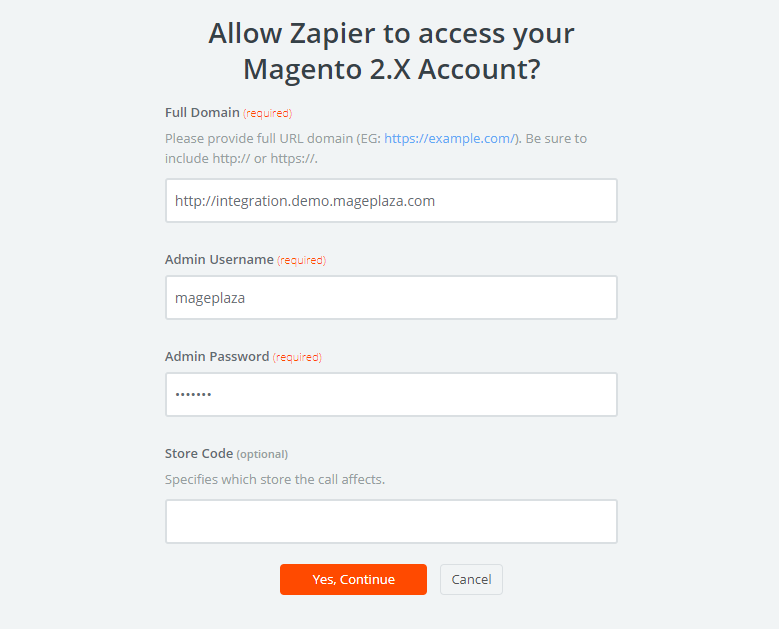
    • After that, you have to connect an Account  in select Magento 2.x account  field. In this step, you need to enter full domain, admin username and admin password of your Magento 2 store as the following image:
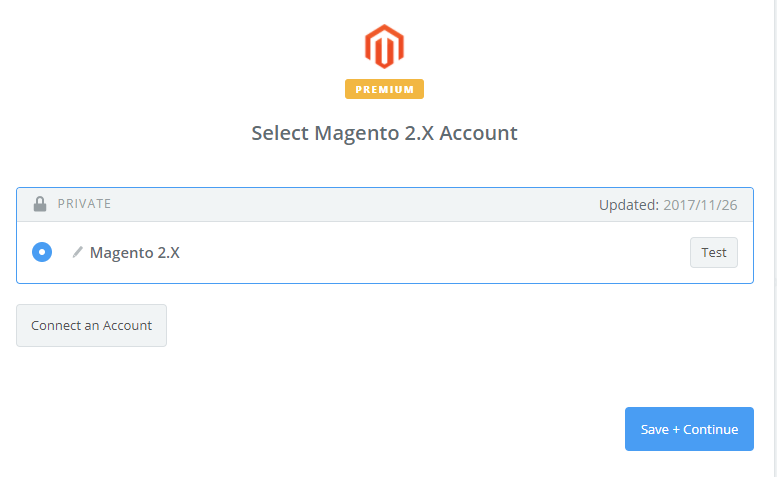
    • After generating your Magento 2.x account, the screen will display as an image below. Then, choose Save + Continue.
    • Great! Your Magento 2.x is tested successfully. now continue doing the next step.

    Step 4: Integrate QuickBooks Online

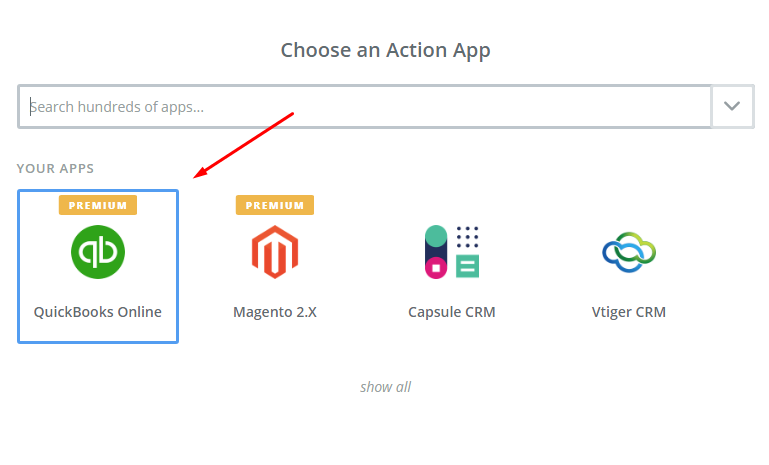
    • In Choose an Action App field, choose QuickBooks Online  and click on Continue.
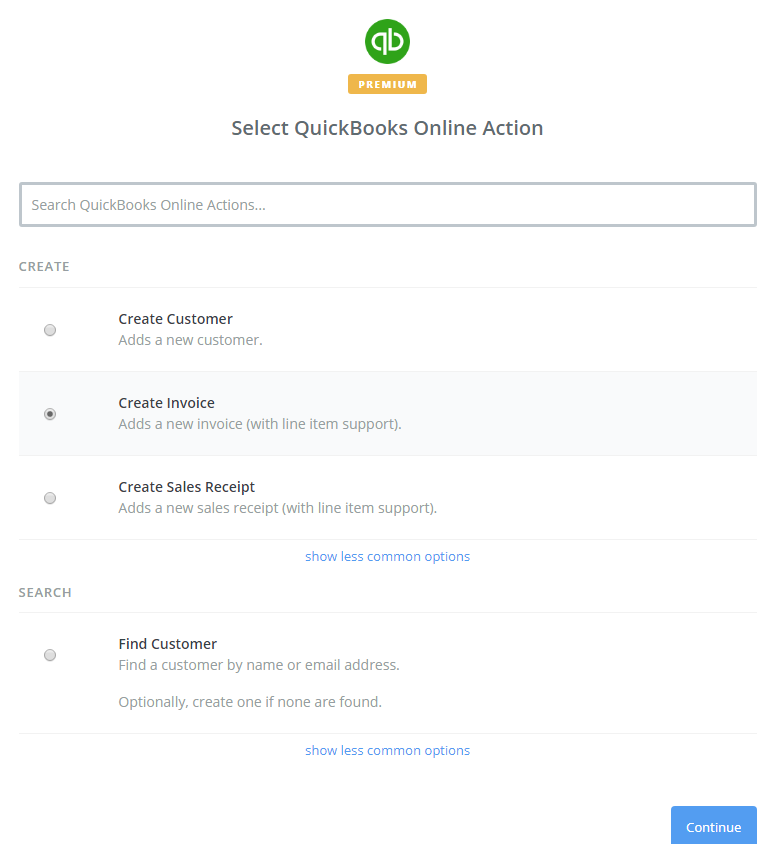
    • Then, you need to choose one of the options in drop-down list of Select QuickBooks Online Action  field. After choosing, click on continue.
    • Next, you need to select QuickBooks Online account  and then click on Connect an Account as shown in the image below:
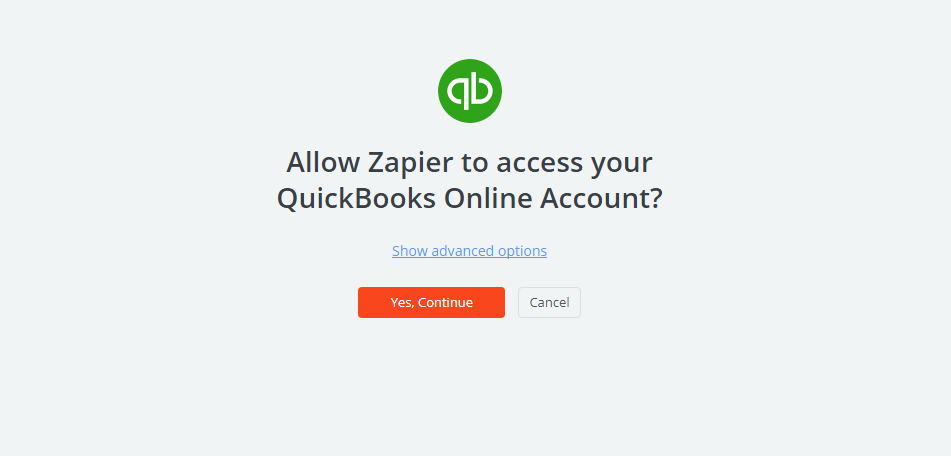
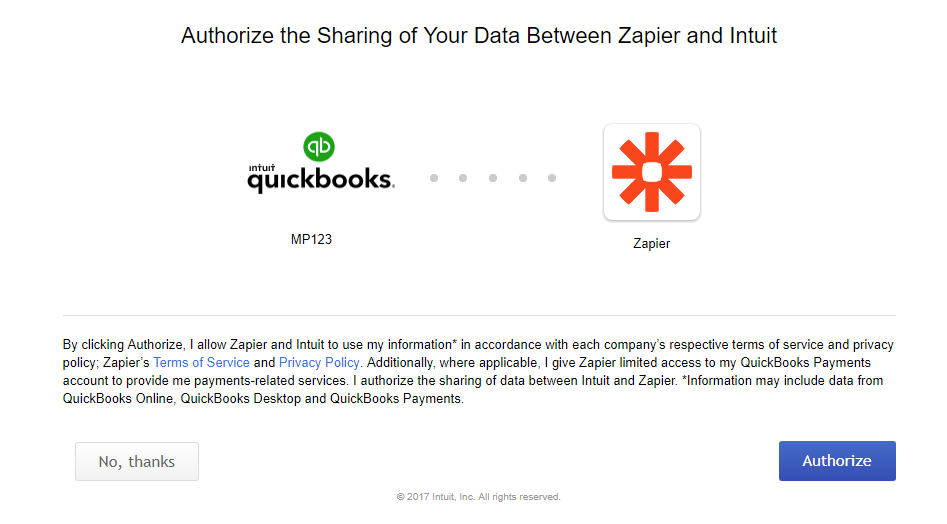
    • Click on Yes, Continue  box, you will see the confirmation to access your QuickBooks Online account as the following image and click on Authorize  button.
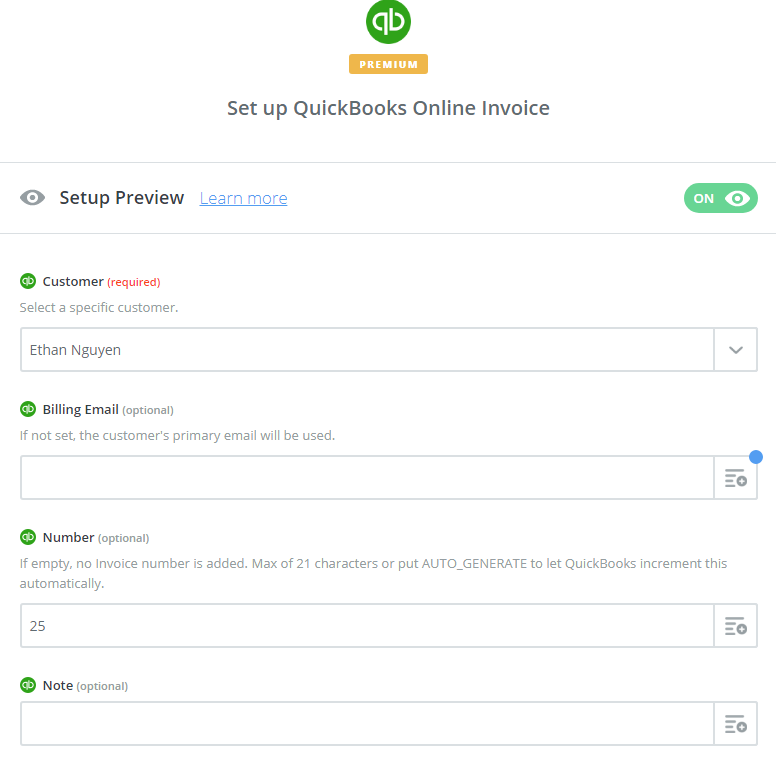
    • Next, you have to set up QuickBooks Online Invoice  and for that you have to enter all required fields on page, then click on continue  box.
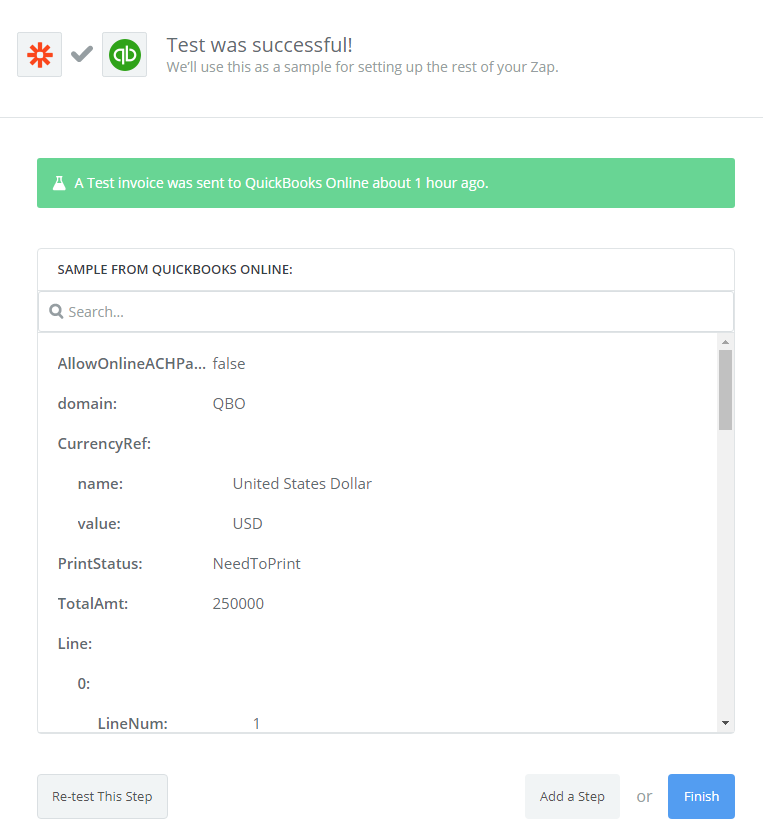
    • Wow, you have tested QuickBooks Online  successfully. Finally, choose Finish  and set the name your zap  to complete.
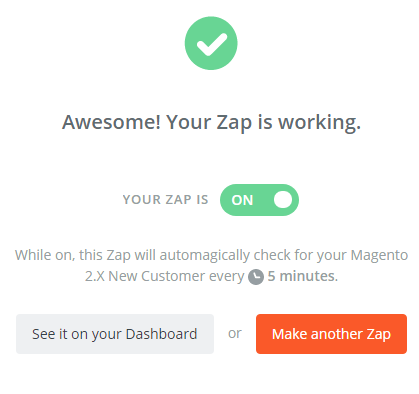
    • Your Zap is working and from now it will auto-check for your Magento 2.x new customer.
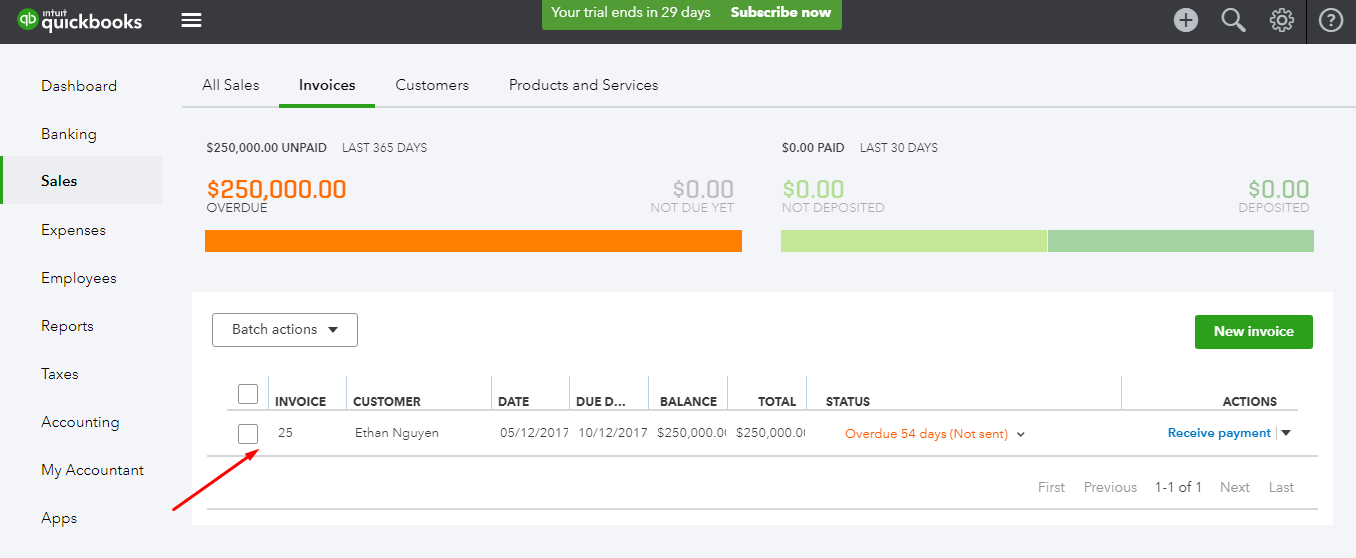
    • So, this is how the integration is done and below you can see the result.

    Hence, this way you can integrate QuickBooks Online with your Magento 2.

    It’s time to select QuickBooks Online for your Magento 2 store to experience the great features that it brings. If you’re looking for professional help to integrate then discuss with Mage Monkeys to get the job done.

    How To Integrate Capsule Crm With Magento 2?

    Have you ever thought to connect your Magento 2 with Capsule CRM but don’t know how to do it? Well, today in this blog we will show you how to integrate Capsule CRM with Magento 2 and what are its benefits?

    Before the integration you must know…

    What is Capsule CRM?

    Capsule CRM is the most effective software that allows you to keep track of your contracts, your companies, your sales opportunities and other tasks that your need to complete. With Capsule CRM you can manage your projects by creating and monitoring tasks, assigning your colleagues and controlling the time when you finish the task.

    According to some recent surveys, Capsule CRM is the most effective software for Magento 2 store. It is simple, flexible, and powerful web-based software.

    How to integrate Capsule CRM with Magento 2

    To integrate Capsule CRM

    • Step 1: Sign up the Zapier account
    • Step 2: Sign up the Capsule CRM account
    • Step 3: Integrate Magento 2.x
    • Step 4: Integrate Capsule CRM for your Magento 2 store

    Step 1: Sign up the Zapier account

    • Signup Zapier

    Step 2: Sign up the Capsule CRM account

    • Signup Capsule CRM
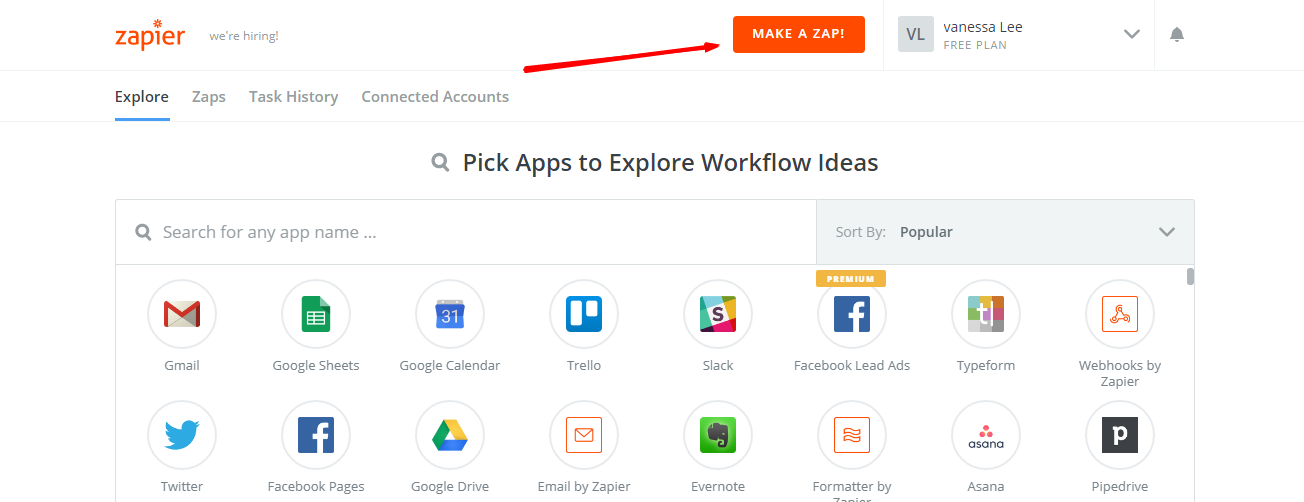
    • When you log in into Zapier, select Make a Zap  to start integration

    Step 3: Integrate Magento 2.x

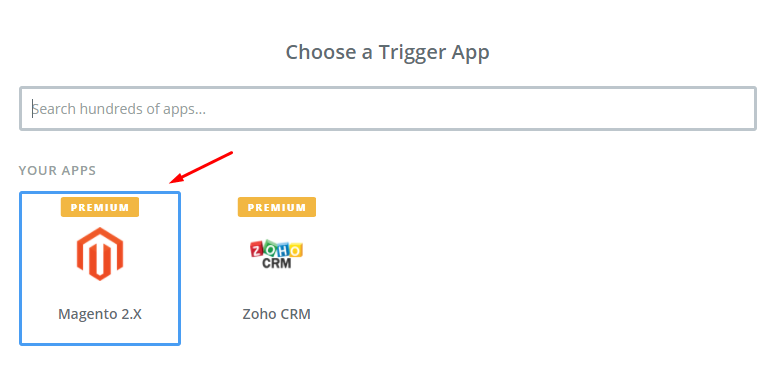
    • In this step, choose Magento 2.x  so that Zapier can get all data from your store.
    • Then, click on New Customer  in select Magento 2.x Trigger field and then click on save+continue.

    • After generating your Magento 2.x account, the screen will display as an image below. Then, choose Save + Continue.
    • Perfect! You have just tested Magento 2.x successfully. Now click on continue  for the next step.

    Step 4: Integrate Capsule CRM

    • In Choose an Action App field, select Capsule CRM  and then click on Continue.

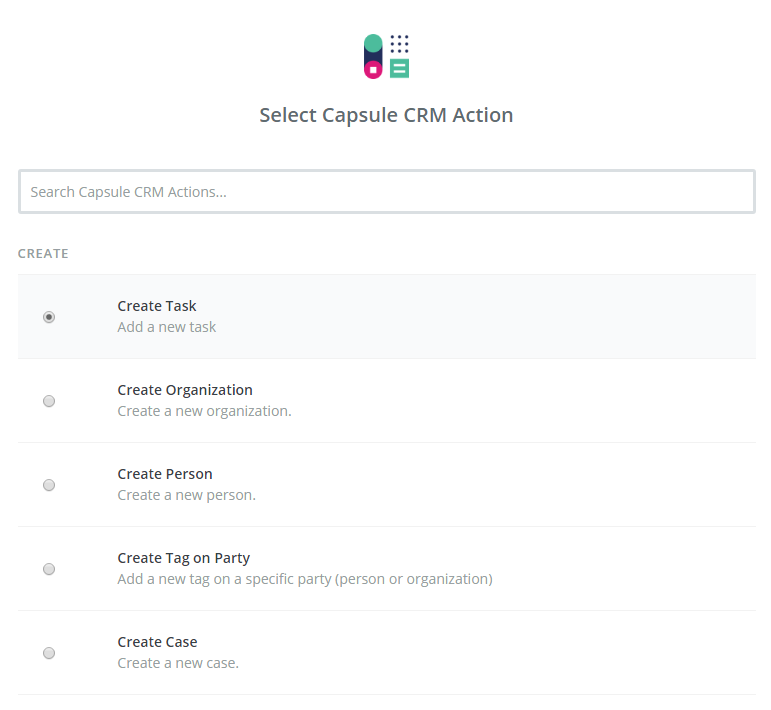
    Then, you need to choose one of the options from the drop-down list of Select Capsule CRM Action field.  After, making your selection click on continue.

    • Next, you need to select Capsule CRM account and then click on Connect an Account.
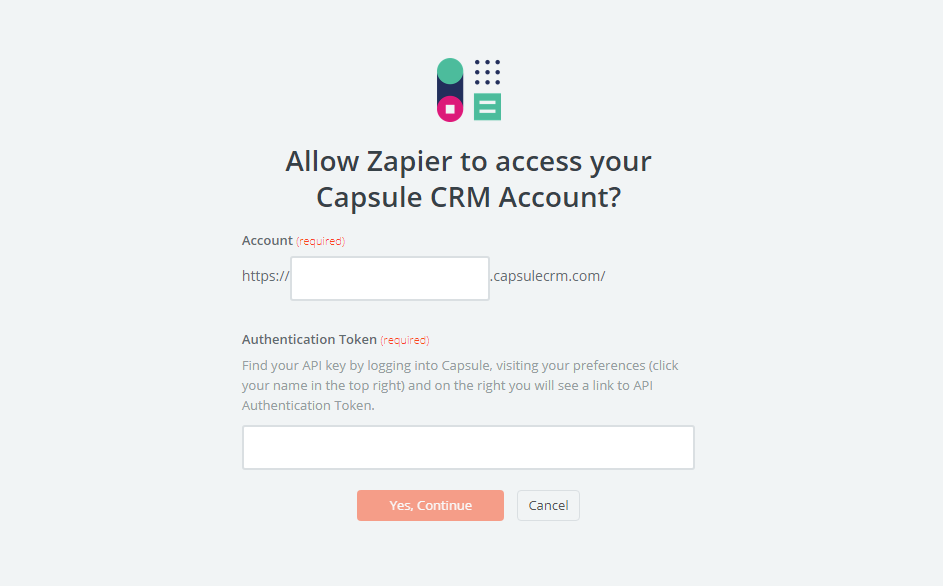
    • Now, your screen will display as the following image. Further, enter Authentication Token that is found on your preferences page, then click on Yes, Continue.
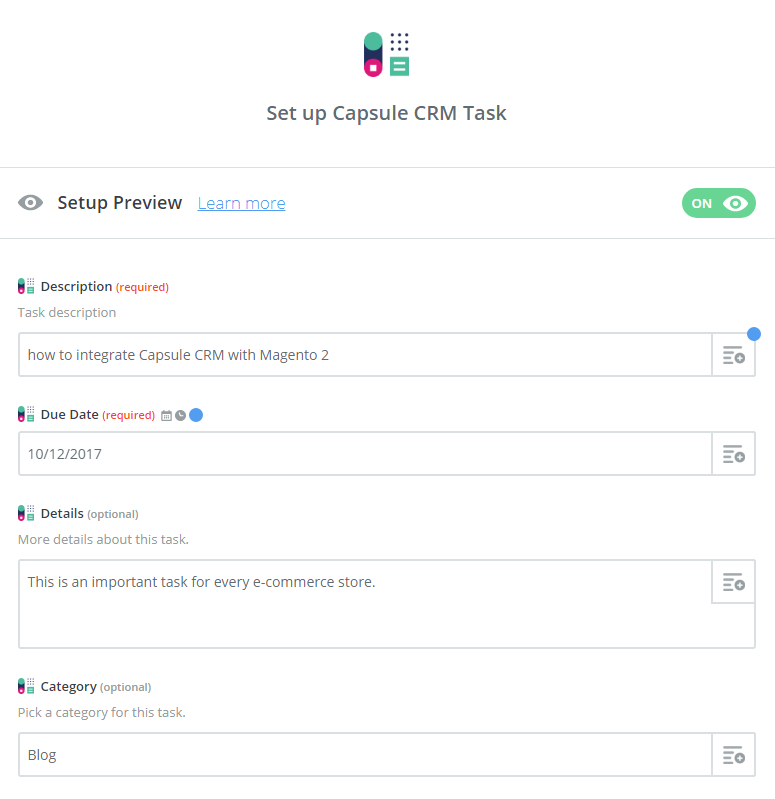
    • Next, you need to set up Capsule CRM Contact. Now, enter all required fields on page, then choose continue  box.
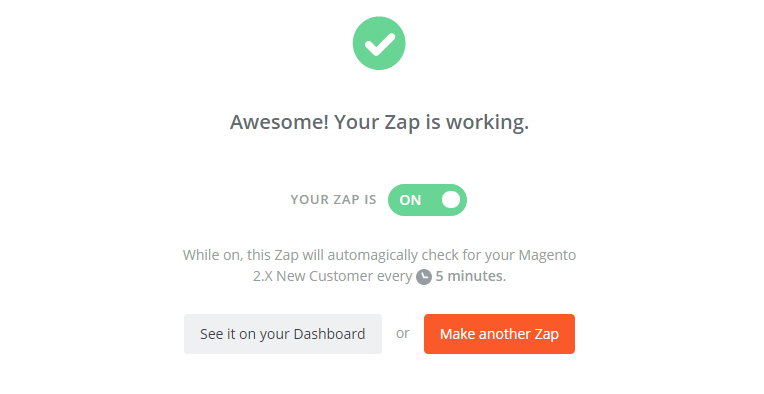
    • Great, you have tested Capsule CRM successfully. Lastly, click on Finish  and set the name your zap to complete.
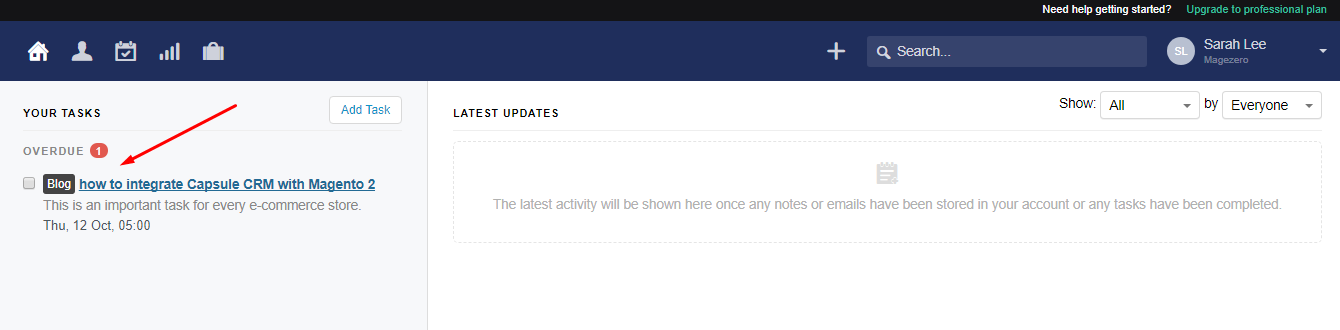
    • Your Zap is working and from now it will auto-check for your Magento 2.x new customer.
    • So this is how the integration is between Capsule CRM and Magento 2. Below you can see the result of the integration:
    • You have successfully integrated Capsule CRM with Magento 2.

    Capsule CRM is a great tool for your e-commerce stores. It will help in making your business more efficient and more convenient by satisfying your customers with value and benefits you can offer to them. If you still failed to integrate, then hire Mage Monkeys for the Magento integration service.

    How To Integrate Vtiger CRM With Magento 2?

    Many store owners face problem when it comes to integration between Vtiger CRM and Magento 2. In this post, we have covered all your queries.

    Let’s find out what Vtiger CRM is and what are its benefits?

    What is Vtiger CRM?

    Vtiger CRM was launched in 2004. It’s a software application that helps businesses function more efficiently and it also manages data and avoids duplication of data. Apart from that it offers great features to customers like email marketing, project management, inventory management, and sales automation capabilities. Vtiger CRM helps shop owners build strong relationships with their customers.

    How to integrate Vtiger CRM with Magento 2

    To integrate Vtiger CRM

    • Step 1: Sign up the Zapier account
    • Step 2: Sign up the Vtiger CRM account
    • Step 3: Integrate Magento 2.x
    • Step 4: Integrate Vtiger CRM for your Magento 2 store

    Step 1: Sign up the Zapier account

    • Signup Zapier

    Step 2: Sign up the Vtiger CRM account

    • Signup Vtiger CRM
    • After signup, log in into Zapier, choose Make a Zap  to start integration

    Step 3: Integrate Magento 2.x

    • In this step, choose Magento 2.x so that Zapier can get all data from your store.
    • Then, choose New Customer  in select Magento 2.x Trigger  field and click on save+continue.

    After that, you have to connect an Account  in select Magento 2.x account  field. In this step, enter full domain, admin username and admin password of your Magento 2 store as the image below:

    • After creating your Magento 2.x account your screen will display as an image below. Then, click on Save + Continue.
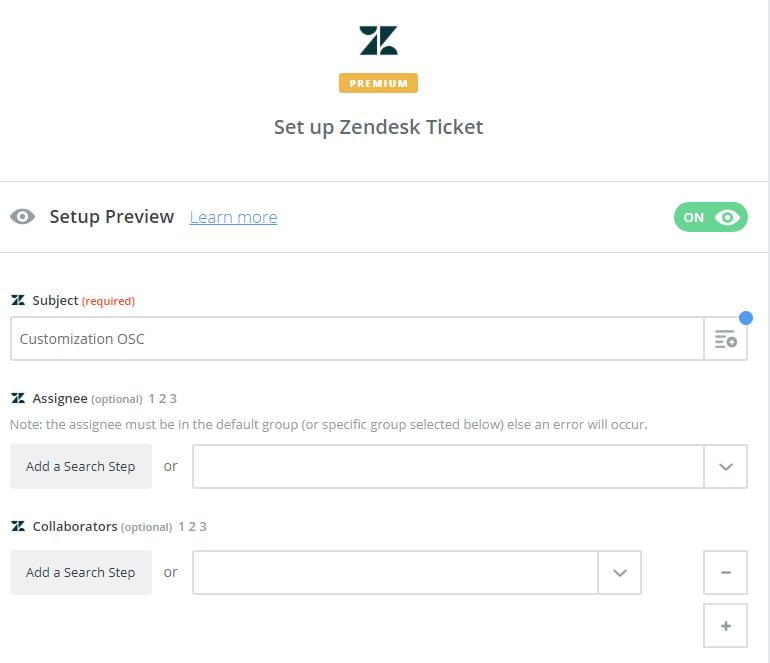
    • Great! You have just tested Magento 2.x successfully. Please continue doing for the next step.

    Step 4: Integrate Vtiger CRM

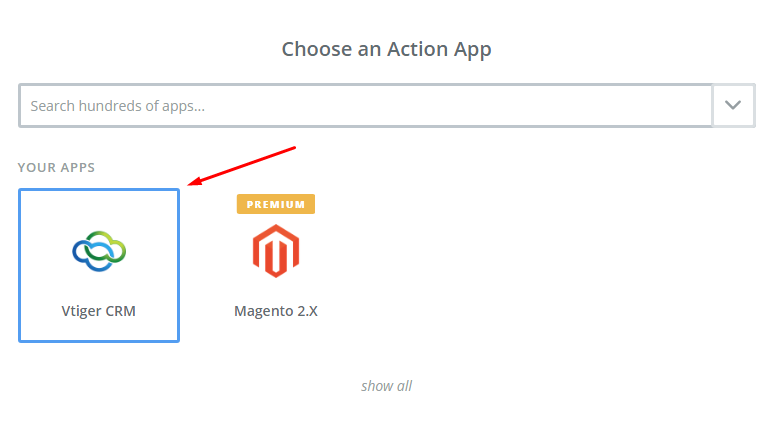
    • In Choose an Action App  field, choose Vtiger CRM  and then click on Continue.
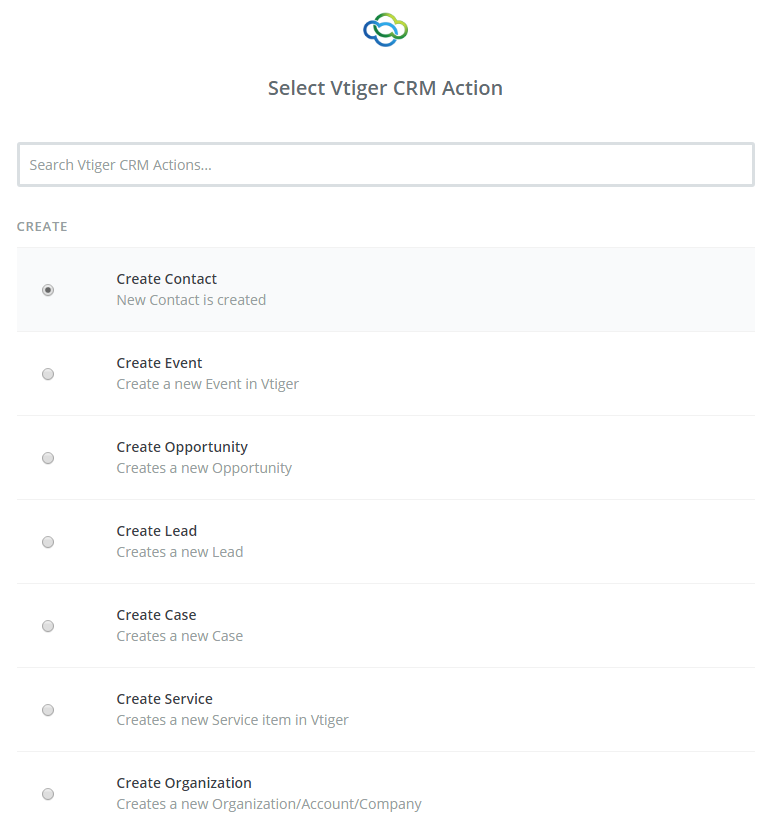
    • Then, you need to choose one of the options from the drop-down list of Select Vtiger CRM Action  field. After selecting, click on continue.
    • Next, you need to select Vtiger CRM account. Please click on Connect an Account.
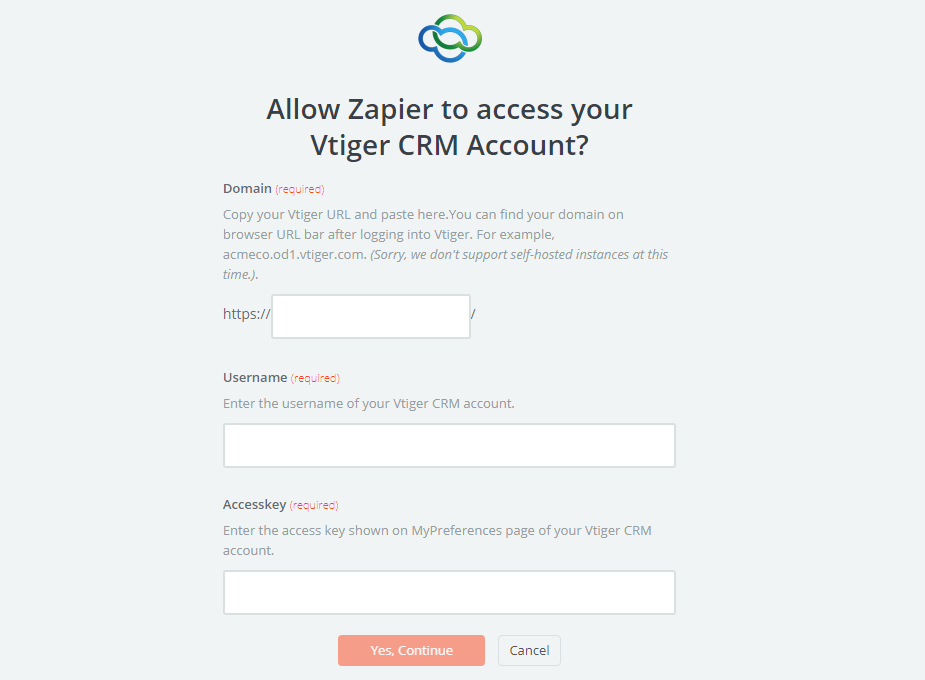
    • Now, your screen will display as the following image. Next, make sure to enter Domain, Username and AccessKey that is found on the Vtiger CRM account, then click on Yes, Continue.
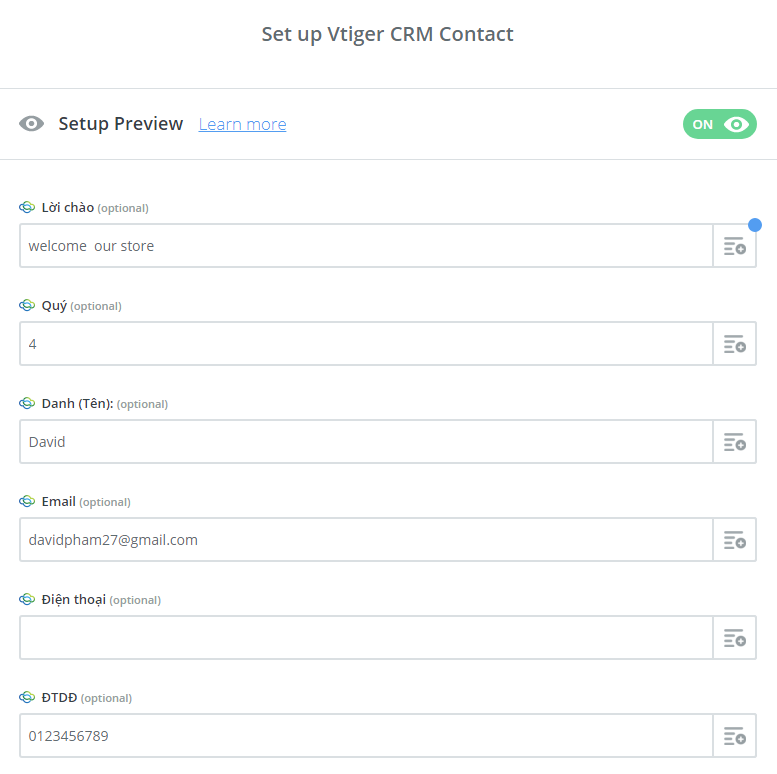
    • Further, you must set up Vtiger CRM Contact. Now, please enter all required fields on page, then choose continue  box.
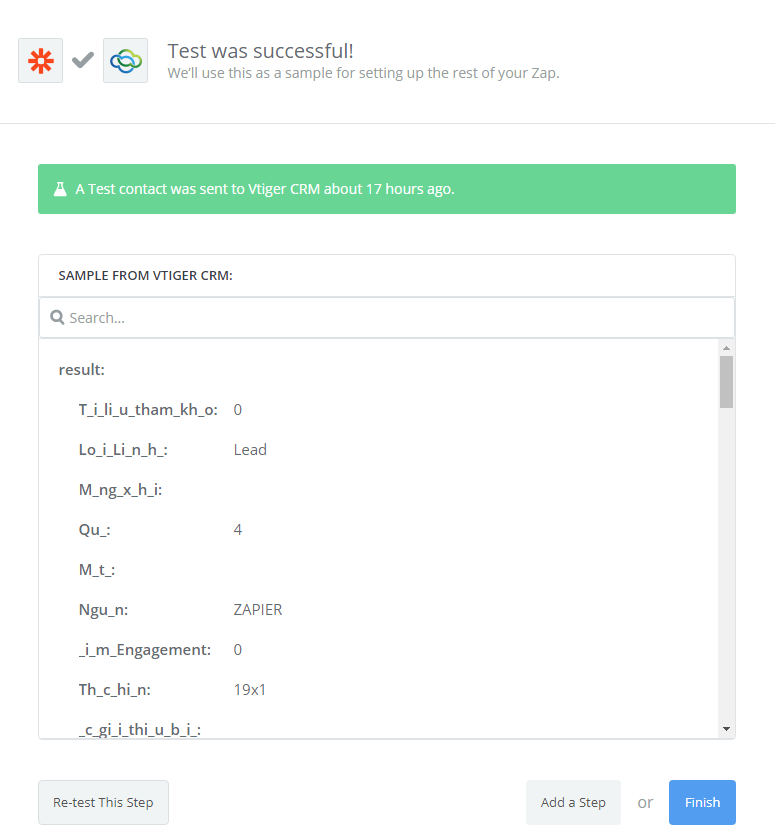
    • Wonderful, you have tested Vtiger CRM successfully. A Test contact was sent to Vtiger CRM. Finally, choose Finish  and set the name your zap  to complete.
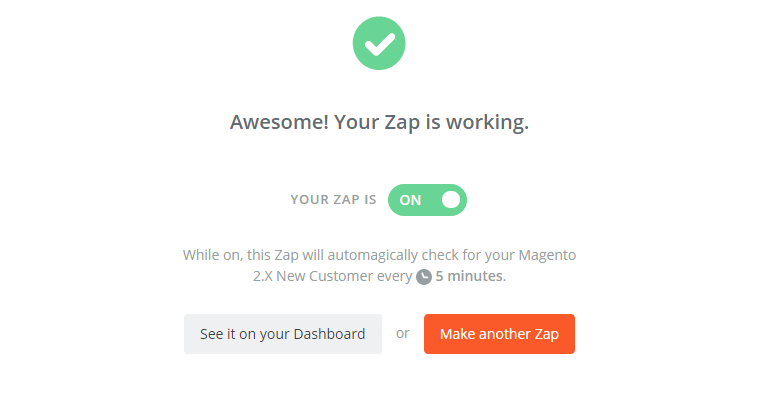
    • Your Zap is working and from now it will auto-check for your Magento 2.x new customer.
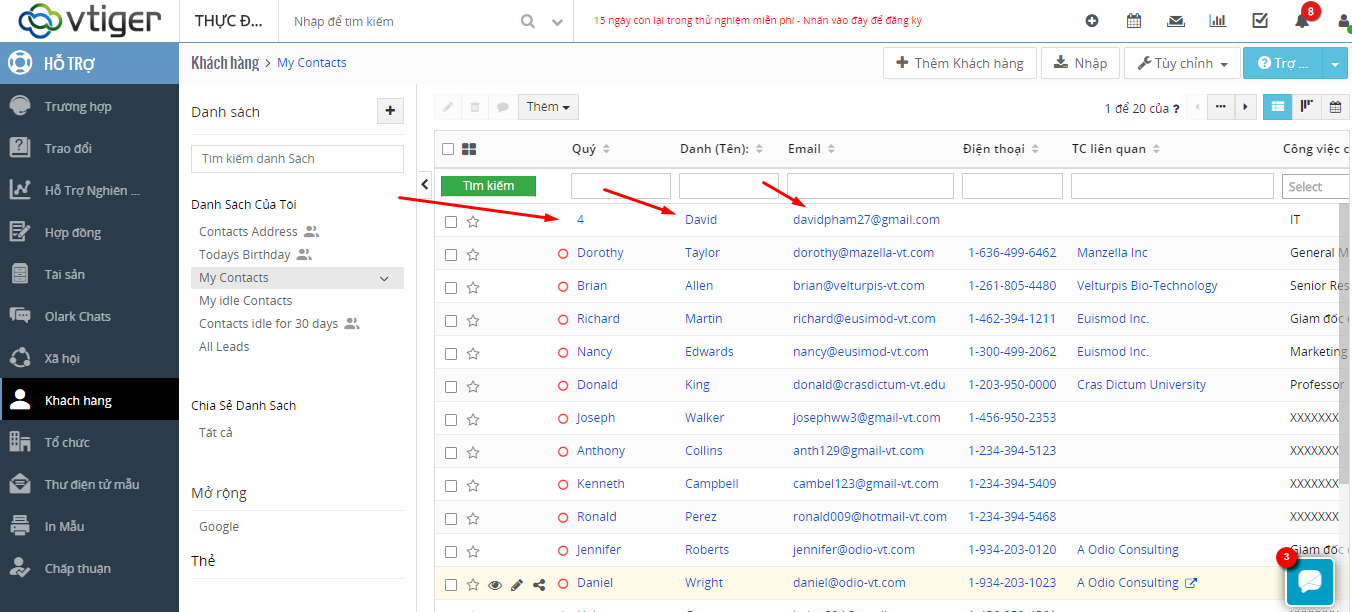
    • So in this way the integration is done and the result is as an image below:

    Vtiger CRM is a great application which will provide the best experience to customers. The ultimate purpose of Vtiger CRM is to satisfy customers by bringing great value and benefits to them. Now it’s time for you to try integration between Vtiger CRM and Magento 2. If you still failed to integrate, then hire Mage Monkeys for the Magento integration service.

    How to Integrate Magento 2 with Xero?

    When there are thousands of different computational softwares available in the market then only one questions arises that how to choose the best accounting software for your business?

    Well, we suggest Xero accouting software.

    Let us understand Xero in detail…

    What is Xero?

    Xero is accounting software created in 2006 for small business accounting purpose. You can access this solution from any device that is connected to the internet. Xero integrates with more than 500 applications and has plenty of powerful features. You can view cash flows, transactions and accounts details from any place. Xero automatically encrypts bank transactions.

    Xero’s Online Invoice features will let you can track your expenses and bills and it will improve your relationships with suppliers.

    Professionals highly recommend Xero as its user-friendly and easy-to-use solution. It has been ranked first among hundreds of different accounting softwares.

    How to integrate Xero with Magento2?

    To integrate Xero you need to do following steps:

    • Step 1: Sign up the Zapier account
    • Step 2: Sign up the Xero account
    • Step 3: Integrate Magento 2.x
    • Step 4: Via Zapier Integrate Xero for your Magento 2 store.

    Step 1: Sign up the Zapier account

    • Signup Zapier

    Step 2: Sign up the Xero account

    • Signup Xero

    After logging into Zapier, choose Make a Zap to start integrating

    Step 3: Integrate Magento 2.x

    In this step, choose Magento 2.x so that Zapier can get all data from your store.

    Then, choose New Customer in select Magento 2.x Trigger field and click on continue.

    Now you need to connect an Account in select Magento 2.x account field. Here in this step, you have to enter full domain, admin username and admin password of your Magento 2 store as shown in the image below:

    After generating your Magento 2.x account, the screen will display as an image below. Then, choose Save + Continue.

    Bingo! You have just tested Magento 2.x successfully. Please enter continue to go the next step.

    Step 4: Integrate Xero

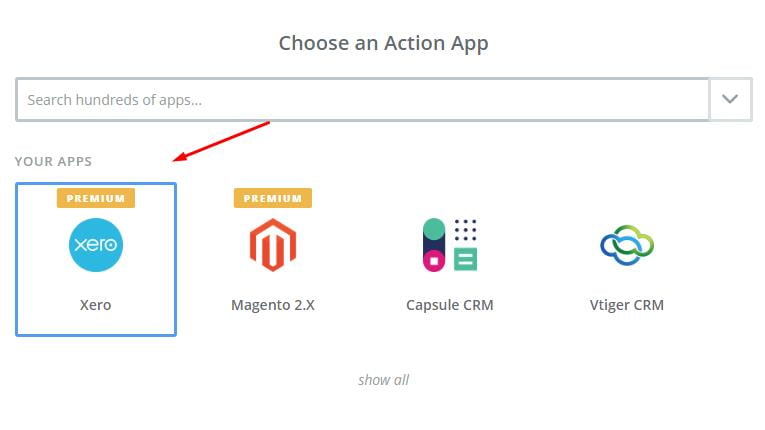
    • In Choose an Action App field, choose Xero and click on Continue.

    Then, you have to choose one of the options in drop-down list of Select Xero Action field according to your need. After choosing, click on continue

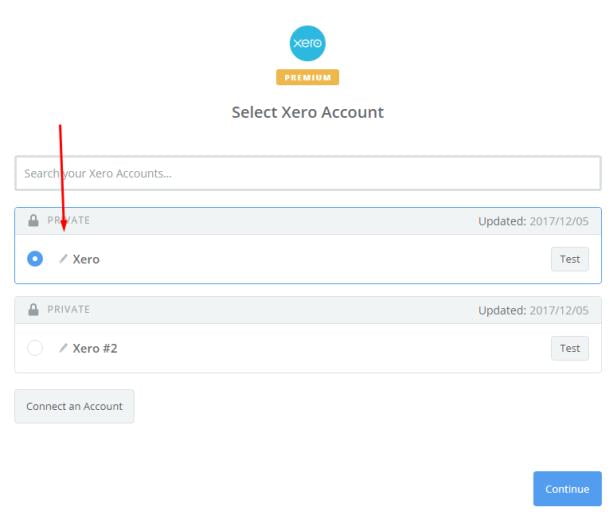
    Next, you need to select Xero account. Please click on Connect an Account.

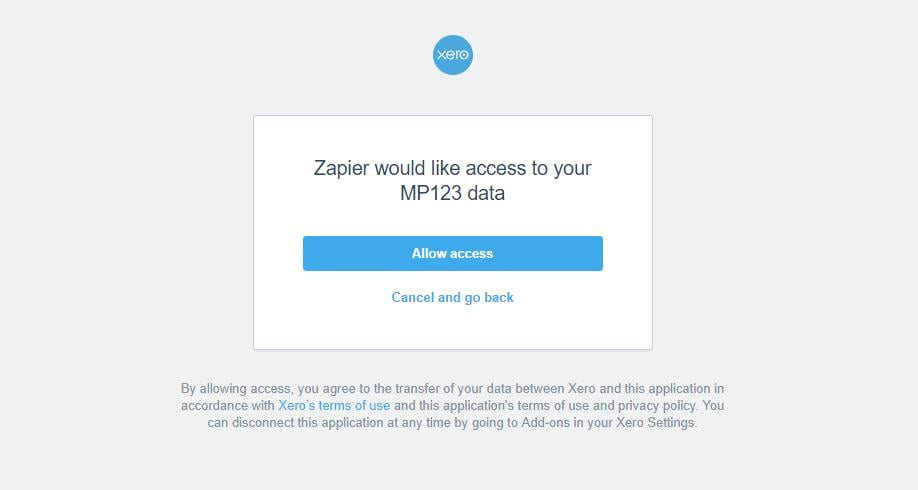
    Now, your screen will display as an image below:

    Click on Allow access box so that Zapier can access your Xero account. Here is the result after you have connected the Xero account. Please choose Xero and click on Continue.

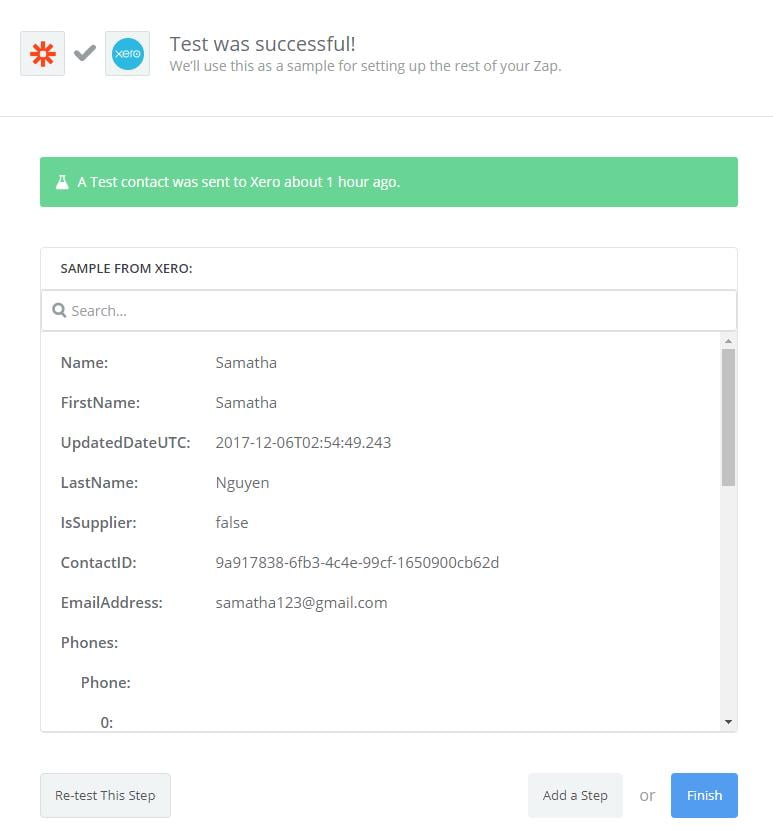
    • Next, you have to set up Xero Contact. Now, please enter all required fields on page, then choose continue box.

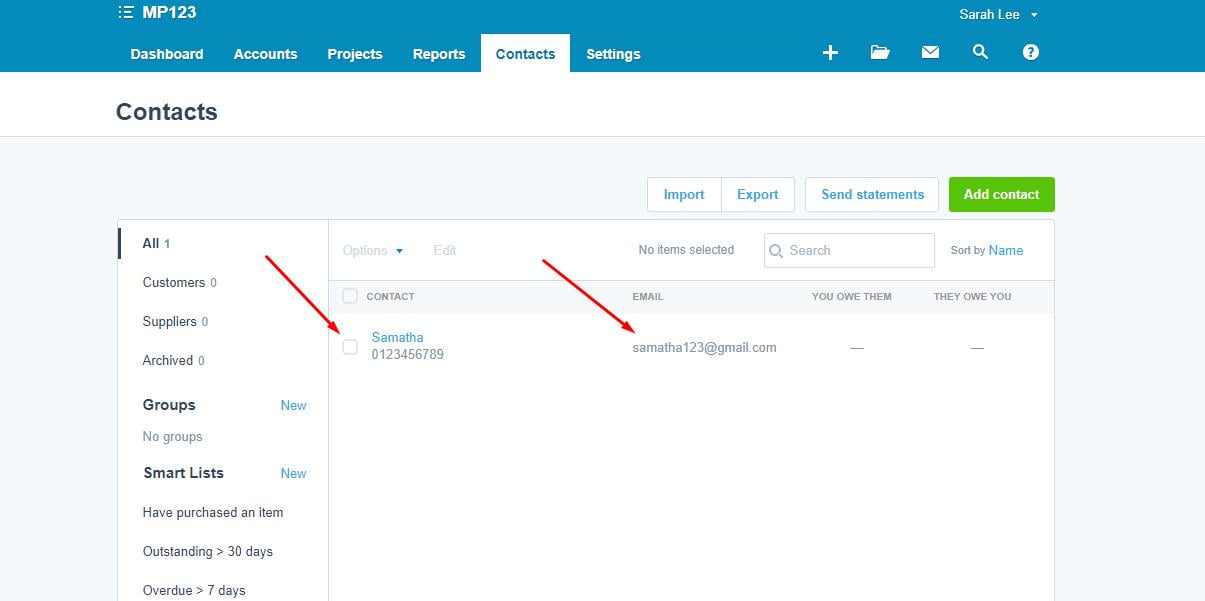
    Wow, you have tested Xero sucessfully. Finally, choose Finish and set the name your zap to complete.

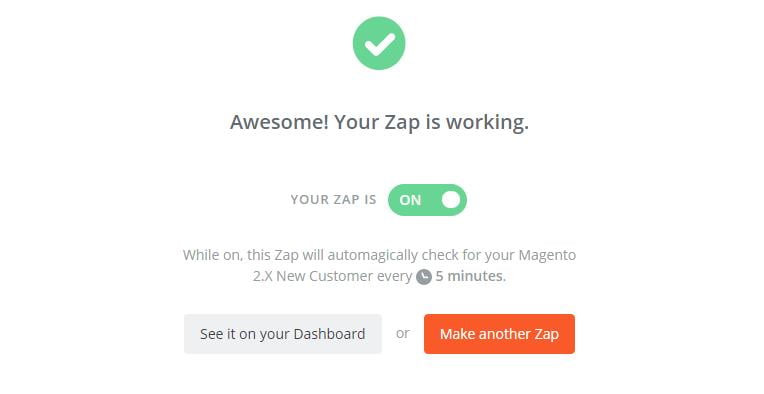
    • From now on, your Zap is working and it will auto-check for your Magento 2.x new customer.

    • Great, you have just integrated Xero with your Magento 2 store.

    Integrate this software for your Magento 2 store to experience great features today! If you’re still unable to integrate, then you may contact us to get the job done.

    How to Integrate Kayako with Magento 2?

    Do you find it difficult to integrate Kayako with Magento 2?

    Well, don’t worry we are here to help you. Below described steps will guide you when you next time integrate Kayako with Magento 2.

    Before you start you should know: What is Kayako?

    Kayako is a customer care software which is used by more than 30,000 organizations around the world. The tool supports live chat, tickets, web, email, and calls. It will also let you search detailed information based on customer queries. The main aim of this software is to help business owners understand customers better as well as to give customers a great shopping experience. Through this software, you can provide the fastest support if your customers have any concerns.

    Let us now understand the integration of Kayako with Magento 2.

    To integrate Kayako

    • Step 1: Sign up the Zapier account
    • Step 2: Sign up the Kayako account
    • Step 3: Integrate Magento 2.x
    • Step 4: Integrate Kayako for your Magento 2 store via Zapier

    Step 1: Sign up the Zapier account

    Signup Zapier.

    Step 2: Sign up the Kayako account

    Signup Kayako

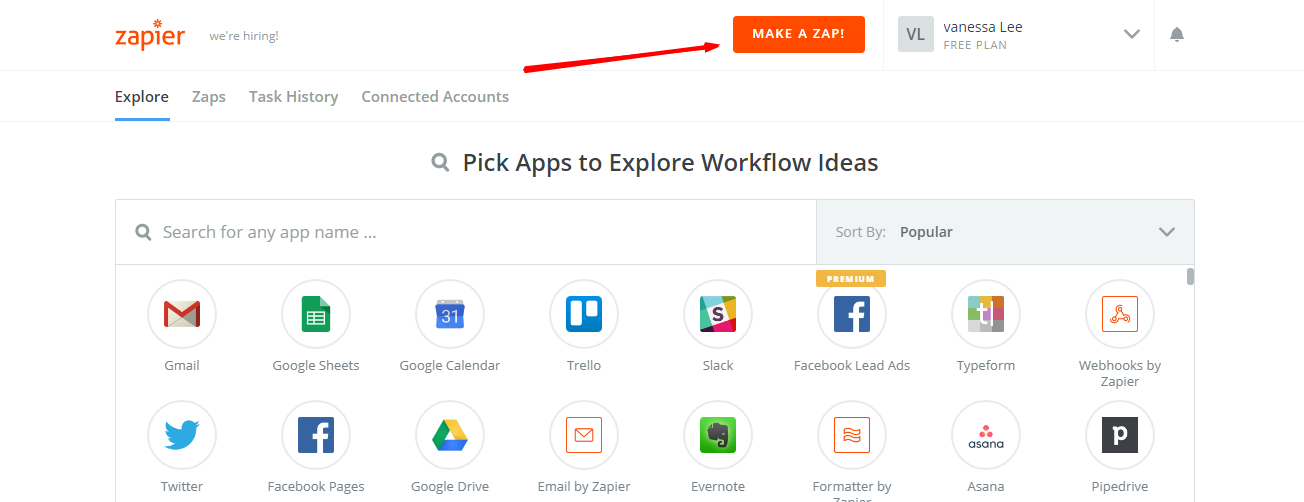
    After you login into Zapier, choose Make a Zap to start integrating.

    Step 3: Integrate Magento 2.x

    In this step, you have to choose Magento 2.x so that Zapier can get all data from your store.

    Now, choose New Customer in select Magento 2.x Trigger field and then click on continue.

    Further, you need to connect an Account in select Magento 2.x account field. In this step, you have to enter full domain, admin username and admin password of your Magento 2 store as shown below:

    After creating your Magento 2.x account, the screen will display as an image below. Then, choose Save + Continue.

    Perfect! You have successfully tested Magento 2.x. for the next step click on continue.

    Step 4: Integrate Kayako

    In Choose an Action App field, select Kayako.

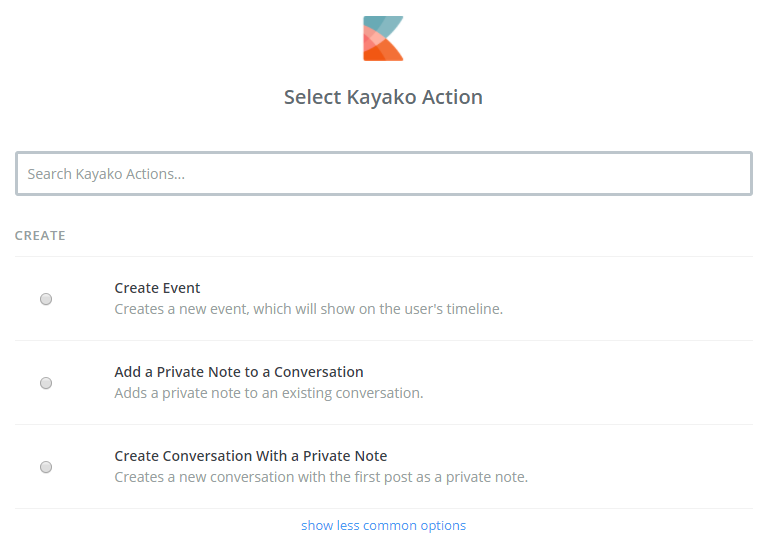
    Then, you have to choose one of the options from the drop-down in the Select Kayako Action field and click on continue.

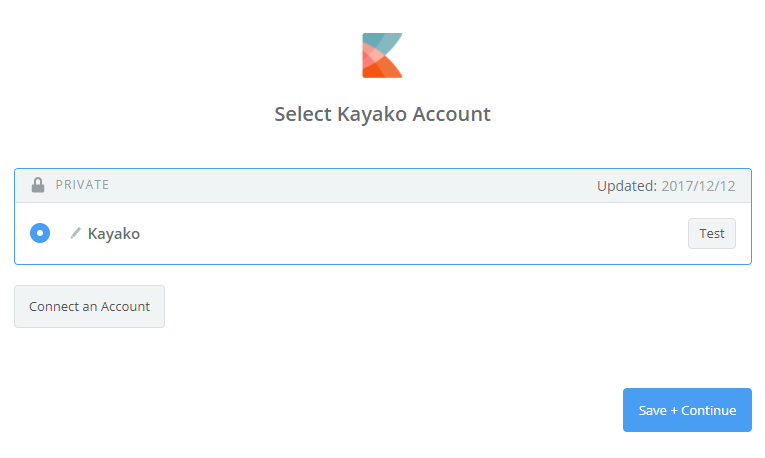
    After that, you have to select Kayako account. Please click on Connect an Account, your screen will show as an image below:

    After you enter Domain, Email and Password to access your Kayako account. Then, click on Yes, continue. this will connect your Kayako account.

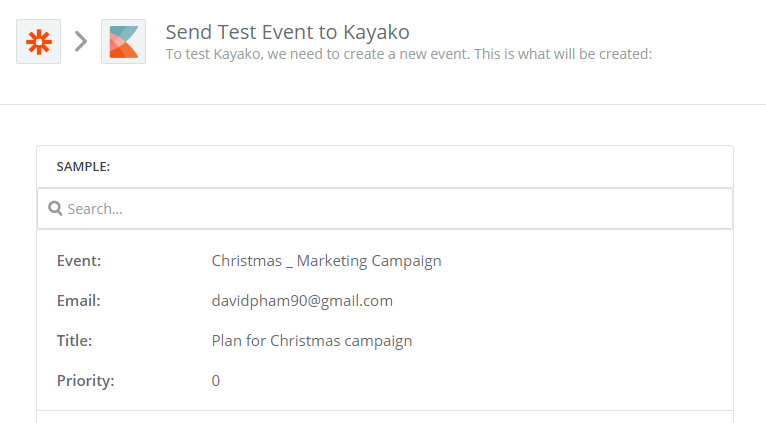
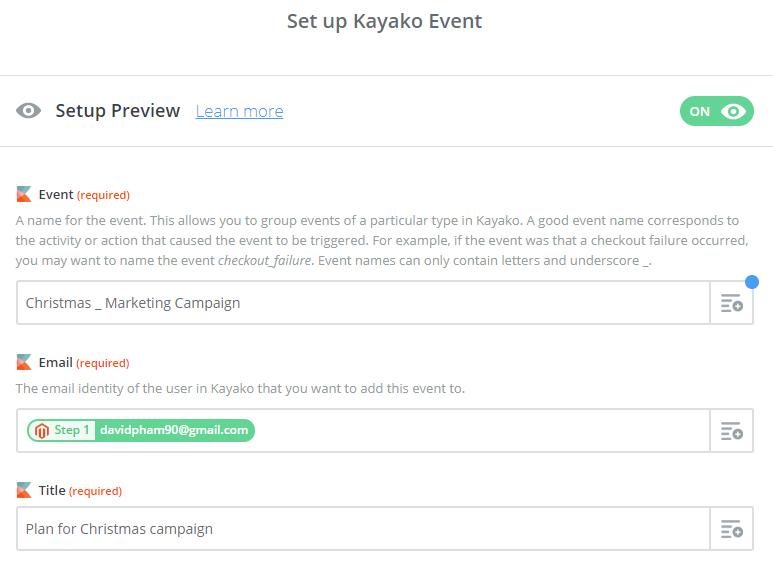
    Here, you have to Set up Kayako Event. So, enter Event as well as the information of customers such as Email that you have created from your Magento 2 store and then click on continue.

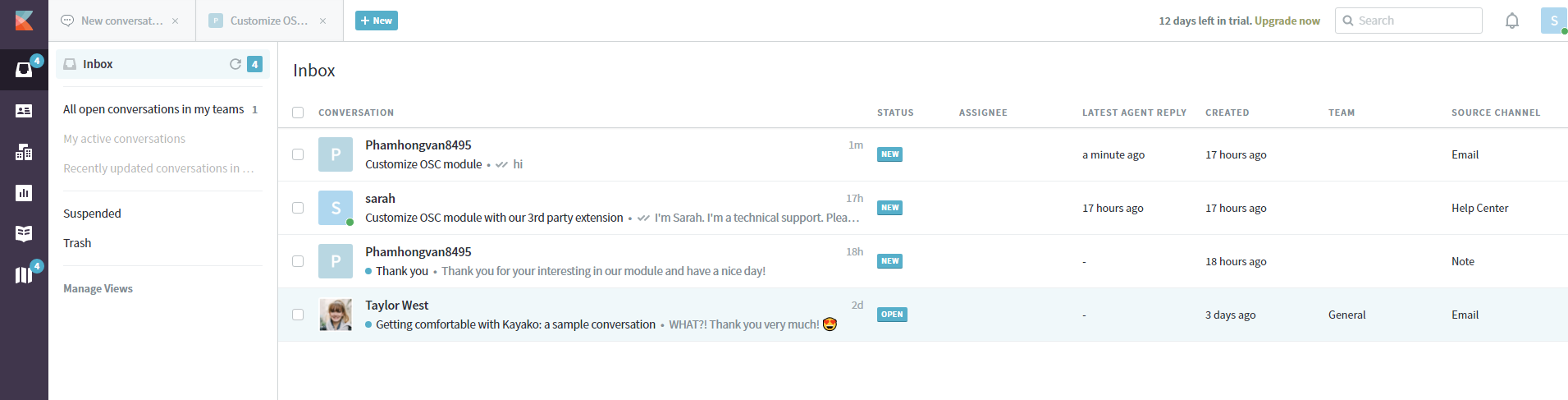
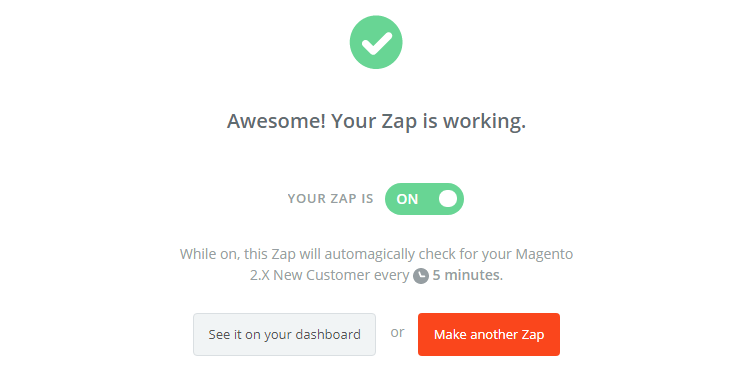
    After completing above steps, congratulations, you have successfully tested Kayako. Finally, choose Finish and set the name your zap to complete.

    From now on, your Zap is working and it will auto-check for your Magento 2.x new customer.

    • Great! You have just done the integration between Kayako and Magento 2.

    Hence, this how the integration is done between Kayako and Magento 2.

    Integrate this software for your Magento 2 store today to provide great customer support.

    How to integrate Magento 2 with OpenERP?


    Open ERP integration with Magento 2 is very important but the question is HOW? Well, we are here to help you with it.

    Below we have mentioned every step in detailed with specific instructions to quickly fix your query.

    Open ERP (Odoo) works best for small and medium businesses with more than 800 powerful modules as is a great customer relationship management software. The tools are very easy and has user friendly interface. It will let you manage and report sales as well as to track all customer behaviours which results in saving your time in managing the store and you can spend more time in creating more marketing strategies and can attract more customers to visit your Ecommerce store.

    How to integrate OpenERP with Magento 2

    To integrate OpenERP

    Step 1: Sign up the Zapier account

    Step 2: Sign up the OpenERP account

    Step 3: Integrate Magento 2.x

    Step 4: Integrate OpenERP for your Magento 2 store via Zapier

    Step 1: Sign up the Zapier account

    Signup Zapier

    Step 2: Sign up the OpenERP account

    Signup OpenERP

    After you login to Zapier, choose Make a Zap to start integrating

    Step 3: Integrate Magento 2.x

    • In this step, select Magento 2.x so that Zapier can get all data from your store.
    • Then, select New Customer in select Magento 2.x Trigger field and click on continue.
    • Now you have to connect an Account in Select Magento 2.x account field. Here in this step, you need to provide your full domin, admin username and admin password of your Magento 2 store as shown in the below image:
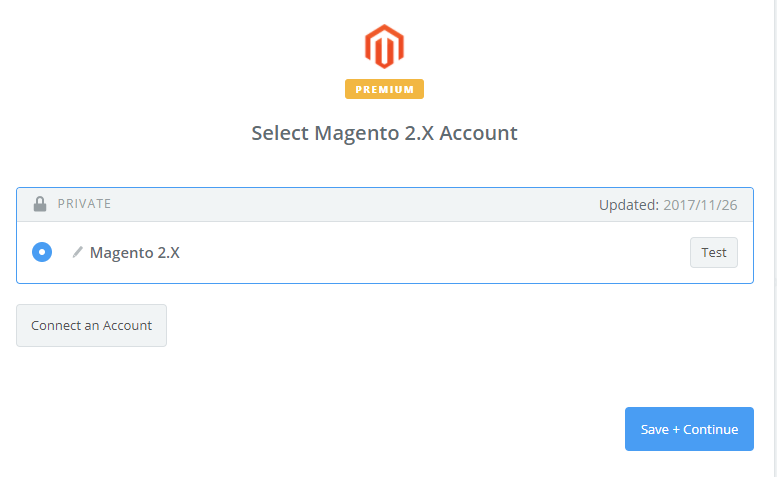
    • After generating your Magento 2.x account, the screen will display as an image below. Then, choose Save + Continue
    • Well done! You have just tested Magento 2.x successfully. Please continue doing the next step.

    Step 4: Integrate OpenERP

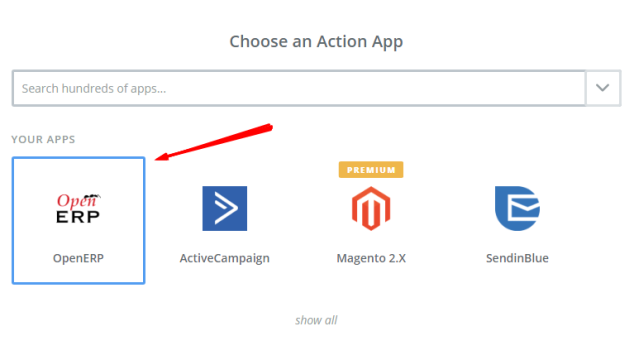
    • Further, Choose an Action App field, choose OpenERP and click on Continue
    • Choose one of the options in the drop-down in the Select OpenERP Action field and then click on continue.
    • Next, you have to Select OpenERP account. Please click on Connect an Account.
    • When you enter Base URL, Username and Password, please click on Yes, continue. And then, you have just connected a Kayako account.
    • After that, you have to Set up OpenERP Lead/Opportunity. Now, please enter all requests as well as the information of customers such as Email, First Name and Last Name that you have created from your Magento 2 store, then choose continue box.
    • After completing above mentioned steps, congratulations, you have tested OpenERP successfully. Finally, choose Finish and set the name your zap to complete.
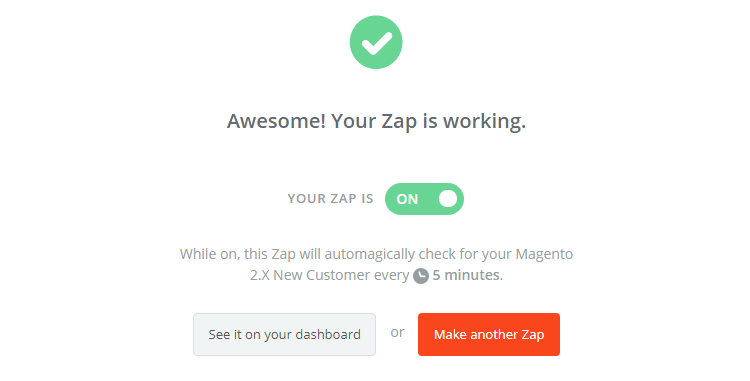
    • From now on, your Zap is working and it will auto-check for your Magento 2.x new customer.
    • Great! you have just done the integration between OpenERP and Magento 2.

    The integration of Magento with OpenERP will become an extremely powerful solution for your online business and together can make your business run more quickly and efficiently due to simplification and automation of the online shop as well as optimization of your Enterprise.

    Fill the form below if you need us to connect your magento store with openerp