We sacrifice by not doing any other technology, so that you get the best of Magento.

We sacrifice by not doing any other technology, so that you get the best of Magento.

    How to integrate Insightly with Magento 2?

    There are number of customer relationship management software on the market; but, we suggest you choose Insightly if your business is really small. It has the best features and you will surely be satisfied with this software.

    We will solve your query on how to integrate Insightly with Magento 2. Please bookmark this article so that you can use it whenever you need.

    In case,

    You don’t know what is Insightly?

    In 2009 a powerful customer relationship management came in the market called insightly which offers great features for your Magento store. It is very easy-to-use software that provides an overview of your business. With this you can keep track of your products. It also improves communication with customers, increases productivity for your business. Being cloud-based software you can access your data anytime, anywhere, even from mobile devices.

    How to integrate Insightly on Magento 2

    To integrate Insightly

    • Step 1: Sign up the Zapier account
    • Step 2: Sign up the Insightly account
    • Step 3: Integrate Magento 2.x
    • Step 4: Integrate Insightly

    Step 1: Sign up the Zapier account

    • Signup Zapier

    Step 2: Sign up the Insightly account

    • Signup Insightly
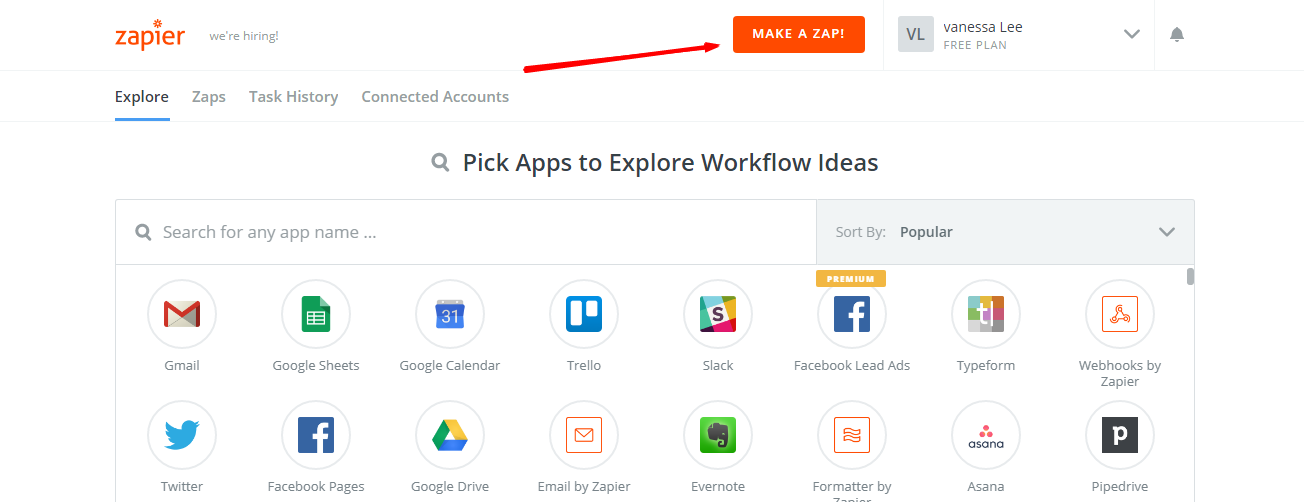
    • After logging into Zapier, choose Make a Zap to start integrating

    Step 3: Integrate Magento 2.x

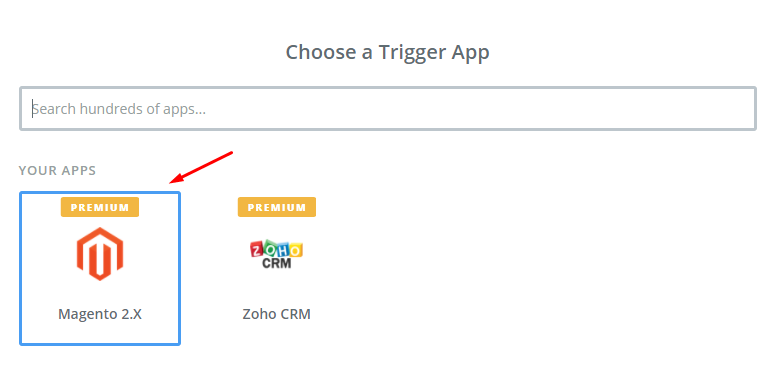
    • In this step, choose Magento 2.x so that Zapier can get all data from your store.
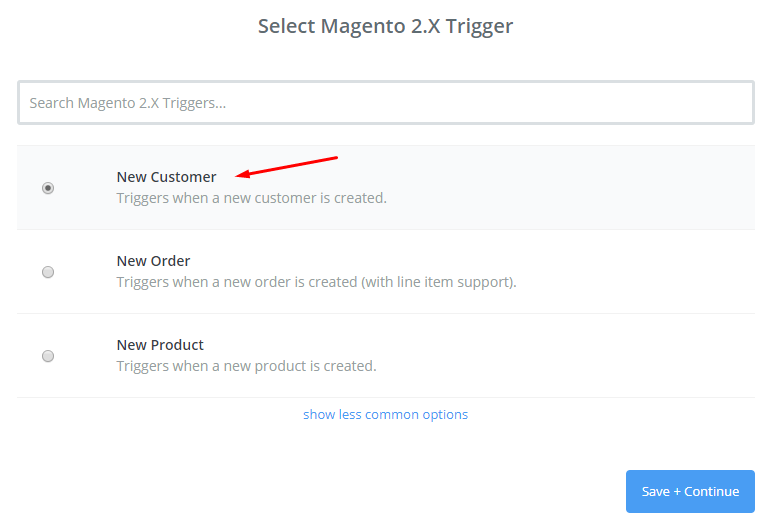
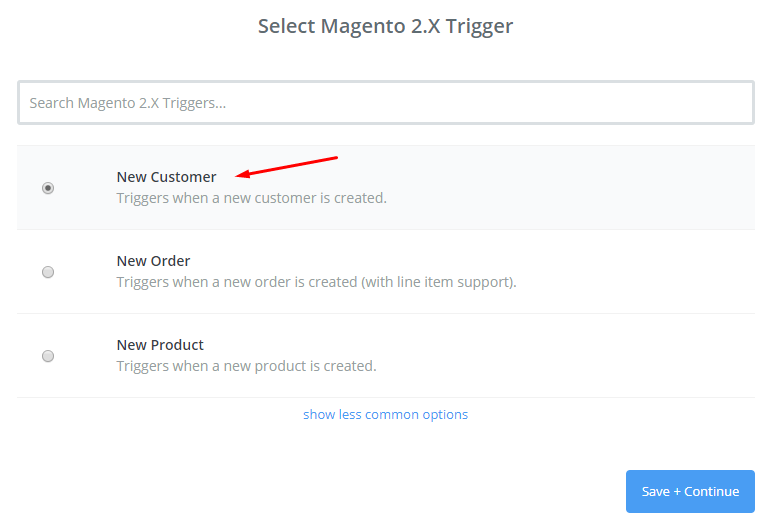
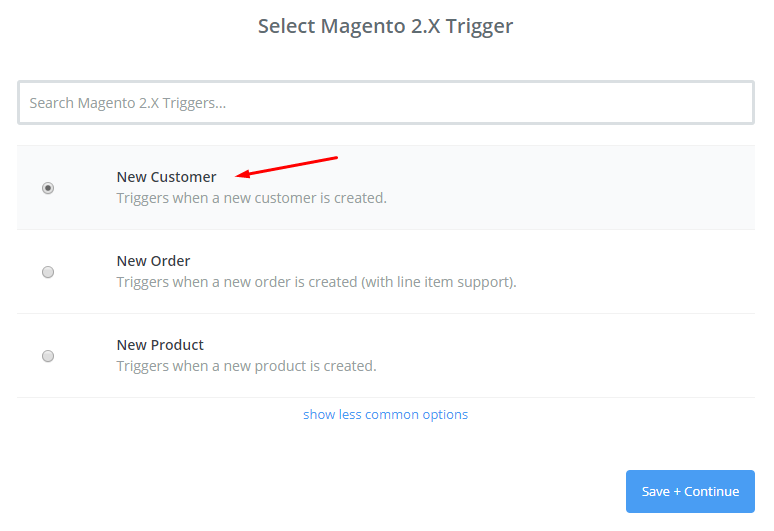
    • Then, choose New Customer in select Magento 2.x Trigger field and then click on save+continue.
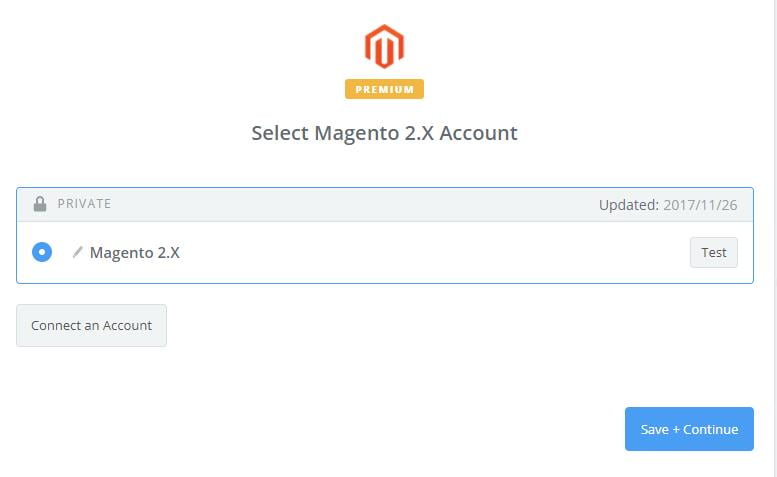
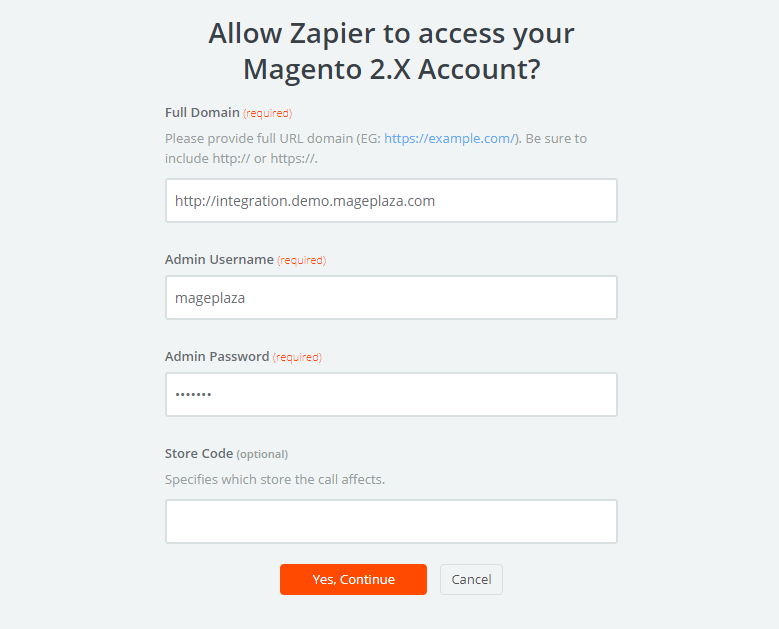
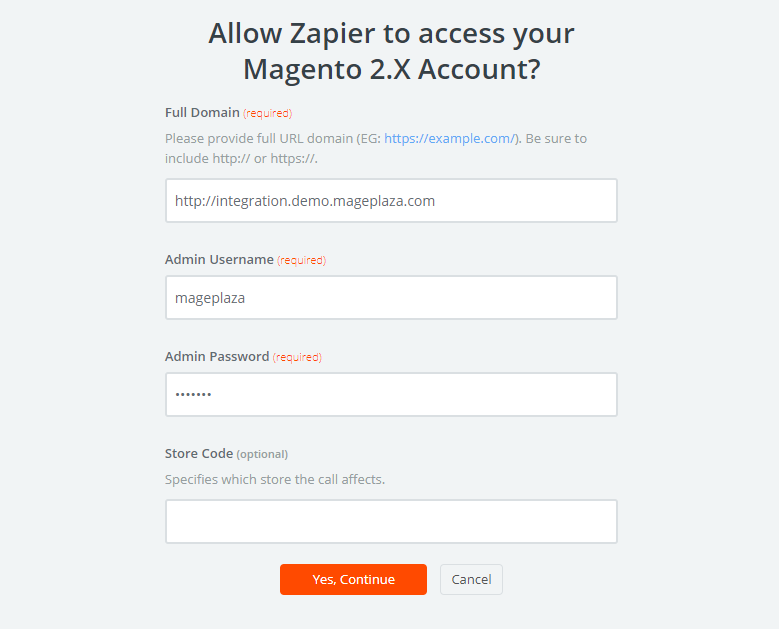
    • After that, you need to connect an Account in select Magento 2.x account field. For this you have to enter full domain, admin username and admin password of your Magento 2 store as the following image:
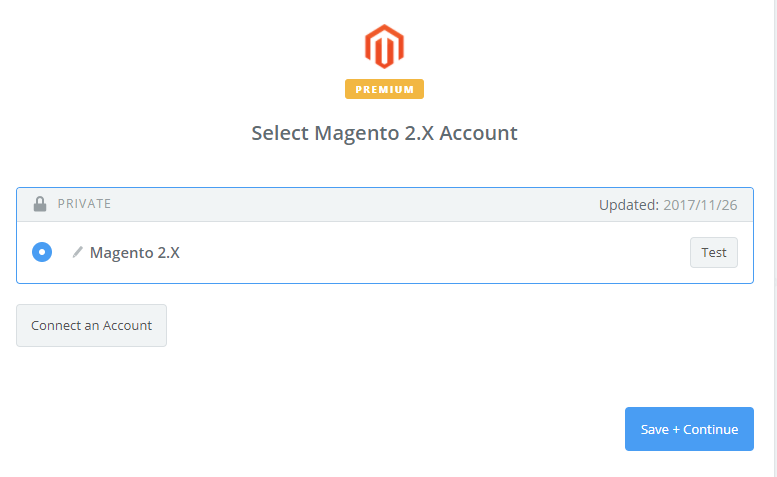
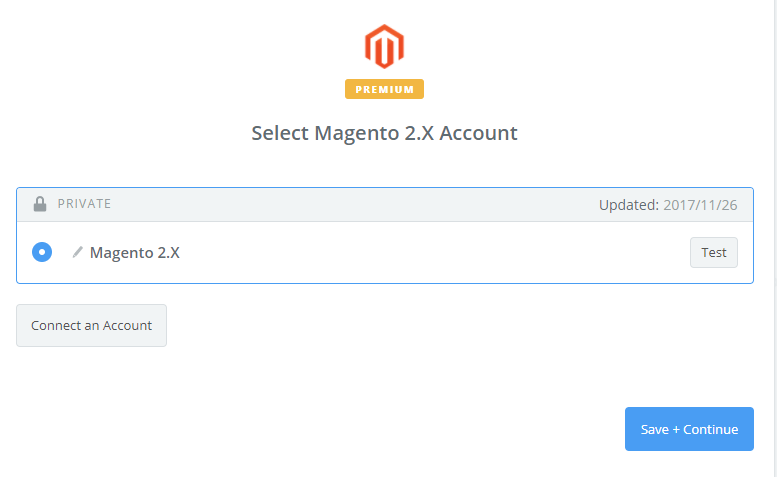
    • After creating your Magento 2.x account, your screen will display as an image below. Then, choose Save + Continue.
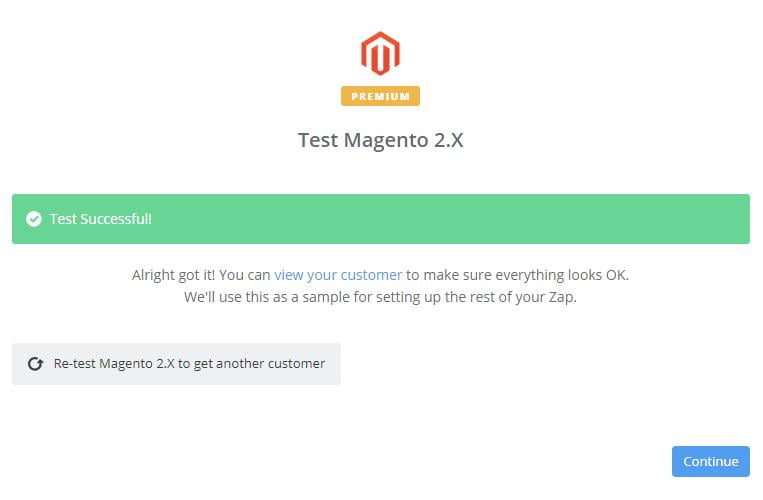
    • Wonderful! Your Magento 2.x is tested successfully. Please continue for the next step.

    Step 4: Integrate Insightly

    • In Choose an Action App field, choose Insightly and then click on Continue.
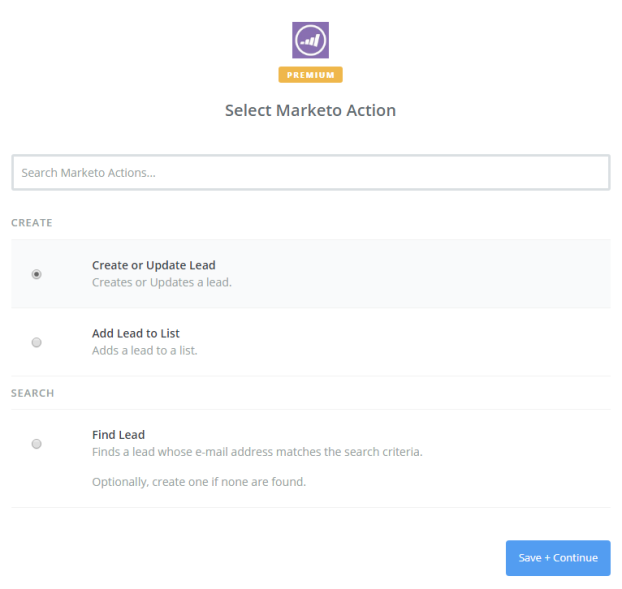
    • In Select Insightly Action field, you have to choose one of the options on this page and click on Continue.
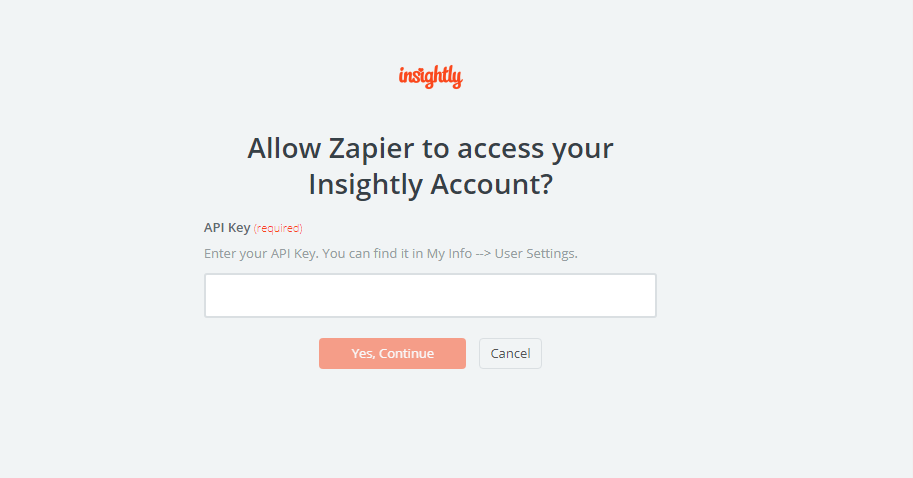
    • Next, you need to select Insightly account. So, click on Connect an Account.Your screen will display as an image below, then, enter your API key from your account and click on Yes, Continue.
    • Next, you have to set up Insightly Contact for that enter all required fields on page, then choose continue box.Great, you have tested Insightly sucessfully. Finally, choose Finish and set the name your zap to complete.
    • Your Zap is working thus it will auto-check for your Magento 2.x for new customer.
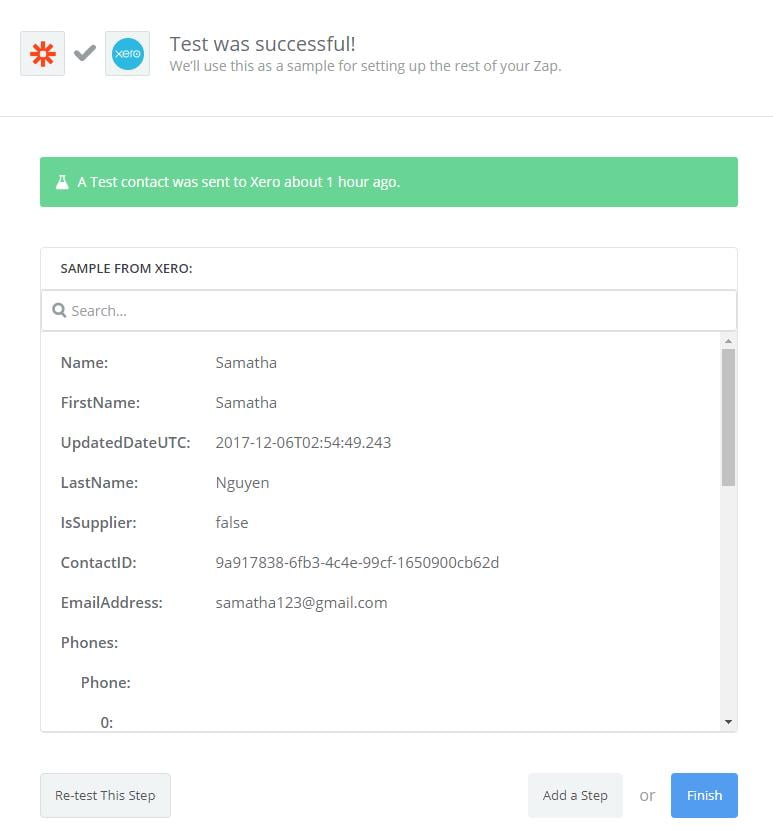
    • Below is the result of the integration.
    This is how the integration is done between Insightly and Magento 2. You really need to try this amazing software to make your business run more efficiently. If you still failed to integrate, then hire Mage Monkeys for the Magento integration service.


    How to integrate Pipedrive with Magento 2?


    Pipedrive is a great sales management solution (CRM) that you should not ignore for your Magento store. It’s very useful for your Magento 2 store and it’s a pity if you have not explored this wonderful CRM yet.

    This tutorial will help you in integrating Pipedrive with your Magento 2.

    What is Pipedrive?

    Pipedrive comes with an in-built, adaptable and user-friendly interface, which helps to attain the detail of sales related activities. This interface has one greater feature to it, that it offers sales reporting tools that can Monitor, Analysis sales data and Create visual reports.

    If you integrate Pipedrive with your store then you will save lot of time in managing your store and that time you can utilize in promoting your brand in Magento market.

    The following is the process to integrate Pipedrive on Magento 2

    To integrate Pipedrive

    • Step 1: Sign up the Zapier account
    • Step 2: Sign up the Pipedrive account
    • Step 3: Integrate Magento 2.x
    • Step 4: Integrate Pipedrive

    Step 1: Sign up the Zapier account

    • Signup with Zapier

    Step 2: Sign up the Pipedrive account

    • Signup with Pipedrive
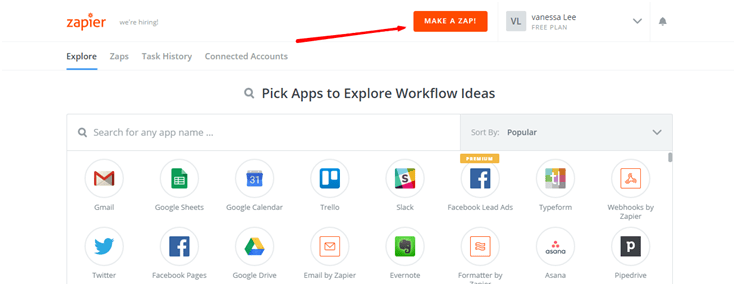
    • When you log in into Zapier, select the option “Make a Zap” to start integration.

    Step 3: Integrate Magento 2.x

    • Selecting the option Magento2.x, will help Zapier to collect all the data from your store.

    • Next select” New Customer” in select Magento 2.x Trigger field and click on save tocontinue.

    • Next step, is to connect an Account in selected Magento 2.x account field. This option requires
      certain detail to be filled which are: Full domain, Admin username and Admin password for the
      Magento 2.xstore. For help images are given below.

    • Once the Magento 2.x accountis created, the screen will display the image given below. select Save
      to Continue


    Magento 2.x issuccessfullyconfirmed. Please continue with the next step.

    Step 4: Integrate Pipedrive

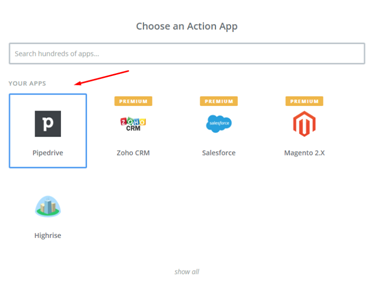
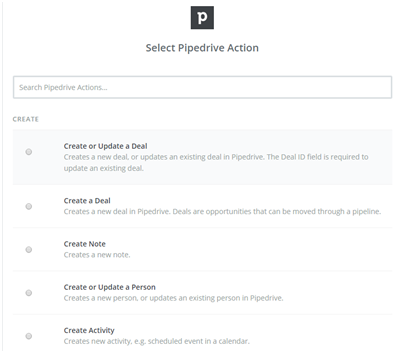
    • You may opt for one the option from Selected Pipedrive action field that you want to create on the
      Pipedrive & click to continue.

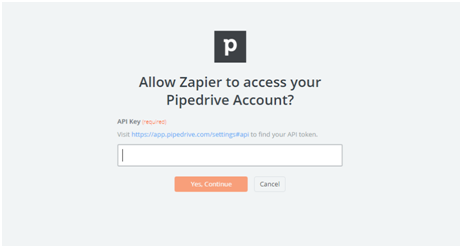
    • Select a Pipedrive account, for this click on connects an account and follow the guide.
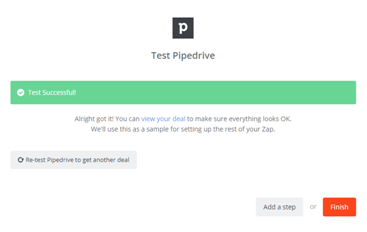
    • The Pipedrive is verified successfully. Now click on finish option and give a name to the Zap to complete the process.

    • Please enter all required information in this page and then click on Save and Continue
    • The next step is to set up Pipedrive Deal and make sure to enter all required fields in this page and click on continue box.

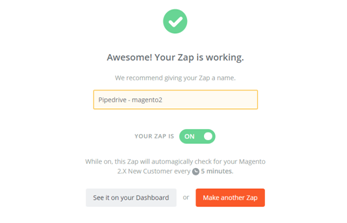
    • Your Zap is working and it will auto-check for your Magento 2.x new customer.

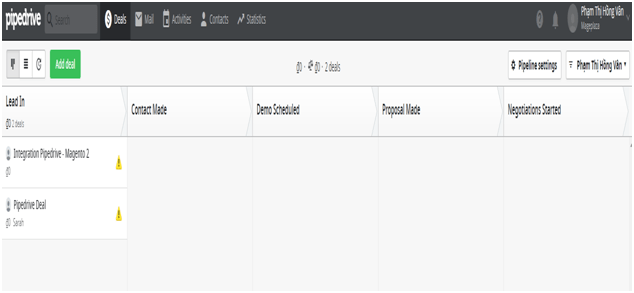
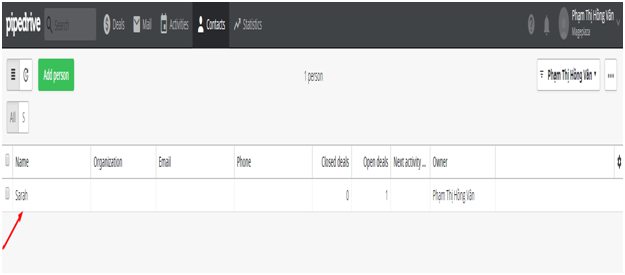
    • Now you can see the contact which you have just created.

    The tutorial on how to integrate Pipedrive with Magento2.x comes to end.

    From now, Pipedrive is a very accessible and manageable application. We strongly recommend to all our merchants to opt for this great application. If you still failed to integrate, then hire Mage Monkeys for the Magento integration service.

    Security and Performance Updates in The New Magento Version

    Get ready to boost up with the latest Magento!

    Magento has been improving every year to become the first choice for the eCommerce platform and the latest release of Magento Commerce 2.2.6 and Magento Open Source 2.2.6 has given a prime focus on performance and security enhancements.

    Between the patch release time, Magento will also fixsingle high-priority issues for keeping your site protected.

    MAGENTO COMMERCE CLOUD

    Multiple updates have been made to the Magento Cloud Tools package which is also known as ECE-tool.The updated feature list includes environment configuration validation, zero-downtime deployments, configuration process, and an improved Docker setup.

    Following are the key highlights of Magento Commerce 2.2.6 and Magento Open Source 2.2.6:

    Performance Enhancements

    It consists of catalog indexing improvements like high-performance layered navigation, improved search & indexing actions and optimized category product indexer logic for Magento instances with multiple websites as well as stores. Overall, 10 significant performance improvements plus product quality enhancements including 100 contributed by the community.

    Better reliability and checkout process

    Still suffering due to the deletion of shipping address on the guest checkout while the checkout page is reloaded several times? Worry not, shopping cart won’t be emptied any more. WithMagento, the various shipping options don’t decrease the speed of order!

    Improved Amazon Pay, dot-mailer and Klarna

    Some of the core improvements include New Consent Insight of dot-mailer, uplifted virtual products handling, as well as Klarna automated onboarding with the link inclusion along with account sign-in options.

    The Features of Magento Shipping include:

    • Click & Collect
    • Reference to Shipment
    • Processed Batch

    Improvements in CAPTCHA

    The error “Provided form does not exist” is solved in the latest version of Magento 2.2.6. Along with this, now, CAPTCHA validation also works pretty well with enhanced Website Restriction setting.

    Sales and Payment Methods Improvements

    There are improvements in Paypal and Braintree payments methods with the release of Magento 2.2.6. Sales enhancements include a solution to disable invoice emails, betterment in order status and the ability to create multiple credit memos in one session.

    Miscellaneous

    Other notable improvements include an elevatedsitemap, themes, shipping, UI, testing, URL Rewrites, and minor code corrections, etc.

    The new version of Magento will definitely bring some noticeable performance improvements to the core Magento code so we strongly recommend that you upgrade to ensure your sites maintain the highest level of security.

    When it comes to the benefits of using the latest features and improved security, it is always good to stay updated! It’s not everyone’s cup of tea to upgrade themselves to the latest Magento 2 version; it’s a complex task. Planning to upgrade your Magento 2 store to Magento 2.2.6? You are always welcomed here.

    How to integrate Salesforce with Magento 2?

    This article is for those who want to incorporate Saleforce to their Magneto 2 store

    Let’s understand what sales force is all about?

    Salesforce is a customer relationship management (CRM) system. It is a very potential means; it has a lot data / information incorporated in it. Data related to customers, market, products and any other information related to sales. Incorporating saleforce to Magento 2 will help in running the business smoothly and effectively. It can administrate customer relationship, activities related to marketing and advertising.

    Saleforce is a flexible platform. Even if one is not a developer it can be easily used by simply dropping and dragging.

    How to integrate Salesforce on Magento 2

    The following are the steps to integrate salesforce on Magneto 2.

    • Step 1: Signing up with Zapier Account
    • Step 2: Signing up with sale force
    • Step 3: Integrate Magento 2.
    • Step 4: Integrate Salesforce so that it can collect all the data from Magneto 2.x store

    Step 1: Sign up the Zapier account

    • Signup Zapier

    Step 2: Sign up the salesforce account

    • Signup Salesforce
    • When you log in into Zapier, select the option “Make a Zap” to start integration.

    Step 3: Integrate Magento 2.x

    • Choose a Trigger App which you want to integrate with the Magaento 2.x store. For reference check the image given below.

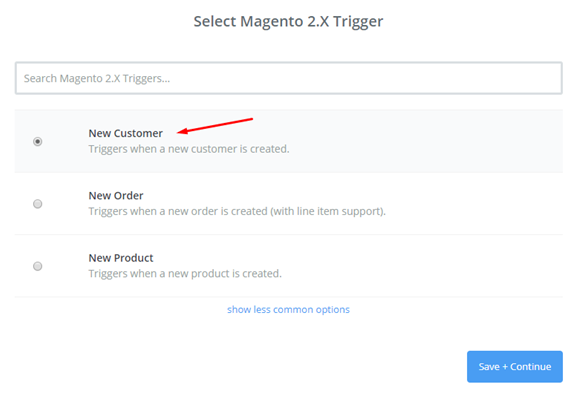
    • The next step is to select Magento 2.x Trigger from the options listed below. Choose an option as per the requirement such as new customer .The save the option to continue to the next step.

    • The next step is to connect Magento 2.x account for the same the URL details are to be filled like the Full Domain, Admin username, and admin password. For better understanding follow the image given below.
    • Once the Magento 2.x account is created the screen will display as below image, select save and continue.

    • Magento 2.x has been successfully generated .Please continue with the next step.

    Step 4: Integrate Salesforce

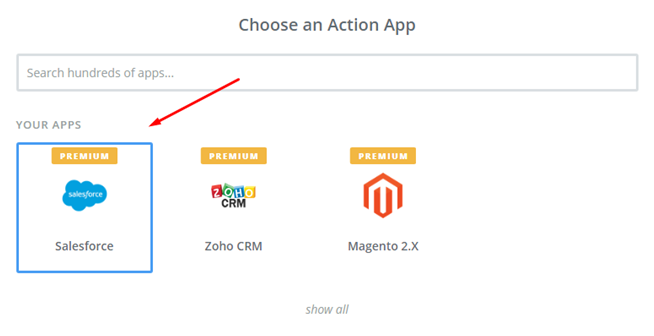
    • In Choose an Action Appfield, select Salesforce

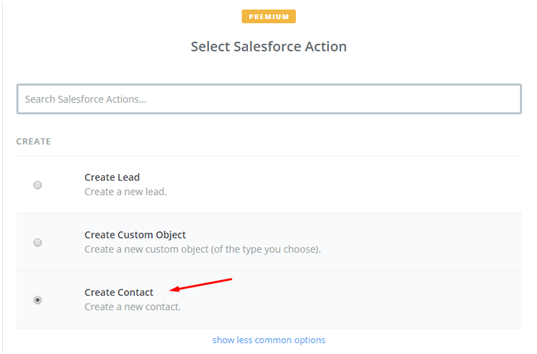
    • Then, select Salesforce action as create contact and then click on Continue:

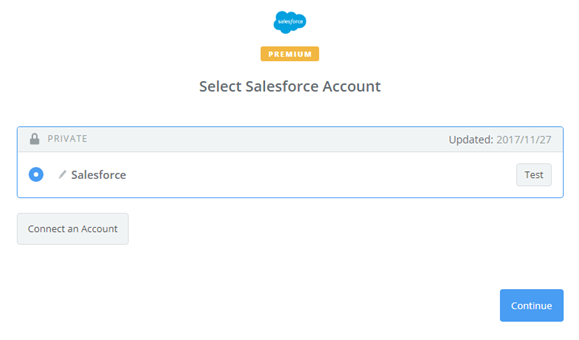
    • Further, you need to select Salesforce account by the way: Click on Connect an Account and follow the guide.

    For creating the template, Salesforce contact has to be set up .All the required data/information has to be entered for the same.

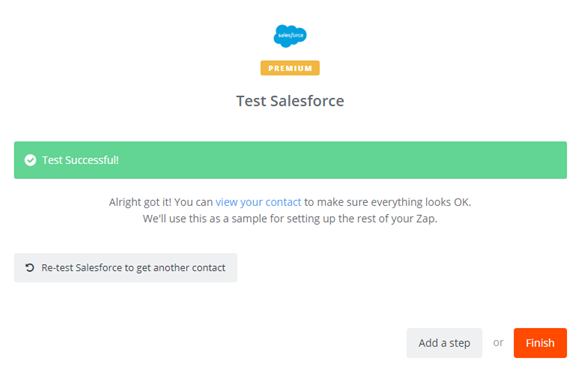
    Salesforce has been successfully integrated .The final step is to set the Zap name to complete the process.

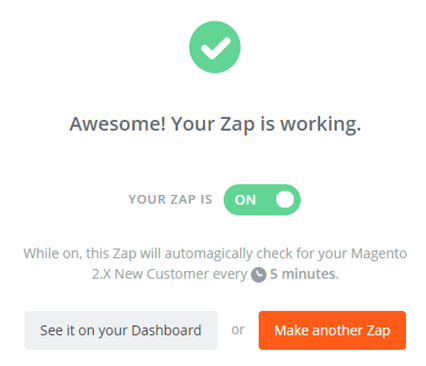
    • Great! From now your Zap will auto-check your Magento 2.x for new customer.

    This is the end of the tutorial on: How to integrate saleforce with Magento 2.x

    If you still failed to integrate, then hire Mage Monkeys for the Magento integration service.
    Selling on Amazon Is Made Easy with Magento 2

    Magento announced its integration with Amazon Marketplace at MagentoLive Australia 2018. The integration gives merchants to simpler and cost-effective and they can manage inventory directly within the Magento commerce admin. As we all know about the popularity of Amazon, the addition to the new sales channel capability is a revert to the trend and it will let merchants capitalize on Amazon’s popularity by growing sales on the third-party marketplace.

    Magento 2.0 Integration with Amazon

    In 2017 round about 45% of online retail sales were made on Amazon marketplace and this year also the amount of sales is expected to grow. Currently, the presence on Amazon plays a huge role for nay merchants and Magento users are not the exception so, no wonder that Magento took the wise decision to implement a native integration with Amazon.

    A recent survey states that 92% of Magento merchants said that they expect to grow their Amazon sales over the next 12 months and of course it is a great opportunity provided by Amazon to the Magento community.

    Merchants are very well aware of using Magento as multi-channel software and of third-party modules or extensions so Magento is providing their users a native tool for integration with Amazon.

    Moreover, there are numerous new features planned which will benefit merchants:

    • The support of all Amazon’s marketplaces worldwide means not only in North America but also in Europe and Asia-Pacific including the Amazon Business marketplace.
    • With the centralized order management tool now you can get all the information about the orders under one roof.
    • The product listing across all Amazon’s marketplaces will be done automatically.
    • You can have access to profound reviews of the competitors’ prices.
    • Now you get to access the unique tools that aim to enhance the product visibility and increase sales.
    • The access to the Amazon Strikethrough Price.
    • Leverage Amazon’s extensive catalog data for storefront enhancements like advanced search, filtered navigation, and promotional rules.
    • With the help of advanced marketing tools, you can manage listings across marketplaces which will increase sales by enhancing a listing’s urgency.

    The whole idea behind the native Magento integration with Amazon is designed to assist merchants to sell their products fast, easy and cost-effectively. Magento streamlines multi-channel retailing, so now merchants will have more time for improving their brands.

    However, only Magento 2 users will be able to make use of this new feature.

    How to Integrate Sendinblue with Magento 2?

    SendinBlue is a great platform which offers innovative solutions to help your business sales go up. With the help of its tool you can create marketing campaigns, transactional messages, and quick email transactions and so on in the blink of an eye. Further, this tool helps manage smart contacts.

    The integration with modules will let you handle the contact efficiently such as entering contacts, sorting lists, filtering, etc. it’s an easy-to-use marketing tool and extremely user-friendly interface. You can use it even if you are a beginner.

    It is essential to have a good knowledge of a tool like SendinBlue and if you face any problem with integration then we are here to show you how to integrate SendinBlue with Magento

    How to integrate SendinBlue with Magento 2

    To integrate SendinBlue

    • Step 1: Sign up the Zapier account
    • Step 2: Sign up the SendinBlue account
    • Step 3: Integrate Magento 2.x
    • Step 4: Integrate SendinBlue with your Magento 2 store via Zapier

    Step 1: Sign up the Zapier account

    • Signup Zapier

    Step 2: Sign up the ActiveCampaign account

    • Signup SendinBlue
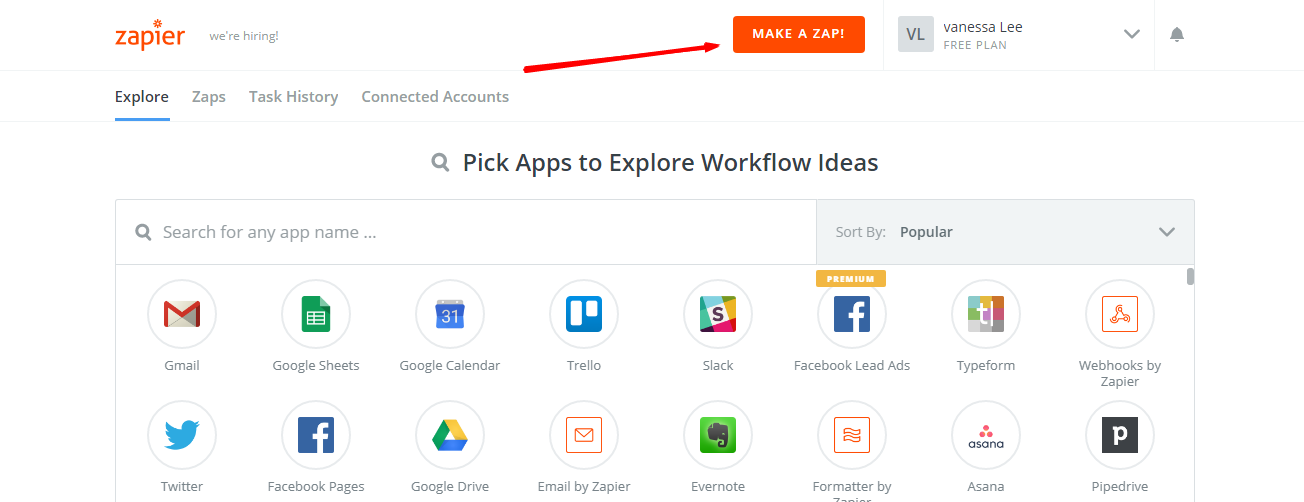
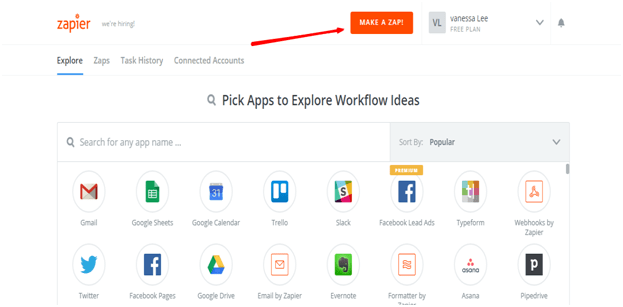
    • After you have logged into Zapier, choose Make a Zap to start integrating

    Step 3: Integrate Magento 2.x

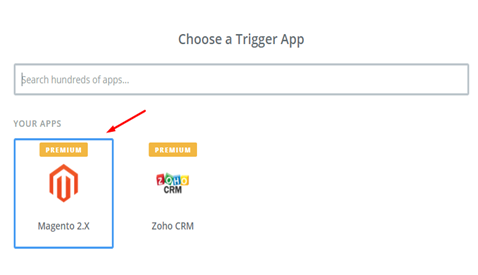
    In this step, choose Magento 2.x so that Zapier can get all data from your store.

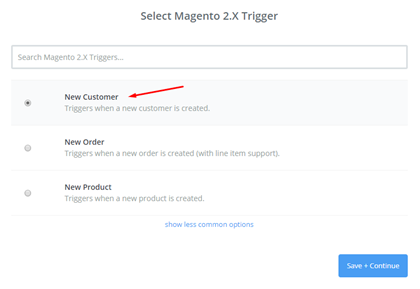
    Now, select New Customer in select Magento 2.x Trigger field and click on Save+continue

    Here, you have to connect an Account in select Magento 2.x account field. In this step, you need to enter a full domain, admin username and admin password of your Magento 2 store as shown below:

    After creating your Magento 2.x account, the screen will display as an image below. Then, choose Save + Continue.

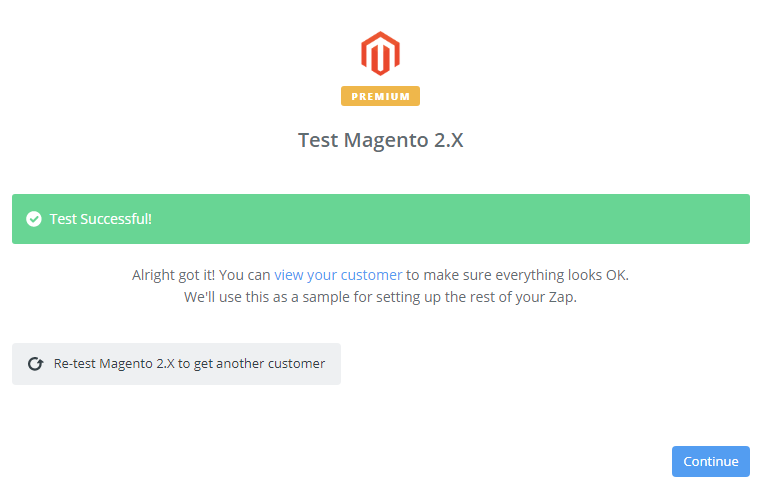
    Awesome! You have just tested Magento 2.x successfully. Now click on continue for the next step

    Step 4: Integrate SendinBlue

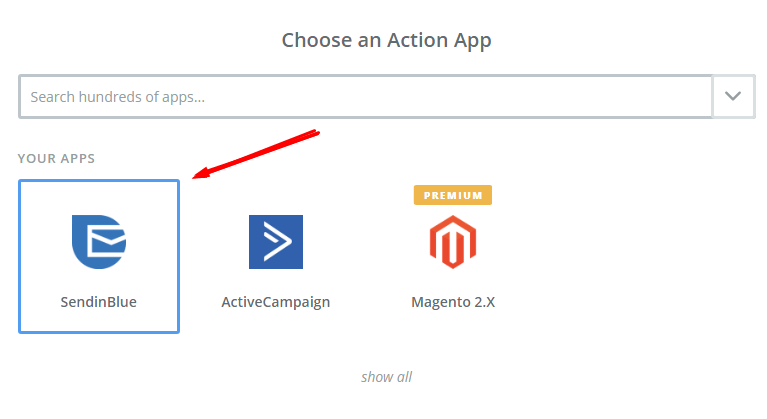
    Next, In Choose an Action App field, choose SendinBlue and click on Continue.

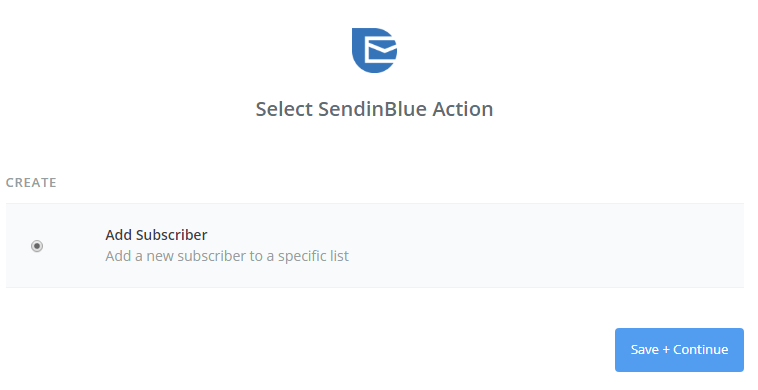
    Then, choose Add Subscriber in the Select SendinBlue Action field and click on continue.

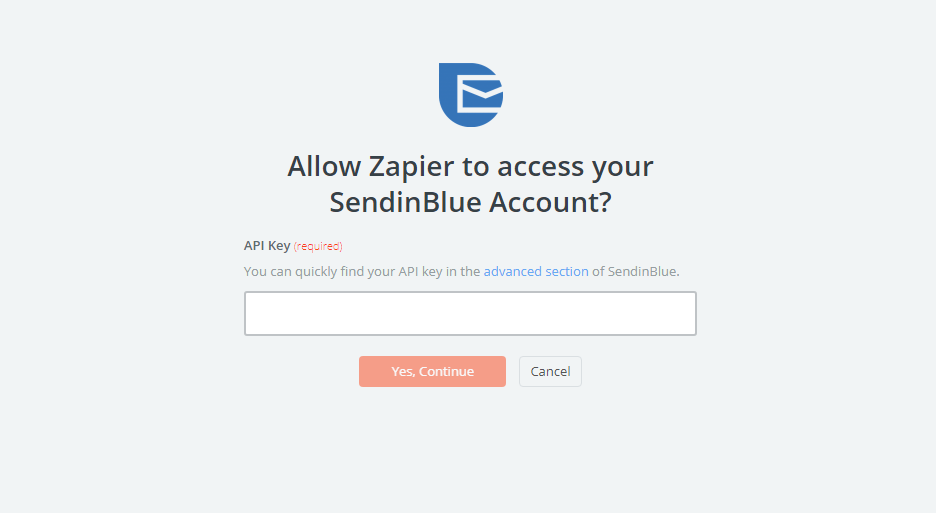
    Next, you need to Select SendinBlue account and click on Connect an Account. Then, your screen will display an image below:

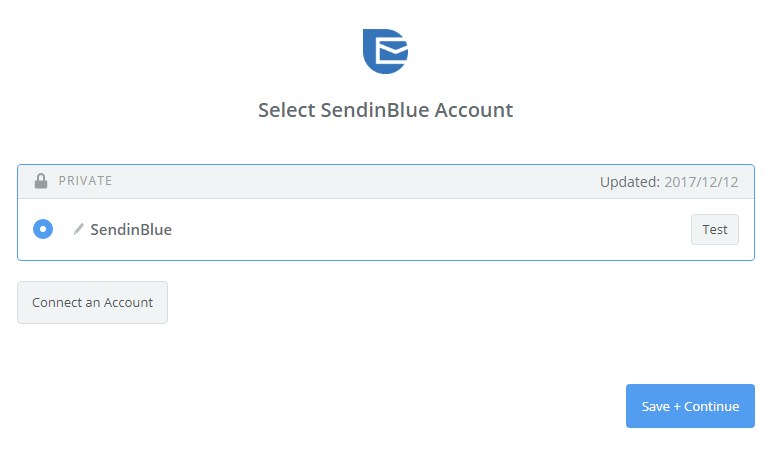
    Now, you need to look for API Key in your SendinBlue account. After entering API Key, your PC will show the account that you have just created. Now, click on Continue.

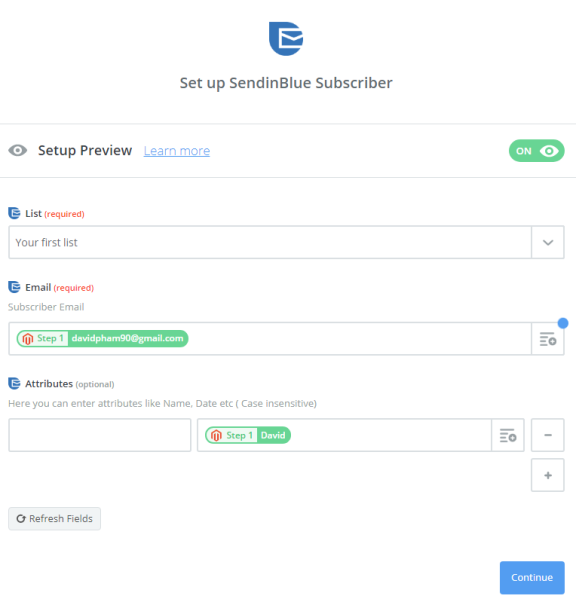
    Next, you must Set up SendinBlue Subscribe for that you have to enter all requirement as well as the information of customers such as Email that you have created from your Magento 2 store, then choose continue box.

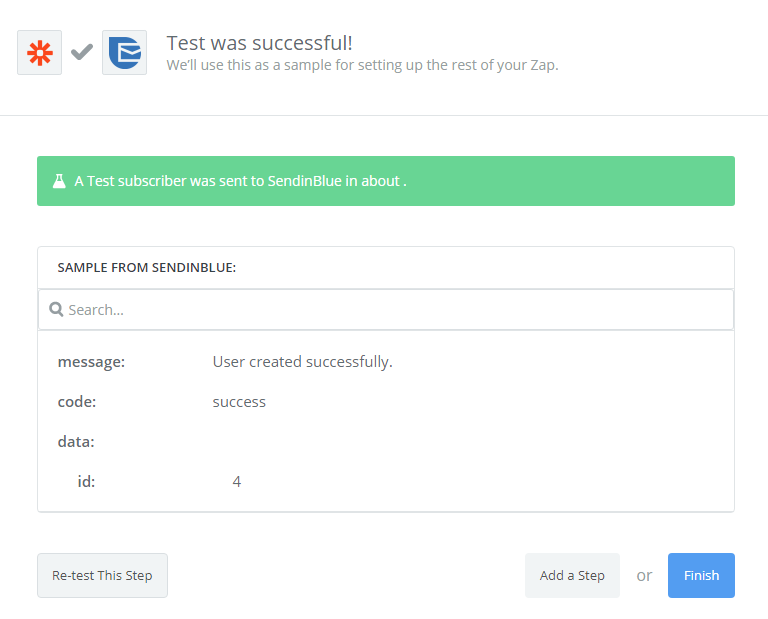
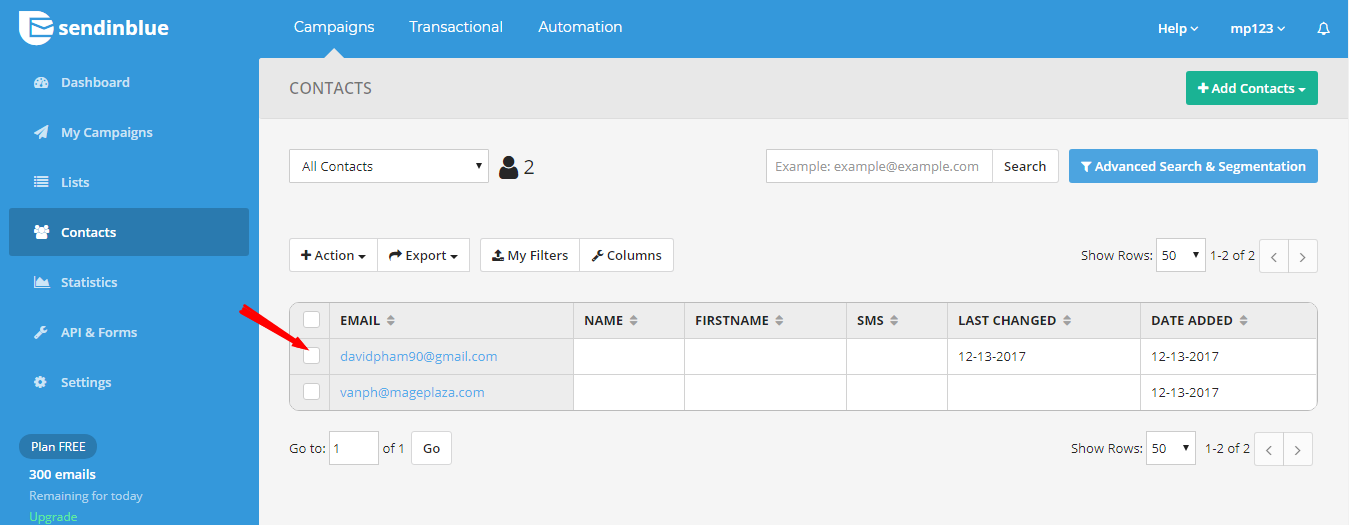
    Great! The contact has been sent to your SendinBlue account.

    Congratulations, you have tested SendinBlue successfully. Finally, choose Finish and set the name your zap to complete.

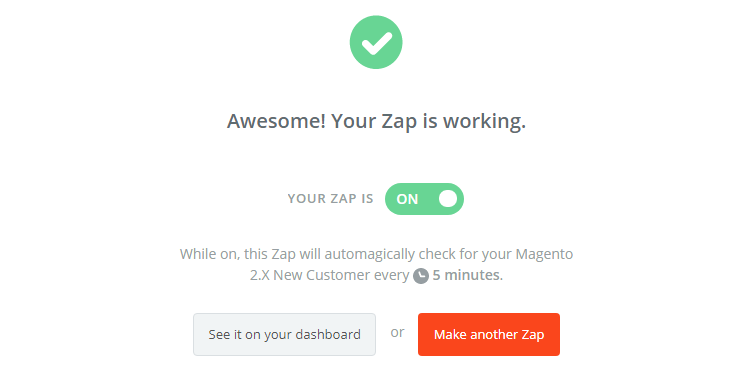
    So, Your Zap is working and now it will auto-check for your Magento 2.x new customer.

    Finally, you have just finished the integration SendinBlue with Magento 2 via Zapier.

    It’s time for you to try integration between SendinBlue and your Magento 2 store. If you still failed to integrate, then hire Mage Monkeys for the Magento integration service.
    How Translation Mechanism works in Magento 2?

    Now it is much easier to configure Magento 2 translation. All thanks to its continous updated dictionaries, the localization and customization of Magento. Moreover it has been enhanced with code coupling and duplication has decreased to improve performance of the translation. All you have to do is to adjust your store with multiple languages for different regions and markets to make the most of this effective feature.

    Translation file is located in i18n folder.

    This is example of MageMonkeys

    CSv file is located at: app/code/Magemonkeys/Osc/i18n/en_US.csv

    Let us show you how to translate string from English to other language.

    Let’s take an example of translate to es-ES

    Namely, we need the following changes: Place Order => Realizar pedido

    Now you have to create a new file app/code/Magemonkeys/Osc/i18n/es-ES.csv

    Find string Place Order on the second columns and replace with Realizar pedido

    After that, you save the save on your server. If you edit it locally, you should upload to your website.

    Then Flush Magento cache

    Outcome:

    Magento 2 has an improved translation mechanism with less abstractions and reduced dependencies. It gives an overall better experience for developer and translator, and also empowers them to create a better user experience than with its predecessor.

    How to Integrate Activecampaign with Magento 2

    There are number of business owners in the field of Ecommerce face problem when it comes to integration between ActiveCampaign and Magento 2. So we thought to solve your query and explain you in detail in our blog.

    But first…

    What is ActiveCampaign?

    A friendly platform for business owners who need to stay in touch with their customers as well as attract more new customers to their store. This tool lets you to create beautiful and attractive emails, use social media and apply automated marketing techniques with CRM functionality.

    Moreover, this solution provides businesses to create automated marketing processes, and automatically watch customer behaviour. ActiveCampaign deserves a top solution for creating marketing campaigns for Magento 2 stores.

    Now let’s understand the integration.

    How to integrate ActiveCampaign with Magento 2

    To integrate ActiveCampaign

    • Step 1: Sign up the Zapier account
    • Step 2: Sign up the ActiveCampaign account
    • Step 3: Integrate Magento 2.x
    • Step 4: Integrate ActiveCampaign for your Magento 2 store via Zapier

    Step 1: Sign up the Zapier account

    • Signup Zapier

    Step 2: Sign up the ActiveCampaign account

    • Signup ActiveCampaign

    When you log in into Zapier, choose Make a Zap   to start integrating

    Step 3: Integrate Magento 2.x

    In this step, choose Magento 2.x   so that Zapier can get all data from your store.

    Then, opt for New Customer   in select Magento 2.x Trigger field and then click on Save+continue.

    After that, here you have to connect an Account   in select Magento 2.x account   field. In this step, please enter full domain, admin username and admin password of your Magento 2 store as the following image:

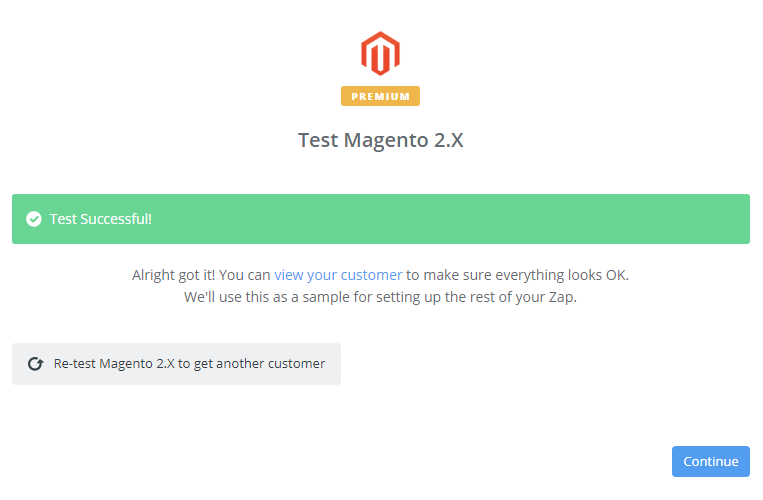
    After creating your Magento 2.x account, the screen will display as shown in the image below. Then, choose Save + Continue.

    Great! You have just tested Magento 2.x successfully. Now click on continue for the next step.

    Step 4: Integrate ActiveCampaign

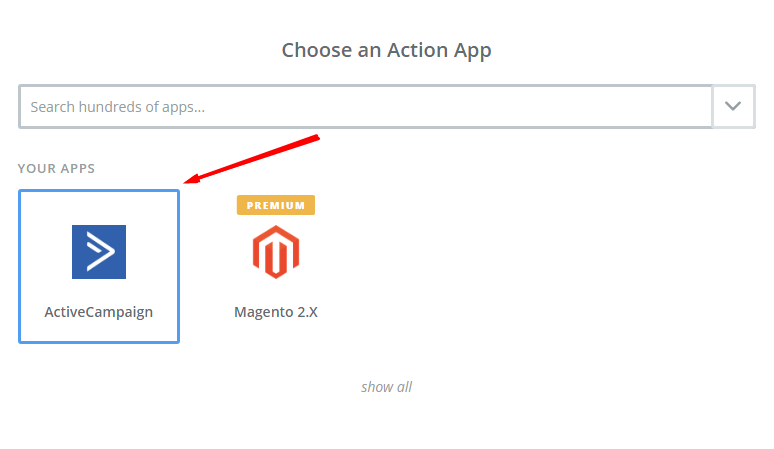
    In Choose an Action App field, choose ActiveCampaign  and click on Continue.

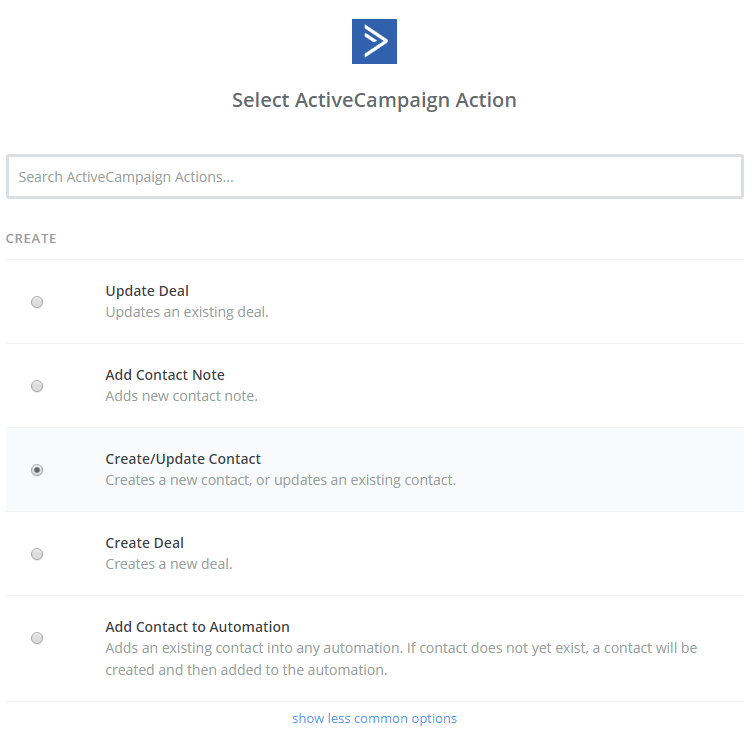
    Further, you need to choose one of the options in the drop-down list of Select ActiveCampaign Actionfield.  After selecting, click on continue.

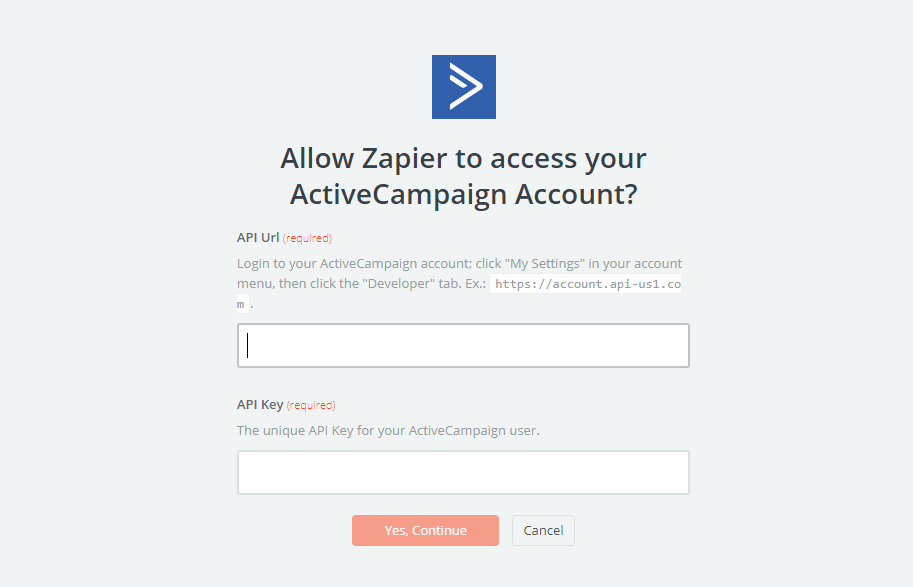
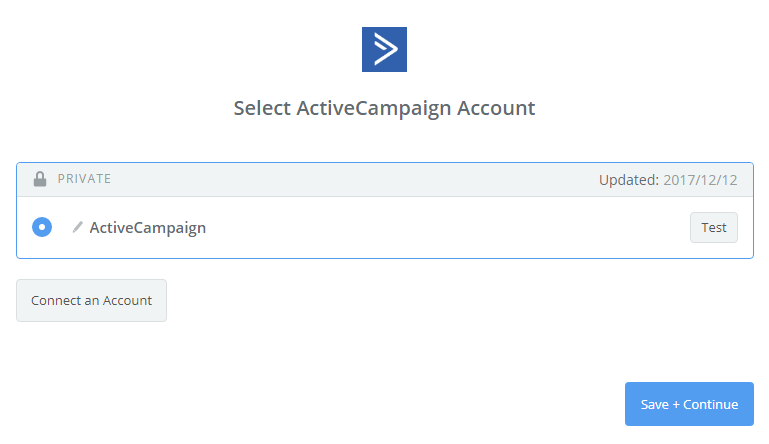
    Next, you have to select ActiveCampaign account.  Please click on Connect an Account. Then, your screen will display the image below:

    Here you have to login to your ActiveCampaign account.  Then, click on My Settings in your account menu and choose developer to find API URL as well as API Key. After you have just entered, your PC will show the account that you have just created. Now, click on Continue.

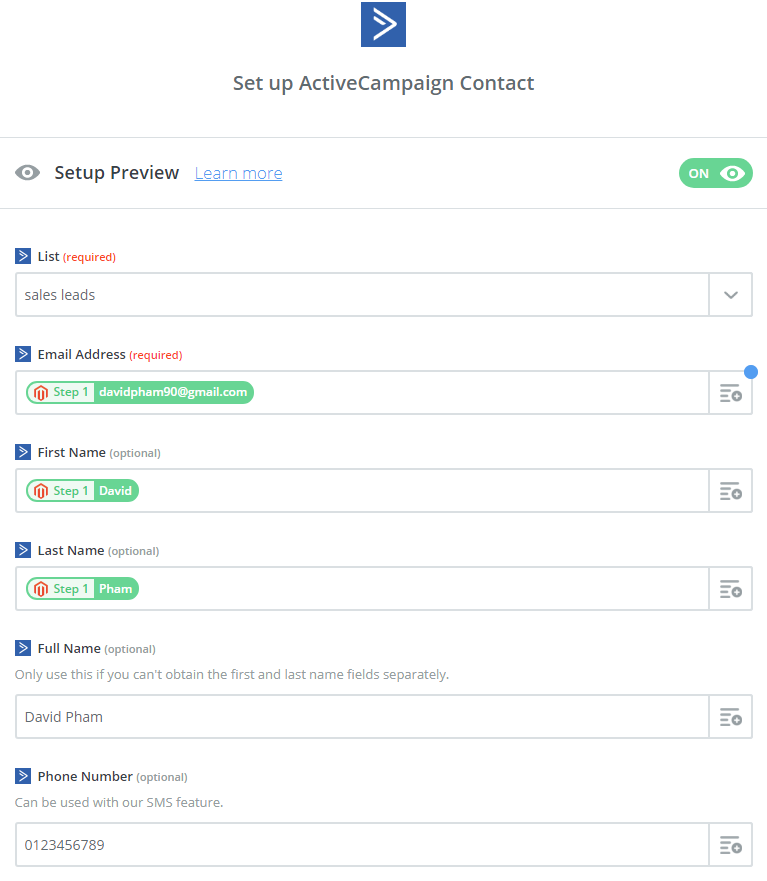
    Next, you must Set up ActiveCampaign Contact.  Enter all requirement as well as the information of customers like Email Address, First Name, Last Name that you have created from your Magento 2 store, then choose continue box.

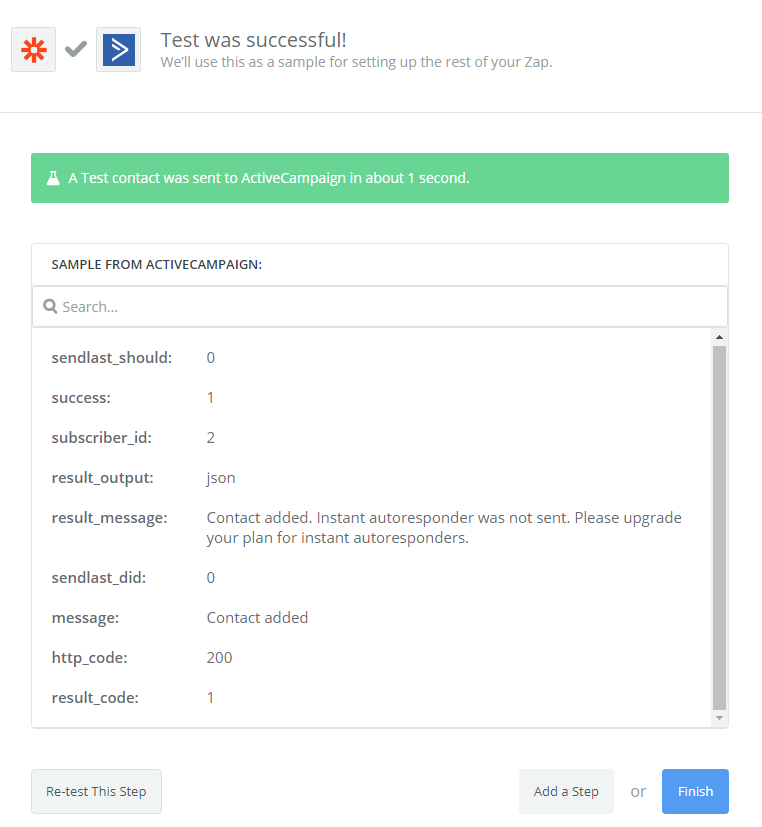
    Great! The contact has been sent to your ActiveCampaign account.

    Congratulations, you have tested ActiveCampaign  successfully. Now click on Finish and set the name your zap to complete.

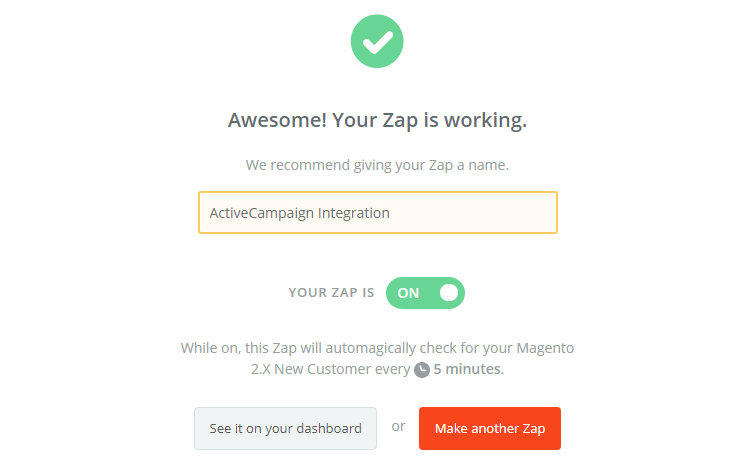
    This is how your Zap will work and it will auto-check for your Magento 2.x new customer.

    This is how the integration of Activecampaign with Magento 2 via Zapier is done.

    Now it’s time for you to try integrating it with your Magento 2 store! If you still failed to integrate, then hire Mage Monkeys for the Magento integration service.
    How To Integrate Freeagent With Magento 2


    We all need easy to use software to handle our finance and what’s better than FreeAgent. So, in this blog we will explore how to integrate FreeAgent with Magento 2. Our steps will make your integration easier.

    What is FreeAgent?

    It’s a financial management application which is used by more than 35,000 small business owners and freelancers in more than 80 countries. If you are not an accountant or a first-time user, you will find this software easy to use because of its user-friendly interface. In addition, FreeAgent can also do some work on time tracking and project management, which will save your significant amount of money for buying additional software.
    FreeAgent comes with great features and they are:

    You can link it to all your bank accounts and integrate seamlessly with other 3rd party software.
    FreeAgent will definitely increase the effectiveness of your business dealings. So that, you have great strategies for your Magento 2 store.

    Now let’s understand the integration of FreeAgent with Magento 2!

    To integrate FreeAgent

    • Step 1: Sign up the Zapier account
    • Step 2: Sign up the FreeAgent account
    • Step 3: Integrate Magento 2.x
    • Step 4: Integrate FreeAgent for your Magento 2 store

    Step 1: Sign up the Zapier account

    • Signup Zapier

    Step 2: Sign up the FreeAgent account

    • Signup FreeAgent

    When you log in into Zapier, choose Make a Zap  to start integration

    Step 3: Integrate Magento 2.x

    • Here you have to choose Magento 2.x  so that Zapier can get all data from your store.
    • Then, choose New Customer  in select Magento 2.x Trigger field and then click on continue.
    • After that, you need to connect an Account in   select Magento 2.x account  field. In this step, you have to enter full domain, admin username and admin password of your Magento 2 store as the following image:
    • After creating your Magento 2.x account, your screen will display as an image given below. Then, click on Save + Continue.

    Great! You have just tested Magento 2.x successfully. Please enter continue  doing the next step.

    Step 4: Integrate FreeAgent

    • In Choose an Action App field, choose FreeAgent and click on Continue.
    • Then, you need to choose one of the options in the drop-down list of Select FreeAgent Action  field. After selecting, click on continue.
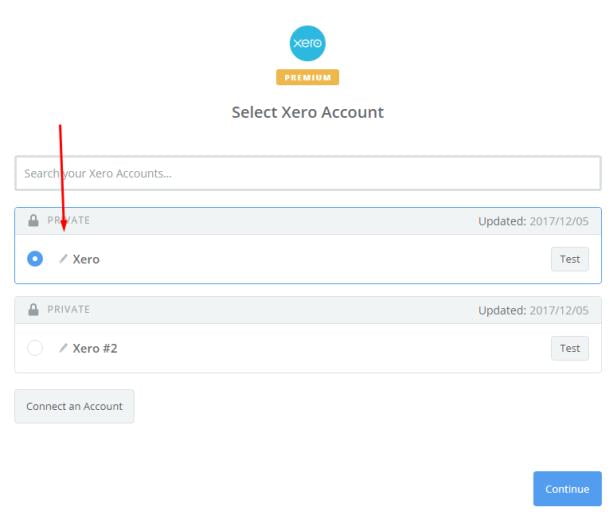
    • Next, you have to Select FreeAgent account  and then click on Connect an Account.  Further, your screen will display the image below:

    In this step, sign in your account and click on Approve App!  box. Immediately, your PC will show the following page for you to approve access.

    Now, this is the account that you have just created. Please click on Save + Continue.

    • Now, you must Set up FreeAgent Contact for that enter all information of customers such as First Name, Last Name, Email which you have created from your Magento 2 store, then chick on continue.
    • Perfect, your FreeAgent is tested successfully. Hence, now choose Finish and set the name your zap to complete.
    • Your Zap is working and it will auto-check for your Magento 2.x new customer.
    • So, this is how we integrate FreeAgent with Magento 2 via Zapier.

    It’s time for you to integrate FreeAgent with your store. Follow our easy steps now to handle your finance smoothly. Still looking for help to integrate FreeAgent with Magento? Contact Mage Monkeys today.

    How To Integrate Zendesk With Magento 2?

    If you want a great solution to easily reach your customers then you must have Zendesk but what is Zendesk? Many of us are not fully aware of this software and about its integration with Magento 2. Therefore in this post, we will understand Zendesk in detail

    What is Zendesk?

    Zendesk is the most recommendable customer care software. It is very easy to deploy and it is used by more than 40,000 organizations around the globe. It increases the productivity for your Magento store by reducing the cost and also it brings satisfaction to your customers. Zendesk provides integration support channels like Email, chat, web and social media.

    Moreover, it is easy to use and attracts customers with an eye-catching interface and interesting icons. So choose Zendesk. It will definitely bring a new breeze to your store.

    Now let’s learn:

    How to integrate Zendesk with Magento 2

    To integrate Zendesk

    • Step 1: Sign up the Zapier account
    • Step 2: Sign up the Zendesk account
    • Step 3: Integrate Magento 2.x
    • Step 4: Integrate Zendesk for your Magento 2 store

    Step 1: Sign up the Zapier account

    • Signup Zapier

    Step 2: Sign up the Zendesk account

    • Signup Zendesk

    After you log in into Zapier, choose Make a Zap  to start integrating

    Step 3: Integrate Magento 2.x

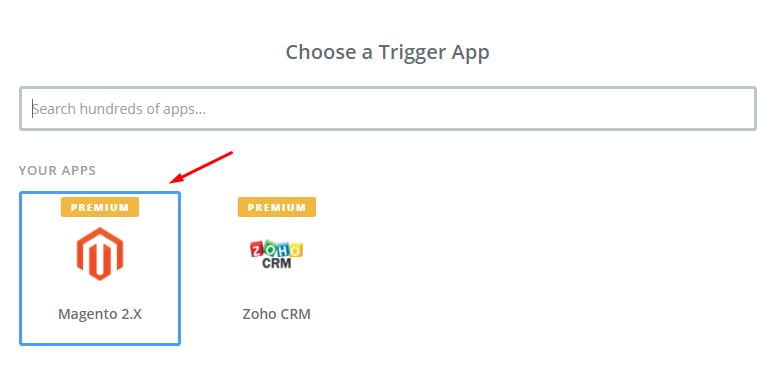
    In this step, choose Magento 2.x so that Zapier can get all data from your store.

    Here, choose New Customer  in select Magento 2.x Trigger field and then click on Save+continue.

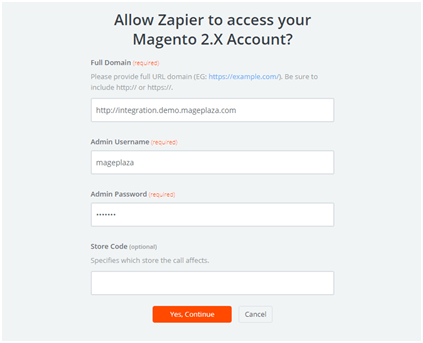
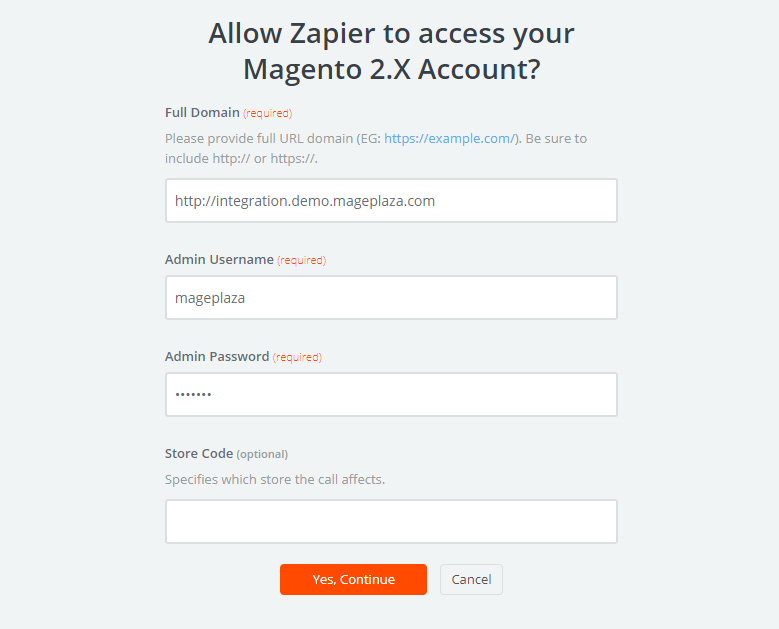
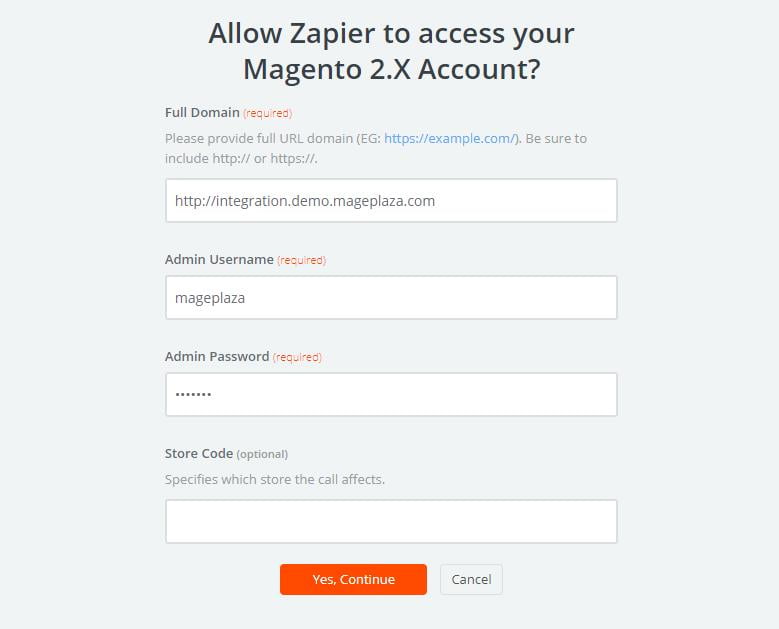
    Now here you have to connect an Account  in select Magento 2.x account  field. In this step, make sure to enter full domain, admin username and admin password of your Magento 2 store as the image below:

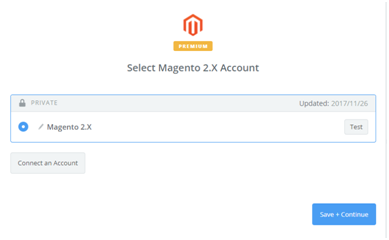
    After generating your Magento 2.x account, the screen will display as following image. Then, choose Save + Continue.

    Great! You have successfully tested Magento 2. Now click on continue  for the next step.

    Step 4: Integrate Zendesk

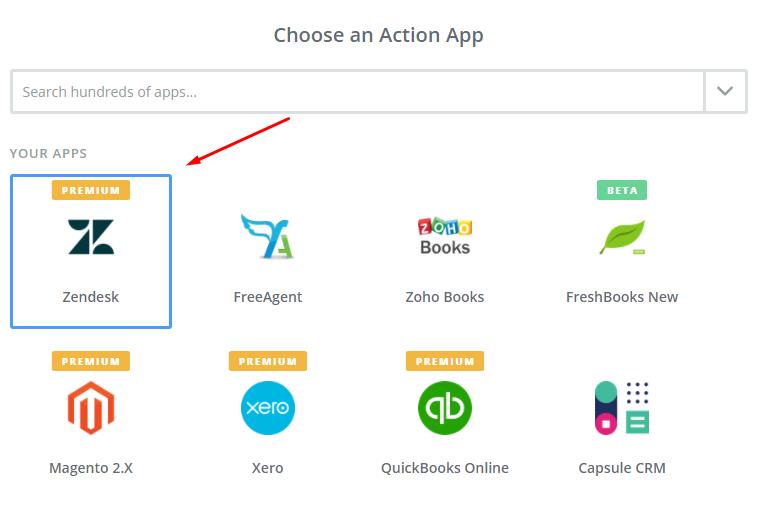
    In Choose an Action App field, choose Zendesk  and click on Continue.

    Then, you have to select one of the options from the drop-down list of Select Zendesk Action  field. After selecting, click on continue.

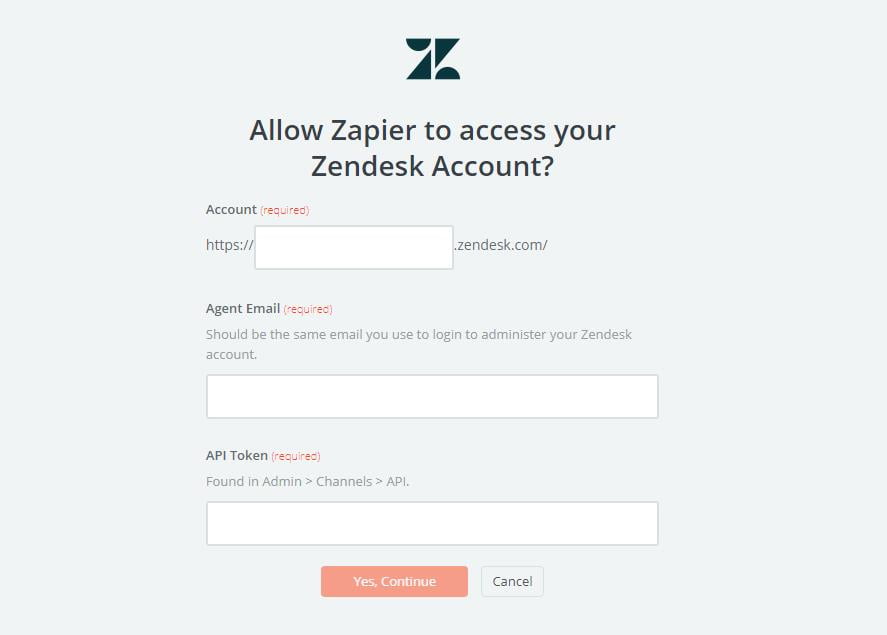
    Next, you have to Select Zendesk account. Please click on Connect an Account.  Then, your screen will display the image as shown below:

    On this step you have to sign in your account and enter API Token  that is found in your Zendesk account. Immediately, your PC will show the account that you have just created. Now, click on Save + Continue.
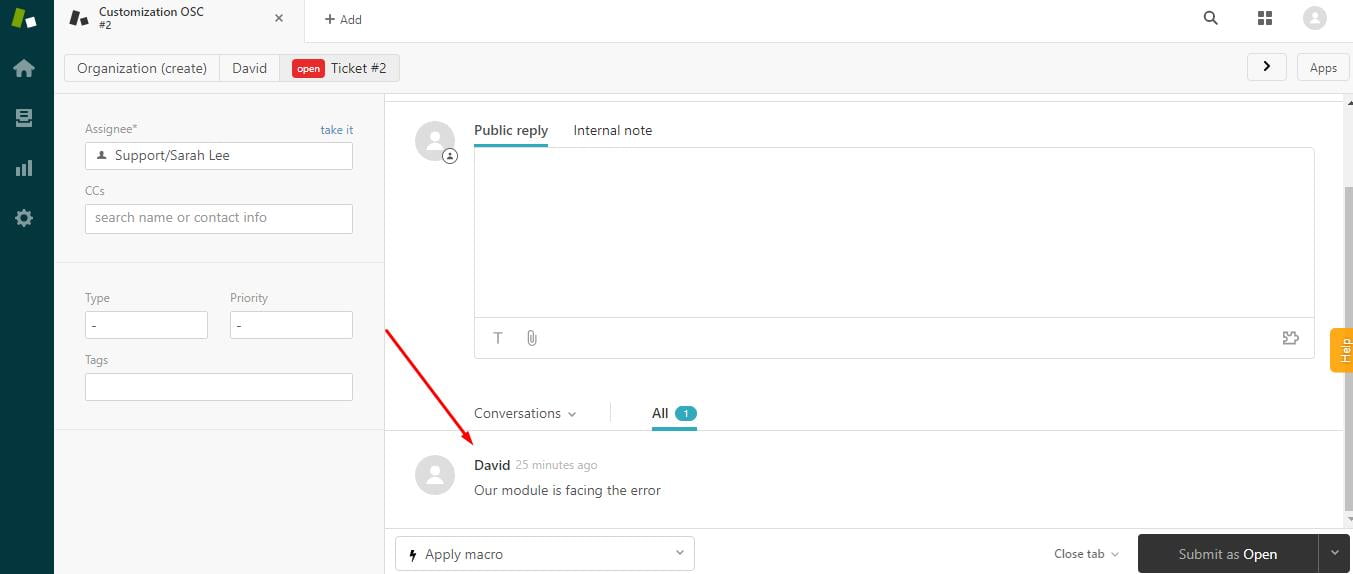
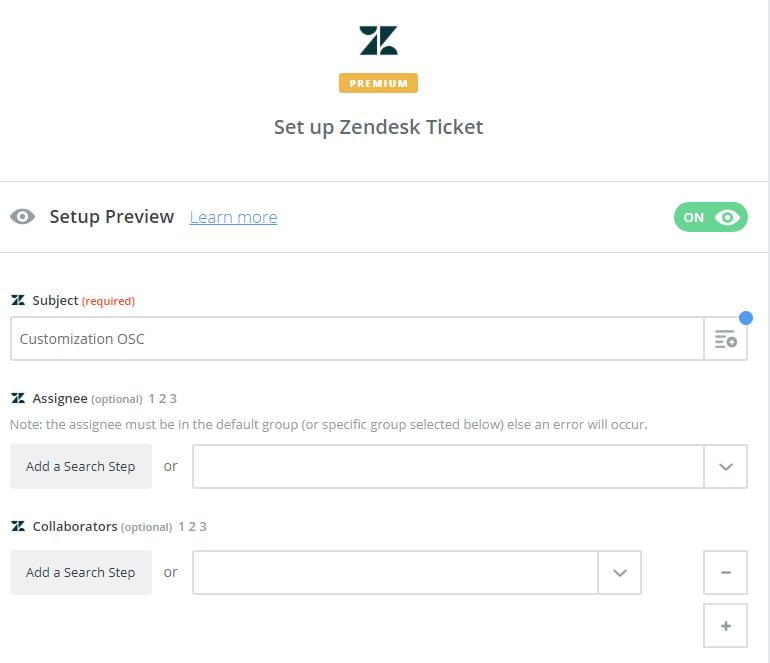
    Next, you must Set up Zendesk ticket.  Here, enter all required information as well as the information of customers such  as Requester Name, Requester Email that you have created from your Magento 2 store, then click on continue  box.

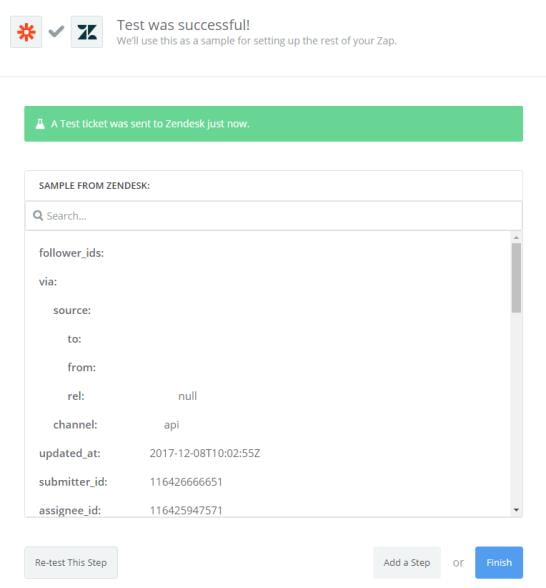
    Perfect, you have tested Zendesk  successfully. Finally, choose Finish  and set the name your zap  to complete.

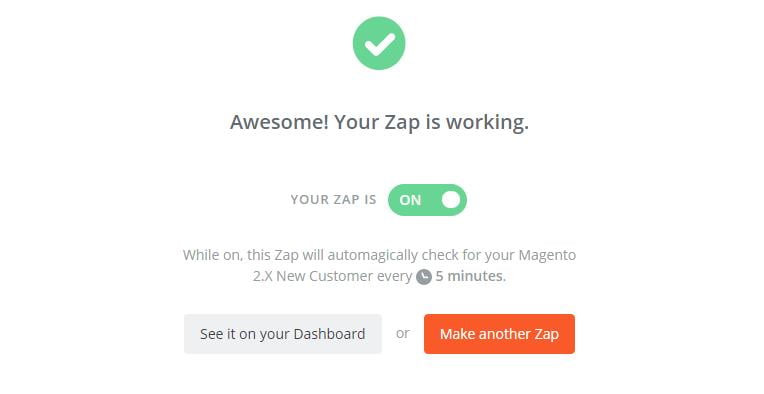
    Your Zap is working and now it will auto-check for your Magento 2.x new customer.

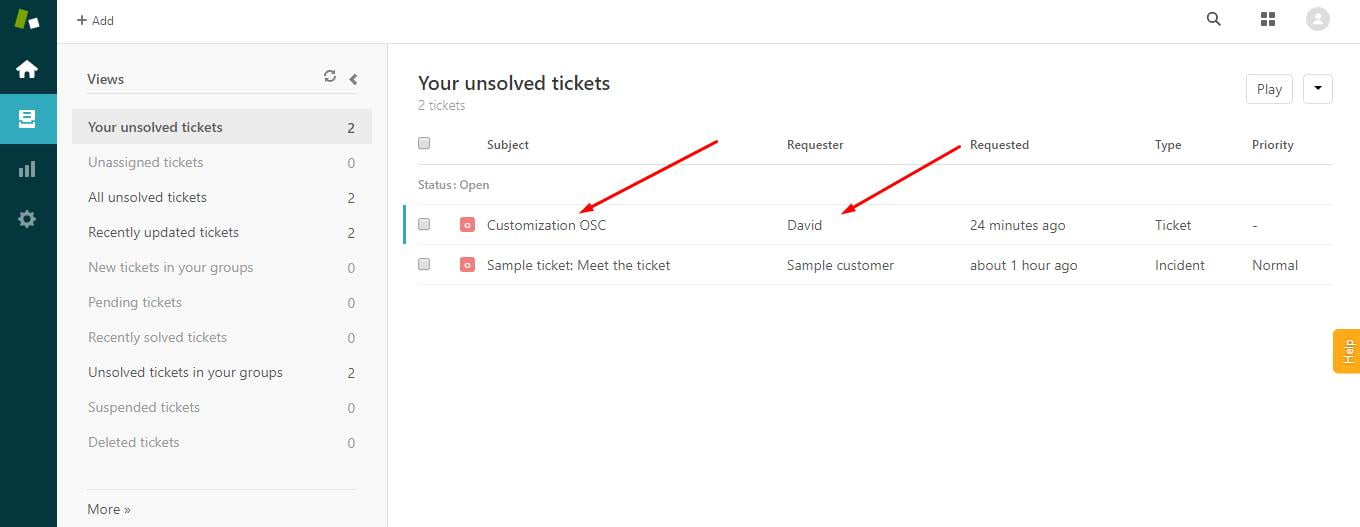
    Great! You have just done the integration Zendesk with Magento 2 via Zapier.

    Now, it’s time for you to take the best use of this software hence do the first thing first which is the integration with Magento 2?

    If you still failed to integrate, then hire Mage Monkeys for the Magento integration service.