We sacrifice by not doing any other technology, so that you get the best of Magento.

We sacrifice by not doing any other technology, so that you get the best of Magento.

    How to get payment related information from order in Magento 2?

    Sometimes we need to get payment information from orders. Today we are going to show you how to get it. When you are using custom payment methods, sometimes, you may require to get payment-related additional details from order in Magento 2.

    Here we get information using object manager

    $orderId = 100;
    $objectManager = MagentoFrameworkAppObjectManager::getInstance();
    $order = $objectManager->create('MagentoSalesModelOrderRepository')->get($orderId);
    
    $additionalInformation = $order->getPayment()->getAdditionalInformation();

    Here we can get information using block

    use MagentoSalesModelOrderRepository;
     
     private $orderRepository;
     
     public function __construct(OrderRepository $orderRepository) {
       $this->orderRepository = $orderRepository;
     } 
     
     public function getOrderAdditionalInfo($orderId)
     {
       $order = $this->orderRepository->get($orderId);
       $additionalInformation = $order->getPayment()->getAdditionalInformation();
       return $additionalInformation;
     }

    That’s it.

    Magento 2 Date of Birth validation issue of customer registration field.

    Please find the validation.js file in the vendor directory.

    vendor/magento/module-customer/view/frontend/web/js/validation.js

    Override validation.js file to your theme.

    Replace the below code

    define([
        'jquery',
        'moment',
        'jquery/validate',
        'mage/translate'
    ], function ($, moment) {
        'use strict';
    
        $.validator.addMethod(
            'validate-dob',
            function (value) {
                if (value === '') {
                    return true;
                }
    
                return moment(value).isBefore(moment());
            },
            $.mage.__('The Date of Birth should not be greater than today.')
        );
    });

    with the below code

    define([
        'jquery',
        'moment',
        'mageUtils',
        'jquery/validate',
        'validation',
        'mage/translate'
    ], function ($, moment, utils) {
        'use strict';
    
        $.validator.addMethod(
            'validate-dob',
            function (value, element, params) {
                var dateFormat = utils.convertToMomentFormat(params.dateFormat);
    
                if (value === '') {
                    return true;
                }
    
                return moment(value, dateFormat).isBefore(moment());
            },
            $.mage.__('The Date of Birth should not be greater than today.')
        );
    });


    How to change default tab in product page in Magento 2?

    In Magento 2, the product detail page’s default name is “Details”

    Let’s say if we want to change this tab name from “Details” to “Product Information”

    What we have to do is to override layout xml file from Vendor to theme.

    We need to create catalog_product_view.xml file in our custom theme on app/design/frontend/Magemonkeys/mytheme/Magento_Catalog/layout  and add below code

    <?xml version="1.0"?>
    <page layout="1column" xmlns:xsi="http://www.w3.org/2001/XMLSchema-instance" xsi:noNamespaceSchemaLocation="urn:magento:framework:View/Layout/etc/page_configuration.xsd">
        <body>
            <referenceBlock name="product.info.details">    
                <referenceBlock name="product.info.description">
                    <arguments>
                        <argument name="title" translate="true" xsi:type="string">Product Information</argument>
                    </arguments>
                </referenceBlock>
            </referenceBlock>
        </body>
    </page>
    

    Now we need to flush the cache and check-in product detail page.

    That’s it.

    CONTACT US to get Magento programming solutions by hiring a certified Magento expert.

    Magento 2 : How to hide whole website product price via plugin method?

    If you want to hide the whole website’s product price and want to make it appear only for login users then this article is a catch for you.

    1. Create file di.xml on app/code/Magemonkeys/Hideproductprice/etc

    <?xml version="1.0" encoding="UTF-8"?>
    
    <config xmlns:xsi="http://www.w3.org/2001/XMLSchema-instance" xsi:noNamespaceSchemaLocation="urn:magento:framework:ObjectManager/etc/config.xsd">
        <type name="MagentoCatalogPricingRenderFinalPriceBox">
            <plugin name="price_hide" type="MagemonkeysHideproductpricePluginHidePriceBox" sortOrder="1" disabled="false"/>
        </type>    
    </config>

    2. Create file HidePriceBox.php on app/code/Magemonkeys/Hideproductprice/Plugin

    <?php
    
    namespace MagemonkeysHideproductpricePlugin;
    
    class HidePriceBox
    {
        protected $_customerSession;
        public function __construct(        
            MagentoCustomerModelSession $customerSession    
        ) {
            $this->_customerSession = $customerSession;        
        }
    	
        function afterToHtml(MagentoCatalogPricingRenderFinalPriceBox $subject, $result)
        {    
        	if($this->_customerSession->getCustomer()->getGroupId()) {
        		return $result;    		
        	}else{
            	return '<h3>PLEASE DO LOGIN AND SHOW THE PRICE</h3>';
            }        
        }
    }

    3. Result

    Magento 2: Add Canonical Url in all pages

    Canonical URL is basically a URL which will help you to let Google and search engine know that your existing page is a copy of the canonical page.

    To add canonical URL you need to put the below code in your theme any of default.xml file

    <head>
    <link rel="canonical" src="https://magemonkeys.com" src_type="url" />
    </head>

    Clear the cache and check the result.

    Magento 2.3.4 – Date showing wrong on invoice

    Please find the Timezone.php file in the vendor directory.

    vendor/magento/framework/Stdlib/DateTime/Timezone.php

    you can find the scopeDate function in that file.

    Replace the below code

    public function scopeDate($scope = null, $date = null, $includeTime = false)
    {
        $timezone = new DateTimeZone(
            $this->_scopeConfig->getValue($this->getDefaultTimezonePath(), $this->_scopeType, $scope)
        );
        switch (true) {
            case (empty($date)):
                $date = new DateTime('now', $timezone);
                break;
            case ($date instanceof DateTime):
            case ($date instanceof DateTimeImmutable):
                $date = $date->setTimezone($timezone);
                break;
            case (!is_numeric($date)):
                $timeType = $includeTime ? IntlDateFormatter::SHORT : IntlDateFormatter::NONE;
                $formatter = new IntlDateFormatter(
                    $this->_localeResolver->getLocale(),
                    IntlDateFormatter::SHORT,
                    $timeType,
                    $timezone
                );
                $timestamp = $formatter->parse($date);
                $date = $timestamp
                    ? (new DateTime('@' . $timestamp))->setTimezone($timezone)
                    : new DateTime($date, $timezone);
                break;
            case (is_numeric($date)):
                $date = new DateTime('@' . $date);
                $date = $date->setTimezone($timezone);
                break;
            default:
                $date = new DateTime($date, $timezone);
                break;
        }
    
        if (!$includeTime) {
            $date->setTime(0, 0, 0);
        }
    
        return $date;
    }

    with the below code

    public function scopeDate($scope = null, $date = null, $includeTime = false)
    {
        $timezone = new DateTimeZone(
            $this->_scopeConfig->getValue($this->getDefaultTimezonePath(), $this->_scopeType, $scope)
        );
        switch (true) {
            case (empty($date)):
                $date = new DateTime('now', $timezone);
                break;
            case ($date instanceof DateTime):
            case ($date instanceof DateTimeImmutable):
                $date = $date->setTimezone($timezone);
                break;
            default:
                $date = new DateTime(is_numeric($date) ? '@' . $date : $date);
                $date->setTimezone($timezone);
                break;
        }
    
        if (!$includeTime) {
            $date->setTime(0, 0, 0);
        }
    
        return $date;
    }


    Image resize through programmatically for only one particular product

    I faced an issue with one particular product that wasn’t generating the cache & resized images. And there is Magento’s default command to generate the catalog images, but it only generates all the product images at that time so that procedure wasn’t an option to choose.

    So to solve the problem, I created one script file on the root of the Magento directory and added the static product id in that script, so it could generate the resized Images as per theme images for that particular product.

    Step 1: Create a resize_image.php on the root directory of Magento and add the below code in the file.

    <?php
    
    /**
     * Script For resize images for a particular product.
     * @author Magemonkeys
     */
    
    /**
     * For Development Purpose (Error Displaying)
     */
    //ini_set('display_errors', 1);
    //error_reporting(E_ALL);
    
    /**
     * If server value is not compatible
     */
    ini_set('memory_limit', '1024M');
    ini_set('max_execution_time', '18000');
    
    /**
     * If your external file is in root folder
     */
    require __DIR__ . '/app/bootstrap.php';
    
    use MagentoFrameworkAppBootstrap;
    
    $params = $_SERVER;
    $bootstrap = Bootstrap::create(BP, $params);
    $obj = $bootstrap->getObjectManager();
    $state = $obj->get('MagentoFrameworkAppState');
    $state->setAreaCode('frontend');
    
    /**
     * Start Script Execution Time
     */
    $time_start = microtime(true);
    
    /**
     * Declare objects using ObjectManager
     */
    $objectManager = MagentoFrameworkAppObjectManager::getInstance();
     
    $resizeImage = $objectManager->get('MagentoMediaStorageServiceImageResize');
    
    $product_id=20;
    $objectManager = MagentoFrameworkAppObjectManager::getInstance();
    $_product = $objectManager->get('MagentoCatalogModelProduct')->load($product_id);
    
     
    $galleryImages = $_product->getMediaGalleryImages();
     
    if ($galleryImages) 
    {
    	foreach ($galleryImages as $image) {
    		$resizeImage->resizeFromImageName($image->getFile());
    	}
    }
    

    Now, you have to run this file through a browser e.g. http://example.com/resize_image.php and you can see that all the images of that product are resized as per the theme images.

    How to create cron job in Magento 2?

    Cron job is one type of feature in magento 2. The cron job will create a command or a script that is appropriate with the task you want to do. Instead of manual working, the cronjob allows running automatically at time and we can perform some code based on cron job

    Module name : Magemonkeys_Magecron

    for we can create crontab.xml in moduleapp/code/Magemonkeys/Magecron/etc/crontab.xml

    <?xml version="1.0" ?>
    <config xmlns:xsi="http://www.w3.org/2001/XMLSchema-instance" xsi:noNamespaceSchemaLocation="urn:magento:module:Magento_Cron:etc/crontab.xsd">
    	<group id="default">
    		<job instance="MagemonkeysMagecronCronMycron" method="execute" name="magemonkeys_cron_mycron">
    			<schedule>* * * * *</schedule>
    		</job>
    	</group>
    </config>

    also here we have explain schedule start based an above code

    *   *  *  *  * command to be executed
    |  |  |  |  |
    |  |  |  |  +—– Day of week (0 – 7) (Sunday=0 or 7)
    |  |  |  +——- Month (1 – 12)
    |  |  +——— Day of month (1 – 31)
    |  +———– Hour (0 – 23)
    +————- Minute (0 – 59)

    and create Mycron.php file in module with relevant location app/code/Magemonkeys/Magecron/Cron/Mycron.php

    <?php
    namespace MagemonkeysMagecronCron;
    class Mycron
    {
        public function execute()
        {
    	$writer = new ZendLogWriterStream(BP . '/var/log/mycron.log');
    	$logger = new ZendLogLogger();
    	$logger->addWriter($writer);
    	$logger->info(__METHOD__);
    	return $this;
        }
    }

    after that cache flush and check

    If cron is not install in magento 2

    php bin/magento cron:install

    and then run cron

    php bin/magento cron:run

    Now you can check your cron schedule
    that’s it.

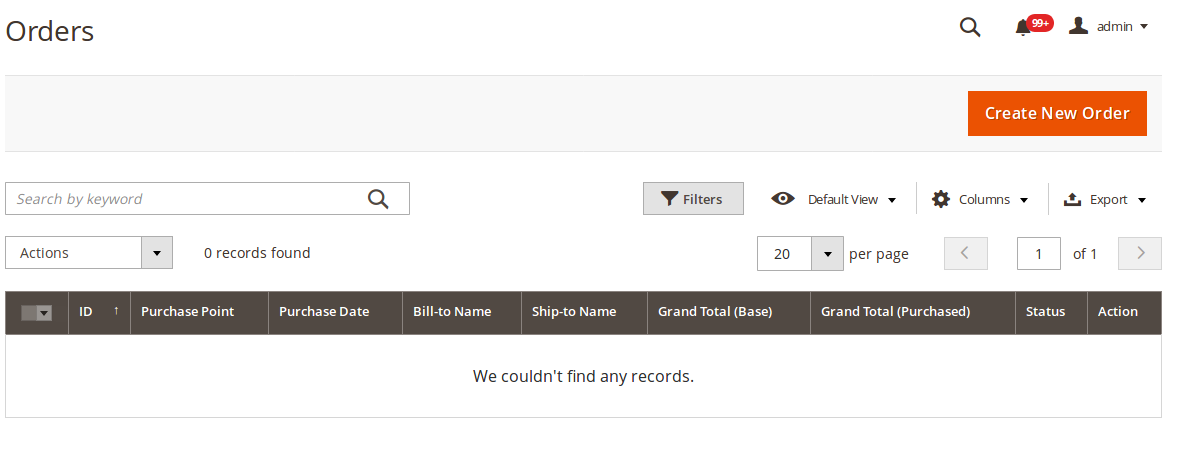
    Magento 2 Sales orders not displayed in admin panel sales order grid.

    Sometime after migration,  you will see that orders data is not displayed in the Magento admin sales grid.  Also, newly placed orders not showing in the sales grid.

    Screenshot :
    Please follow the below settings to fix this issue :

    Disable Asynchronous indexing under Store > Configuration > Advance > Developer > Grid Settings

    Clear the cache and you are done!

    Please share your thoughts if this article helpful to you.

    Thanks.